⭐ If you would like to buy me a coffee, well thank you very much that is mega kind! : https://www.buymeacoffee.com/honeyvig Hire a web Developer and Designer to upgrade and boost your online presence with cutting edge Technologies
Showing posts with label Drupal. Show all posts

Tuesday, November 15, 2022

The Accessibility And Usability Journey Of Drupal’s Primary Navigation


A website’s primary navigation is critical to its usability and accessibility. However, navigation systems are deceptively complicated. All but the simplest websites have to deal with this.

With version 9.4, Drupal has a brand new default theme called Olivero. Being the default, we knew its navigation system would be used by hundreds of millions (if not billions) of users throughout its lifetime. And of all the things that we are proud of with Drupal’s new theme, the navigation system tops the list. An enormous amount of testing, bug fixes, and care went into it.

Usable, Accessible, Robust, And Beautiful #

When we started creating the theme, we knew it needed to be usable, accessible, robust, and beautiful. All of these goals pose significant challenges.

For usability, we wanted to include second-level navigation drop-downs similar to many sites on the internet. These second-level navigation drop-downs need to open on hover, click, and touch.

Accessibility is a Drupal core gate. We knew it must meet or exceed WCAG 2.1 AA standards. More than just meeting the standards, we want our theme to be a delight to navigate for those who need to use assistive technology.

And, because we don’t control the content, the menu system needed to be very robust. We don’t know if the content editors will enter one item or hundreds! We don’t have control over the length of the text. We also support internationalization, which includes supporting right-to-left languages such as Arabic.

On top of this functionality, the menu also needed to be beautiful. Our designers did an amazing job mocking it up, and then we integrated some basic CSS transitions to add a slight fade-in, vertically transformed animation.

Creating The Markup For Our Menu #

Olivero’s menu starts with a standard <nav> element. We add an aria-labelledby attribute pointing to the ID of a visually hidden (but accessible to screen readers) h2 element. This communicates the navigation name to people using screen readers so they can differentiate the different navigation elements. It also enables users to find this menu if they navigate by headings.

Menu items rely on a modified link disclosure pattern when using hyperlinks as the top-level navigation item.

Note: Drupal can also use a <button> element as the top level item.

This pattern injects a <button> element after the hyperlink. Within Olivero, we style the button with a “down chevron” icon.

Menu showing hyperlink with adjacent button element, with a drop menu beneath
Link disclosure pattern (Large preview)

The button has aria-controls (mapped to the ID of the nested <ul>) and aria-expanded attributes that are initialized with JavaScript. If the site is loaded without JavaScript, the buttons become purely presentational.

This button contains visually hidden text with the menu item’s text, followed by “sub-navigation.” This is so people who tab between form controls can understand what submenu the button controls.

<nav aria-labelledby="block-olivero-main-menu-menu">
  <h2 class="visually-hidden" id="block-olivero-main-menu-menu">Main navigation</h2>
  <ul>
    <li>
      <a href="/">Webforms</a>
      <button aria-controls="primary-menu-item-12" aria-expanded="false">
        <span class="visually-hidden">Webforms sub-navigation</span>
      </button>
      <ul id="primary-menu-item-12">
        <!-- Submenu items -->
      </ul>
    </li>
    <!-- More top-level navigation items here. -->
  </ul>
</nav>
More after jump! Continue reading below ↓

Desktop Menu Features #

Opening The Desktop Submenus #

The submenus open on hover, click, and tap. However, we need to ensure that these events don’t fire simultaneously (like they can on touch devices) because if the menu instantaneously opens and closes, it’ll seem like nothing has happened! We also need to consider assistive technology like point-scanning tools that may trigger both events in rapid succession.

MacOS pointer scanning tool in action (speeded up).

To accommodate all of this, we listen for a touchstart event and, if present, skip the mouseover event processing. If and when the mouseover event processes, we disable the click event from doing anything for half a second. And finally, when the click event processes, we show the submenu. The logic gets a little complicated, but it’s usable with any assistive technology.

Closing The Desktop Submenus #

The submenus need to close when certain conditions are met:

  • If the Escape key is pressed, the submenu will close, and the focus will return to the parent item.
  • If a mouseout event occurs, the submenu will close unless focus is contained within the submenu.
  • Similarly, the submenus will close on the blur event to ensure that the submenus cannot obscure one another (and potentially violate the WCAG 2.4.7 focus visible success criterion).

Accommodating Large Amounts Of Menu Items #

Because the theme can’t control how many menu items the user enters, we have to accommodate an unlimited amount. We built an option to turn on the mobile menu (which can accommodate unlimited items) at all screen widths. But there is still the edge case where there may be enough items at medium widths to trigger the menu to wrap or overflow.

Wrapped menu with too many items
Menu is wrapping because it has too many items on a narrow viewport. (Large preview)

To accommodate this, we switch to the mobile menu when the primary menu runs out of space. To do this, we set a resize observer to trigger a check to see if the text is wrapped. If it is, we enable the mobile menu and remember when to transition back to the desktop version (if the viewport is enlarged).

const navMenu = document.querySelector('.primary-nav');
const navItem = navMenu.querySelector('.primary-nav__menu-item');

function checkIfDesktopNavigationWraps() {
  if (isDesktopNav() && navMenu.height > navItem.clientHeight) {
    enableMobileNav(); // Enable the mobile navigation.
    // Remember when to switch back to desktop navigation.
    const navMediaQuery = window.matchMedia(`(max-width: ${window.innerWidth + 15}px)`);
    navMediaQuery.addEventListener('change', () => {
      // Double check to see if the navigation is wrapping to prevent edge
      // cases where the mobile menu should still be enabled.
      if (navMenu.clientHeight > navItem.clientHeight) {
        disableMobileNav(navMenu, navItem);
      }
    }, { once: true });
  }
}

const resizeObserver = new ResizeObserver(checkIfDesktopNavigationWraps);
resizeObserver.observe(navMenu);
A screenshot with a mobile menu enabled
Much better. The mobile menu is now enabled because the desktop navigation could not accommodate all of the menu items. (Large preview)

Make Sure Submenus Cannot Overflow The Viewport #

Olivero’s menu is fixed to the top of the viewport. Fixed menus can create a problem if the viewport is shorter than the longest submenu — the user will never be able to scroll to access the items at the end. This inability to access items at the end of the menu creates another failure of WCAG 2.4.7 Focus Visible.
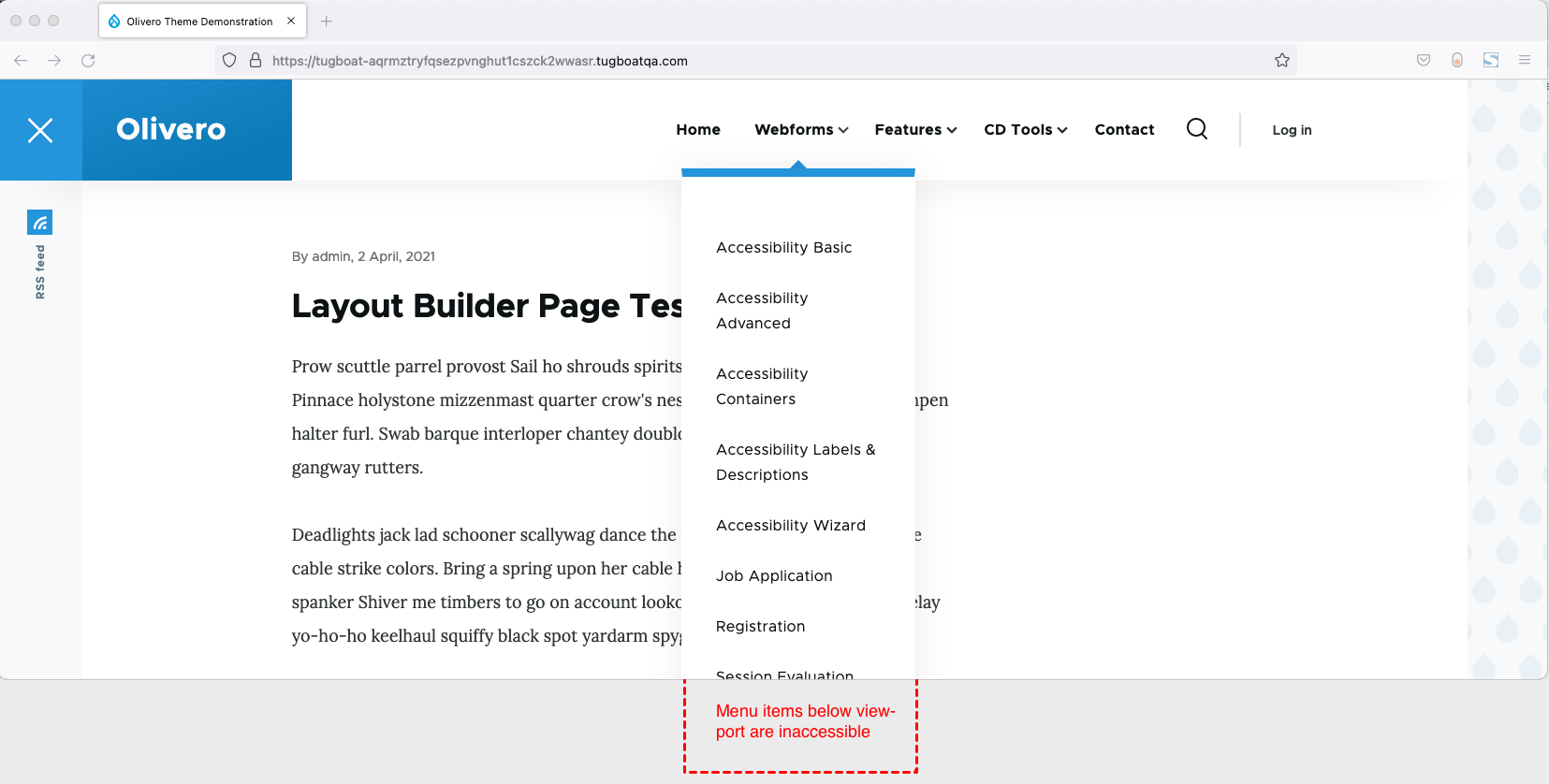
A screenshot where the long menu items are inaccessible below viewport
With a fixed header, and short viewport, the long menu items are not reachable by scrolling or tabbing. (Large preview)

We solve this by calculating the height of the header and setting max-height and overflow: auto on the submenu.

.submenu {
  max-height: calc(100vh - var(--header-height));
  overflow: auto;
}

With these styles in place, the menu will never grow larger than the viewport height, and the browser will make the submenu scrollable only if needed. If the user tabs to the bottom of the submenu, the browser will automatically scroll the content into view.
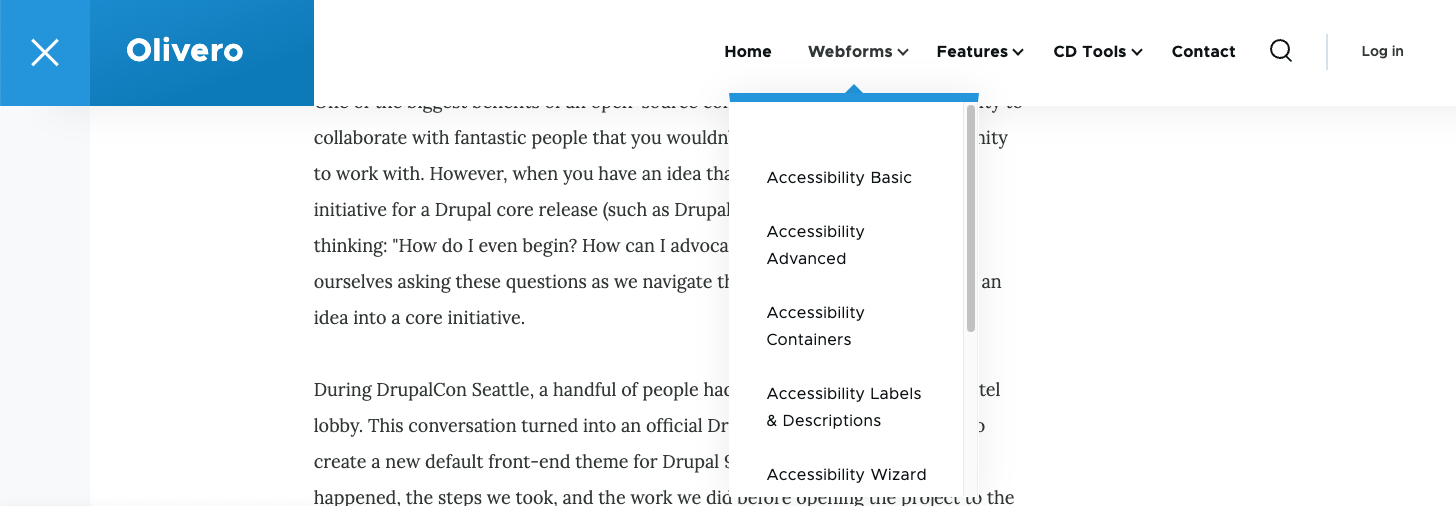
A screenshot where the submenu has a scrollbar
With the styles applied, the submenu gets a scrollbar if the content is larger than the viewport height. (Large preview)

Non-JavaScript Support #

Because Drupal renders its markup on the server, we have the opportunity to support devices where JavaScript is disabled. To make this happen, we enable :hover and :focus-within on the parent menu item.

body:not(.js) .menu-item:is(:hover, :focus-visible) .menu-level-2 {
  visibility: visible;
}

Mobile Menu Features #

Olivero’s mobile menu functions much as you’d expect. It does not react to hovers, but the aria attributes stay the same.

Olivero’s mobile navigation
(Large preview)

The mobile navigation is activated by a <button> element hidden at desktop widths. This button also contains aria-expanded and aria-controls elements with the appropriate values.

Clicking the button opens the menu, and you can close the menu by clicking (or tapping) outside the menu. In addition, the Escape key will close the menu and set the focus back to the mobile menu button.

Handling Focus Inside The Menu #

Olivero’s mobile menu superimposes itself over the content of the page. This can create an accessibility issue if the content hidden by the menu gains focus.

To work around this, we create a “focus trap” within the menu and its close button. This ensures that if a user is navigating the site via keyboard, they can’t gain focus outside the menu.

We ran into a real-world situation where the user entered an anchor link within the menu. Once clicked, the site would scroll down to the page, but the menu would still be open.

To fix this, we add some JavaScript that closes the mobile navigation if the target link is an anchor.

// If hyperlink links to an anchor in the current page, close the mobile menu after click.
navWrapper.addEventListener('click', (e) => {
  if (e.target.matches(`[href*="${window.location.pathname}#"], [href^="#"]`)) {
    closeNavigation();
  }
});

Support For The Mobile Menu Without JavaScript #

To support the mobile menu without JavaScript, we need to display the menu without having to press the open menu button (which we hide since it doesn’t work without JavaScript).

To prevent a flash of the non-JavaScript menu on page-load, we included the non-JavaScript stylesheet within a <noscript> tag within the <head>. This means the browser won’t process these styles unless JavaScript is disabled.

Focus Styles And Forced Colors #

Focus Styles #

The Olivero theme has very robust focus styles that fit into the look and feel of the theme. Focus styles are an extremely important aspect of accessibility that we didn’t want to neglect.
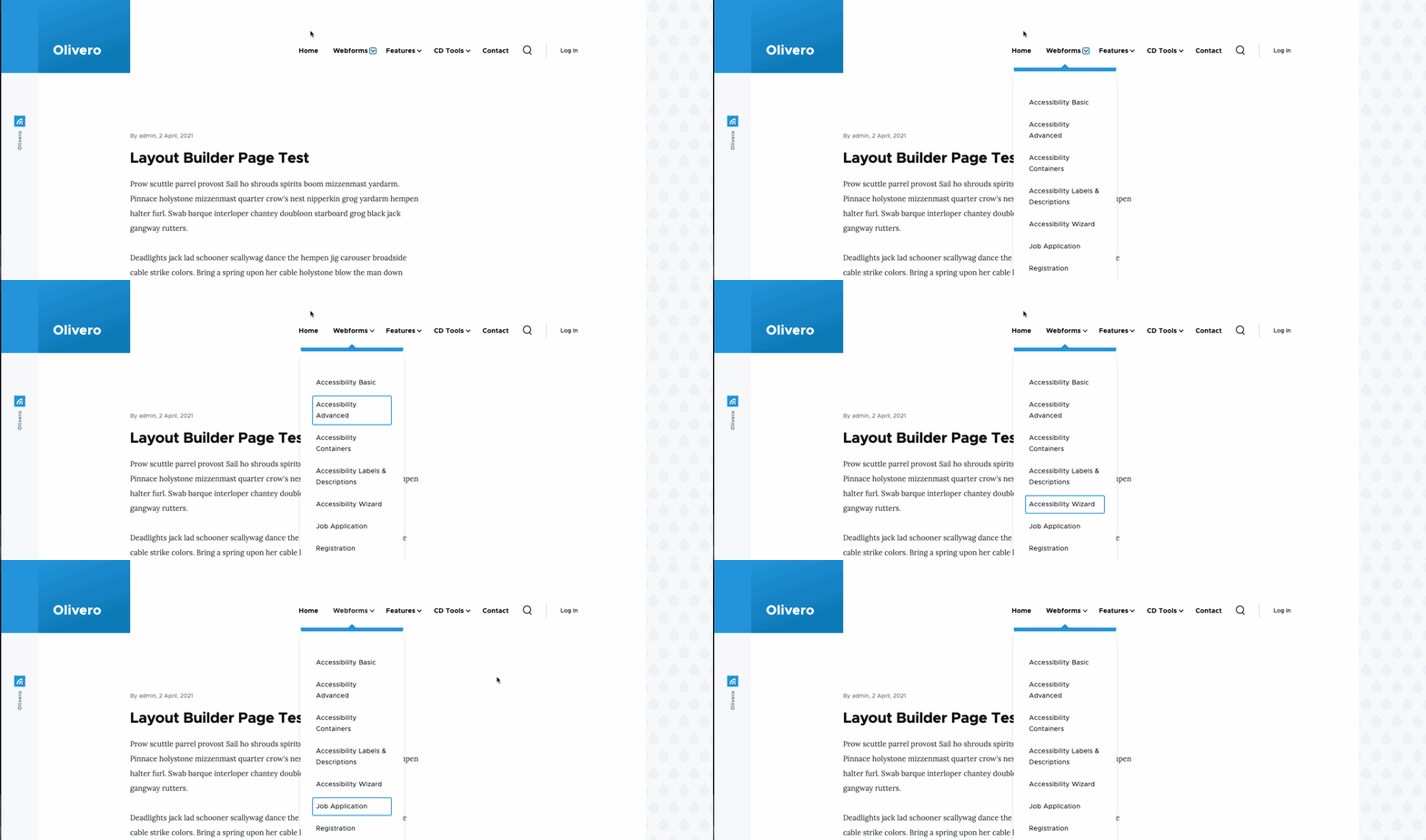
Focus Styles
(Large preview)

Forced Colors Mode #

The Olivero theme and its navigation system are extensively tested in forced colors using Windows high-contrast mode. In addition to Microsoft Edge, we also do testing in Chrome and Firefox. We also tested it in multiple high-contrast color schemes, including light-on-dark, dark-on-light, and a few custom schemes we created.
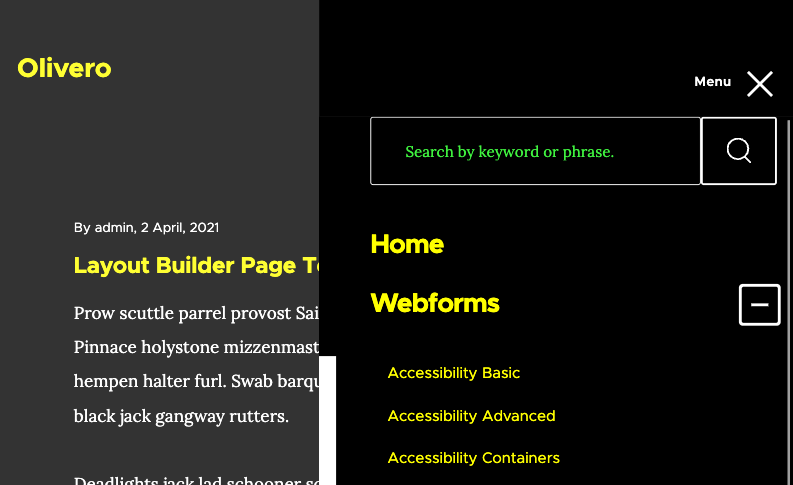
Forced colors mode
(Large preview)

All icons are either created using borders (which become apparent when in forced colors) or use the forced-colors: active media query to ensure it’s visible in any color scheme. In addition, we use the CanvasText system color to set the overlay’s background color, which provides a visual boundary to the mobile menu.

Accessibility Is A Journey #

To meet our requirements, we extensively tested Olivero on various devices and assistive technology. We also worked with the National Federation of the Blind to do additional screen reader testing. Along the way, we learned a lot of lessons and techniques to ensure Olivero’s navigation system is usable for all people using any kind of device.

That all being said, accessibility is a journey. There are undoubtedly remaining accessibility issues that will pop up throughout the lifetime of this theme, and we will fix those when they occur. The code is free open source GPL (the examples above are simplified), and we hope that you can benefit from these lessons to improve navigation systems across the web 💙!

Wednesday, January 18, 2012

Build a job listings website with Drupal

Build a job listings website with Drupal
  • Knowledge needed: Basic web development and server administration
  • Requires: Server (either local, shared, virtual, dedicated), Drupal, Ctools module, References module, Views module

Its learning curve is notorious but this article argues that Drupal is not that fearsome, and demonstrates how you can use it to build a job board

Drupal is often regarded as having a steep learning curve. But it isn’t really so steep and, once you’re over it, it’s a great tool for building many different types of sites.
The popular CMS powers some of the world’s biggest and smallest websites including those of The White House, the Foo Fighters and even .net's very own site that you're on right now.
The latest version, 7, has an improved administrative interface, aimed more directly at site builders and content editors, which makes daily tasks easier to find and carry out. Since its release in January, the software has gained popularity and many more companies have started using it, including Examiner, Acquia and Subhub.
In this tutorial, we will look at how to use Drupal 7 to build a fictional job listing website. The site will enable users to log in, create a company page and job pages.
When creating a company, the user will be able to enter its location into a separate field. A job can then be created and tied to a company via a select list listing all the companies on the site.
We’ll generate multiple lists of the jobs and companies to show the companies, available jobs and jobs at a specific company.

1. Downloading Drupal

To get started with Drupal go to drupal.org/start. Here you’ll see a Download Drupal 7 link. This link will take you through to another page with all the versions of Drupal. Click the .tar.gz or .zip link for the latest recommended Drupal 7 release.

2. Getting set up

Now you have Drupal you’ll need to untar or unzip it. Place the contents of the Drupal folder into the root directory of your server. You’ll also need to create a database that Drupal can use. Make sure there is a user who has the right permissions to access this database.

3. Connecting to the database

The next stage is to navigate to the URL in which you’ve placed your Drupal installation. Select Standard, enter your database details, then click the Save and continue button at the bottom of the page.

4. Creating the site and user 1

On this screen,we’ll be adding the basic site information, ie site name and email address. Also we’ll be creating the site maintenance account so that the first user (known as user1) has full permissions to administer the site.

5. Downloading the modules

As well as Drupal 7’s modules we’ll be using three others. Download cTools, References and Views, unzip them and put them in the sites/all/modules directory of your site.

6. Enabling the modules

You should be logged in following installation – if not, log in as the user you created. Click modules on the admin bar to view the modules screen. Check the cTools, Node Reference, References, Views and Views UI modules, then click Save configuration.

7. Creating content type

Click Structure on the top bar. Select Content types. Click Add content type. Put Company in the name field and a description in the description box. Untick the checkbox under Display settings. Set Comment settings to hidden. Click Save and add fields.

8. Adding the company fields

As an example, we are going to add a text field for the company’s location. Add location as the label and the name. Select Text as the field and Text field as the widget. Click Save on this screen and on the next two screens – the default settings are fine.

9. Creating the Job content type

Click Structure, Content types, then Add content type again to create the Job content type. Enter Job in the name field and a description in the description field. Again, untick the checkbox under display settings and change the Comment settings to hidden. Then click Save and add fields.

10. Adding the job fields

Enter Company as the label and the name. Select Node reference as the field and Select list as the widget. Click Save. On the next screen tick company, to tell the field only to display companies. Click Save field settings then Save settings on the next screen.

11. Views

Click Structure > Views > Add new view. Enter Companies as View name. Select Show Content of type Company sorted by Title. Tick Create a menu link & Include an RSS feed. Click Continue & edit. Change Content: title to sort ascending, click Apply > save.

12. Create Company’s Jobs block

Go to Structure > Views > Add new view again. Enter Company’s jobs into the View name field, select Show ‘content’ of type ‘Job’ sorted by ‘Newest first’, untick Create a page and tick Create a block. Then click Continue & edit.

13. Adding contextual filters

Click Advanced to open more settings. Click the Add button next to Contextual filters. Tick Fields: Company (field_company) – nid then click Add and configure contextual filter. Click Provide default value. Choose Content ID from URL. Click Apply. Click Save.

14. Add Company’s Jobs to Company’s page

Click Structure then Blocks to view the page that lists your site blocks. Move the companys-jobs: Block row up to Sidebar second section and click Save blocks. Go to your company pages to see the block listing the jobs available.

15. Create Jobs listings view

Click Structure > Views > Add new view to create another view. Enter Jobs in the View name field, select Show ‘content’ of type ‘Job’ sorted by ‘Newest first’. Tick Create a menu link and Include an RSS feed. Click Save & exit.

16. Add job listing to the homepage

Click Configuration in the top menu, then Site information on the next screen. This will open a general site settings screen. Under Default front page remove node from the field and add jobs. Then click Save configuration at the bottom.

17. Adjusting menu items

Now that we’ve got the Jobs page on the main menu, we don’t need the menu’s default Home link because the Jobs page is our homepage. Click Structure then Menus on the next screen. Click List links next to Main Menu. Click delete next to Home.

18. Adding menu items

Go back to Structure, Menus and click Add link next to User menu. On the next screen enter Add company as the Menu link title and node/add/company as the Path. Click Save. Repeat this for Add job with the path node/add/job.

19. Setting permissions

Click People on top menu. Now click Permissions tab on left. Under Authenticated user, tick Company: create new content, Company: edit own content, Job: create new content, and Job: edit own content. Click Save permissions.

Saturday, October 22, 2011

How Drupal CMS stands above the rest


As a site developer, web designer or site administrator, you’ve probably had to go through the process of choosing between platforms. But maybe not recently—if you’ve been designing and developing web sites for very long, chances are you’ve already got your favorite go-to platform that you always use. And if your go-to content management system isn’t already Drupal, maybe it’s time to take another look.
The downside is, Drupal is huge. There is a steep learning curve and it can be a full-time job just looking through all the contributed modules to find exactly what you’re looking for. It is not a happy-go-lucky, “set it up right out of the box” platform.
But the upside to all of this is, Drupal is huge! There is nothing you can’t do with Drupal. Want to run a blog? Done. Want to run a blogging community? Done. Share links and photos, run classified ads, show Twitter updates and statuses, sell products, upload and share files, play movies, even manage a wiki? Done, done, done, done and done!
At the risk of sounding trite (and please forgive this slightly over-used phrase)…Drupal is as Drupal does…And Drupal does it all. So what makes Drupal stand out so much? Many things, but we’re going to focus on just the most important aspects right now..


19 Sep


As a site developer, web designer or site administrator, you’ve probably had to go through the process of choosing between platforms. But maybe not recently—if you’ve been designing and developing web sites for very long, chances are you’ve already got your favorite go-to platform that you always use. And if your go-to content management system isn’t already Drupal, maybe it’s time to take another look.
The downside is, Drupal is huge. There is a steep learning curve and it can be a full-time job just looking through all the contributed modules to find exactly what you’re looking for. It is not a happy-go-lucky, “set it up right out of the box” platform.But the upside to all of this is, Drupal is huge! There is nothing you can’t do with Drupal. Want to run a blog? Done. Want to run a blogging community? Done. Share links and photos, run classified ads, show Twitter updates and statuses, sell products, upload and share files, play movies, even manage a wiki? Done, done, done, done and done!
At the risk of sounding trite (and please forgive this slightly over-used phrase)…Drupal is as Drupal does…And Drupal does it all. So what makes Drupal stand out so much? Many things, but we’re going to focus on just the most important aspects right now..
WordPress Themes

Views

First… Views. I could almost just stop right here. No other platform offers your site the power and flexibility that Drupal does through Views.

For those of you not already well-versed with Views and all its glory, let me explain it to you. In a nutshell, Views allows you the chance to define how you want the content on your site to be displayed. But that’s not all. Thanks to the powers that be at the Views project, Views allows you to query your Drupal database for the content and define and solidify exactly how you would like to display the content retrieved from the query… all without having to write the SQL queries yourself. And with the even more simplified administrative interface offered by Drupal 7, building Views has now become streamlined. A basic View – say, showing a list of all the products on your site – can be set up, configured, and saved in two or three minutes.
More complicated Views will take a little longer to set up and configure—for example, maybe 15 minutes to set up a list of all your members as an exposed proximity search by zipcode.

If I never have to write another SQL query, I will die a happy web designer! Even if you love SQL, who wants to spend unnecessary time on repetitive tasks? Views helps you stay focused on the important parts of your project.

Custom Content Types

Next, Custom Content Types. The Content Construction Kit (CCK) has been around for, well, forever. CCK was a contributed Module for Drupal 4, 5 and 6, but now with Drupal 7 most of CCK has been added to Drupal Core.
The Content Construction Kit does, pretty much, what it says in its name—it’s a kit to help you construct various types of content. Thanks to CCK, you can have thirty different types of content and each one can be glorious and different from all the others. For example, you can have real estate listings in which there are fields to input things like square footage and the number of bedrooms. Or you can have auto listings that need a whole separate set of fields. Here’s an example of various content types in action:

It just doesn’t get much more flexible or easy than this.

Powerful SEO Tools

Third, Search Engine Optimization galore! It would probably take me ten articles to describe to you the top ten ways that Drupal rocks SEO…and even then I couldn’t get into any real detail or address every aspect of the power behind Drupal’s SEO capabilities.
Everyone knows about how important it is to optimize content for SEO, and add in things like keywords and meta tags. And Drupal gives you the power to do this. But Drupal goes even further by offering you full control over your URL structures, page titles, and even power over caching tools.
Plus, integration with other SEO tools such as Google Analytics is easy to do and highly configurable. Want to track your members but not your moderators? It can be done! All from within Drupal, all without manual programming… And all for free.
I have two words for this…Rock On. By radically simplifying this side of things, Drupal helps increase the value of the services you can provide to your clients – all in a pain-free way.

Versatile Theming System

Fourth, Drupal’s theming system is extremely versatile – and perfect no matter your level of experience.
For new users, Drupal offers a slew of free themes that are ready for you to use right out of the box. And we aren’t talking about bottom-of-the-barrel themes that will make your site look like it’s been built with a free theme. We’re talking beautiful, professional themes that will give your site a clean, professional look without much work from you at all. Check out these examples:
Changing the look of your Drupal site is as easy as uploading your theme to your server, and clicking on a link in your site’s theme administration system:

For more experienced users looking for an option somewhere between building a custom theme and using one of the available free themes, Drupal also offers a collection of starter themes that will provide you the basic building blocks—allowing you to further customize and build your theme on top:
And for you experts out there, Drupal has provided you with a thorough explanation of their theming system, including basic page templates, hooks, functions and classes.
Taxonomy and Unicorns (well, maybe)
Fifth is the magic of taxonomy. Okay, so taxonomy isn’t actually magical (it’s the science of classification)—but it might as well be. Through Drupal’s taxonomy system, you can build a seemingly limitless hierarchy of keyword-rich terms that will help you classify and categorize your content.
From there, you can even build menus, pages, and Views that center on this taxonomy. Each Vocabulary on your Drupal site can be as strict (select a term from the given list) or as free (type in a term) as you like. Powerful organization and easy management is magical, right?

User Management and E-Commerce

Next is the sheer power and flexibility offered by Drupal’s user management capabilities. You have absolute control over everything, including registration, member profiles, content access controls and role assignments. You can allow or restrict inter-member communications as much or as little as you like – from full-blown community sharing to simple forum discussions or messaging.
Let’s not forget e-commerce…Drupal has several options available for your e-commerce site, including the ever-popular Ubercart and, of course, the creatively-named Ecommerce.
Create and control inventory, offer shipping quotes, calculate taxes and handling fees, accept payments from any of several payment gateways…The sky is truly the limit. No need to find a third-party resource to list and sell your products; it can all be done from within your site.

Awesome Community

And finally, Drupal’s awesome community of developers, themers, programmers and overall support sets this content management system apart.
First, the centralized repository for Drupal modules helps ensure that the support queues and version control are handled in a more universal way and remain GPL compliant. (Don’t know what GPL compliance means? Basically, it means you won’t have lawyers breathing down your neck!) If you happen to be a developer of one of the many (many, many…many) contributed modules on Drupal, you can be assured that your module will get a high level of exposure and be thoroughly vetted by the Drupal community.
And, Drupal has been around a long time—which is a huge benefit for a number of reasons. It’s stable and it works; its longevity already proves that. But, let’s be honest: other CMS platforms can boast the same thing. But can everyone else also boast that they have never forked or branched out? The Drupal community works together: programmers work in hand with writers to bring you the documentation area, guides, and handbooks; developers of one module work together with the developers of other modules to help design better integration. And they do it in such a way that allows your online presence to continually grow and expand without ever having to hack into the core modules. And who wants to hack into the core of anything?
While we’re on the topic of community and universal handling of modules, I should note how easy it is to hand off a Drupal-based project, or get a new developer on a project up to speed. I know… as a business owner you would never have to fire your existing site developer and, likewise, as a site developer you would never leave your client. You are both mutually awesome and work together perfectly.
But, in the chance that I am wrong and you do find yourself someday in a predicament where you’re looking for someone to continue the work for a site being developed, almost anyone trained in Drupal can handle that for you without worry. There’s no need to feel like you’re stuck with a platform that no one else can learn or understand. Also, if your project takes off and you need more help, you can get a new developer going in almost no time.

Conclusion

In short, if you’re looking to build a simple site with anywhere from six to twelve pages that aren’t going to be updated all that frequently, then Drupal is probably over-kill. But if you’re looking to build a robust site with infinite possibilities for expansion and growth, Drupal is an absolute must.
If you’re a brand-new beginner within the world of Drupal, you may find Drupal a little harder to pick up than most other CMS platforms.
With great power and flexibility comes a steeper learning curve; unfortunately, there’s not much that can be done about that. But if you stick with it, use the support queues and forums to gain help as needed, and truly experience all that Drupal has to offer, you’ll find yourself wondering why you didn’t try Drupal earlier.

Do you use Drupal for your own projects? Why or why not? Let us know in the comments!

Saturday, May 21, 2011

How to Evaluate What CMS to Use

Content Management Systems (CMS) have evolved into more than just publishing content, but managing your workflow as well. CMS’s nowadays allow you to easily conceive, edit, index, and publish content, while giving designers and developers more flexibility in customizing their look and functionality. Although there are many that require advanced skills to operate successfully, this article is going to cover a select few that offer a balance between design, code, and end-user usability.

How to Evaluate What CMS to Use

This article will help you make an informed decision on what CMS is right for you.
Evaluating Content Management Systems

Evaluating content management systems can be an overwhelming task, not because it’s rocket science, but simply because there are tons of them to choose from. However, with a structured approach to your evaluation, things can be much easier and less intimidating. Let’s talk about the things you should look at when deciding what CMS to use; here are eight characteristics that a good CMS should have.
1. Intuitiveness: easy to understand and use

Your CMS should have a GUI (Graphical User Interface) that’s easy on the eyes, doesn’t have overly complicated options, and offers simplicity in its administration interface. A good interface means that tasks pertaining to creating and managing your content will be quicker, saving you a lot of time and increasing your productivity.

You should also look at it from an end user’s perspective: if you’re building a content management system for a client who’s not "technology-savvy" and you choose a solution that requires a Ph. D. in computer science, it’s less likely that they’ll be able to use the system (thus, defeating the whole purpose of a CMS, which is to empower its users).
2. Flexibility and Ease of Customization

Flexibility and Ease of Customization

When taking into consideration a content management system, make sure that you’re not obligated to use their design templates. A large quantity of CMS solutions allows you to customize your own design without major restrictions. If your CMS forces you to choose a fixed and unalterable design template, then you’re stripped of creative license and your website will look like everyone else’s.

CMS’s that offer customizations on templates are Expression Engine, WordPress, and Joomla just to name a few; these content management systems boast and promote their ability to be easily modified.
3. Extensibility via Plugins and Modules

Extensibility via Plugins and Modules

A good CMS will allow you incorporate helpful site features into your site by letting you extend the default configuration with plugins.

Plugins/extensions/modules (their terminology varies between different platforms) make a difference in terms of enhancing your site’s ability to provide your site users with useful options for interfacing with your site.

Look for a CMS with a powerful Application Programming Interface (API) in case you need to write your own extensions. Make sure that the CMS you’re considering already has a huge list of plugins. Though you might not need plugins right away, it’s important that this is available to you, later down the road.
4. No Need for Programming Knowledge

If you’re more "design-oriented" than anything else, make sure you select a CMS where you won’t need to have extensive programming abilities to publish and maintain your site.

There is a wide selection of CMS’s that have WYSIWYG editors, letting you edit content without the need for code. Having to edit text through HTML markup can be time consuming and takes you away from other aspects of your managing and building your site.

Complex sites, however, can require a CMS that will let you type in some code, edit files with extensions such as .php, .css, .html, and make changes without that need for a third-party source code editor.
5. Optimized for Performance and Speed

Taking into consideration the speed your pages load on the browser, and how fast your site can make a connection to a server, is vital. Choosing a CMS that is bulky will drive away visitors rather then bring them in. By visiting examples of live sites, you’ll be able to gauge somewhat how fast pages load.

Keep in mind that you can increase the load time of your site by choosing a good host, and adding plugins that cache/compress/minify feeds, CSS, JS and also caches your database objects. A case study on this subject can be found here.

A simple and free tool that you can use to evaluate page response times of your CMS candidates is YSlow. Install it and head on over to demo sites of your CMS’s to see how well it’s front-end performs.
6. Security

Security

Adequate security for your site is very important and must be in place in order to protect your content. There are CMS’s that allow you to install specific plugins and edit files/permissions in order to increase security levels. Make sure you choose a management system that offers modules to protect the integrity of your site. You can also protect your site by selecting a CMS that allows you to easily assign a different username and password to each user. This will let you view and control what each user has access to.

For WordPress, be sure to read about essential security tips and hacks for WordPress.
7. Documentation and Community Support

Nothing’s more frustrating than trying to figure out how to do something, and not have references online that you can take advantage of. One way to ensure that you won’t be running into this problem is by reading through the documentation of your candidate CMS’s. Also, a quick Google search will tell you how popular and well-documented a content management system is.

The availability (or lack thereof) of support from users of the system can be a deal maker or deal breaker. When users are active and proud of being part of the community, you not only have access to individuals that are more familiar with the system, but also, you can be assured that the project will be developed continually. Nothing’s worse than investing your resources and effort on a dead (or soon to be dead) project.
8. Emphasis on Web Standards and Best Practices

Content Management Systems developed under web standards guidelines and best practices will ensure that you won’t get burned later down the road. When applications are designed with best practices in mind, you can be assured ultimate cross-browser compatibility, lean-and-mean code, and ease of maintenance.

Look for content management systems that promote the use of web standards, and those that put it at the forefront of their development and design philosophy.
Some Key Content Management Systems to Consider

Now that you know the key characteristics of a good content management system, let’s take a look at a handful of major CMS’s that excel in most, if not all, of those areas.
ExpressionEngine

ExpressionEngine

ExpressionEngine (EE) is a flexible CMS for any scope of project. Within a few minutes, you’ll understand how to easily begin creating content. EE’s templating system lets you quickly see instant changes live. EE also has a multi-layered caching system to try and minimize the database usage. In addition, EE lets you embed and run PHP directly within its templates, very similar to WordPress.

ExpressionEngine has various features such as allowing you to have multiple sites with just one installation of their software. Just as we spoke in the above section dealing with connections and load times, EE has a unique template caching, query caching and tag caching keep the site running at a pretty quick pace by storing database queries in memory to reduce database connections when generating web pages.
WordPress

WordPress

WordPress is one of the most popular publishing platforms currently available in the market, and it’s known for being an excellent blogging platform. WordPress is free and open source, and it can be downloaded and installed as many times as you want.

WordPress installations are very quick and easy. It only takes a few minutes for your admin panel to be operational. If coding is not your strong suit, then no worries, WordPress offers its users a WYSIWYG editor (called Visual Editor).
Business Catalyst/Goodbary

Business Catalyst/Goodbary

Business Catalyst/Goodbary (owned by Adobe) is a powerful ecommerce CMS for developers. This content publishing platform has an array of useful features such as email marketing and in-depth site analytics. Business Catalyst gives you an easy way for your business to gain an online presence in no time. GB allows you to easily keep track of a customer’s actions, build and manage a customer database of any size, and sell your products and services online. Business Catalyst integrates well with a lot of popular payment systems such as PayPal, Google Checkout and pre-integrated gateways.
Joomla!

Joomla!

Joomla! is an advanced CMS with excellent function and content management. The installation process is pretty quick and easy. Joomla! is a complete CMS allowing you to build simple to advanced sites. Joomla also has super support for access control protocols like LDAP and OpenID, and can interface with popular and open API’s such as Google APIs.

With Joomla!, you’ll have more then 3,500 extensions at your disposal along with the support of an entire community. With a simple extension, you can add almost any needed functionality to your site.

One downside to Joomla! is that their heavy-artillery list of extensions often require you to purchase them. Hopefully, in the future, they will make their plugins free in order to aid users on a tight budget.
Drupal

Drupal

Drupal, a great open source CMS supported by a very active community, lets users publish content through any time with very little restrictions. Once the installation is finalized, you will discover features such as forums, user blogs, OpenID sign-ons, profiles and more. This CMS was written in PHP/MySQL for ease of customization and has one of the highest-regarded API’s in the open source content management system field.
Cushy CMS

Cushy CMS

Cushy CMS is a hosted and free content management system that’s lightweight, though powerful enough to jumpstart your site in a jiffy. With Cushy CMS, you have to add CSS styles to the sections that you will eventually change or edit. This CMS allows you to access and store content while it uploads this same data to server.

Cushy was built for content editors and designers and so it’s very simple and easy to manage. Being a SaaS, you don’t need to install or self-maintain the CMS.
TYPOlight

TYPOlight

TYPOlight is great for site builders that will be maintaining multiple sites and is an ideal solution for web developers. If you’re thinking about creating a simple or advanced site design with great functionality, then TYPOlight CMS can definitely get the job done for you.
RadiantCMS

RadiantCMS

RadiantCMS is a Ruby on Rails app. Radiant has a very active community for core support and updates. If you are a RoR developer, it’s right up your alley. Radiant has concentrated on making things much more user-friendly for end users and web designers. RadiantCMS also contains an innovative custom tagging language (called Radius) that’s easy to pick up.
SilverStripe

SilverStripe

SilverStripe is an open source application written on top of PHP and was designed with emphasis on flexibility. SilverStripe has many configurable options and is geared towards content-heavy websites.

This CMS was completely built on its own PHP framework, called Saphire. SS offers content version control and great SEO support. All users alike are welcome to customize the administration area for their clients or themselves.

The only downside with SS is that the default templates are garbage; however, that’s nothing a little elbow grease wouldn’t fix.
Textpattern CMS

Textpattern CMS

Textpattern CMS is a very popular system for many designers due to its simplicity.

Textpattern strives to provide great content management that produces quick, easy, and desirable web standards-compliant pages. There is no WYSIWYG editor because Textpattern utilizes textile markup for content generation.

The backend is very easy to use and follow. New users will learn the administration section with super speedy ease.
Alfresco

Alfresco

Alfresco is a JSP enterprise content management solution that’s quick and easy to install. Alfresco lets you drop files into folders and convert those files into interactive web documents. This CMS isn’t as easy to become familiar with when compared to others, however, with a little bit of time investment, you’ll definitely get the hang of it. Alfresco could be targeted more towards the intermediate developer, although its pure functionality allows it to become very usable. The administration GUI is very organized, well maintained, and easy to navigate through.

Got tips on how to evaluate the right CMS? Do you have experiences (good or bad) with the content management systems shown here? Talk to us about it in the comments.