Payment of ₹ requested by HONEY VIG. Click the link to pay securely via Razorpay: Make 5000 payment Payment of ₹ requested by HONEY VIG. Click the link to pay securely via Razorpay: Make 5000 payment ⭐ If you would like to buy me a coffee, well thank you very much that is mega kind! : https://www.buymeacoffee.com/honeyvig
Hire a web Developer and Designer to upgrade and boost your online presence with cutting edge Technologies

Friday, October 4, 2013

10 Simple and Impressive Design Techniques


Complex design techniques are often time-consuming and, well, complex. Some of these advanced effects can add plenty of depth to designs, but when used in the wrong place, they do little more than distract viewers from the project’s intended focus. These effects may be precisely what a design needs to have the impact it requires, but even in these cases, they should be complemented by simpler effects. Simple effects and techniques are the building blocks of today’s designs. For example, what good is a stellar lighting technique if you can’t decide which colors to use or which text-based effects to use in conjunction with the effect? With a “less is more” mentality, we’ve selected 10 very simple and impressive design techniques that can drastically improve the performance and appearance of your designs. For more techniques, you may want to look at our previous articles: * 12 Useful Techniques For Good User Interface Design * Grid-Based Design: Six Creative Column Techniques

Complex design techniques are often time-consuming and, well, complex. Some of these advanced effects can add plenty of depth to designs, but when used in the wrong place, they do little more than distract viewers from the project’s intended focus. These effects may be precisely what a design needs to have the impact it requires, but even in these cases, they should be complemented by simpler effects.

Simple effects and techniques are the building blocks of today’s designs. For example, what good is a stellar lighting technique if you can’t decide which colors to use or which text-based effects to use in conjunction with the effect?

With a “less is more” mentality, we’ve selected 10 very simple and impressive design techniques that can drastically improve the performance and appearance of your designs.

The basics first. Because you’ve got to crawl before you can walk, let’s start with the fundamental concepts of simple and effective design.

1. Add Contrast 

Sadly, adding extra contrast is one of the most overlooked and under-used techniques.
Screenshot

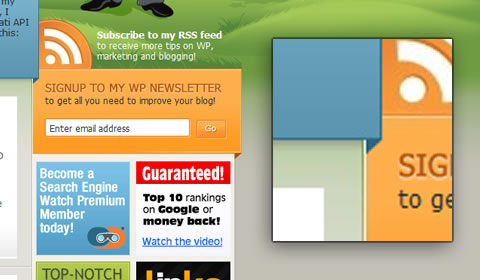
Joost de Valk makes great use of thin, high-contrast lines that make it easy for the user to distinguish between different section of the page. In the enlarged portion of the above screenshot, you can see that most of the time this contrast is just a lightly colored 1-pixel line next to a dark 1-pixel line.

On the other hand, the “More” and “Go” buttons on his home page have so little contrast that they’re easy to miss even when you’re looking for them.
Screenshot

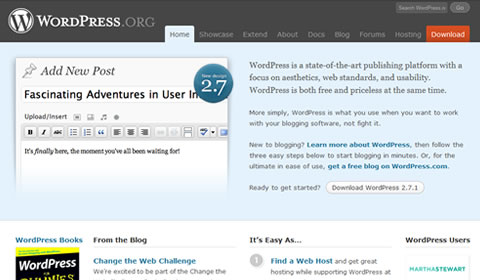
WordPress uses color to add contrast to its most popular link, “Download.” The red stands out among the calm palette of blues and grays but isn’t so bright that it hurts to look at it.

If you’re in doubt about whether you need more contrast, think of it a bit like applying makeup, strangely. The idea is not to get people to say, “Hey, look! Contrast!” You want to naturally draw their attention to important items on the page and highlight features that are already there.

2. Gradients 

Developments in technology have brought tools for creating gradients to nearly anyone who wants them. But is that a good thing?
Screenshot

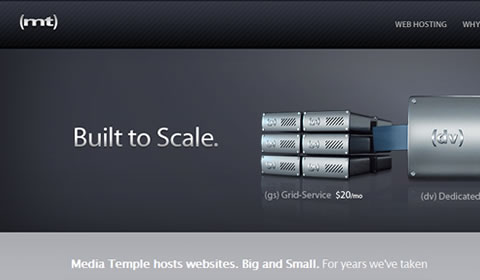
Media Temple has gradients on nearly every page of its website, but moderation and subtlety are the keys to the design’s success. The logo, headlines, buttons and backgrounds all have subtle or minor gradients to emphasize their content. The most complex gradients on the website are found on simple 120 pixel-wide buttons that are intended to grab attention.
Screenshot

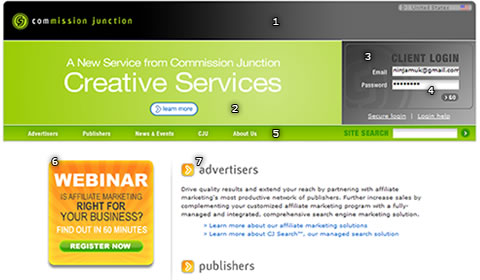
Commission Junction not only uses gradients far less subtly than Media Temple, but implements a variety of different types of gradient:

  1. Horizontal, linear gradient from black to medium gray at the top of the page.
  2. Green radial gradient in the background of the green header.
  3. Faint diagonal gradient over the “CJ” logo in the log-in box
  4. Light vertical linear fade in each input box background
  5. Vertical gradient in navigation bar background
  6. Bright linear fade in Webinar banner
  7. Another vertical linear fade for headings

The design is a bit adventurous, and for the most part, it works, but it has a few major problems. Most importantly, there’s no consistency. Much like choosing a sensible color palette, designers should carefully choose only a few types of gradient for each project.

For example, the large horizontal gradient (1) pulls the eye along the width of the page. That’s not a problem in and of itself, but right below are both a radial gradient (2) pulling the eye towards the center of the page and another linear fade (3) pulling the eye down and across to the bottom-right corner of the log-in box. This makes the page a little confusing for the user, and the choppy visual flow makes it a little difficult to read.

When working with gradients, it is important to keep a nice visual flow: use gradients sparingly or subtly. And most importantly, use them only when they complement the overall feel of the project.

3. Color 

Using color well can be a challenge. Between coming up with a perfect palette and knowing where to put each tone, it’s easy to spend too much time coloring your design.
Screenshot

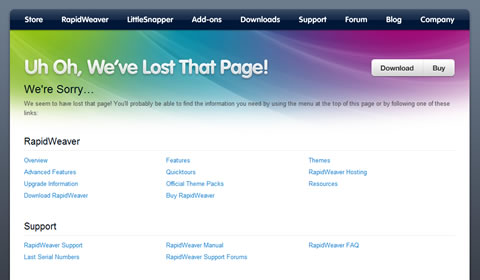
Realmac Software pulls off a very bold idea by inviting the entire spectrum of colors onto its 404 page. This works for a few reasons. First, Realmac has set the page against a neutral gray background. More importantly, it hasn’t used color anywhere else on the page, with the exception of the blue text links and the small splashes of color far below the fold.

Though the full-spectrum palette grabs attention right away, it’s still simple, and the use of gray keeps it from irritating the eye. Trying to use more than four or five colors in one design would usually overwhelm. Stick to simple four-color palettes unless you’re really confident the design calls for more.
Screenshot

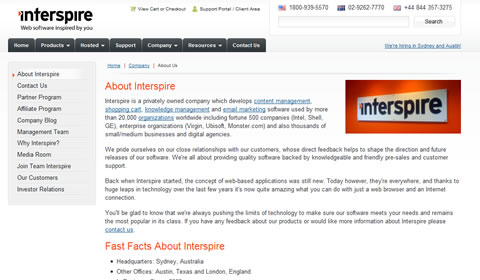
When you use color sparingly and intelligently in your design, it is so much easier to draw attention to important items. On Interspire’s “About Us” page, viewers are quickly drawn in turn to the dash of color in the logo at the top of the page, then straight to the headings and, lastly, to the logo at the right of the page content.

Working with fonts. Typography is an art far deeper than most of us realize. There’s certainly a place for details like ascenders and side bearings, but they’re not nearly as crucial to understand as the following techniques.

4. Letter Spacing 

Letter spacing, or kerning, can make a huge difference in headlines, paragraphs, logos and anything else that involves text. It is nothing more than the distance between each pair of letters.

Screenshot

Krop’s new portfolio builder doesn’t do anything too extravagant with the text here. Most of the website’s image-based text reduces letter spacing to make statements more concise and powerful.
Screenshot

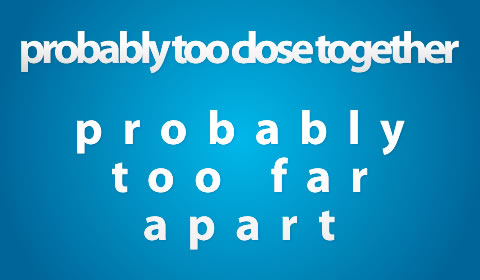
The above illustration shows how letter spacing can have a negative effect on your designs. Small or non-anti-aliased text is most difficult to read with modified letter spacing.

If you haven’t before, tinker a bit with letter spacing in your designs, and you’ll be shocked by the difference it can make. A few good fonts to start with are “Myriad Pro” for images and “Trebuchet MS” for HTML text.

5. Case 

… As in uppercase and lowercase. Changing case requires nothing more than pressing the Shift or Caps Lock key, and yet so few designers take advantage of this technique’s potential.
Screenshot

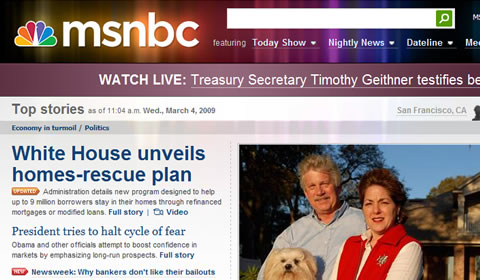
Some of MSNBC’s use of case is obvious. Beyond the all-lowercase logo, however, the company makes subtle use of case in other areas. The large message bar at the top of the page usually says something like “WATCH LIVE” or “BREAKING NEWS.” Considering that the words usually highlight something very important, this is an excellent way to draw attention to these particular announcements.

Additionally, using only uppercase letters allows MSNBC to make its incredibly small buttons just clear enough to be legible. In this 5-pixel-tall application, lowercase letters such as a, m, x and z would be only 2 to 3 pixels tall and not readable at all.
Screenshot

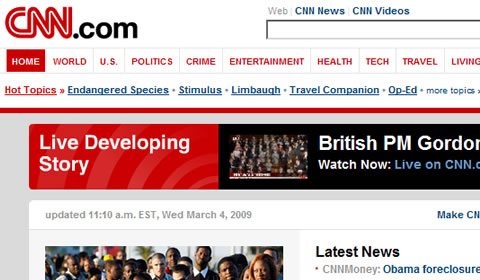
Sticking with news websites for the moment, CNN misses a lot of opportunities to use case to enhance its pages. To its credit, it uses an all-caps navigation menu, but the vast majority of the page is in traditional case, with only the first letter of each sentence capitalized.

6. Anti-Aliasing 

Though technically a much more complicated process, anti-aliasing can be summarized as the smoothing out of edges, and it applies to all aspects of design. In the world of Web design, anti-aliasing is partially determined by whether the text will be in HTML or shown as an image. Complicating things a little more, some Web browsers and operating systems automatically smooth out HTML text a bit, but as a general rule, HTML text has no anti-aliasing.
Screenshot

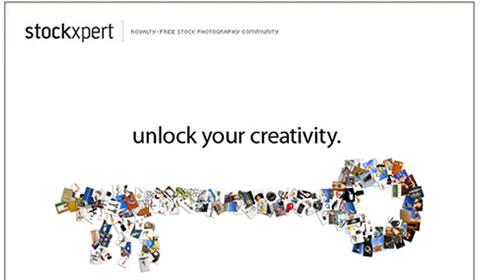
Stockxpert makes a conscious choice on its very simple landing page to anti-alias some lines of text and not others. Most of the text has a very smooth edge and does not appear choppy at all, but that’s not the case for the small text at the top and bottom of the page. Much like the small text on the MSNBC buttons mentioned above, the 5-pixel-tall text needs to have as sharp an edge as possible to be legible. Any blurring or anti-aliasing for text this small would have readers straining their eyes, only to give up.

Mess things up! Thing that look perfect often look fake or uninteresting. Leaves on trees are not exactly symmetrical; lighting of any kind provides uneven shadows and highlights; and camera lenses sometimes blur areas of the shot and produce lens flare. Some designs look great with clean and artificial-looking effects… some need something messier.

7. Imperfection 

Anyone who has used a computer for more than 10 minutes will tell you they’re not perfect, but from a design perspective, they can produce perfect results. When you use the Line tool in your favorite design software, with the default settings, you get a perfectly straight line from point A to point B.

Screenshot

This Antique Ace of Spades tutorial goes through about a dozen steps to make this card look imperfect, which is, admittedly, not very simple. The concept itself, however, is very simple. Make things look old, dirty or otherwise imperfect to give your work a unique touch.

Screenshot

This butterfly photo that looks like it was taken in the mid-1900s is another example of imperfection at its best. The photo was actually taken on a digital camera, then degraded using a few filters and some quick color changes to give it a vintage look.

Successfully adding artifacts and imperfections to a design is easier than you may think. Start by converting items to grayscale or sepia tones, and then go from there.

8. Blur 

If you’ve ever been stumped with the predicament of how to make something stand out more, stand out less, or nearly disappear, take a look at using blurs in different ways. By blurring objects in the foreground, background or by blurring the entire design, you can dramatically increase the impact of your project. Focus is, at least in part, relative. By blurring one object, it brings focus to another.
Screenshot

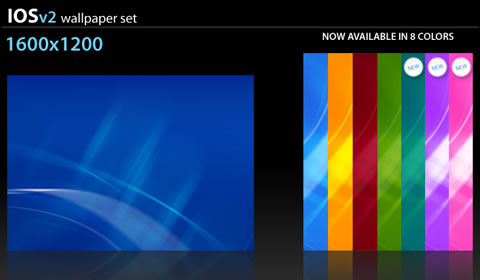
The Ios V2 wallpaper collection uses simple blurs to create a calm, organic view. There are only a few sharp lines to give the image focus, and the blurred background is crucial to the look of the wallpaper as a whole.
Screenshot

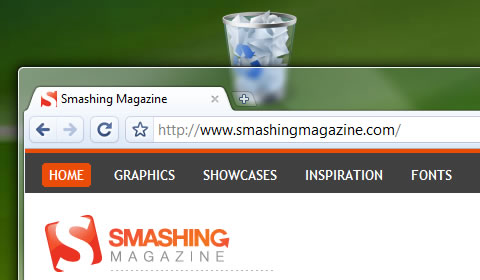
Blurs can also be used to give a sense of depth or layering. Windows Vista’s Aero theme blurs anything behind windows for a cool, diffused glass effect. A simple Gaussian Blur tool can create the same effect.

9. Alignment 

Even while maintaining clean, straight lines, there are opportunities to give your project that “extra something” it needs.
Screenshot

This sample logo gets most of its character from the raised “logo” letters. Altering the alignment of design elements can make them more memorable, more talked about and, consequently, much more effective.

This technique applies not only to text either. Some designers fall back on templates or personal work habits when conceptualizing a design. This can greatly increase the speed with which concepts are turned over to clients; but all too often, it also restricts creativity – especially with regard to alignment.
Screenshot

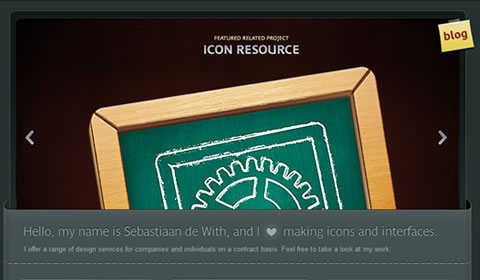
Icon Designer sets itself apart by rotating a few design components. The page would otherwise be fairly monotonous, but the simple rotations keep things interesting.

Most of today’s websites are 700 to 900 pixels wide, are centered vertically in the browser, and have straight edges down each side of the page that determine where content begins and ends. In a lot of cases, this kind of order and predictability is good, but a fair proportion of websites would benefit greatly by their designers’ thinking outside of the box… figuratively and literally.

And most importantly…

10. Trim Fat

Perhaps the most important and under-appreciated design technique, trimming unnecessary parts of a project, is also one of the hardest to do.
Screenshot

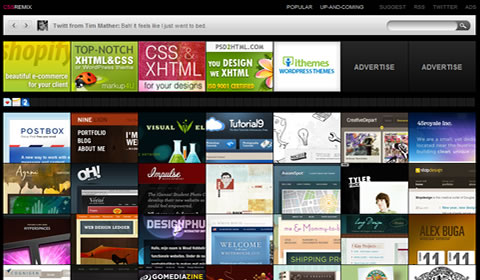
By trimming all unnecessary components, CSS Remix is left with only the essentials and can display seven premium ads (128 by 96 pixels), 53 favicon ads (16 by 16 pixels) and a whopping 56 websites at one time – all in the top 1000 pixels of the page! Even the website’s logo has been trimmed to 53 by 7 pixels.

As with most things in life though, too much of a good thing isn’t always a great thing. The logo is so small that it is hardly recognizable, and the featured websites can be very difficult to distinguish from one another at times. The Twitter feed at the top of the page is, strangely, far more prominent than the website’s logo or navigation.

Tuesday, October 1, 2013

Dear Web Font Providers

When you buy something, I bet you want it to work. Heck, even if you use something for free — maybe borrowed from a friend — I bet you want it to work. No one prefers hiking boots that are too tight (or too loose), a car that shimmies when you drive faster than 40 miles an hour, or a kitchen knife that can’t cut a tomato. And Web designers don’t prefer fonts that don’t fit a project, fall apart in different browsers or can’t be used in a mock-up.
We also don’t like wading through all of the fonts that won’t work for us in order to find the ones that will. It takes precious time away from other tasks and responsibilities.

You’ve Come A Long Way, Baby!

Six years ago, A List Apart published “CSS @ Ten: The Next Big Thing,” in which HÃ¥kon Wium Lie describes the @font-face declaration and announces:
“Two things must happen before Web fonts can take web design to the next level… First, we must ensure the validity of the approach.…  Second, we must convince browser makers to add support for web fonts.”

You Helped Make It Happen: Validity and Browser Support

Today, browsers support Web fonts, and we’ve got the valid CSS to make the fonts work. Of course, as old browsers changed and new browsers (and extended font families) emerged, valid CSS became an ever-moving target.
On the DIY side, a big “Thank you!” to Paul Irish, who gave us the “Bulletproof Syntax” to fool Internet Explorer (IE) into loading the correct font file (remember using a smiley face for the local font name?); to Richard Fink, who gave us “Mo’ Bulletproofer Syntax” to fix a font-loading problem in Android; and to Ethan Dunham, who gave us the “Fontspring @font-face Syntax,” which even works in IE 9. You all thoroughly explained why your syntax works, which enabled each to pick up where the other left off. On top of that, Dunham, your @font-face generator brought valid syntax to those of us who (please, I beg of you) just want our fonts to work.
Web font hosts such as Typekit and Fontdeck deserve a shout out, too. You worked to support multiple weights and styles of a font family cross-browser. Your variation-specific font-family names (which is a shorter and sweeter way of saying, “Hey everyone, you need to use a unique font-family name for each weight and style of a family”) require longer CSS, but they are valid and allow more than four weights and styles to load in IE 7 and 8. Those of us who can’t live without light, regular, bold, extra bold, and black weights are in Web font heaven!

You Went Above and Beyond: Responding to the Needs of Type Designers

One aspect that Lie missed in his article was the need for more Web fonts — how could we take Web design to the next level if we didn’t have a lot of fonts to use? This, of course, meant that you had to gain the trust of the type design community.
You had to protect the fonts.
Remember when type designers wouldn’t design or provide Web fonts without the guarantee that their files were secure? Typekit, your article “Serving and Protecting Fonts on the Web” (2009) laid out how you set up hurdles to “discourage casual misuse” and created a reasonably secure system for serving fonts.
Thanks to everyone’s tenacity, at some point in the last four years, “reasonably secure” was enough for type designers to take a chance. And now they’re hooked. In a recent interview, Jonathan Hoefler and Tobias Frere-Jones of H&FJ said: “We’re requiring that every new project have a way to thrive not only on paper, but on desktop and mobile screens.” How freaking awesome is that?
So, in the span of only six years, you’ve come a long way, baby. Web font syntax is valid and supported by most browsers (our fonts load!); we have thousands of Web fonts to work with; we have multiple options to deliver Web fonts (DIY or through a service provider; and free, monthly, yearly or a one-time purchase); and you are constantly improving your services, so Web fonts are easier to implement and they (usually) load seamlessly!
What else could a Web designer need from you?
I am so glad you asked.

“What About Us?”: What Web Designers Need

Web designers — especially those of us who care about type and are trying to be thoughtful about the fonts we use — need more than access to thousands of Web fonts. Frankly, we need access to high-quality, appropriate Web fonts. And we need to be able to find them.
We’ve visited your websites. Some of you have thousands of fonts for us to use. But you know what? More isn’t always better. Sometimes more becomes more-stuff-to-wade-through-to-find-what-I-want. In 2010, a New York Times article, “Too Many Choices: A Problem That Can Paralyze,” reported on the debilitating effect of too many choices. Too many choices make it harder to choose. How do we know our choice is the best one? How do we know it’ll fit when we go for a hike? And if it does fit, how do we know another one won’t fit better?
Benjamin Scheibehenne, a research scientist at the University of Basel in Switzerland, suggests in the article that debilitation comes not only from too many choices, but also from a “lack of information or any prior understanding about the options.” Hmm. While we’re at it, how do we know it won’t shimmy on the highway?
You’ve given us thousands of Web fonts. Now give us useful information about the options. Help us understand them. Help us ascertain which ones will work best for us. Which ones will work for a particular project. Which ones hold up cross-browser. Which ones will integrate seamlessly in our workflow.

Show Us Your Web Fonts in Context

Most of you show us how your fonts will sort of look in context. You give us just enough to see whether a font might be appropriate to use (“Hmm, this one is a slab serif, so it might work.”), and you help us to eliminate those that definitely won’t work (“Nope, I don’t want such a round-looking font.”). OK, that’s a start. But that’s not enough.
Take a page from history. Before type went digital, printers and type designers sold their typefaces to clients by showing how they looked in context. They’d provide broadsides or books, often setting each typeface in paragraphs at various sizes. They’d show available weights and styles of each family. And because the specimen sheets and books were printed, publishers and designers could see how the typefaces held up when the ink hit the paper.
Caslon font specimen sheet
A specimen sheet by William Caslon, 1728. The typeface is shown in paragraphs of various sizes in both roman and italic. A larger digital image shows other fonts available in the family. If I were in the market for a typeface back in 1728, I’d know exactly what to expect from Caslon.
Not to name names, but Fontdeck, Fontspring, Font Squirrel and MyFonts, you guys only offer the opportunity to test-drive Web fonts in a sentence. The problem with a sentence is that it doesn’t show how the font looks in body copy. Body copy has visual texture, and texture can be pleasing (lively but not intrusive, promoting horizontal movement of the eye) or jarring (with uneven spaces or a strong vertical pull, hindering horizontal movement of the eye). Texture affects readability.
Texture also affects the look of a Web page, and Web designers need to know whether they are picking a font with the texture they need. A sentence doesn’t help us to make a good choice. If you don’t believe me, take a look at the images below. Two fonts that look really similar when set in a sentence look different when set in paragraphs of text.
Two fonts as cascading sentences
Cascading sentences from Typekit. Top: Kepler Standard by Adobe. Bottom: Utopia Standard by Adobe. Both are serif fonts with a slightly oval bowl (look at the shape of the “o”) and a high contrast between thick and thin strokes. They look pretty similar to the casual eye. Heck, they even look pretty similar to the trained eye!
Same two fonts as paragraphs
The same fonts set as text in paragraphs from Typekit. When shown in paragraph format, we can see the difference. Top: Kepler Standard by Adobe. Kepler has a rounder, “bubblier” feel and looks slightly smaller when set at body-copy sizes. Bottom: Utopia Standard by Adobe. Utopia feels more structured, less round. And, of course, it looks bigger when set at body-copy sizes. Neither of these fonts is “wrong” when set in text. But they look different in paragraphs, and each might be appropriate for different projects.
Now, for the rest of you, Google Fonts, Fonts.com, Webtype and Hoefler & Frere-Jones, you show your fonts in paragraphs. Thank you. But just so you know, not all of the paragraphs are as helpful as they could be.
Google Fonts, your text has too tight a line height, so your fonts all look clunky (see the image below). Fonts.com, you don’t offer enough text sizes; if a font looks too small at 14 pixels and too big at 18 pixels, we can’t tell what it would look like at 16 pixels (just so you know, 16 pixels is a really popular type size for Web text). Webtype, you use a string of capitalized words, so there are too many capital letters, and your fonts look clunky; if you want to show us what your fonts really look like, just use plain text. Hoefler & Frere-Jones, your paragraphs are limited to three lines, with a super-long 725-pixel line length; these paragraphs aren’t delightful to read, and they undermine the quality of your fonts.
Same font, same size, two line heights
Which font would you choose? How paragraphs are set makes a difference. Top: Google Fonts paragraphs have a tight line height. Open Sans looks clunky and hard to read, making it hard to tell whether the font would look good in body copy. Bottom: Open Sans on Typekit. A looser line height helps us to see that the same font is actually a pleasure to read.
Typekit and Typotheque, of all the Web font services I’ve visited or used, you provide the best on-site examples of how your fonts look in body copy. You both provide multiple paragraphs at various sizes, with a good line length and a good line height. WebINK, your off-site solution is also pretty good. Using the FontDropper 1000 bookmarklet, I can drop any of your fonts onto an existing Web page and see how it looks in context. One problem I noticed, though: Your bookmarklet doesn’t drop in an entire font family, so we can’t see a font’s true bold and italic.
Which brings us to font families. I’m sure you’ve noticed that bold and italic versions of a font are sometimes too similar to the regular font, which undermines hierarchy. Other times, the bold is too heavy or the italic too squished, and one or both are hard to read. These are all reasons why we might not want to use a particular font. Plus, sometimes a bold or italic has letterforms that a client simply doesn’t like.
So, to really see how a font works in context, we would need to see how the entire family of weights and styles works together. Unfortunately, none of you do this yet.

Show Us What Your Fonts Look Like on Other Systems and Browsers

I’ve been talking a lot about context. Context is not just a font’s texture in a paragraph or how the font family works together. Context is also where a font “lives.”
As Web designers, we know that our designs are ephemeral, constantly changing based on operating system, browser and screen size. For example, we know that fonts behave differently cross-browser — if they aren’t hinted correctly, then letter shapes, strokes and letter spacing will change in unexpected ways.
Problems arise cross-browser
If fonts aren’t hinted well, their strokes can change significantly from browser to browser. This font looked great on my Mac (top). When I tested it cross-browser, I ran into problems (bottom). The font is too light to read easily.
More problems arise cross-browser
If fonts aren’t hinted well, then spacing (both inside and between letters) can change significantly from browser to browser. This font looked great on my Mac (top). When I tested it cross-browser, I ran into problems (bottom). The font gets narrower, and the spacing between letters is erratic.
The only way to know whether a font will work cross-browser is to test it. And let me tell you, testing Web fonts is mind-numbing and time-consuming. (I once cleaned out my garage to avoid testing fonts for a project.)
Thank you Fonts.com, MyFonts and Typekit for providing screenshots of your fonts in different browsers. You present only cascading sentences, but even that helps. Much like Caslon’s printed specimen sheet showed what his typeface looked like in print, you three give Web designers a glimpse of what your fonts look like in use. You show us which fonts to reject and which to consider for further testing.
Hoefler & Frere-Jones, you claim that your new Cloud.typography service creates multiple font files (each hinted and built for a specific browser and platform) and supplies each browser with its unique font file. If this is true, then your fonts should look great across all browsers. If this is true, I might just have to bake you some cookies. But I sure wish you’d provide screenshots to back up your claims. Some things I need to see for myself.

Let Us Use Your Fonts in Mock-Ups

Some Web designers comfortably go from a pencil-and-paper wireframe to building a partial-website-as-mock-up. Others prefer (or are required) to include an intermediate step and mock up pages with a tool such as Photoshop, Illustrator or InDesign.
I know — now it’s your turn to tell me to take a page from history.
Before type went digital, designers didn’t mock up projects using real fonts. Clients certainly couldn’t expect to see such a thing — comps were fine. But since the late 1980s, mock-ups have been expected to “look like the real thing.” And if we want (or need) to show a realistic mock-up to a client, we need access to the Web fonts.
Fonts.com, Font Squirrel, Google Fonts and WebINK, you all supplement Web fonts with free access to desktop (or “mock-up”) fonts for subscribers. Thank you.
Again, unfortunately, none of your solutions are perfect. Fonts.com, you allow access to mock-up fonts for only one day, to “kick off the design process.” I don’t know how it works in your office, but I can’t get anything done in one day. Font Squirrel and Google Fonts, you specialize in free fonts. While I (and my students) love having free fonts to use, access to good-quality body fonts is sort of limited. WebINK, your plugin for Photoshop is a great solution — unless a Web designer prefers to use Illustrator, InDesign or another tool.
Fontspring, MyFonts, Typotheque and Hoefler & Frere-Jones, I know you all offer bundles or discounts for purchasing both Web and desktop fonts, and bundling does take some of the pressure off a Web designer’s wallet. But if you’re a small company or an independent designer, like me, shelling out the extra money just to mock up an idea is hard.
The most promising approach for mock-up fonts might be just around the corner. Typekit, I know you’re working with Adobe Creative Cloud to bring us desktop font sync. I’ve tested it out, and I’m happy to report that it works like a charm. (OK, my old Mac laptop runs more like a tortoise than a hare when I’m running Creative Cloud — but, hey, I can turn it off when I’m not using it.)
I was cynical (who me?) about font synching actually working. I use CS6 out of the box and the free Creative Cloud membership level. But you promised me that it would work with a paid Typekit membership (which I have), and it did! The fonts even stay synced when I’m working offline. This has exciting possibilities.

In Conclusion

I know you guys are busy, so I’ll wrap this up.
One more thing needs to happen before Web fonts can truly take Web design to the next level, and only you can do it. You need to meet the needs of the people who actually choose and use the Web fonts (ahem, Web designers).
Sure, we can all work around these issues. Personally, I’ve got a font specimen page that I use to test the fonts I’m interested in. After I narrow down the options, I can test fonts cross-browser myself. Hours later, if one of the fonts I like actually works, I can go straight to HTML and CSS from my pencil sketch and avoid the need for mock-up fonts.
But here’s the question:
“Why should we have to work around these issues?”
(All Web designers who love to use new fonts, repeat after me, “Why should we have to work around these issues?”)
If it’s important that fonts load in every browser, why isn’t it important to identify which fonts actually look good in every browser?
If it’s important to woo font designers so that you have a lot of fonts to offer, why not show us how those fonts actually work in copy?
Look, Web fonts aren’t just font files that need to be secure and easy to implement. They affect the overall look and usability of a website. They need to be chosen with care. And thanks for the thousands of fonts, but quantity is not as important as quality. A hundred knives that can’t cut a tomato won’t meet my needs when I’m making my kid a BLT.
So, make our lives a little easier. Make our work a little better. Help us find the Web fonts we want to use.
I dare say, you’ll win some affection from every Web designer who has ever looked at the thousands of Web font options and said, “Oh shit. Which one should I use?”
Sincerely yours,
A Type-Loving Web Designer

P.S. In case you’re interested, I’ve summarized how you’re all doing so far. Web designers who love to use new fonts, I hope you find it useful.
P.P.S. Below you’ll find the official bibliography of the articles quoted above. Otherwise, my students would be very disappointed by my lack of scholarly detail.
(Credits of image on front page: Michael Bundscherer)