⭐ If you would like to buy me a coffee, well thank you very much that is mega kind! : https://www.buymeacoffee.com/honeyvig Hire a web Developer and Designer to upgrade and boost your online presence with cutting edge Technologies

Monday, April 27, 2026

Why Senior Engineers Go Quiet — The Hidden 3-Week Warning Before Failure


Delivery intelligence for technology leaders ·   Issue #40   ·   Every Wednesday

Not 3 months. Not 3 weeks of runway. 3 weeks until something breaks.

Disclaimer: Details in this issue have been changed to protect client confidentiality. The situation and the lesson are real


She had been the most engaged person in every stand-up for 7 months.

The lead engineer on our most complex workstream. Sharp, direct, the kind of person who would call out a bad architectural decision in front of the client without hesitation. She had identified three significant technical risks in the first quarter, all of which were caught before they reached the backlog. The team trusted her completely.

In week 29, I noticed she had not challenged anything in stand-up for 6 days. She was answering her 3 questions. She was present. She was doing her work. She had just stopped.

"Yesterday I finished the integration layer. Today I'm continuing the same. No blockers."

Eleven days later, the integration layer failed under load. It was not a simple bug. It was a structural decision that had been made in week 26 - one she had known was wrong, had decided not to raise, and had spent the following three weeks building around.

When I asked her why she had not flagged it, her answer was more honest than I had expected: "I raised two things in month 5 and both times I felt like I was being managed rather than heard. I decided it wasn't worth the energy."


Today's menu:

🚨  The problem: The specific silence pattern that precedes every major technical failure I have seen in 14 years and why it is always the most capable person who goes quiet first

💸  What it costs: Why the silence of senior engineers is the most accurate leading indicator of delivery risk available and why it never appears on a RAID log

✅  The fix: The 3-week intervention that catches the pattern before it becomes a crisis

⚠️  The silence pattern — what it is and why the best person goes first

Senior engineers go quiet in stand-ups for a specific, identifiable reason that is almost never the one delivery leaders assume. It is not burnout — burnout produces agitation before silence. It is not disengagement — disengagement produces lower quality work, not lower verbal frequency. And it is almost never satisfaction.

The most common cause of senior-engineer silence in a well-functioning team is a specific, rational cost-benefit calculation: the engineer has assessed that the cost of raising a concern — the social friction, the pushback, the feeling of being managed — is greater than the benefit of having the concern heard. And they have made this calculation based on evidence from the programme.

Senior engineers do not go quiet because they have nothing to say. They go quiet because they have learned that saying it is not worth it.

The reason the best engineer goes first is exactly their seniority. A junior developer raises concerns because they are still learning the social norms of the team. A senior engineer has already made the social calculation with much more precision — and has enough other things to focus on that withdrawing from verbal risk-raising is a rational conservation of energy.

Article content

🤔  Quiz

You lead a 12-person engineering team. Your most senior developer historically engaged, opinionated, and reliable has given a variation of "all good, no blockers" in stand-up for 8 consecutive days. Delivery metrics are normal. What is the right first action?

A)  Nothing — consistent delivery metrics are the signal that matters, not verbal frequency

B)  Ask them directly in the stand-up: "Are you sure there are no blockers? You've been very quiet this week."

C)  Have a private 15-minute conversation outside the stand-up: "I've noticed you have been less vocal recently, is there anything you're sitting on that you haven't raised?"

D)  Send a team-wide message encouraging everyone to raise concerns more actively

👉  Answer at the end of this issue

💡  The fix

Three interventions timed specifically to the 3-week window before the silence becomes a structural problem.

✅  Fix 1: Week 1 — The private, direct conversation

Within 5 days of noticing the silence, a 15-minute private conversation. Not a performance conversation. Not a welfare check. A specific, respectful inquiry:

"I've noticed you've been less vocal in stand-ups recently. I want to make sure I'm not missing something important. Is there anything you are sitting on technically or otherwise that you haven't raised?"

The silence after this question is important. Do not fill it. The engineer is doing a rapid cost-benefit recalculation. Is this person going to hear what I say or manage it? Your job in the first 90 seconds after they speak is to demonstrate, specifically and behaviourally, that you are doing the former.

If they say "nothing, all fine": thank them and leave the door open. Watch for a second week of silence. If that occurs, the calculation has been made and you need the next intervention.

Article content

✅  Fix 2: Week 2 — The concern-cost audit

If the private conversation has not produced the information, the issue is structural: the cost of raising concerns in this team is too high. A 45-minute session with the senior engineers only, no junior team members, with one question:

"Think of the last time you identified a concern on this programme and decided not to raise it. What made you decide not to raise it?"

Write every answer on a whiteboard. Do not defend against any of them. Do not explain or contextualise. Just write them down and read them back. The act of making the concern-cost visible, in a room, without defensiveness, is often enough to change the dynamic because it signals that this is now a problem you are taking seriously rather than managing.

Article content

✅  Fix 3: Week 3 — The structural fix builds concern-raising into the process, not the person

If the silence persists into week 3, the issue is not about the individual engineer. It is about the environment. Three structural changes that reduce the cost of raising concerns at the team level:

  • The end-of-day risk log. A standing Slack channel or equivalent where the only acceptable input is "I noticed X today and I am not sure whether it is a risk." No resolution required. No follow-up demanded. Just observation. The programme lead acknowledges every entry within 24 hours.
  • The pre-commitment check. Before any architectural or technical decision is finalised, one question is asked of the most senior person who disagreed with it: "What would need to happen for you to be proven right?" This gives dissent a legitimate structural role instead of requiring it to be raised as a confrontation.
  • The monthly technical retrospective. Separate from the delivery retrospective. Focused entirely on technical decisions: what are we building that we are not comfortable with? This is where the concerns that are too technical to raise in a delivery forum find a legitimate place.

Article content

🎯  What to do this week

This week, track one metric you have probably never tracked before:

  • For the three most senior engineers on your team: how many substantive observations (concerns, challenges, technical flags) have they made in stand-ups and ceremonies in the last 10 working days?
  • Not "did they attend." Not "are they performing." How many times did they say something that was not a status update?

If the answer is fewer than two per person per week: you may have a silence pattern forming. You now have 3 weeks before it becomes a structural problem.


Want the concern-cost audit questions — the exact 45-minute format?

Reply "silence" to this email and I'll send it directly to you.

🌐  Around the web this week

⚡  1 tool: TeamRetro — asynchronous retrospective tool with anonymous input. The specific use case: a standing "what am I not saying" prompt that team members can contribute to before the synchronous session. The anonymity removes the social cost before the concern reaches the room.

📊  1 number: Google's Project Aristotle research found that psychological safety, the belief that one will not be punished for raising concerns, is the single strongest predictor of team effectiveness across the 180 teams studied. It ranked above all technical, organisational, and individual competence factors. The silence pattern is what happens when psychological safety has already failed.

💬  1 quote: "What got you here won't get you there." - Marshall Goldsmith. For delivery leaders, what got you here: confidence, decisiveness, pattern-matching from experience, is precisely what creates the silence in your best people. Success and the conditions for future success are not the same thing.


👉  Quiz answer

C — private, direct, and non-accusatory.

Option A is the most common response and the most dangerous, it treats delivery metrics as the only signal that matters, which is the assumption that allows this pattern to reach crisis. Option B creates a public moment that compounds the social cost already causing the silence. Option D is too diffuse to address the specific pattern and may actually increase the cost of raising concerns by making it feel scrutinised.

Option C works because it is private, it is observational rather than accusatory ("I've noticed" not "why aren't you"), and it specifically names the concern about unraised issues. It gives the engineer a low-cost way to surface what they are sitting on without requiring them to do it in front of the team. The phrase "is there anything you're sitting on" is important — it names the specific pattern you are looking for.


The lead engineer I described in the opening story is, as far as I know, thriving. She left the programme at the end of that engagement — not because of the incident, but because the engagement ended.

What she taught me by going quiet, by deciding three weeks before the failure that raising concerns was not worth the energy, is something I now treat as the most important signal in any programme I lead. Not the RAG status. Not the velocity chart. The voice of the most capable person in the room.

When that voice goes quiet, everything else is noise. The 3-week clock is already running.

Think of the most technically capable person on your current team. When did they last challenge something, a decision, an assumption, a plan in a group setting? If you cannot remember, the clock may already be running.

Hit reply. I read everything.

Until next Wednesday,

Aman

www.amansingh.pro


If this issue is named something you have been watching but could not describe, forward it to one person who needs to read it.

Sunday, April 26, 2026

How To Improve UX In Legacy Systems


Practical guidelines for driving UX impact in organizations with legacy systems and broken processes. Brought to you by Measuring UX Impact, friendly video course on UX and design patterns by Vitaly.

Imagine that you need to improve the UX of a legacy system. A system that has been silently working in the background for almost a decade. It’s slow, half-broken, unreliable, and severely outdated — a sort of “black box” that everyone relies upon, but nobody really knows what’s happening under the hood.

Where would you even start? Legacy stories are often daunting, adventurous, and utterly confusing. They represent a mixture of fast-paced decisions, quick fixes, and accumulating UX debt.

There is no one-fits-all solution to tackle them, but there are ways to make progress, albeit slowly, while respecting the needs and concerns of users and stakeholders. Now, let’s see how we can do just that.

The Actual Challenges Of Legacy UX

It might feel that legacy products are waiting to be deprecated at any moment. But in reality, they are often critical for daily operations. Many legacy systems are heavily customized for the needs of the organization, often built externally by a supplier and often without rigorous usability testing.

It’s common for enterprises to spend 40–60% of their time managing, maintaining, and fine-tuning legacy systems. They are essential, critical — but also very expensive to keep alive.

A detailed electronic medical record (EMR) screen for an ophthalmology patient, displaying their visit summary including chief complaint, past medical history, medications, and optical test results.
Cash registers are frequently designed once and rarely touched again. Replacing them across 1000s of stores is remarkably expensive. 

1. Legacy Must Co-Exist With Products Built Around Them

Running in a broken, decade-old ecosystem, legacy still works, yet nobody knows exactly how and why it still does. People who have set it up originally probably have left the company years ago, leaving a lot of unknowns and poorly documented work behind.

With them come fragmented and inconsistent design choices, stuck in old versions of old design tools that have long been discontinued.

A detailed electronic medical record (EMR) screen for an ophthalmology patient, displaying their visit summary including chief complaint, past medical history, medications, and optical test results.
One of many: a legacy system used by EMR systems in healthcare. 

Still, legacy systems must neatly co-exist within modern digital products built around them. In many ways, the end result resembles a Frankenstein — many bits and pieces glued together, often a mixture of modern UIs and painfully slow and barely usable fragments here and there — especially when it comes to validation, error messages, or processing data.

2. Legacy Systems Make or Break UX

Once you sprinkle a little bit of quick bugfixing, unresolved business logic issues, and unresponsive layouts, you have a truly frustrating experience, despite the enormous effort put into the rest of the application.

If one single step in a complex user flow feels utterly broken and confusing, then the entire product appears to be broken as well, despite the incredible efforts the design teams have put together in the rest of the product.

Well, eventually, you’ll have to tackle legacy. And that’s where we need to consider available options for your UX roadmap.

UX Roadmap For Tackling Legacy Projects 

Don’t Dismiss Legacy: Build on Existing Knowledge

Because legacy systems are often big unknowns that cause a lot of frustration to everyone, from stakeholders to designers to engineers to users. The initial thought might be to remove it entirely and redesign it from scratch, but in practice, that’s not always feasible. Big-bang-redesign is a remarkably expensive and very time-consuming endeavor.

An overview of questions to ask key stakeholders to understand the legacy system, its key features, workflows, and priorities.
First things first: map legacy features, workflows, and priorities as a part of discovery. 

Legacy systems hold valuable knowledge about the business practice, and they do work — and a new system must perfectly match years of knowledge and customization done behind the scenes. That’s why stakeholders and users (in B2B) are typically heavily attached to legacy systems, despite all their well-known drawbacks and pains.

To most people, because such systems are at the very heart of the business, operating on them seems to be extremely risky and will require a significant amount of caution and preparation. Corporate users don’t want big risks. So instead of dismissing legacy entirely, we might start by gathering existing knowledge first.

Map Existing Workflows and Dependencies

The best place to start is to understand how and where exactly legacy systems are in use. You might discover that some bits of the legacy systems are used all over the place — not only in your product, but also in business dashboards, by external agencies, and by other companies that integrate your product into their services.

An overview of users’ behavior, frequency of use for features, and the complexity of the flow.
Testing sessions to understand where users struggle, and how difficult tasks are to complete for them. From a fantastic case study by CreativeNavy

Very often, legacy systems have dependencies on their own, integrating other legacy systems that might be much older and in a much worse state. Chances are high that you might not even consider them in the big-bang redesign — mostly because you don’t know just how many black boxes are in there.

An overview of users’ behavior, frequency of use for features, and the complexity of the flow.
Map existing workflows by tracking user behavior, frequency, desired outcome, complexity, patterns, and user needs. From a fantastic case study by CreativeNavy. (Large preview)

Set up a board to document current workflows and dependencies to get a better idea of how everything works together. Include stakeholders, and involve heavy users in the conversation. You won’t be able to open the black box, but you can still shed some light on it from the perspectives of different people who may be relying on legacy for their work.

Prioritizing migrated features and features by impact and urgency.
Priorities matter. You won’t need to migrate everything, but you need to discover critical parts that must be migrated. 

Once you’ve done that, set up a meeting to reflect to users and stakeholders what you have discovered. You will need to build confidence and trust that you aren’t missing anything important, and you need to visualize the dependencies that a legacy tool has to everyone involved.

Replacing a legacy system is never about legacy alone. It’s about the dependencies and workflows that rely on it, too.

Choose Your UX Migration Strategy #

Once you have a big picture in front of you, you need to decide on what to do next. Big-bang relaunch or a small upgrade? Which approach would work best? You might consider the following options before you decide on how to proceed:

A diagram titled ‘Legacy Migration Strategies’, showing five different approaches to migrating from an old system to a new system using arrows and descriptions.
The different legacy migration strategies. You never migrate just a system — you also migrate workflows, habits, processes, and ways of working.
  • Big-bang relaunch.
    Sometimes the only available option, but it’s very risky, expensive, and can take years, without any improvements to the existing setup in the meantime.
  • Incremental migration.
    Slowly retire pieces of legacy by replacing small bits with new designs. This offers quicker wins in a Frankenstein style but can make the system unstable.
  • Parallel migration.
    Run a public beta of the replacement alongside the legacy system to involve users in shaping the new design. Retire the old system when the new one is stable, but be prepared for the cost of maintaining both.
  • Incremental parallel migration.
    List all business requirements the legacy system fulfills, then build a new product to meet them reliably, matching the old system from day one. Test early with power users, possibly offering an option to switch systems until the old one is fully retired.
  • Legacy UI upgrade + public beta.
    Perform low-risk fine-tuning on the legacy system to align UX, while incrementally building a new system with a public beta. This yields quicker and long-term wins, ideal for fast results.

Replacing a system that has been carefully refined and heavily customized for a decade is a monolithic task. You can’t just rebuild something from scratch within a few weeks that others have been working on for years.

So whenever possible, try to increment gradually, involving users and stakeholders and engineers along the way — and with enough buffer time and continuous feedback loops.

Wrapping Up

With legacy projects, failure is often not an option. You’re migrating not just components, but users and workflows. Because you operate on the very heart of the business, expect a lot of attention, skepticism, doubts, fears, and concerns. So build strong relationships with key stakeholders and key users and share ownership with them. You will need their support and their buy-in to bring your UX work in action.

Stakeholders will request old and new features. They will focus on edge cases, exceptions, and tiny tasks. They will question your decisions. They will send mixed signals and change their opinions. And they will expect the new system to run flawlessly from day one.

And the best thing you can do is to work with them throughout the entire design process, right from the very beginning. Run a successful pilot project to build trust. Report your progress repeatedly. And account for intense phases of rigorous testing with legacy users.

Revamping a legacy system is a tough challenge. But there is rarely any project that can have so much impact on such a scale. Roll up your sleeves and get through it successfully, and your team will be remembered, respected, and rewarded for years to come.

Video + UX Training

$ 495.00 $ 799.00 Get Video + UX Training

25 video lessons (8h) + Live UX Training.
100 days money-back-guarantee.

Video only

$ 250.00$ 350.00
Get the video course

25 video lessons (8h). Updated yearly.
Also available as a UX Bundle with 3 video courses.

Useful Resources

Session Timeouts: The Overlooked Accessibility Barrier In Authentication Design


Poorly handled session timeouts are more than a technical inconvenience. They can become serious accessibility barriers that interrupt essential online tasks, especially for people with disabilities. Here is how to implement thoughtful session management that improves usability, reduces frustration, and helps create a more accessible and respectful web.

For web professionals, session management is a balancing act between user experience, cybersecurity, and resource usage. For people with disabilities, it is more than that — it is a barrier to buying digital tickets, scrolling on social media, or applying for a loan online. Session timeout accessibility can be the difference between a bad day and a good day for those with disabilities.

For many, getting halfway through an important form only to be unceremoniously kicked back to the login screen is a common experience. Such incidents can lead to exasperation and even abandonment of the website entirely. With some backend work, web professionals can ensure no one has to experience this frustration.

Why Session Timeouts Disproportionately Affect Users With Disabilities

A considerable portion of the global population has cognitive, motor, or vision impairments. Worldwide, around 1.3 billion people have significant disabilities. Whether they possess motor, cognitive, or visual impairments, their disabilities affect their ability to interact with technology easily. They can all be disproportionately affected by session timeouts, making session timeout accessibility a critical issue.

Session timeouts are inaccessible for a large percentage of the population. An estimated 20% of people are neurodivergent, meaning timeout barriers don’t just affect a small subset of users — they impact a substantial portion of any website’s audience. As a result, some users may look inactive when they are not. Strict timeouts create undue pressure.

Motor Impairments and Slower Input Speeds

For instance, someone with cerebral palsy tries to purchase tickets online for an upcoming concert. Due to coordination difficulties and muscle stiffness, they may enter their information more slowly than a non-disabled person would. They select the date, choose their seats, and fill out personal information. Before they can enter their credit card details, a timeout pop-up appears. They have been logged out due to “inactivity” and must restart the entire process.

This situation is not entirely hypothetical. Matthew Kayne is a disability rights advocate, broadcaster, and contributor to The European magazine. He describes the effort required to navigate websites as someone with cerebral palsy. He explains how the user interface is often poorly designed for adaptive devices, and he worries his equipment won’t respond correctly. After carefully navigating each page, he is suddenly logged out. In a moment, one timed form can erase hours of work, and it’s not just a matter of inconvenience. A single failed attempt can delay support or cause him to miss appointments.

Motor impairments can slow input speed, making it appear the user is not at their computer. As such, people who experience stiffness, hand tremors, coordination challenges, involuntary movements, or muscle weakness are disproportionately affected by session timeouts. According to the DWP Accessibility Manual, it can take multiple attempts for adaptive technology to register input, slowing users down considerably. Even if they receive a warning, they may not be able to act fast enough to prove they are still active.

Cognitive Impairments and Processing Time

Session timeouts can also create accessibility barriers for those with various types of cognitive differences. Strict timeouts can create undue pressure that assumes everyone processes information at the same speed. Users may appear inactive when they are actually reading, thinking, or processing.

Cognitive differences encompass a wide range of experiences, including neurodivergences like autism and ADHD, developmental disabilities like Down syndrome, and learning disabilities like dyslexia. Many people are born with cognitive differences. In fact, an estimated 20% of people are neurodivergent, making up a large portion of any website’s audience. Others acquire cognitive disabilities later in life through traumatic brain injury or conditions like dementia.

People with cognitive disabilities often need more time to complete online tasks — not because of any deficit, but because they process information differently. Design choices that work well for neurotypical users can create unnecessary obstacles for people with ADHD, dyslexia, autism, or memory-related conditions.

Invisible session timeouts are particularly problematic for people who experience memory loss, language processing differences, or time blindness. For example, neurodivergent technology leader Kate Carruthers says ADHD has affected her perception of time. She has time blindness and can’t reliably track how much time has passed, making estimates unhelpful.

When websites depend on users estimating remaining time before a session expires, they quietly exclude people — not just those with formal ADHD diagnoses, but anyone who experiences time differently or processes information at a different pace.

Vision Impairments and Screen Reader Navigation Overhead

Since blind or low-vision users cannot visually scan a page to find what they need, they must listen to links, headings, and form fields, which is inherently more time-consuming. More than 43 million people worldwide are affected by blindness, while 295 million have moderate to severe vision impairment, which makes this a significant accessibility concern for any global-facing website.

As a result, these users’ sessions may expire even if they are active. Live timers and 30-second warnings do little to help, as they are not built with screen readers in mind.

Bogdan Cerovac, a web developer passionate about digital accessibility, experienced this firsthand. The countdown timer informed him how long he had left before being logged out due to inactivity. By all accounts, it worked fine. However, he describes the screen reader experience as horrible, as it notified him of the remaining time every single second. He couldn’t navigate the page because he was spammed by constant status messages.

Common Timeout Patterns That Fail Accessibility Requirements

According to the National Institute of Standards and Technology, session management is preferable to continually preserving credentials, which would incentivize users to create authentication workarounds that could threaten security. However, several common timeout patterns fail to meet modern standards for session timeout accessibility.

A session expired window with a “Back to main page” button.
Image source: princekwame.

Silent Timeouts and Insufficient Warnings

Many websites either provide no warning before logging users out, or they display a brief, seconds-long pop-up that appears too late to be actionable. For users who navigate via screen reader, these warnings may not be announced in time. For those with motor impairments, a 30-second countdown may not provide enough time to respond.

Let’s consider the Consular Electronic Application Center’s DS-260 page, which is used to apply for or renew U.S. nonimmigrant visas. If an application is idle for around 20 minutes, it will log the user off without warning. The FAQ page only provides an approximate time estimate. Someone’s work only saves when they complete the page, so they may lose significant progress.

Nonextendable Sessions#

An abrupt “session expired” message is frustrating even for individuals without disabilities. If there is no option to continue, users are forced to log back in and restart their work, wasting time and energy.

Form Data Loss on Expiration 

Unless the website automatically saves progress, visitors will lose everything when the session expires. For someone with disabilities, this does not simply waste time. It can make their day immeasurably harder. Imagine spending an hour on a service request, job application, or purchase order only for all progress to be completely erased with little to no warning.

Design Patterns That Balance Security and Accessibility #

Inconsistent timeout periods and a lack of warnings lead to the sudden, unexpected loss of all unsaved work. For long, complex forms, like the DS-260, a poor user experience is extremely frustrating. In comparison, the United Kingdom’s application for pension credit is highly accessible. It warns users at least two minutes in advance and allows them to extend the session. It meets level AA of the WCAG 2.2 success criteria, indicating its accessibility.

A tab session expired window with a refresh button.
Image source: Experience League

People with disabilities are disproportionately affected by the unintended consequences of poor session management. Thankfully, session timeouts’ inaccessibility is not a matter of fact. With a few small changes, web professionals can significantly improve their website’s accessibility.

Advance Warning Systems and Extend Functionality

Websites should clearly state the time limit’s existence and duration before the session starts. For instance, if someone is filling out a bank form, the first page should exist solely to inform them that it has a 60-minute time limit. A live counter that updates regularly can help them track how much time remains. Also, users should be told whether they can adjust the session timeout length.

Activity-Based vs. Absolute Timeouts

An activity-based timeout logs users out due to inactivity, while an absolute timeout logs them out regardless of activity. For an office, a 24-hour absolute timer might make sense, since workers only need to log in when they get to work. As long as users know when their session will expire, the latter is more accessible than the former.

Auto-Save and Progress Preservation

Cookies, localStorage, and sessionStorage are temporary, client-side storage mechanisms that allow web applications to store data for the duration of a single browser session. They are powerful, lightweight tools. Web developers can use them to automatically save users’ progress at frequent intervals, ensuring data is restored upon reauthentication.

This way, even if someone’s session expires by accident, they are not penalized. Once they log back in, they can finish filling out their credit card details or pick up where they left off with an online form.

Testing and WCAG Compliance Considerations

The Web Content Accessibility Guidelines (WCAG) is a collection of internationally accepted internet accessibility standards published by the W3C. It acts as the arbiter of session timeout accessibility. Web developers should pay special attention to Guideline 2.9.2, which outlines best practices for adequate time.

The timeout adjustable mechanism should extend the time limit before the session expires or allow it to be turned off completely. For the former option, a dialog box should appear asking users if they need more time, allowing them to continue with one click. The WC3 notes that exceptions exist.

For example, when a website conducts a live ticket sale, users can only hold tickets in their carts for 10 minutes to give others a chance to purchase limited inventory. Alternatively, session timeouts may be necessary on shared computers. If librarians allowed everyone to stay logged in instead of automatically signing them out overnight, they would risk security issues.

Some processes should not have time limits at all. When browsing social media, reading a news article, or searching for items on an e-commerce site, there is no reason a session should expire within an arbitrary time frame. Meanwhile, in a timed exam, it may be necessary. However, in this case, administrators can extend time limits for students with disabilities.

When web developers make session management accessible, they are not catering to a small group. Pew Research Center data shows 62% of adults with disabilities own a computer. 72% have high-speed home internet. These figures do not differ statistically from the percentage of non-disabled adults who say the same.

Overcoming the Session Timeout Accessibility Barrier

The WCAG provides additional resources that web developers can review to understand session management accessibility better:

In addition to following these guidelines, there is a wealth of information from leading educational institutions, authorities on open web technologies, and government agencies. They provide a great starting place for those with intermediate web development knowledge.

Web professionals should consider the following resources to learn more about tools and techniques they can use to make session management more accessible:

Session timeout accessibility is not only an industry best practice but an ethical web development standard.

Those who prioritize it will appeal to a wider audience, improve usability, and attract more website visitors and longer sessions.

The main takeaway is that a website with inaccessible session timeouts sends a clear message that it doesn’t value the user’s time or effort, a problem that creates significant barriers for people with disabilities. However, this is a solvable issue. With a few simple changes, such as providing session extension warnings and auto-saving progress, web developers can build a more considerate, accessible, and respectful internet for everyone.

Friday, April 24, 2026

The UX Designer’s Nightmare: When “Production-Ready” Becomes A Design Deliverable


In a rush to embrace AI, the industry is redefining what it means to be a UX designer, blurring the line between design and engineering. Carrie Webster explores what’s gained, what’s lost, and why designers need to remain the guardians of the user experience.

In early 2026, I noticed that the UX designer’s toolkit seemed to shift overnight. The industry standard “Should designers code?” debate was abruptly settled by the market, not through a consensus of our craft, but through the brute force of job requirements. If you browse LinkedIn today, you’ll notice a stark change: UX roles increasingly demand AI-augmented development, technical orchestration, and production-ready prototyping.

For many, including myself, this is the ultimate design job nightmare. We are being asked to deliver both the “vibe” and the “code” simultaneously, using AI agents to bridge a technical gap that previously took years of computer science knowledge and coding experience to cross. But as the industry rushes to meet these new expectations, they are discovering that AI-generated functional code is not always good code.

The LinkedIn Pressure Cooker: Role Creep In 2026

The job market is sending a clear signal. While traditional graphic design roles are expected to grow by only 3% through 2034, UX, UI, and Product Design roles are projected to grow by 16% over the same period.

However, this growth is increasingly tied to the rise of AI product development, where “design skills” have recently become the #1 most in-demand capability, even ahead of coding and cloud infrastructure. Companies building these platforms are no longer just looking for visual designers; they need professionals who can “translate technical capability into human-centered experiences.”

This creates a high-stakes environment for the UX designer. We are no longer just responsible for the interface; we are expected to understand the technical logic well enough to ensure that complex AI capabilities feel intuitive, safe, and useful for the human on the other side of the screen. Designers are being pushed toward a “design engineer” model, where we must bridge the gap between abstract AI logic and user-facing code.

A recent survey found that 73% of designers now view AI as a primary collaborator rather than just a tool. However, this “collaboration” often looks like “role creep.” Recruiters are often not just looking for someone who understands user empathy and information architecture — they want someone who can also prompt a React component into existence and push it to a repository!

This shift has created a competency gap.

As an experienced senior designer who has spent decades mastering the nuances of cognitive load, accessibility standards, and ethnographic research, I am suddenly finding myself being judged on my ability to debug a CSS Flexbox issue or manage a Git branch.

The nightmare isn’t the technology itself. It’s the reallocation of value.

Businesses are beginning to value the speed of output over the quality of the experience, fundamentally changing what it means to be a “successful” designer in 2026.

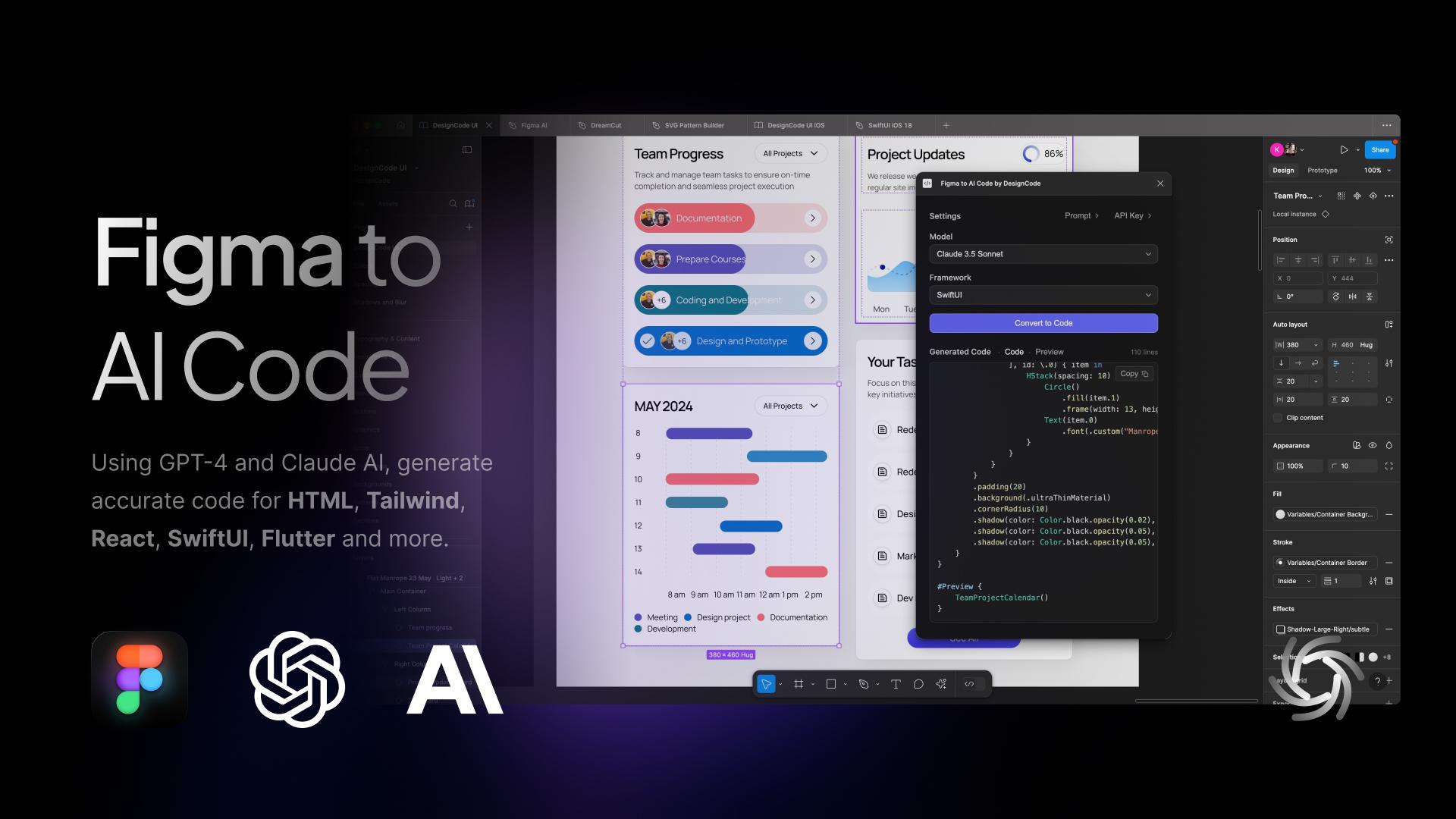
Figma to AI code ad
Tools that allow designers to switch from design to code. (Image source: Figma)

The Competence Trap: Two Job Skill Sets, One Average Result

There is potentially a very dangerous myth circulating in boardrooms that AI makes a designer “equal” to an engineer. This narrative suggests that because an LLM can generate a functional JavaScript event handler, the person prompting it doesn’t need to understand the underlying logic. In reality, attempting to master two disparate, deep fields simultaneously will most likely lead to being averagely competent at both.

The “Averagely Competent” Dilemma

For a senior UX designer to become a senior-level coder is like asking a master chef to also be a master plumber because “they both work in the kitchen.” You might get the water running, but you won’t know why the pipes are rattling.

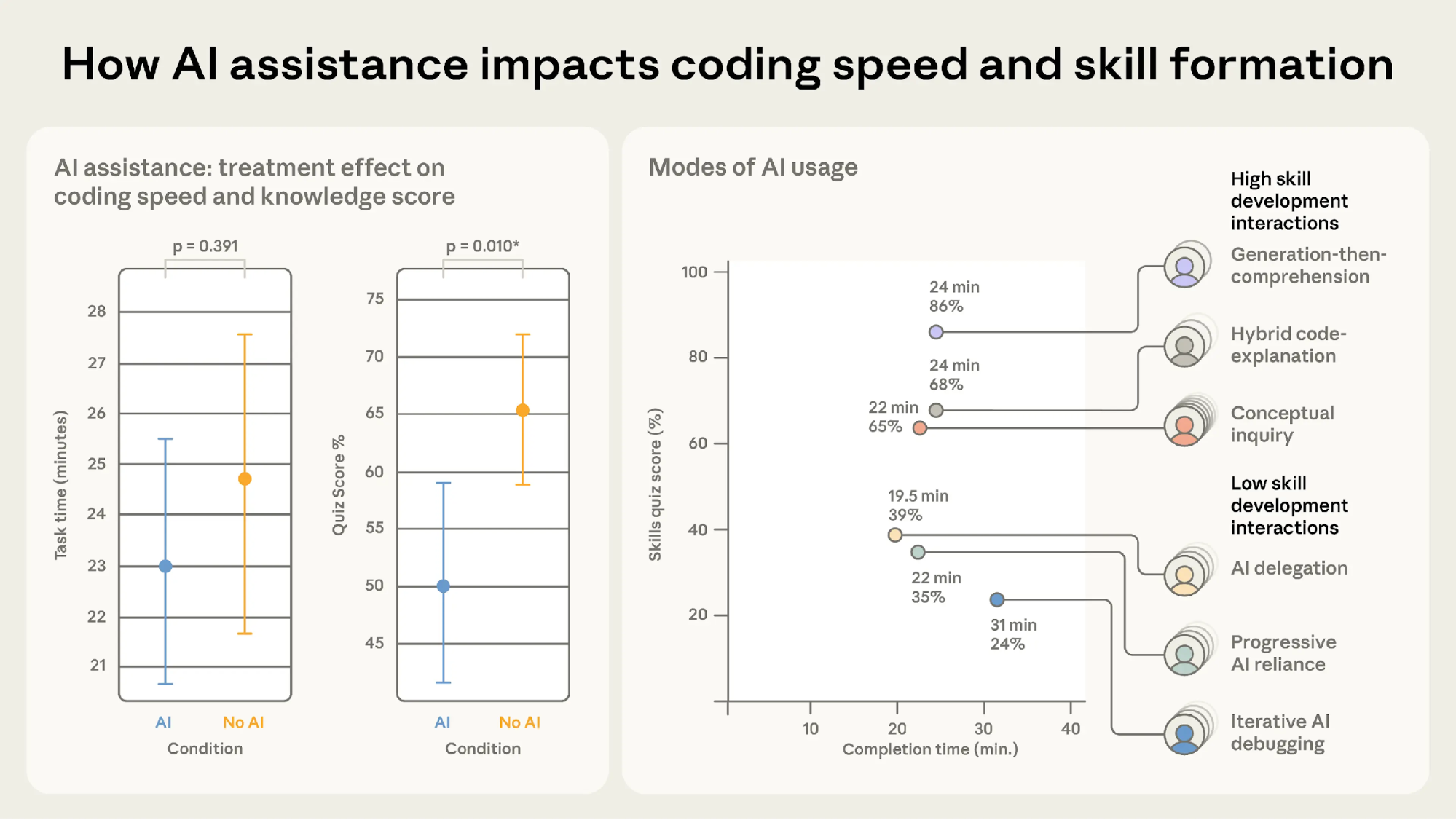
  • The “cognitive offloading” risk.
    Research shows that while AI can speed up task completion, it often leads to a significant decrease in conceptual mastery. In a controlled study, participants using AI assistance scored 17% lower on comprehension tests than those who coded by hand.
  • The debugging gap.
    The largest performance gap between AI-reliant users and hand-coders is in debugging. When a designer uses AI to write code they don’t fully understand, they don’t have the ability to identify when and why it fails.
A chart showing how AI assistance impacts coding speed and skill formation
Using AI tools impedes coding skill formation. (Image source: Anthropic)

So, if a designer ships an AI-generated component that breaks during a high-traffic event and cannot manually trace the logic, they are no longer an expert. They are now a liability.

The High Cost Of Unoptimised Code

Any experienced code engineer will tell you that creating code with AI without the right prompt leads to a lot of rework. Because most designers lack the technical foundation to audit the code the AI gives them, they are inadvertently shipping massive amounts of “Quality Debt”.

Common Issues In Designer-Generated AI Code

  • The security flaw
    Recent reports indicate that up to 92% of AI-generated codebases contain at least one critical vulnerability. A designer might see a functioning login form, unaware that it has an 86% failure rate in XSS defense, which are the security measures aimed at preventing attackers from injecting malicious scripts into trusted websites.
  • The accessibility illusion
    AI often generates “functional” applications that lack semantic integrity. A designer might prompt a “beautiful and functional toggle switch,” but the AI may provide a non-semantic <div> that lacks keyboard focus and screen-reader compatibility, creating Accessibility Debt that is expensive to fix later.
  • The performance penalty
    AI-generated code tends to be verbose. AI is linked to 4x more code duplication than human-written code. This verbosity slows down page loads, creates massive CSS files, and negatively impacts SEO. To a business, the task looks “done.” To a user with a slow connection or a screen reader, the site is a nightmare.

Creating More Work, Not Less

The promise of AI was that designers could ship features without bothering the engineers. The reality has been the birth of a “Rework Tax” that is draining engineering resources across the industry.

  • Cleaning up
    Organisations are finding that while velocity increases, incidents per Pull Request are also rising by 23.5%. Some engineering teams now spend a significant portion of their week cleaning up “AI slop” delivered by design teams who skipped a rigorous review process.
  • The communication gap
    Only 69% of designers feel AI improves the quality of their work, compared to 82% of developers. This gap exists because “code that compiles” is not the same as “code that is maintainable.”

When a designer hands off AI-generated code that ignores a company’s internal naming conventions or management patterns, they aren’t helping the engineer; they are creating a puzzle that someone else has to solve later.

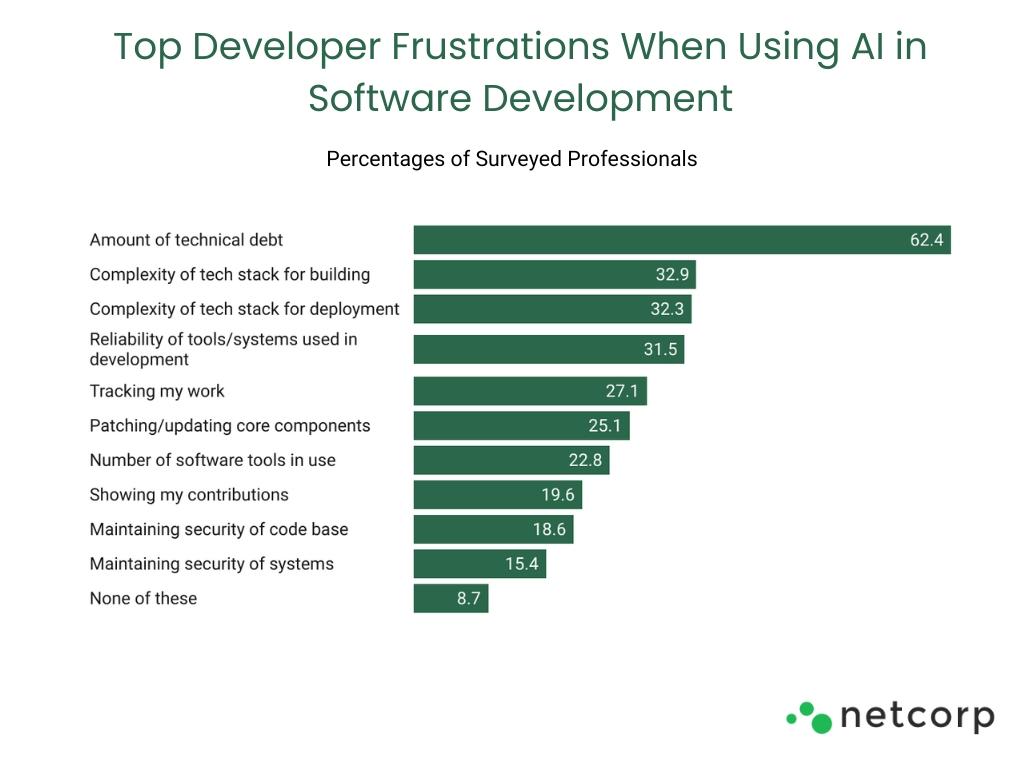
Typical issues that developers face with AI-generated code
Typical issues that developers face with AI-generated code. (Image source: Netcorp)

The Solution

We need to move away from the nightmare of the “Solo Full-Stack Designer” and toward a model of designer/coder collaboration.

The ideal reality:

  • The Partnership
    Instead of designers trying to be mediocre coders, they should work in a human-AI-human loop. A senior UX designer should work with an engineer to use AI; the designer creates prompts for intent, accessibility, and user flow, while the engineer creates prompts for architecture and performance.
  • Design systems as guardrails
    To prevent accessibility debt from spreading at scale, accessible components must be the default in your design system. AI should be used to feed these tokens into your UI, ensuring that even generated code stays within the “source of truth.”

Beyond The Prompt

The industry is currently in a state of “AI Infatuation,” but the pendulum will eventually swing back toward quality.

The UX designer’s nightmare ends when we stop trying to compete with AI tools at what they do best (generating syntax) and keep our focus on what they cannot do (understanding human complexity).

Businesses that prioritise “designer-shipped code” without engineering oversight will eventually face a reckoning of technical debt, security breaches, and accessibility lawsuits. The designers who thrive in 2026 and beyond will be those who refuse to be “prompt operators” and instead position themselves as the guardians of the user experience. This is the perfect outcome for experienced designers and for the industry.

Our value has always been our ability to advocate for the human on the other side of the screen. We must use AI to augment our design thinking, allowing us to test more ideas and iterate faster, but we must never let it replace the specialised engineering expertise that ensures our designs technically work for everyone.

Summary Checklist for UX Designers

  • Work Together.
    Use AI-made code as a starting point to talk with your developers. Don’t use it as a shortcut to avoid working with them. Ask them to help you with prompts for code creation for the best outcomes.
  • Understand the “Why”.
    Never submit code you don’t understand. If you can’t explain how the AI-generated logic works, don’t include it in your work.
  • Build for Everyone.
    Good design is more than just looks. Use AI to check if your code works for people using screen readers or keyboards, not just to make things look pretty.

Monday, April 13, 2026

What Will Engineers Actually Do in 2030?


🔥 Big Story of the Week

🧑💻 The Engineer of 2030: Builder, Reviewer, or AI Trainer?

If you look at how you work today… and compare it to even a year ago, something feels different.

You’re still coding. But not in the same way.

Sometimes, it feels like:

  • You’re reviewing more than writing
  • Thinking more than typing
  • Guiding more than building

And that raises an uncomfortable but important question:

👉 What does it actually mean to be an engineer in the future?


🧠 The Shift Has Already Started

Let’s be real.

AI can now:

  • Generate full functions in seconds
  • Suggest optimizations
  • Write tests you might skip
  • Even explain your own code back to you

So naturally, your role starts to shift.

Not overnight. But quietly, consistently.


⚙️ So… What Are We Becoming?

The future engineer isn’t just one thing anymore.

It’s a mix of roles.


🔹 1. The Builder (Still Important)

Yes — coding isn’t going away.

You still need to:

  • Understand systems
  • Write critical logic
  • Handle edge cases

Because AI is fast… but it doesn’t understand context like you do.


🔹 2. The Reviewer (More Important Than Ever)

AI can generate code.

But can it guarantee:

  • Business correctness? ❌
  • Edge case handling? ❌
  • Long-term maintainability? ❌

That’s where you come in.

You’re no longer just writing code — 👉 you’re validating intelligence.


🔹 3. The AI Trainer (The New Role)

This is where things get interesting.

You’re now:

  • Writing better prompts
  • Refining outputs
  • Teaching AI what “good” looks like

In a way… 👉 you’re training a junior developer that learns instantly.


⚠️ The Risk Nobody Talks About

There’s a hidden danger in all this.

If we rely too much on AI:

  • Our fundamentals may weaken
  • Our debugging instincts may slow down
  • Our deep understanding may fade

And that’s risky.

Because when AI fails — 👉 you’re still the final line of defense.


🌍 The Bigger Reality

The barrier to building software is dropping fast.

Which means:

  • More builders are entering the space
  • More products are being created
  • More competition is coming

So the real differentiator won’t be: ❌ Who can code ✅ But who can think, design, and adapt


🔮 What the Best Engineers Will Do

The engineers who thrive won’t fight AI.

They’ll:

  • Use it to move faster
  • Focus on deeper problems
  • Build better systems, not just more code

Because the game is changing from: 👉 “Write more code” to 👉 “Create more impact”


💡 Engineer’s Takeaway

The future engineer is not just a builder.

They are: 🧠 A thinker 🔍 A reviewer 🤖 A guide to AI

And maybe that’s the real evolution.

Because in the end, 👉 tools will change — but great thinking never goes out of style.


✍️ EngiSphere Insight: “The engineers who win in the AI era won’t be the fastest coders — they’ll be the smartest decision-makers.”

#SoftwareEngineering #AI #FutureOfWork #Developers #TechTrends #EngiSphere

#ArtificialIntelligence #Programming #CareerGrowth #TechLeadership #Innovation

Monday, April 6, 2026

Testing Font Scaling For Accessibility With Figma Variables


Accessibility works best when it blends into everyday design workflows. The goal isn’t a big transformation, but simple work processes that fit naturally into a team’s routine. With Figma variables, testing font size increases becomes part of the design flow itself, making accessibility feel almost inevitable rather than optional.

Building a true culture of digital accessibility in a company is a mission of resilience and perseverance. It’s not difficult for the discourse on accessibility to fall into the usual clichés. Accessibility is very important for people. The accessibility of digital products and services promotes inclusion. Or even, all professionals on the teams should be involved in accessibility work. Of course. No one in their right mind will dispute any of these statements (I hope).

However, the second part of this conversation, which very few companies reach, is “how?” How do we make this happen in the midst of the day-to-day work of digital transformation teams, which, as we all know, are immersed in demanding scripts, often with a very limited number of people available? Most of the time, the choice ends up being between “we do this” and “that.” And it shouldn’t, because, in these cases, I never saw accessibility winning in this equation.

It shouldn’t be this way. You don’t need to be this way. First of all, because choosing between accessibility and anything else isn’t the right choice. Accessibility is no longer just another feature to be added to the others. It’s an added value for the business and, currently, a legal obligation that can have serious consequences for companies. On the other hand, there are intelligent, optimized, and impactful ways to incorporate accessibility principles into the natural dynamics of teams. It’s possible to work on accessibility without turning team operations upside down. In essence, that’s what AccessibilityOps does. Empowering people and providing teams with simple processes so they can integrate accessibility work into their daily routines without disproportionate effort.

Accessibility And Design

Working on digital accessibility in design can involve several actions. It’s clear that we need to pay particular attention to color and how it’s used to convey meaning. Of course, the interaction sizes of elements must be comfortable. But, most importantly, we must think about design from a versatile perspective. An interface isn’t a poster. We can control many aspects of that design, but how users interact with the interface is subject to an endless number of variables. The type of device, context, purpose, network quality, etc. All of this greatly affects each person’s experience and interaction. Along with all this, when digital accessibility concerns are brought into the design process, it adds even more variables.

Assistive technologies
(Large preview)

People often use what are called assistive technologies and strategies. Basically, these are technological tools or, at the very least, “tricks” that people resort to in order to find more comfortable usage models. The famous screen readers, commonly associated with the use of blind people (but which are not only useful to them), for example, are an assistive technology. Changing colors or color contrasts between different elements is also an assistive technology. Increasing the font size (which we discussed in this text) is another example. There are countless assistive technologies and strategies. Almost as many as the different contexts of use for each person.\

We Don’t Control Everything 

In other words (and this is the “bad news” for us designers), “our design” is subject, from the users’ perspective, to transformations that we don’t control. It will be “transformed” by the user, ensuring that they can interact with the application and everything it offers in the most comfortable way possible. And that’s a good thing. If this happens and everything goes well, we will have surely done our accessibility work very well, and we all deserve congratulations. If the user applies any of these support technologies and strategies and still cannot use the digital application, it’s a sign that something is not working as it should.

Oh, and speaking of which. Don’t even think about blocking the use of these technologies or support strategies. They may be “destroying” your beautiful design, but they are allowing more and more people to actually use the app. In the end, wasn’t that exactly what we promised we wanted to do? Design for (all) people. Without exception?

Increase Font Size #

How many times have we heard someone — friends, family, or even colleagues — complaining that this or that text is too small? Text plays a very important role in the digital experience. Much information is conveyed through text: instructions for use, button captions, or interactive elements. All of this uses text as a communication tool. If reading all these elements is difficult, naturally, the experience is severely impaired.

Comfortable text reading, regardless of its function, is a non-negotiable principle. This reading can be facilitated by using comfortable sizes in the design. However, supporting technologies and strategies, through the functionality of increasing font size, can also help improve readability. According to APPT data, 26% of Android and iOS mobile device users increase the default font size (data from February 2026). One in four users increases the font size on their smartphone. This is a very significant sample of people, making this functionality unavoidable in design processes.

Chart with font sizes where 26% of users use large font-size.
(Large preview)

Compliance With Guidelines

Increasing font size in interfaces can represent a huge design challenge. It’s important to understand that, suddenly, some text elements, due to user actions, can double in size from their initial size.

“With the exception of captions and text images, text can be resized without assistive technology up to 200% without loss of content or functionality.”

Success criterion 1.4.4, “Resizing Text” of the Web Content Accessibility Guidelines (WCAG), version 2.2

This success criterion is at the AA compliance level, meaning this is an absolutely mandatory feature according to any legal framework.

It’s easy to understand the 200% in this success criterion. If we assume we design the interfaces at a 100% scale, meaning the element size is the initial size, then increasing the text by up to 200% will correspond to doubling the initial size. Other enlargement scales can also be used, such as 120%, 140%, and so on. In other words, we have to ensure that users can increase the text to double its initial size through supporting technologies or strategies (and this is not a minor detail).

To comply with this standard, we don’t need to provide text size increase tools in the interfaces. In practice, these features are nothing more than redundancy. Devices already allow this to be done in a standardized way. Users who really need this setting know it (because, without it, their lives would be much more difficult). Well, they already have this setting applied across their device. And that means we can eliminate these additional interface elements, simplifying the experience.

Text size increase tool in the interface
(Large preview)

Standardized Access

An important concept to remember about assistive technologies, particularly in this case regarding increasing font size, is that most devices already have many of these tools installed by default. In other words, in many cases, users don’t need to purchase their own software or buy a specific type of device just to have this functionality.

Whether on mobile devices or even in web browsers, in the vast majority of cases, it’s easy to find installed features that allow you to increase the default font size we’re using throughout the interface. This principle of increasing font size can be applied to digital products, such as apps, or even to any type of website running on the standard web browsers used today.

iPhones #

On iPhone devices, the font size increase feature is integrated by default. To use this feature, simply access the “Settings” panel, select “Accessibility,” and within the “Vision” options group, access the “Text Size and Display” feature and configure the desired font size increase on that screen.

iPhone screens with settings on accessibility
(Large preview)

Google Chrome

Web browsers also offer, by default, the functionality to increase font size. For example, in Google Chrome, this feature is available in the “Options” panel, specifically in the “Appearance” area. In the list of options that appear in this group, simply select the “Font size” option. Normally, the “Medium — Recommended” option will be selected. You can change this setting to any other available font size. Try, for example, the “Very large” option.

Google Chrome settings on accessibility
(Large preview)

Test In Figma #

To ensure that digital accessibility work becomes effective in the daily lives of teams, it is essential to find simple work processes. Actions or initiatives that can be integrated into the team’s routine, that address accessibility in an integrated way, and do not require a dramatic transformation of the current reality. If that were necessary, he believes, it wouldn’t happen most of the time. Therefore, designing simple work processes is half the battle for accessibility to truly happen, in this case, also within a design team.

Regarding testing font size increases in design, we have extraordinary tools at our disposal today. Those who remember the days of designing complex interfaces in Adobe Photoshop will recognize the differences in the tools we have today (and thankfully so). It’s now possible, through tools like Figma, to create such dynamism in design that testing font size increases for accessibility becomes almost unavoidable for the team.

Visualization on font sizes
(Large preview)

Note: To take this test, you need to have a strong grasp of Figma’s text styles, auto layouts, and variables. These three are fundamental tools for success without much extra effort. If you haven’t yet mastered these features, it’s highly recommended that you start there. Don’t skip steps. Learning is a gradual process that must be followed in a structured, step-by-step manner.

Where Do We Want To Go?

The font size increase test in Figma that we want to perform is simple. We want to have a set of variables available for all the text styles we use in the interface, allowing us to choose whether we want to see the interface with the text at a scale of 100%, 120%, 140%, 160%, 180%, or 200%. As we apply this set of variables (much like applying variables for light and dark mode), we observe the transformations of the text in the interface and understand to what extent adaptations are needed in each version of the interface with different typographic scales.

Font scaling
(Large preview)

How Do We Make This Happen? #

For this test to go so smoothly, you need to do some groundwork. Design systems can greatly help optimize much of this initial work. But I won’t lie to you. For the test to work well, your design needs to have a very serious level of organization and systematization.

This isn’t really a guide, because each team will have its own work model, and these recommendations can be applied in different ways (and that’s okay). However, for this test to work, it’s important to ensure certain assumptions in the design. To help you phase the implementation of this test model, here are some steps to follow. Step-by-step instructions to guide you in organizing your files and ensuring you can fully execute this test in the simplest and most practical way possible.

1. Designing The Interfaces #

It all starts with the design. Before any testing, the focus should, as it should, be on the design of each interface that we will want to test later. At this stage, there is still no specific concern with the font size increase test that we will perform later. Naturally, all interface design should, from the outset, follow the most basic accessibility recommendations applied to design.

Design screens
(Large preview)

2. Apply Auto Layouts To All Elements 

In every screen design you create, you’ll need to ensure you apply auto layouts perfectly. This is a very important step. It’s this consistent application of auto layouts to the entire structure and design elements that will later guarantee the scalability of the interface when we start testing font size increases. You really can’t underestimate this step. If you don’t pay it the attention it deserves, you’ll see when we test typographic scaling in the interfaces, everything breaking down like an elephant in a china shop.

Auto layout
(Large preview)

3. Structuring And Applying Text Styles

To perform our font size increase test, we’ll also need you to have applied text styles to each interface design. You probably even started creating them as you were drawing. Great. If you haven’t done so, it’s important that you do it now. For the test to work perfectly, we really need this. Don’t leave any text element in the design without a text style applied.

Text styles
(Large preview)

4. Define The Set Of Variables 100% #

This test forces a fairly high degree of optimization. In practice, this means we will have to use Figma variables for all the characteristics of the text styles we have in the interface. At this stage, you must define Figma “number” variables for at least the font-size and line-height of the text styles you applied to the drawing. With this step, you are defining the font size increase scale values for a 100% visualization model, that is, the initial and reference version of the drawing. It is important that you structure these variables for each text style in the drawing because, subsequently, we will have to consider the enlargement scale of each of these text elements.

Defining the set of variables 100%
(Large preview)

5. Apply The Variables To The Text Styles 

Having defined the variables for the 100% scale text styles, you must now apply them to the elements of the text styles already created. Don’t forget to apply variables at least to the font-size and line-height characteristics. If you have more typographical variables, that’s fine. But you should at least have variables applied to font-size and line-height. This is really very important.

Applying variables to the text styles
(Large preview)

6. Define The Variables For Increasing The Text Size #

Now that you have the variables applied to the 100% scale text styles, the next step is to create the variables for the other font size increase scales. In practice, you have to create the variables that will tell the system what font size each text style will grow to when the increase scale is 120%, 140%, 160%, etc.

To define the font-size and line-height values, simply multiply the initial value by the scale percentage. For example, if a text style has a font-size of 16px, the size for the 120% scale will be 16 multiplied by 1.2, which gives a result of 19.2. Repeat this calculation for all font-size and line-height values of the font size increase scale percentages you choose.

You can also choose whether or not to apply rounding to the final values. This is an approximate test, and therefore any differences that may arise from rounding will not affect the final perception of the test result.

Font scalling variables
(Large preview)

7. Apply Variables To Different Scale Versions

The moment of truth has arrived. The next step is to understand if we have everything working so that the test runs perfectly. Therefore, you should copy the original interface and apply the set of variables for each of the font size increase rates that make sense to you. Repeat this process for all the font size increase percentages you have defined.

As a suggestion, you can use the 120%, 140%, 160%, 180%, and 200% increase percentages as a reference. If you want to simplify, you can reduce the number of scaling percentages you are working with. Regardless of the number of percentages you are working with, you should always work with the minimum of 100% and 200% scales.

Applied variables to different scale versions
(Large preview)

8. Identify Areas For Improvement #

By applying different font size increase scales to the same screen, it’s easy to understand where improvements might be needed. This is where the real test of increasing font size in interface design and the most interesting accessibility work begins.

In your analysis of the various screens, keep some important aspects in mind:

  • The fact that the text appears gigantic isn’t a problem and doesn’t “ruin” the design. Remember that this can mean the difference between someone being able to use a particular product or service or not.
  • An accessibility problem exists when increasing the font size makes it impossible for the user to read certain texts or to activate certain controls.
  • For text elements that are already very large, increasing the font size might not make sense. Doing so could make those elements disproportionate, which wouldn’t improve readability (since they are already a good size) and would occupy completely unnecessary space.
  • If there are elements that appear to be popping out of the screen, the first step is to confirm how you are applying auto layout. Many design aspects can be easily resolved with the proper use of auto layout.
  • Regardless of the scale of font size increase, it is essential to maintain the visual hierarchy of the typography, as this readability is important for perceiving the different levels of information present on the screen.
  • This test can help identify elements that may need adjustments directly in the code to function well at a given scale of increase. Not everything can be solved through design alone, and that’s perfectly fine. Accessibility is essentially a team effort.
Critical points for improvement
(Large preview)

9. Make Corrections And Adjustments To The Design

Finally, based on the various screens with different text enlargement scales applied, you can make the design changes that make sense. Some of these adjustments may only be necessary in code. In these cases, you document all these suggestions and pass them on to the development team. It is also crucial to reinforce (again) that some of the problems you may encounter in the design can be quickly resolved in the design process, with the simple and correct application of auto-layout properties.

Design changes to those critical points
(Large preview)

10. Go Back To The Beginning And Repeat The Process

This is a cyclical approach. This means you should repeat these steps, or variations thereof, as many times as necessary throughout the project. It’s natural that, over time and with process optimization, some of these steps will cease to make sense. That’s absolutely not a problem. But the most important thing to realize here is that accessibility and this process of testing font size increases shouldn’t be done just once, and that’s it. It’s a test to be done many, many times throughout the day-to-day work of each project and team.

Starting point
(Large preview)

The Role Of Design Systems #

At first glance, this list of steps might seem like a complex exercise. But it’s not. This is because the vast majority, if not all, of these steps are easy to execute in any context where a design system exists. In fact, design systems have become an unavoidable standard in the Product Design industry. We can discuss what each team calls a design system, but the truth is that it’s very difficult today to find a Product Design team that doesn’t have, at the very least, a minimally structured library of components and styles.

Visualization on design systems

With this foundation, whether more or less documented, it’s very easy to apply this type of font size increase test using Figma variables. Furthermore, if your design system already has, for example, structured variables for light and dark mode, it means you’re already applying the exact same principles we used to perform this test. So, nothing new.

Working with design systems involves a level of structuring and organization that is also very useful for creating this type of test. There’s a myth that design systems limit creativity. This is not true. Design systems help solve the “bureaucratic” part of design, so we can actually have more time for what matters: in this case, testing accessibility and building more and more products and services that are truly accessible to the greatest number of people.

Example File

It’s always easier to see an example than just read a description of a process. If this is true in many disciplines of knowledge, in design, this premise makes even more sense. Therefore, in this Figma file, freely published and openly available to the community, you’ll find a practical example of the entire testing process described here. Remember that this is just an example. There may be countless ways to perform this type of test within the context of a Figma file.

Visualization for the Figma file on testing font scaling
(Large preview)

Be sure to look at this approach with a critical eye. It’s a suggestion for testing font size increases that follows a specific process. Despite this, the approach should be adapted to your team’s specific reality, processes, and level of maturity. Simply copying formulas from other teams without understanding if they make sense in our own context is a sure way to make accessibility efforts disproportionate. Every situation is unique. This approach attempts to simplify accessibility work as much as possible in this specific context. And remember: if something happens, however small, it’s a step forward, not a step backward. And that should be celebrated by everyone on the team.