WordPress
Playground began as an experiment to see what a self-hosted WordPress
experience might look like without the requirement of having to actually
install WordPress. A year later, the experiment has evolved into a
full-fledged project that not only abstracts installation but opens up
WordPress to a slew of new opportunities. Ganesh Dahal demonstrates how
WordPress Playground works and gets deep into how it might be used.
Many things have changed in WordPress over the years, but installation has largely remained the same: download Wo
This is an overly simplistic example that demonstrates how the JavaScript API is embedded in a page in an iframe.
The Playground docs provide a better example of how PHP is used within
JavaScript to do things, like execute a file pointed at a specific path:
Adam Zieliński and Thomas Nattestad offer a nicely commented example with multiple tasks in the article they published over at web.dev:
import{
connectPlayground,
login,
connectPlayground,}from'@wp-playground/client';const client =awaitconnectPlayground(
document.getElementById('wp'),// An iframe{ loadRemote:'https://playground.wordpress.net/remote.html'},);await client.isReady();// Login the user as admin and go to the post editor:awaitlogin(client,'admin','password');await client.goTo('/wp-admin/post-new.php');// Run arbitrary PHP code:await client.run({ code:'<?php echo "Hi!"; ?>'});// Install a plugin:const plugin =awaitfetchZipFile();awaitinstallPlugin(client, plugin);
Once
again, the scope and breadth of using the JavaScript API for advanced
configurations is yet another topic that might warrant its own article.
WordPress
Playground is an excellent new platform that’s an ideal testing
environment for WordPress themes, plugins… or even WordPress itself.
Despite the fact that it is still in its early days, Playground is
already capable of some pretty incredible stuff that makes WordPress
more portable than ever.
We looked at lots of ways that Playground accomplishes this. Just want to check out a new theme? Use the playground.wordpress.net
URL configured with parameters supported by the Query API, or grab the
Chrome extension. Need to do a quick test of your theme in a different
PHP environment? Use the wp-now package to spin up a test site locally. Want to let others demo a plugin you made? Embed Playground in an iframe on your site.
WordPress Playground is an evolving space, so keep your eye on it. You can participate in the discussion and request a feature through a pull request or report an issue
that you encounter in your testing. In the meantime, you may want to be
aware of what the WordPress Playground team has identified as known
limitations of the service:
No access to plugins and theme directories in the browser. The theme and plugin directories are not accessible due to the fact that Playgrounds are not connected to the internet, but are virtual environments.
Instances are destroyed on a browser refresh. Because
WordPress Playground uses a browser-based temporary database, all
changes and uploads are lost after a browser refresh. If you want to
preserve your changes, though, use the export feature to download a
zipped archive of the instance. Meanwhile, this is something the team is working on.
iFrame issues with anchor links. Clicking a link in a Playground instance that is embedded on a page in an iframemay trigger the main page to refresh, causing the instance to reset.
How will you use WordPress Playground? WordPress Playground creator Adam Zieliński recently shipped a service that uses Playground to preview pull requests in GitHub.
We all know that WordPress has never put a strong emphasis on developer
experience (DX) the same way other technical stacks do, like static
site generators and headless configurations. But this is exactly the
sort of way that I imagine Playground improving DX to make developing
for WordPress easier and, yes, fun.
Animation
and accessibility are often seen as two separate powers at odds with
one another. How is it possible to strike a balance between elements
that move and the possible negative effects they expose to users who are
sensitive to motion? Oriana García explains how her team at Mercado
Libre tackled the challenge by creating guiding principles for applying
animation to user interfaces and incorporating them into the team’s
design system.
Ever since I started practicing user
interface design, I’ve always believed that animations are an added
bonus for enhancing user experiences. After all, who hasn’t been
captivated by interfaces created for state-of-the-art devices with their
impressive effects, flips, parallax, glitter, and the like? It truly
creates an enjoyable and immersive experience, don’t you think?
Mercado Libre
is the leading e-commerce and fintech platform in Latin America, and we
leverage animations to guide users through our products and provide
real-time feedback. Plus, the animations add a touch of fun by creating
an engaging interface that invites users to interact with our products.
Well-applied
and controlled animations are capable of reducing cognitive load and
delivering information progressively — even for complex flows that can
sometimes become tedious — thereby improving the overall user
experience. Yet, when we talk about caring for creating value for our
users, are we truly considering all of them?
After
delving deeper into the topic of animations and seeking guidance from
our Digital Accessibility team, my team and I have come to realize that
animations may not always be a pleasant experience for everyone. For
many, animations can generate uncomfortable experiences, especially when
used excessively. For certain other individuals, including those with
attention disorders, animations can pose an additional challenge by
hindering their ability to focus on the content. Furthermore, for those
afflicted by more severe conditions, such as those related to balance,
any form of motion can trigger physical discomfort manifested as nausea,
dizziness, and headaches.
These reactions, known as vestibular disorders,
are a result of damage, injury, or illnesses in the inner ear, which is
responsible for processing all sensory information related to balance
control and eye movements.
In more extreme cases, individuals with
photosensitive epilepsy may experience seizures in response to certain
types of visual stimuli. If you’d like to learn more about motion
sensitivity, the following links are a nice place to start:
How
is it possible to strike a balance between motion sensitivities and our
goal of using animation to enhance the user interface? That is what our
team wanted to figure out, and I thought I’d share how we approached
the challenge. So, in this article, we will explore how my team tackles UI animations that are inclusive and considerate of all users.
When
we realized that some of our animations might cause annoyance or
discomfort to users, we were faced with our first challenge: Should we keep the animations or remove them altogether?
If we remove them, how will we provide feedback to our users? And how
will not having animations impact how users understand our products?
We tackled this in several steps:
We organized collaborative sessions with our Digital Accessibility team to gain insights.
We
conducted in-depth research on the topic to learn from the experiences
and lessons of other teams that have faced similar challenges.
Note: If
you’re unfamiliar with the Mercado Libre Accessibility Team’s work, I
encourage you to read about some of the things they do over at the Mercado Libre blog.
We walked away with two specific lessons to keep in mind as we considered more accessible UI animations.
During our research, we discovered an important distinction: Animation is not the same as motion.
While all moving elements are animations, not every animated element
necessarily involves a motion as far as a change in position.
The Web Content Accessibility Guidelines (WCAG) include three criteria related to motion in interfaces:
Pause, stop, and hide According
to Success Criterion 2.2.2 (Level AA), we ought to allow users to
pause, stop, or hide any content that moves, flashes, or scrolls, as
well as those that start or update automatically or that last longer
than five seconds and is presented in parallel with other content.
Moving or flashing elements Success
Criterion 2.3 includes guidelines for avoiding seizures and negative
physical reactions, including 2.3.1 (Level A) and 2.3.2 (Level AAA) for
avoiding intermittent animations that flash more than three times per
second as they could trigger seizures.
Animation from interactions Success
Criterion 2.3.3 specifies that users should be able to interact with
the UI without solely relying on animations. In other words, the user
should be able to stop any type of movement unless the animation is
essential for functionality or conveying information.
These are principles that we knew we could lean on while figuring out the best approach for using animations in our work.
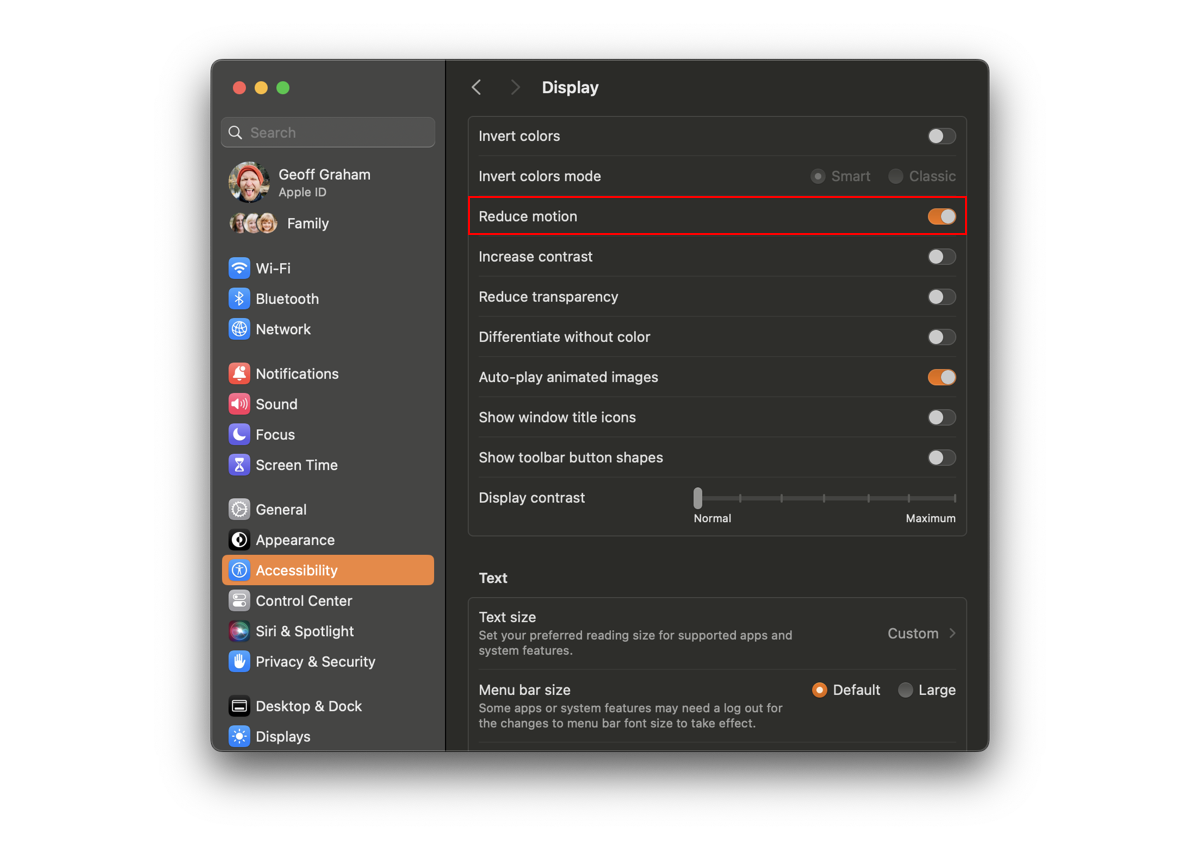
Our Digital Accessibility team made sure we are aware of the prefers-reduced-motion
media query and how it can be used to prevent or limit motion. MacOS,
for example, provides a “Reduce motion” setting in the System Settings.
As long as that setting is enabled and the browser supports it, we can use prefers-reduced-motion to configure animations in a way that respects that preference.
:root{--animation-duration: 250ms;}@media screen and(prefers-reduced-motion: reduce),(update: slow){/* Increase duration to slow animation when a user requests a reduced animation experience */.animated{--animation-duration: 0 !important;}}
Eric Bailey is quick to remind us that reduced motion is not the same as no
motion. There are cases where removing animation will prevent the
user’s understanding of the content it supports. In these cases, it may
be more effective to slow things down rather than remove them
completely.
:root{--animation-duration: 250ms;}@media screen and(prefers-reduced-motion: reduce),(update: slow){/* Increase duration to slow animation when reduced animation is preferred */*{--animation-duration: 6000ms !important;}}
Armed
with a better understanding that animation doesn’t always mean changing
positions and that we have a way to respect a user’s motion
preferences, we felt empowered to move to the next phase of our work.
When
faced with the challenge of integrating reduced motion preferences
without significantly impacting our product development and UX teams, we
posed a crucial question to ourselves: How can we effectively achieve this without compromising the quality of our products?
We
are well aware that implementing broad changes to a design system is
not an easy task, as it subsequently affects all Mercado Libre products.
It requires strategic and careful planning. That said, we also embrace a
mindset of beta and continuous improvement. After all, how can you
improve a product daily without facing new challenges and seeking
innovative solutions?
With this perspective in mind, we devised an
action plan with clear criteria and actionable steps. Our goal is to
seamlessly integrate reduced motion preferences into our products and
contribute to the well-being of all our users.
Taking into account
the criteria established by the WCAG and the distinction between
animation and motion, we classified animations into three distinct
groups:
We
identified animations that do not involve any type of motion and,
therefore, do not require any adjustments as they did not pose any
triggers for users with vestibular disorders or reduced motion
preferences.
Animations in this first group include:
Objects that instantly appear and disappear without transitions;
Elements that transition color or opacity, such as changes in state.
A button that changes color on hover is an example of an animation included in this group.
Button changing color on mouse hover. (Large preview)
As
long as we are not applying some sort of radical change on a hover
effect like this — and the colors provide enough contrast for the button
label to be legible — we can safely assume that it is not subject to
accessibility guidelines.
Next,
we categorized animations with motions that were unessential for the
interface and contrasted them with those that did add context or help
navigate the user. We consider unessential animations to be those that
are not crucial for understanding the content or state of the interface
and that could cause discomfort or distress to some individuals.
This is how we defined animations that are included in this second group:
Animated objects that take up more than one-third of the screen or move across a significant distance;
Elements with autoplay or automatic updates;
Parallax effects, multidirectional movements, or movements along the Z-axis, such as changes in perspective;
Content with flashes or looping animations;
Elements with vortex, scaling, zooming, or blurring effects;
Animated illustrations, such as morphing SVG shapes.
These are the animations we decided to completely
remove when a user has enabled reduced motion preferences since they do
not affect the delivery of the content, opting instead for a more
accessible and comfortable experience.
Some of this is subjective
and takes judgment. There were a few articles and resources that helped
us define the scope for this group of animations, and if you’re curious,
you can refer to them in the following links:
For
objects that take up more than one-third of the screen or move position
across a significant distance, we opted for instant transitions over
smooth ones to minimize unnecessary movements. This way, we ensure that
crucial information is conveyed to users without causing any discomfort
yet still provide an engaging experience in either case.
Comparing
a feedback screen with animations that take up more than one-third of
the screen versus the same screen with instant animations. (Large preview)
Other
examples of animations we completely remove include elements that
autoplay, auto-update, or loop infinitely. This might be a video or,
more likely, a carousel that transitions between panels. Whatever the
case, the purpose of removing movement from animations that are “on” by
default is that it helps us conform to WCAG Success Criterion 2.2.2
(Level AA) because we give the user absolute control to decide when a
transition occurs, such as navigating between carousel panels.
Additionally,
we decided to eliminate the horizontal sliding effect from each
transition, opting instead for instantaneous changes that do not
contribute to additional movement, further preventing the possibility of
triggering vestibular disorders.
Comparing an auto-playing carousel with another carousel that incorporates instant changes instead of smooth transitions. (Large preview)
Along
these same lines, we decided that parallax effects and any
multidirectional movements that involve scaling, zooming, blurring, and
vortex effects are also included in this second group of animations that
ought to be replaced with instant transitions.
Comparing a card flip animation with smooth transitions with one that transitions instantly. (Large preview)
The
last type of animation that falls in this category is animated
illustrations. Rather than allowing them to change shape as they
normally would, we merely display a static version. This way, the image
still provides context for users to understand the content without the
need for additional movement.
Comparing an animated illustration with the same illustration without motion. (Large preview)
The third and final category of animations includes
ones that are absolutely essential to use and understand the user
interface. This could potentially be the trickiest of them all because there’s a delicate balance to strike between essential animation and maintaining an accessible experience.
That
is why we opted to provide alternative animations when the user prefers
reduced motion. In many of these cases, it’s merely a matter of
adjusting or reducing the animation so that users are still able to
understand what is happening on the screen at all times, but without the
intensity of the default configuration.
The best way we’ve found
to do this is by adjusting the animation in a way that makes it more
subtle. For example, adjusting the animation’s duration so that it plays
longer and slower is one way to meet the challenge.
The loading
indicator in our design system is a perfect case study. Is this
animation absolutely necessary? It is, without a doubt, as it gives the
user feedback on the interface’s activity. If it were to stop without
the interface rendering updates, then the user might interpret it as a
page error.
Rather than completely removing the animation, we picked it apart to identify what aspects could pose issues:
This
is the third and final category we defined to help us guide our
decisions when incorporating animation in the user interface, and with
this guidance, we were able to tackle the third and final phase of our
work.
After
gaining a clear understanding of the necessary steps in our execution
strategy, we decided to begin integrating the reduced motion preferences
we defined in our design system across all our product interfaces.
Anyone who manages or maintains a design system knows the challenges
that come with it, particularly when it comes to implementing changes
organically without placing additional burden on our product teams.
Our approach was rooted in education.
Initially, we focused on documenting the design
system, creating a centralized and easily accessible resource that
offered comprehensive information on accessibility for animations. Our
focus was on educating and fostering empathy among all our teams
regarding the significance of reduced motion preferences. We delved into
the criteria related to motion, how to achieve it, and, most
importantly, explaining how our users benefit from it.
We also
addressed technical aspects, such as when the design system
automatically adapts to these preferences and when the onus shifts to
the product teams to tailor their experiences while proposing and
implementing animations in their projects. Subsequently, we initiated a
training and awareness campaign, commencing with a series of
company-wide presentations and the creation of accessibility articles
like the one you’re reading now!
Our
design system is the ideal platform to apply global features and
promote a culture of teamwork and consistency in experiences, especially
when it comes to accessibility. Don’t you agree?
We are now
actively working to ensure that whenever our products detect the default
motion settings on our users’ devices, they automatically adapt to
their needs, thus providing enhanced value in their experiences.
How
about you? Are you adding value to the user experience of your
interfaces with accessible animation? If so, what principles or best
practices are you using to guide your decisions, and how is it working
for you? Please share in the comments so we can compare notes.