⭐ If you would like to buy me a coffee, well thank you very much that is mega kind! : https://www.buymeacoffee.com/honeyvig
Hire a web Developer and Designer to upgrade and boost your online presence with cutting edge Technologies
Showing posts with label Web Design. Show all posts

Thursday, April 2, 2026

Beyond border-radius: What The CSS corner-shape Property Unlocks For Everyday UI

For years, developers have been hacking around the limitations of border-radius, using clip-path, SVG masks, and fragile workarounds just to get anything other than round corners. The new corner-shape property finally changes that, opening the door to beveled, scooped, and squircle corners.

When I first started building websites, rounded corners required five background images, one for each corner, one for the body, and a prayer that the client wouldn’t ask for a different radius. Then the border-radius property landed, and the entire web collectively sighed with relief. That was over fifteen years ago, and honestly, we’ve been riding that same wave ever since. Just as then, I hope that we can look at this feature as a progressive enhancement slowly making its way to other browsers.

I like a good border-radius like any other guy, but the fact is that it only gives us one shape. Round. That’s it. Want beveled corners? Clip-path. Scooped ticket edges? SVG mask. Squircle app icons? A carefully tuned SVG that you hope nobody asks you to animate. We’ve been hacking around the limitations of border-radius for years, and those hacks come with real trade-offs: borders don’t follow clip-paths, shadows get cut off, and you end up with brittle code that breaks the moment someone changes a padding value.

Well, the new corner-shape changes all of that.

What Is corner-shape?

The corner-shape property is a companion to border-radius. It doesn’t replace it; it modifies the shape of the curve that border-radius creates. Without border-radius, corner-shape does nothing. But together, they’re a powerful pair.

The property accepts these values:

  • round: the default, same as regular border-radius,
  • squircle: a superellipse, the smooth Apple-style rounded square,
  • bevel: a straight line between the two radius endpoints (snipped corners),
  • scoop: an inverted curve, creating concave corners,
  • notch: sharp inward cuts,
  • square: effectively removes the rounding, overriding border-radius.

And you can set different values per corner, just like border-radius:

*corner-shape: bevel round scoop squircle;
/* top-left, top-right, bottom-right, bottom-left */

You can also use the superellipse() function with a numeric parameter for fine-grained control.

.element { 
  border-radius: 25px;
  corner-shape: superellipse(0); /* equal to 'bevel' */
}

So the question here might be: why not call this property “border-shape” instead? Well, first of all, that is something completely different that we’ll get to play around with soon. Second, it does apply to a bit more than borders, such as outlines, box shadows, and backgrounds. That’s the thing that the clip-path property could never do.

Why Progressive Enhancement Matters Here

At the time of writing (March 2026), corner-shape is only supported in Chrome 139+ and other Chromium-based browsers. That’s a significant chunk of users, but certainly not everyone. The temptation is to either ignore the property until it’s everywhere or to build demos that fall apart without it.

I don’t think either approach is right. The way I see it, corner-shape is the perfect candidate for progressive enhancement, just as border-radius was in the age of Internet Explorer 6. The baseline should use the techniques we already know, such as border-radius, clip-path, radial-gradient masks and look intentionally good. Then, for browsers that support corner-shape, we upgrade the experience. Sometimes this can be as simple as just providing a more basic default; sometimes it might need to be a bit more.

Every demo in this article is created with that progressive enhancement idea. The structure for the demos looks like:

@layer base, presentation, demo;

The presentation layer contains the full polished UI using proven techniques. The demo layer wraps everything in @supports:

@layer demo {
  @supports (corner-shape: bevel) {
    /* upgrade styles here */
  }
}

No fallback banners, no “your browser doesn’t support this” messages. Just two tiers of design: good and better. I thought it could be nice just to show some examples. There are a few out there already, but I hope I can add a bit of extra inspiration on top of those.

Demo 1: Product Cards With Ribbon Badges

Every e-commerce site has them: those little “New” or “Sale” badges pinned to the corner of a product card. Traditionally, getting that ribbon shape means reaching for clip-path: polygon() or a rotated pseudo-element, let’s call it “fiddly code” that has the chance to fall apart the moment someone changes a padding value.

But here’s the thing: we don’t need the ribbon shape in the baseline. A simple badge with slightly rounded corners tells the same story and looks perfectly fine:

.product__badge {
  border-radius: 0 4px 4px 0;
  background-color: var(--badge-bg);
}

That’s it. A small, clean label sitting flush against the left edge of the card. Nothing fancy, nothing broken. It works in every browser.
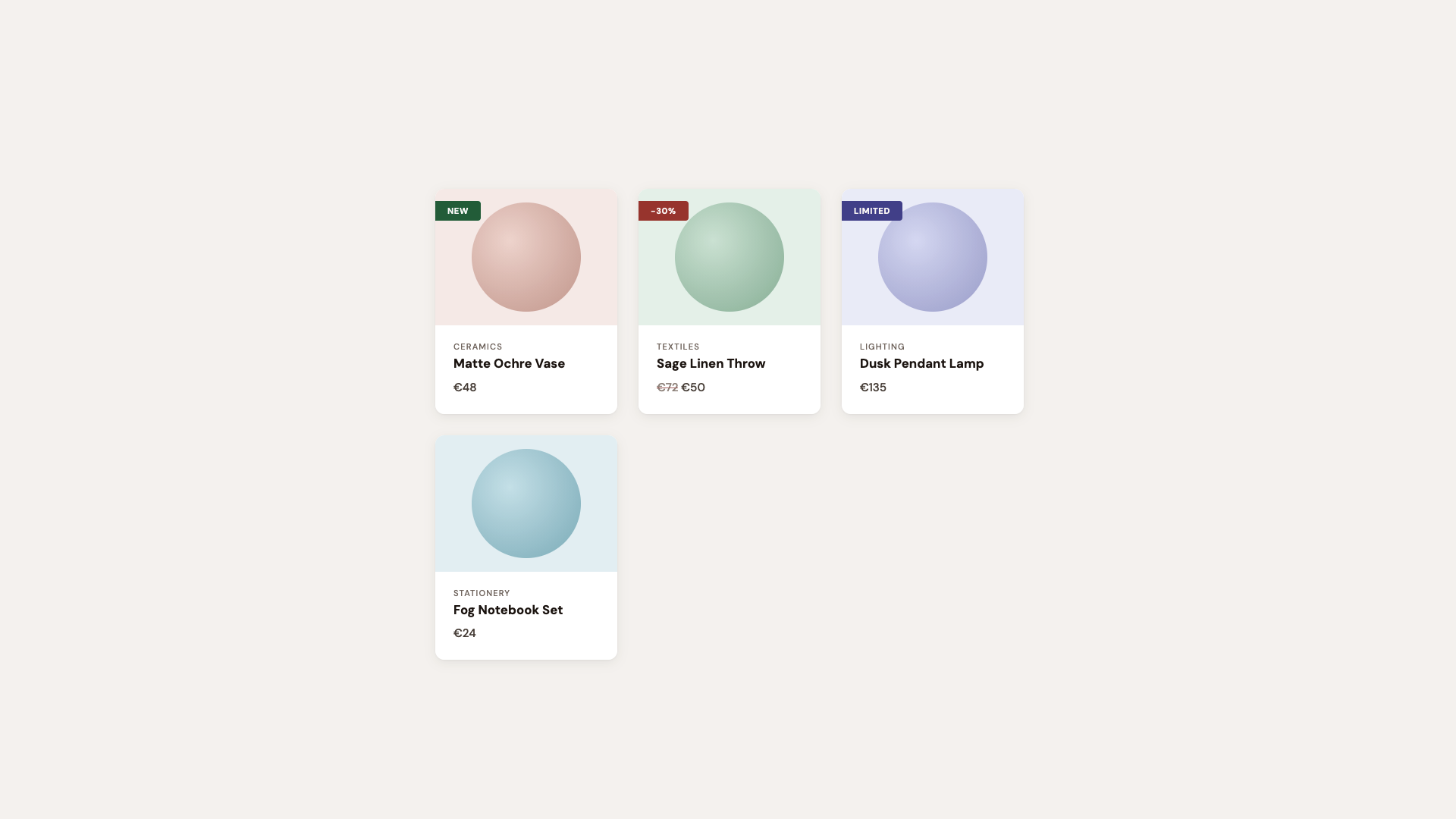
Product cards with colored corner badges like “New,” “–30%,” and “Limited.”

For browsers that support corner-shape, we enhance:

@layer demo {
  /* If the browser supports `corner-shape` */
  @supports (corner-shape: bevel) {
    .product {
      border-radius: 40px;
      corner-shape: squircle;
    }

    .product__badge {
      padding: 0.35rem 1.4rem 0.35rem 1rem;
      border-radius: 0 16px 16px 0;
      corner-shape: round bevel bevel round;
    }
  }
}

The round bevel bevel round combination creates a directional ribbon. Round where it meets the card edge, beveled to a point on the other side. No clip-path, no pseudo-element tricks. Borders, shadows, and backgrounds all follow the declared shape because it is the shape.

The cards themselves upgrade from border-radius: 12px to a larger size and the squircle corner-shape, that smooth superellipse curve that makes standard rounding look slightly off by comparison. Designers will notice immediately. Everyone else will just say it “feels more premium.”
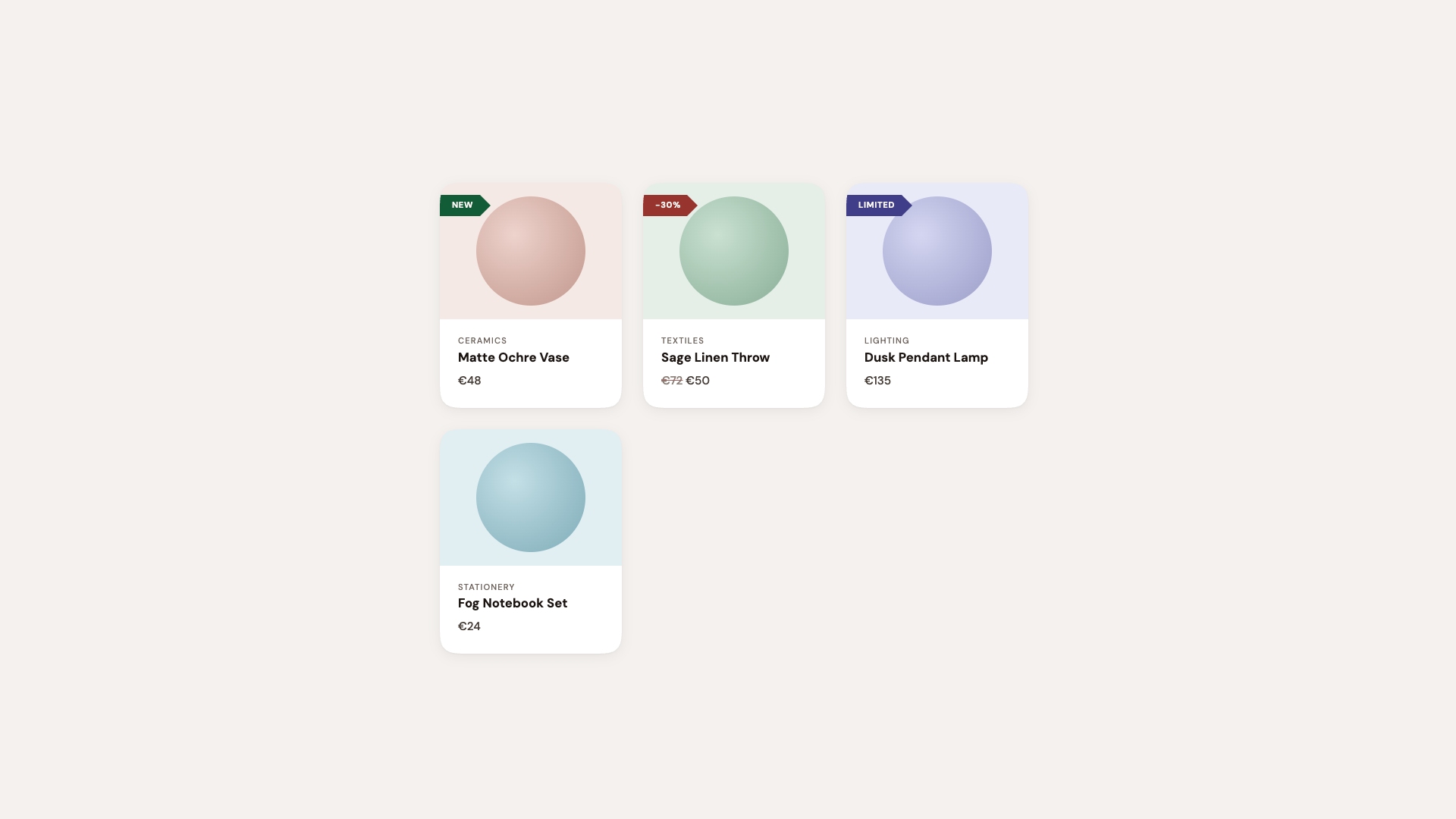
Product cards with arrow-shaped corner badges labeled “New,” “–30%,” and “Limited,” pointing inward.

Hot tip: Using the squircle value on card components is one of those upgrades where the before-and-after difference can be subtle in isolation, but transformative across an entire page. It’s the iOS effect: once everything uses superellipse curves, plain circular arcs start looking out of place. In this demo, I did exaggerate a bit.

See the Pen Corner-shape: Labels [forked] by utilitybend.

Demo 2: Buttons, Tags, And Components

This is the “component library demo”, the one that shows corner-shape isn’t just for hero sections. It’s practical, everyday UI: solid buttons, outlined buttons, status tags, directional arrows, notification badges.

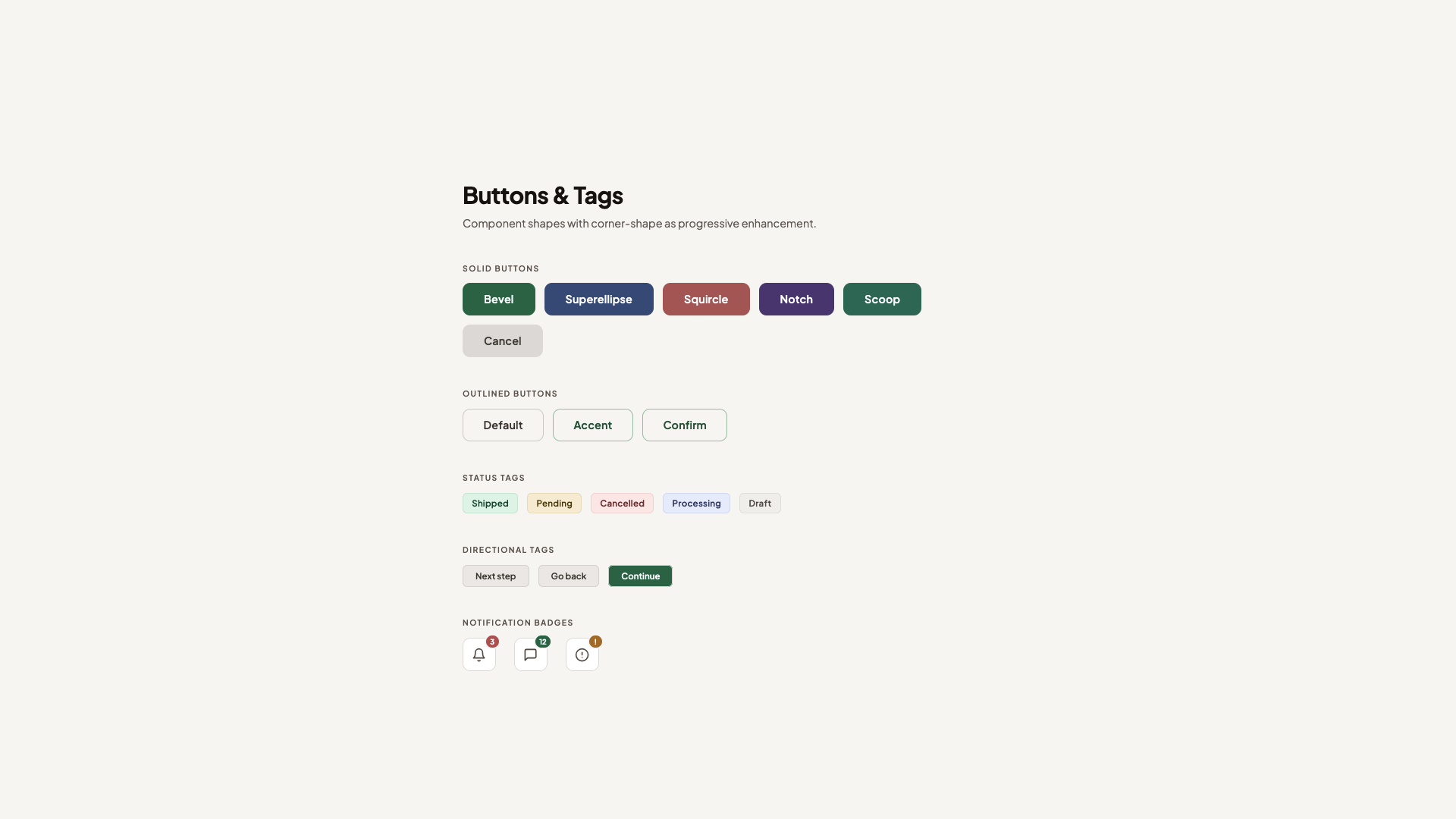
The set-up is intentionally clean. Standard border-radius: 10px buttons with a polished typeface. Everything works, everything looks professional. You could do this without hesitation.

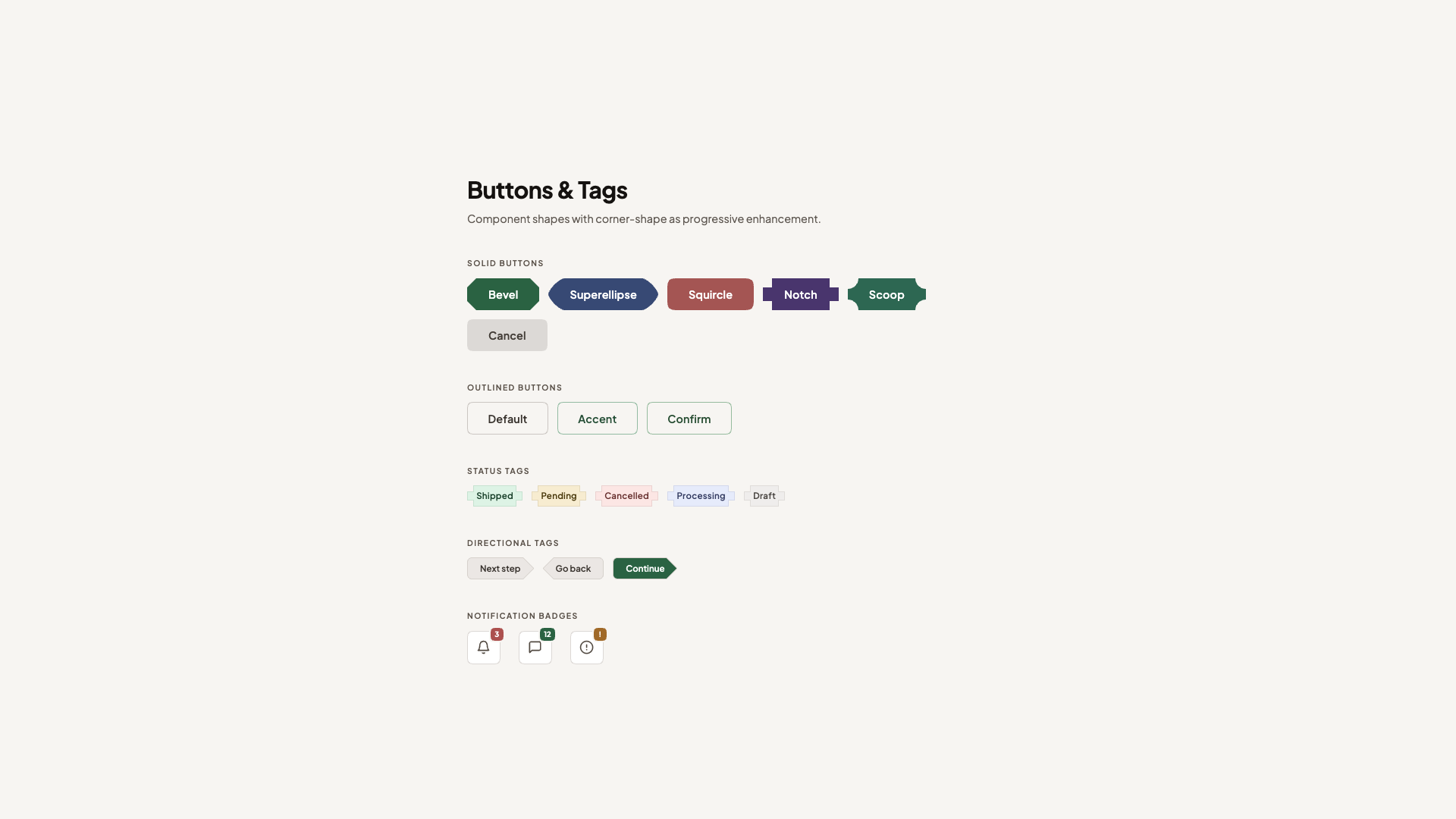
The corner-shape layer turns it into a showcase. Each button type gets its own shape to demonstrate the range of what’s possible:
@layer demo {
  @supports (corner-shape: bevel) {
    .btn--primary {
      corner-shape: bevel;
      transition: corner-shape 0.3s ease;

      &:hover {
        corner-shape: squircle;
      }
    }

    .btn--secondary {
      border-radius: 25px;
      corner-shape: superellipse(0.5);
    }

    .btn--danger {
      border-radius: 16px;
      corner-shape: squircle;
    }

    .btn--notch {
      border-radius: 12px;
      corner-shape: notch;
    }

    .btn--scoop {
      border-radius: 14px;
      corner-shape: scoop;
    }
  }
}
Buttins and tags before
Before.
Buttins and tags after
After.

The primary button starts beveled, faceted, and gem-like, and softens to squircle on hover. Because corner-shape values animate via their superellipse() equivalents, the transition is smooth. It’s a fun interaction that used to be hard to achieve but is now a single property (used alongside border-radius, of course).

The secondary button uses superellipse(0.5), a value that is between a standard circle and a squircle, combined with a larger border-radius for a distinctive pill-like shape. The danger button gets a more prominent squircle with a generous radius. And notch and scoop each bring their own sharp or concave personality.

Beyond buttons, the status tags get corner-shape: notch, those sharp inward cuts that give them a machine-stamped look. The directional arrow tags use round bevel bevel round (and its reverse for the back arrow), replacing what used to require clip-path: polygon(). Now borders and shadows work correctly across all states.

See the Pen Corner-shape: Buttons & Tags [forked] by utilitybend.

Demo 3: Testimonial Cards 

This demo is probably my favourite one. At its foundation, these are just testimonial cards with serif typography, a sandy palette, and scooped corners on the featured card. The design language is intentionally different from the clean geometric buttons demo, and that’s the point. corner-shape merely adds that extra “edge”.

The basis is standard border-radius: 16px cards. The featured testimonial spans full width with a subtle gradient and a decorative open quote mark. Normal cards alternate in a two-column grid. It already looks like something from a premium marketing site.

The corner-shape layer adds character:

@layer demo {
  /* Progressive enhancement */
  @supports (corner-shape: scoop) {
    .testimonial {
      border-radius: 20px;
      corner-shape: squircle;
    }

    .testimonial--featured {
      border-radius: 24px;
      corner-shape: scoop;
    }

    .testimonial:not(.testimonial--featured):nth-child(even) {
      corner-shape: scoop round;
    }

    .testimonial__avatar {
      border-radius: 28%;
      corner-shape: squircle;
    }
  }
}

The featured card gets full scoop corners, concave on all four sides, creating an organic, almost hand-crafted feel that matches the serif typography. Even-numbered cards mix scoop round, giving each one a slightly different personality without any extra markup.

The author avatars switch from circles to squircle. A small touch that makes it a bit more “different”.
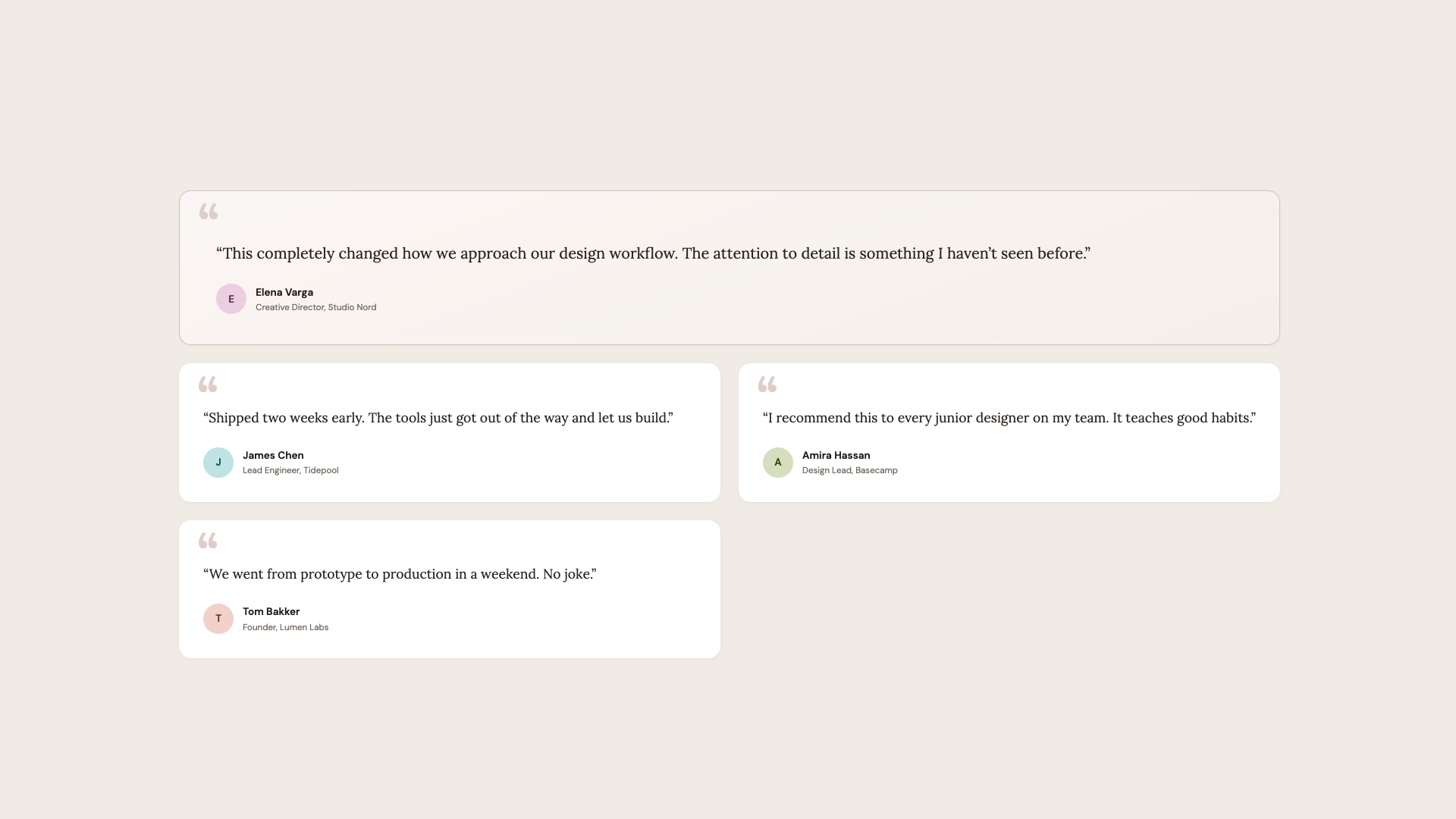
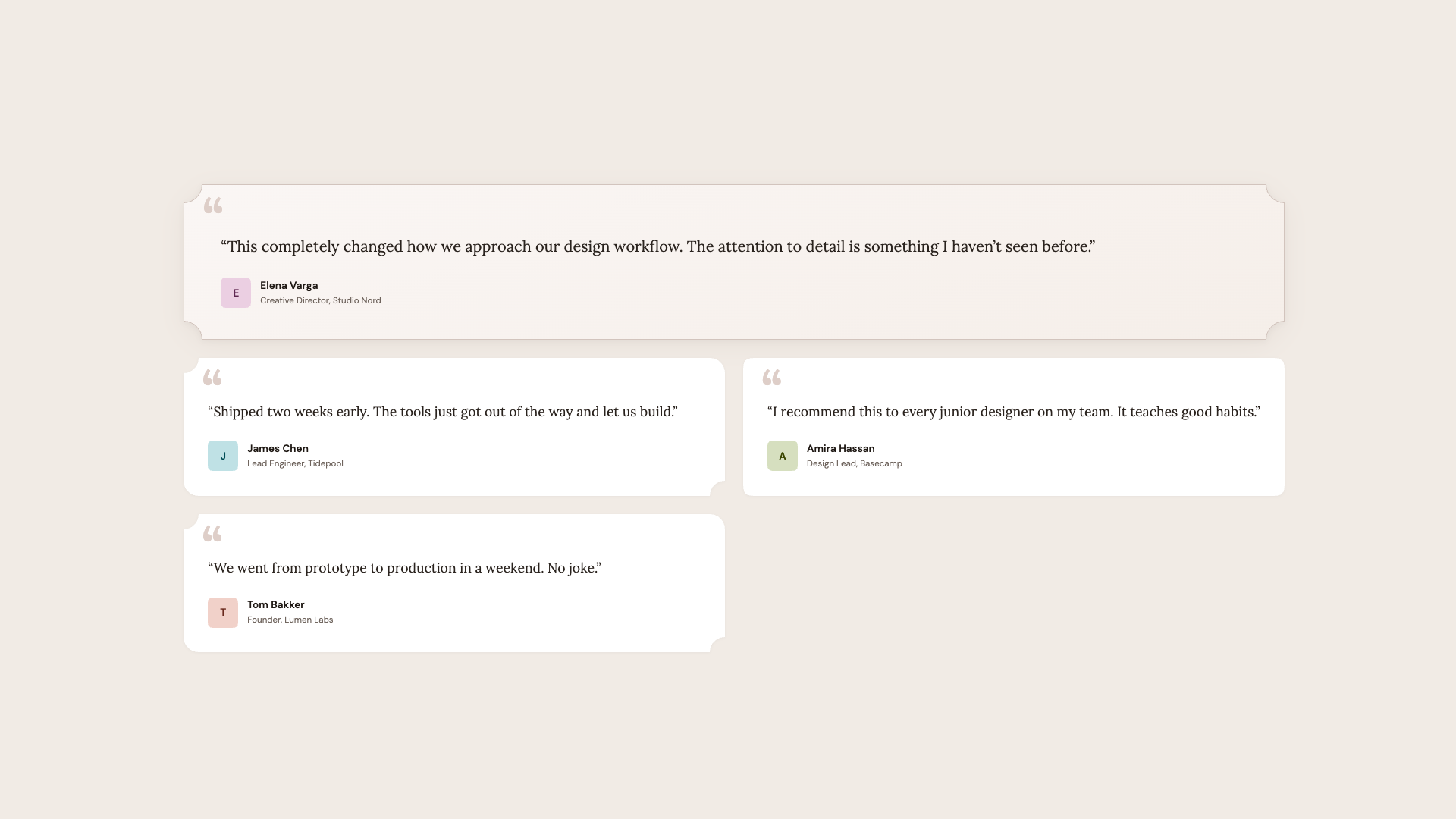
Testimonials before
Fallback. 
Testimonials after
Supported.

Hot tip: corner-shape: scoop pairs beautifully with serif fonts and warm color palettes. The concave curves echo the organic shapes found in editorial design, calligraphy, and print layouts. For geometric sans-serif designs, stick with squircle or bevel.

See the Pen Corner-shape: Testimonials [forked] by utilitybend.

Demo 4: Pricing Cards

Every SaaS site needs a pricing page, and the visual hierarchy challenge is always the same: make one plan stand out without the others feeling neglected. This demo solves it with corner-shape.

This is quite similar to the last demo in that we once again have a nice baseline for browsers that don’t yet support corner-shape. We have three cards in a row, where the featured plan is distinguished by a warm gradient background, a stronger border, and a “Most Popular” badge.

The enhancement takes it further:

@layer demo {
  @supports (corner-shape: squircle) {
    .plan {
      border-radius: 20px;
      corner-shape: squircle;
    }

    .plan--featured {
      border-radius: 24px;
      corner-shape: scoop;
    }

    .plan__badge {
      inset-inline-start: 50%;
      translate: -50% 0;
      padding-inline: 1.2rem;
      border-radius: 10px;
      corner-shape: bevel;
    }

    .plan__cta {
      border-radius: 12px;
      corner-shape: squircle;
    }
  }
}

Regular plans get squircle for that premium feel. The featured plan gets scoop, concave corners that immediately set it apart from its neighbors. The “Most Popular” badge centers itself and takes on corner-shape: bevel, creating a gem-like, faceted shape that feels like a jewel pinned to the card. The CTA buttons get squircle to match the card language.
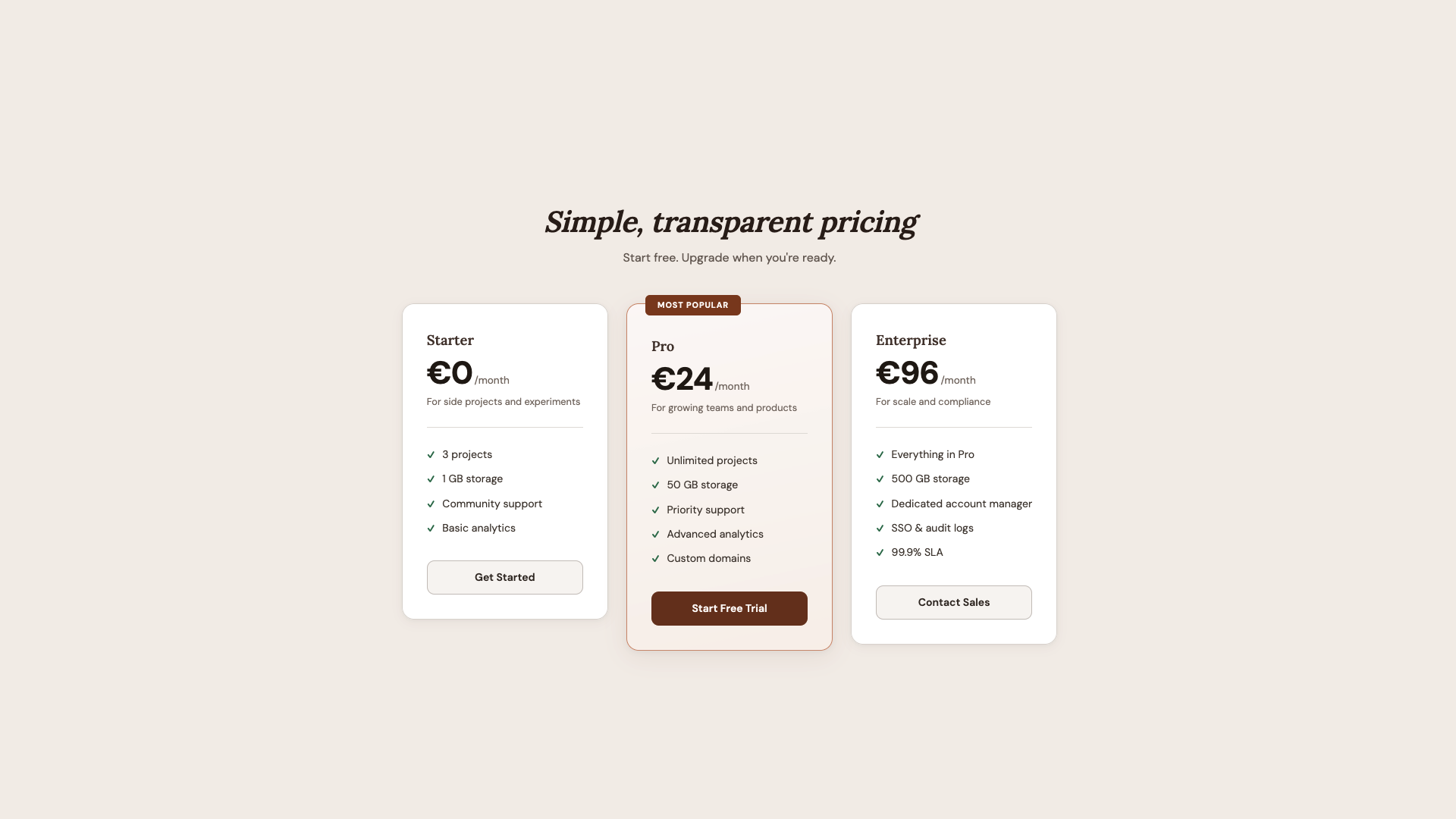
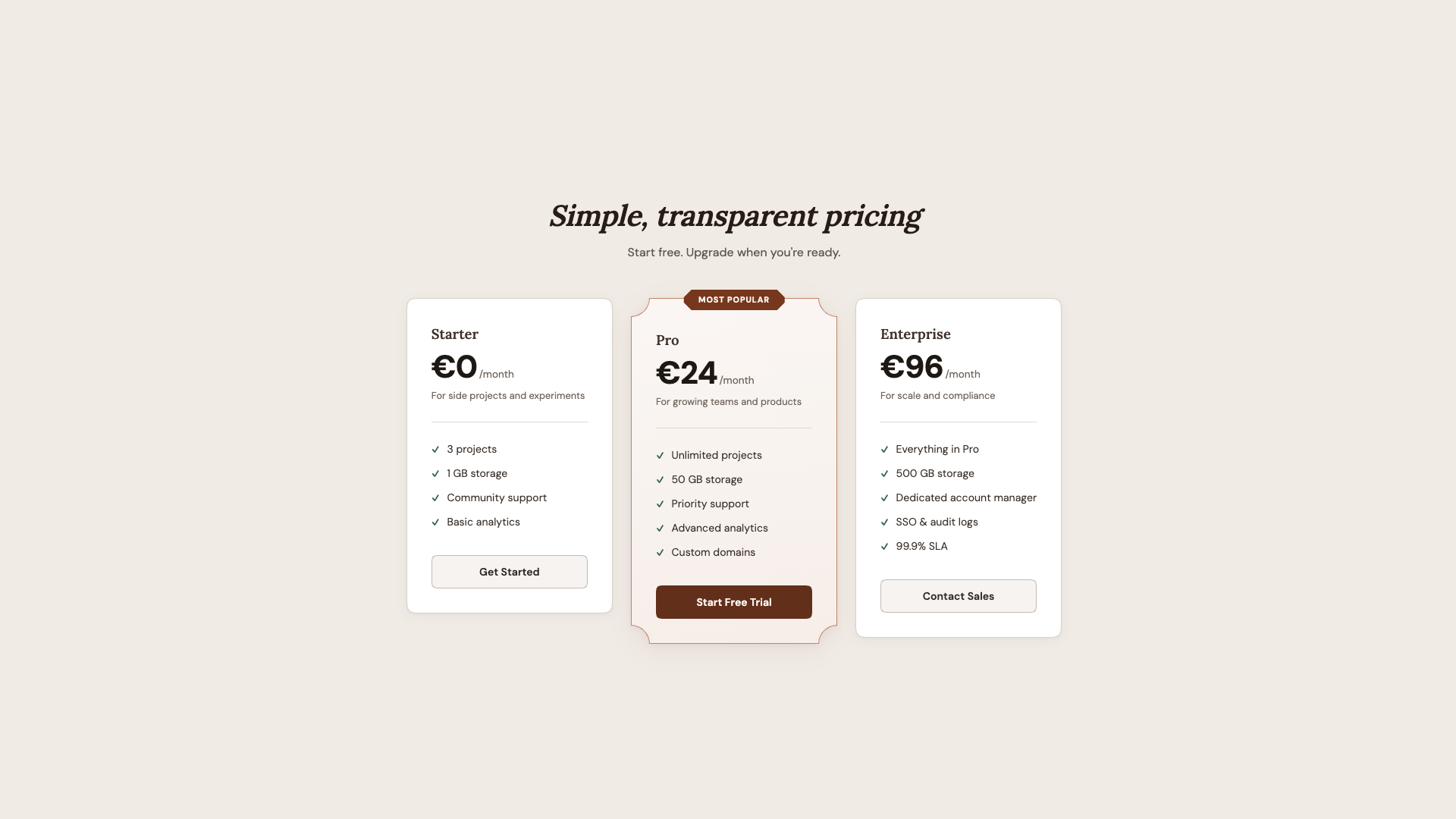
Pricing cards: before
Before. (Large preview)
Pricing cards: after
After.

What I like about this demo is how the shape hierarchy mirrors the content hierarchy. The most important element (featured plan) gets the most distinctive shape (scoop). The badge gets the sharpest shape (bevel). Everything else gets a simpler upgrade (squircle). Shape becomes a tool for visual emphasis, not just decoration.

See the Pen Corner-shape: Pricing [forked] by utilitybend.

Demo 5: Music Player

The final demo is a warm dark UI for a music player with album art, playback controls, genre tags, and a listening queue. It’s the most visually complex demo, and it shows how corner-shape works across many different element types within a single cohesive design.

This time, I went for a dark warm palette built on oklch(18% 0.015 40), and standard rounded corners throughout. The album art gets border-radius: 12px, queue items get border-radius: 12px, genre tags get border-radius: 5px. It looks good. It’s a complete, polished player.

And then once again, we add some enhancements:

@layer demo {
  @supports (corner-shape: squircle) {
    .now-playing {
      border-radius: 20px;
      corner-shape: squircle;
    }

    .now-playing__art {
      border-radius: 16px;
      corner-shape: squircle;
    }

    .now-playing__swatch {
      border-radius: 26%;
      corner-shape: squircle;
    }

    .queue-item {
      border-radius: 14px;
      corner-shape: scoop round;
    }

    .tag {
      border-radius: 8px;
      corner-shape: bevel;
    }
  }
}

The player card and album art get squircle, the same curves used for app icons and album thumbnails. Album art swatches go from border-radius: 22% to a proper squircle at 26%, which is a subtle but meaningful difference in the visual elements you stare at while listening.

Queue items get scoop round, resulting in concave corners on the top-left and bottom-left, and round on the right. It gives each row a distinctive feel without overwhelming the layout. Genre tags get bevel for that sharp feeling.

The Play button also gets corner-shape: squircle on its existing border-radius: 50% to fit the album covers. On the surface, the difference is barely noticeable, but it contributes to the overall feel of the player.

See the Pen Corner-shape: Music player [forked] by utilitybend.
Music player: before
Before. (Large preview)
Music player: after
After.

Browser Support

As of writing, corner-shape is available in Chrome 139+ and Chromium-based browsers. Firefox and Safari don’t support it yet. The spec lives in CSS Borders and Box Decorations Module Level 4, which is a W3C Working Draft as of this writing.

For practical use, that’s fine. That’s the whole point of how these demos are built. The presentation layer delivers a polished, complete UI to every browser. The demo layer is a bonus for supporting browsers, wrapped in @supports (corner-shape: ...). I lived through the time when border-radius was only available in Firefox. Somewhere along the line, it seems like we have forgotten that not every website needs to look exactly the same in every browser. What we really want is: no “broken” layouts and no “your browser doesn’t support this” messages, but rather a beautiful experience that just works, and can progressively enhance a bit of extra joy. In other words, we’re working with two tiers of design: good and better.

Wrapping Up

The approach I keep coming back to is: don’t design for corner-shape, and don’t design around the lack of it. Design a solid baseline with border-radius and then enhance it. The presentation layer in every demo looks intentionally good. It’s not a degraded version waiting for a better browser. It’s a complete design. The demo layer adds a dimension that border-radius alone can’t express.

What surprises me most about corner-shape is the range it offers — the amazing powerhouse we have with this single property: squircle for that premium, superellipse feel on cards and avatars; bevel for directional elements and gem-like badges; scoop for editorial warmth and visual hierarchy; notch for mechanical precision on tags; and superellipse() for fine control between round and squircle. And the ability to mix values per corner (round bevel bevel round, scoop round) opens up shapes that would have required SVG masks or clip-path hacks.

We went from five background images to border-radius, to corner-shape. Each step removed a category of workarounds. I’m excited to see what designers do with this one.

Further Reading

Wednesday, October 8, 2025

The Double-Edged Sustainability Sword Of AI In Web Design


AI has introduced huge efficiencies for web designers and is frequently being touted as the key to unlocking sustainable design and development. But do these gains outweigh the environmental cost of using energy-hungry AI tools?

Artificial intelligence is increasingly automating large parts of design and development workflows — tasks once reserved for skilled designers and developers. This streamlining can dramatically speed up project delivery. Even back in 2023, AI-assisted developers were found to complete tasks twice as fast as those without. And AI tools have advanced massively since then.

Yet this surge in capability raises a pressing dilemma:

Does the environmental toll of powering AI infrastructure eclipse the efficiency gains?

We can create websites faster that are optimized and more efficient to run, but the global consumption of energy by AI continues to climb.

As awareness grows around the digital sector’s hidden ecological footprint, web designers and businesses must grapple with this double-edged sword, weighing the grid-level impacts of AI against the cleaner, leaner code it can produce.

The Good: How AI Can Enhance Sustainability In Web Design

There’s no disputing that AI-driven automation has introduced higher speeds and efficiencies to many of the mundane aspects of web design. Tools that automatically generate responsive layouts, optimize image sizes, and refactor bloated scripts should free designers to focus on completing the creative side of design and development.

By some interpretations, these accelerated project timelines could represent a reduction in the required energy for development, and speedier production should mean less energy used.

Beyond automation, AI excels at identifying inefficiencies in code and design, as it can take a much more holistic view and assess things as a whole. Advanced algorithms can parse through stylesheets and JavaScript files to detect unused selectors or redundant logic, producing leaner, faster-loading pages. For example, AI-driven caching can increase cache hit rates by 15% by improving data availability and reducing latency. This means more user requests are served directly from the cache, reducing the need for data retrieval from the main server, which reduces energy expenditure.

AI tools can utilize next-generation image formats like AVIF or WebP, as they’re basically designed to be understood by AI and automation, and selectively compress assets based on content sensitivity. This slashes media payloads without perceptible quality loss, as the AI can use Generative Adversarial Networks (GANs) that can learn compact representations of data.

AI’s impact also brings sustainability benefits via user experience (UX). AI-driven personalization engines can dynamically serve only the content a visitor needs, which eliminates superfluous scripts or images that they don’t care about. This not only enhances perceived performance but reduces the number of server requests and data transferred, cutting downstream energy use in network infrastructure.

With the right prompts, generative AI can be an accessibility tool and ensure sites meet inclusive design standards by checking against accessibility standards, reducing the need for redesigns that can be costly in terms of time, money, and energy.

So, if you can take things in isolation, AI can and already acts as an important tool to make web design more efficient and sustainable. But do these gains outweigh the cost of the resources required in building and maintaining these tools?

The Bad: The Environmental Footprint Of AI Infrastructure

Yet the carbon savings engineered at the page level must be balanced against the prodigious resource demands of AI infrastructure. Large-scale AI hinges on data centers that already account for roughly 2% of global electricity consumption, a figure projected to swell as AI workloads grow.

The International Energy Agency warns that electricity consumption from data centers could more than double by 2030 due to the increasing demand for AI tools, reaching nearly the current consumption of Japan. Training state-of-the-art language models generates carbon emissions on par with hundreds of transatlantic flights, and inference workloads, serving billions of requests daily, can rival or exceed training emissions over a model’s lifetime.

Image generation tasks represent an even steeper energy hill to climb. Producing a single AI-generated image can consume energy equivalent to charging a smartphone.

As generative design and AI-based prototyping become more common in web development, the cumulative energy footprint of these operations can quickly undermine the carbon savings achieved through optimized code.

Water consumption forms another hidden cost. Data centers rely heavily on evaporative cooling systems that can draw between one and five million gallons of water per day, depending on size and location, placing stress on local supplies, especially in drought-prone regions. Studies estimate a single ChatGPT query may consume up to half a liter of water when accounting for direct cooling requirements, with broader AI use potentially demanding billions of liters annually by 2027.

Resource depletion and electronic waste are further concerns. High-performance components underpinning AI services, like GPUs, can have very small lifespans due to both wear and tear and being superseded by more powerful hardware. AI alone could add between 1.2 and 5 million metric tons of e-waste by 2030, due to the continuous demand for new hardware, amplifying one of the world’s fastest-growing waste streams.

Mining for the critical minerals in these devices often proceeds under unsustainable conditions due to a lack of regulations in many of the environments where rare metals can be sourced, and the resulting e-waste, rich in toxic metals like lead and mercury, poses another form of environmental damage if not properly recycled.

Compounding these physical impacts is a lack of transparency in corporate reporting. Energy and water consumption figures for AI workloads are often aggregated under general data center operations, which obscures the specific toll of AI training and inference among other operations.

And the energy consumption reporting of the data centres themselves has been found to have been obfuscated.

Reports estimate that the emissions of data centers are up to 662% higher than initially reported due to misaligned metrics, and ‘creative’ interpretations of what constitutes an emission. This makes it hard to grasp the true scale of AI’s environmental footprint, leaving designers and decision-makers unable to make informed, environmentally conscious decisions.

Do The Gains From AI Outweigh The Costs?

Some industry advocates argue that AI’s energy consumption isn’t as catastrophic as headlines suggest. Some groups have challenged ‘alarmist’ projections, claiming that AI’s current contribution of ‘just’ 0.02% of global energy consumption isn’t a cause for concern.

Proponents also highlight AI’s supposed environmental benefits. There are claims that AI could reduce economy-wide greenhouse gas emissions by 0.1% to 1.1% through efficiency improvements. Google reported that five AI-powered solutions removed 26 million metric tons of emissions in 2024. The optimistic view holds that AI’s capacity to optimize everything from energy grids to transportation systems will more than compensate for its data center demands.

However, recent scientific analysis reveals these arguments underestimate AI’s true impact. MIT found that data centers already consume 4.4% of all US electricity, with projections showing AI alone could use as much power as 22% of US households by 2028. Research indicates AI-specific electricity use could triple from current levels annually by 2028. Moreover, Harvard research revealed that data centers use electricity with 48% higher carbon intensity than the US average.

Advice For Sustainable AI Use In Web Design

Despite the environmental costs, AI’s use in business, particularly web design, isn’t going away anytime soon, with 70% of large businesses looking to increase their AI investments to increase efficiencies. AI’s immense impact on productivity means those not using it are likely to be left behind. This means that environmentally conscious businesses and designers must find the right balance between AI’s environmental cost and the efficiency gains it brings.

Make Sure You Have A Strong Foundation Of Sustainable Web Design Principles

Before you plug in any AI magic, start by making sure the bones of your site are sustainable. Lean web fundamentals, like system fonts instead of hefty custom files, minimal JavaScript, and judicious image use, can slash a page’s carbon footprint by stripping out redundancies that increase energy consumption. For instance, the global average web page emits about 0.8g of CO₂ per view, whereas sustainably crafted sites can see a roughly 70% reduction.

Once that lean baseline is in place, AI-driven optimizations (image format selection, code pruning, responsive layout generation) aren’t adding to bloat but building on efficiency, ensuring every joule spent on AI actually yields downstream energy savings in delivery and user experience.

Choosing The Right Tools And Vendor

In order to make sustainable tool choices, transparency and awareness are the first steps. Many AI vendors have pledged to work towards sustainability, but independent audits are necessary, along with clear, cohesive metrics. Standardized reporting on energy and water footprints will help us understand the true cost of AI tools, allowing for informed choices.

You can look for providers that publish detailed environmental reports and hold third-party renewable energy certifications. Many major providers now offer PUE (Power Usage Effectiveness) metrics alongside renewable energy matching to demonstrate real-world commitments to clean power.

When integrating AI into your build pipeline, choosing lightweight, specialized models for tasks like image compression or code linting can be more sustainable than full-scale generative engines. Task-specific tools often use considerably less energy than general AI models, as general models must process what task you want them to complete.

There are a variety of guides and collectives out there that can guide you on choosing the ‘green’ web hosts that are best for your business. When choosing AI-model vendors, you should look at options that prioritize ‘efficiency by design’: smaller, pruned models and edge-compute deployments can cut energy use by up to 50% compared to monolithic cloud-only models. They’re trained for specific tasks, so they don’t have to expend energy computing what the task is and how to go about it.

Using AI Tools Sustainably

Once you’ve chosen conscientious vendors, optimize how you actually use AI. You can take steps like batching non-urgent inference tasks to reduce idle GPU time, an approach shown to lower energy consumption overall compared to requesting ad-hoc, as you don’t have to keep running the GPU constantly, only when you need to use it.

Smarter prompts can also help make AI usage slightly more sustainable. Sam Altman of ChatGPT revealed early in 2025 that people’s propensity for saying ‘please’ and ‘thank you’ to LLMs is costing millions of dollars and wasting energy as the Generative AI has to deal with extra phrases to compute that aren’t relevant to its task. You need to ensure that your prompts are direct and to the point, and deliver the context required to complete the task to reduce the need to reprompt.

Additional Strategies To Balance AI’s Environmental Cost

On top of being responsible with your AI tool choice and usage, there are other steps you can take to offset the carbon cost of AI usage and enjoy the efficiency benefits it brings. Organizations can reduce their own emissions and use carbon offsetting to reduce their own carbon footprint as much as possible. Combined with the apparent sustainability benefits of AI use, this approach can help mitigate the harmful impacts of energy-hungry AI.

You can ensure that you’re using green server hosting (servers run on sustainable energy) for your own site and cloud needs beyond AI, and refine your content delivery network (CDN) to ensure your sites and apps are serving compressed, optimized assets from edge locations, cutting the distance data must travel, which should reduce the associated energy use.

Organizations and individuals, particularly those with thought leadership status, can be advocates pushing for transparent sustainability specifications. This involves both lobbying politicians and regulatory bodies to introduce and enforce sustainability standards and ensuring that other members of the public are kept aware of the environmental costs of AI use.

It’s only through collective action that we’re likely to see strict enforcement of both sustainable AI data centers and the standardization of emissions reporting.

Regardless, it remains a tricky path to walk, along the double-edged sword of AI’s use in web design.

Use AI too much, and you’re contributing to its massive carbon footprint. Use it too little, and you’re likely to be left behind by rivals that are able to work more efficiently and deliver projects much faster.

The best environmentally conscious designers and organizations can currently do is attempt to navigate it as best they can and stay informed on best practices.

Conclusion

We can’t dispute that AI use in web design delivers on its promise of agility, personalization, and resource savings at the page-level. Yet without a holistic view that accounts for the environmental demands of AI infrastructure, these gains risk being overshadowed by an expanding energy and water footprint.

Achieving the balance between enjoying AI’s efficiency gains and managing its carbon footprint requires transparency, targeted deployment, human oversight, and a steadfast commitment to core sustainable web practices.

Saturday, July 19, 2025

Reliably Detecting Third-Party Cookie Blocking In 2025


The web is mired in a struggle to eliminate third-party cookies, with the World Wide Web Consortium Technical Architecture Group leading the charge. But there are obstacles preventing this from happening, and, as a result, many essential web features continue to rely on cookies to function properly. That’s why detecting third-party cookie blocking isn’t just good technical hygiene but a frontline defense for user experience.

The web is beginning to part ways with third-party cookies, a technology it once heavily relied on. Introduced in 1994 by Netscape to support features like virtual shopping carts, cookies have long been a staple of web functionality. However, concerns over privacy and security have led to a concerted effort to eliminate them. The World Wide Web Consortium Technical Architecture Group (W3C TAG) has been vocal in advocating for the complete removal of third-party cookies from the web platform.

Major browsers (Chrome, Safari, Firefox, and Edge) are responding by phasing them out, though the transition is gradual. While this shift enhances user privacy, it also disrupts legitimate functionalities that rely on third-party cookies, such as single sign-on (SSO), fraud prevention, and embedded services. And because there is still no universal ban in place and many essential web features continue to depend on these cookies, developers must detect when third-party cookies are blocked so that applications can respond gracefully.

Yes, the ideal solution is to move away from third-party cookies altogether and redesign our integrations using privacy-first, purpose-built alternatives as soon as possible. But in reality, that migration can take months or even years, especially for legacy systems or third-party vendors. Meanwhile, users are already browsing with third-party cookies disabled and often have no idea that anything is missing.

Imagine a travel booking platform that embeds an iframe from a third-party partner to display live train or flight schedules. This embedded service uses a cookie on its own domain to authenticate the user and personalize content, like showing saved trips or loyalty rewards. But when the browser blocks third-party cookies, the iframe cannot access that data. Instead of a seamless experience, the user sees an error, a blank screen, or a login prompt that doesn’t work.

And while your team is still planning a long-term integration overhaul, this is already happening to real users. They don’t see a cookie policy; they just see a broken booking flow.

Detecting third-party cookie blocking isn’t just good technical hygiene but a frontline defense for user experience.

Why It’s Hard To Tell If Third-Party Cookies Are Blocked

Detecting whether third-party cookies are supported isn’t as simple as calling navigator.cookieEnabled. Even a well-intentioned check like this one may look safe, but it still won’t tell you what you actually need to know:

// DOES NOT detect third-party cookie blocking
function areCookiesEnabled() {
  if (navigator.cookieEnabled === false) {
    return false;
  }

  try {
    document.cookie = "test_cookie=1; SameSite=None; Secure";
    const hasCookie = document.cookie.includes("test_cookie=1");
    document.cookie = "test_cookie=; Max-Age=0; SameSite=None; Secure";

    return hasCookie;
  } catch (e) {
    return false;
  }
}

This function only confirms that cookies work in the current (first-party) context. It says nothing about third-party scenarios, like an iframe on another domain. Worse, it’s misleading: in some browsers, navigator.cookieEnabled may still return true inside a third-party iframe even when cookies are blocked. Others might behave differently, leading to inconsistent and unreliable detection.

These cross-browser inconsistencies — combined with the limitations of document.cookie — make it clear that there is no shortcut for detection. To truly detect third-party cookie blocking, we need to understand how different browsers actually behave in embedded third-party contexts.

How Modern Browsers Handle Third-Party Cookies

The behavior of modern browsers directly affects which detection methods will work and which ones silently fail.

Since version 13.1, Safari blocks all third-party cookies by default, with no exceptions, even if the user previously interacted with the embedded domain. This policy is part of Intelligent Tracking Prevention (ITP).

For embedded content (such as an SSO iframe) that requires cookie access, Safari exposes the Storage Access API, which requires a user gesture to grant storage permission. As a result, a test for third-party cookie support will nearly always fail in Safari unless the iframe explicitly requests access via this API.

Firefox’s Total Cookie Protection isolates cookies on a per-site basis. Third-party cookies can still be set and read, but they are partitioned by the top-level site, meaning a cookie set by the same third-party on siteA.com and siteB.com is stored separately and cannot be shared.

As of Firefox 102, this behavior is enabled by default in the Standard (default) mode of Enhanced Tracking Protection. Unlike the Strict mode — which blocks third-party cookies entirely, similar to Safari — the Standard mode does not block them outright. Instead, it neutralizes their tracking capability by isolating them per site.

As a result, even if a test shows that a third-party cookie was successfully set, it may be useless for cross-site logins or shared sessions due to this partitioning. Detection logic needs to account for that.

Chrome: From Deprecation Plans To Privacy Sandbox (And Industry Pushback) #

Chromium-based browsers still allow third-party cookies by default — but the story is changing. Starting with Chrome 80, third-party cookies must be explicitly marked with SameSite=None; Secure, or they will be rejected.

In January 2020, Google announced their intention to phase out third-party cookies by 2022. However, the timeline was updated multiple times, first in June 2021 when the company pushed the rollout to begin in mid-2023 and conclude by the end of that year. Additional postponements followed in July 2022, December 2023, and April 2024.

In July 2024, Google has clarified that there is no plan to unilaterally deprecate third-party cookies or force users into a new model without consent. Instead, Chrome is shifting to a user-choice interface that will allow individuals to decide whether to block or allow third-party cookies globally.

This change was influenced in part by substantial pushback from the advertising industry, as well as ongoing regulatory oversight, including scrutiny by the UK Competition and Markets Authority (CMA) into Google’s Privacy Sandbox initiative. The CMA confirmed in a 2025 update that there is no intention to force a deprecation or trigger automatic prompts for cookie blocking.

As for now, third-party cookies remain enabled by default in Chrome. The new user-facing controls and the broader Privacy Sandbox ecosystem are still in various stages of experimentation and limited rollout.

Edge (Chromium-Based): Tracker-Focused Blocking With User Configurability

Edge (which is a Chromium-based browser) shares Chrome’s handling of third-party cookies, including the SameSite=None; Secure requirement. Additionally, Edge introduces Tracking Prevention modes: Basic, Balanced (default), and Strict. In Balanced mode, it blocks known third-party trackers using Microsoft’s maintained list but allows many third-party cookies that are not classified as trackers. Strict mode blocks more resource loads than Balanced, which may result in some websites not behaving as expected.

Other Browsers: What About Them?

Privacy-focused browsers, like Brave, block third-party cookies by default as part of their strong anti-tracking stance.

Internet Explorer (IE) 11 allowed third-party cookies depending on user privacy settings and the presence of Platform for Privacy Preferences (P3P) headers. However, IE usage is now negligible. Notably, the default “Medium” privacy setting in IE could block third-party cookies unless a valid P3P policy was present.

Older versions of Safari had partial third-party cookie restrictions (such as “Allow from websites I visit”), but, as mentioned before, this was replaced with full blocking via ITP.

As of 2025, all major browsers either block or isolate third-party cookies by default, with the exception of Chrome, which still allows them in standard browsing mode pending the rollout of its new user-choice model.

To account for these variations, your detection strategy must be grounded in real-world testing — specifically by reproducing a genuine third-party context such as loading your script within an iframe on a cross-origin domain — rather than relying on browser names or versions.

Overview Of Detection Techniques

Over the years, many techniques have been used to detect third-party cookie blocking. Most are unreliable or obsolete. Here’s a quick walkthrough of what doesn’t work (and why) and what does.

Basic JavaScript API Checks (Misleading)

As mentioned earlier, the navigator.cookieEnabled or setting document.cookie on the main page doesn’t reflect cross-site cookie status:

  • In third-party iframes, navigator.cookieEnabled often returns true even when cookies are blocked.
  • Setting document.cookie in the parent doesn’t test the third-party context.

These checks are first-party only. Avoid using them for detection.

Storage Hacks Via localStorage (Obsolete)

Previously, some developers inferred cookie support by checking if window.localStorage worked inside a third-party iframe — which is especially useful against older Safari versions that blocked all third-party storage.

Modern browsers often allow localStorage even when cookies are blocked. This leads to false positives and is no longer reliable.

One classic method involves setting a cookie from a third-party domain via HTTP and then checking if it comes back:

  1. Load a script/image from a third-party server that sets a cookie.
  2. Immediately load another resource, and the server checks whether the cookie was sent.

This works, but it:

  • Requires custom server-side logic,
  • Depends on HTTP caching, response headers, and cookie attributes (SameSite=None; Secure), and
  • Adds development and infrastructure complexity.

While this is technically valid, it is not suitable for a front-end-only approach, which is our focus here.

Storage Access API (Supplemental Signal)

The document.hasStorageAccess() method allows embedded third-party content to check if it has access to unpartitioned cookies:

  • Chrome
    Supports hasStorageAccess() and requestStorageAccess() starting from version 119. Additionally, hasUnpartitionedCookieAccess() is available as an alias for hasStorageAccess() from version 125 onwards.
  • Firefox
    Supports both hasStorageAccess() and requestStorageAccess() methods.
  • Safari
    Supports the Storage Access API. However, access must always be triggered by a user interaction. For example, even calling requestStorageAccess() without a direct user gesture (like a click) is ignored.

Chrome and Firefox also support the API, and in those browsers, it may work automatically or based on browser heuristics or site engagement.

This API is particularly useful for detecting scenarios where cookies are present but partitioned (e.g., Firefox’s Total Cookie Protection), as it helps determine if the iframe has unrestricted cookie access. But for now, it’s still best used as a supplemental signal, rather than a standalone check.

iFrame + postMessage (Best Practice)

Despite the existence of the Storage Access API, at the time of writing, this remains the most reliable and browser-compatible method:

  1. Embed a hidden iframe from a third-party domain.
  2. Inside the iframe, attempt to set a test cookie.
  3. Use window.postMessage to report success or failure to the parent.

This approach works across all major browsers (when properly configured), requires no server (kind of, more on that next), and simulates a real-world third-party scenario.

We’ll implement this step-by-step next.

Bonus: Sec-Fetch-Storage-Access

Chrome (starting in version 133) is introducing Sec-Fetch-Storage-Access, an HTTP request header sent with cross-site requests to indicate whether the iframe has access to unpartitioned cookies. This header is only visible to servers and cannot be accessed via JavaScript. It’s useful for back-end analytics but not applicable for client-side cookie detection.

As of May 2025, this feature is only implemented in Chrome and is not supported by other browsers. However, it’s still good to know that it’s part of the evolving ecosystem.

Step-by-Step: Detecting Third-Party Cookies Via iFrame

So, what did I mean when I said that the last method we looked at “requires no server”? While this method doesn’t require any back-end logic (like server-set cookies or response inspection), it does require access to a separate domain — or at least a cross-site subdomain — to simulate a third-party environment. This means the following:

  • You must serve the test page from a different domain or public subdomain, e.g., example.com and cookietest.example.com,
  • The domain needs HTTPS (for SameSite=None; Secure cookies to work), and
  • You’ll need to host a simple static file (the test page), even if no server code is involved.

Once that’s set up, the rest of the logic is fully client-side.

Minimal version (e.g., https://cookietest.example.com/cookie-check.html):

<!DOCTYPE html>
<html>
  <body>
    <script>
      document.cookie = "thirdparty_test=1; SameSite=None; Secure; Path=/;";
      const cookieFound = document.cookie.includes("thirdparty_test=1");
    
      const sendResult = (status) => window.parent?.postMessage(status, "*");
    
      if (cookieFound && document.hasStorageAccess instanceof Function) {
        document.hasStorageAccess().then((hasAccess) => {
          sendResult(hasAccess ? "TP_COOKIE_SUPPORTED" : "TP_COOKIE_BLOCKED");
        }).catch(() => sendResult("TP_COOKIE_BLOCKED"));
      } else {
        sendResult(cookieFound ? "TP_COOKIE_SUPPORTED" : "TP_COOKIE_BLOCKED");
      }
    </script>
  </body>
</html>

Make sure the page is served over HTTPS, and the cookie uses SameSite=None; Secure. Without these attributes, modern browsers will silently reject it.

Step 2: Embed The iFrame And Listen For The Result #

On your main page:

function checkThirdPartyCookies() {
  return new Promise((resolve) => {
    const iframe = document.createElement('iframe');
    iframe.style.display = 'none';
    iframe.src = "https://cookietest.example.com/cookie-check.html"; // your subdomain
    document.body.appendChild(iframe);

    let resolved = false;
    const cleanup = (result, timedOut = false) => {
      if (resolved) return;
      resolved = true;
      window.removeEventListener('message', onMessage);
      iframe.remove();
      resolve({ thirdPartyCookiesEnabled: result, timedOut });
    };

    const onMessage = (event) => {
      if (["TP_COOKIE_SUPPORTED", "TP_COOKIE_BLOCKED"].includes(event.data)) {
        cleanup(event.data === "TP_COOKIE_SUPPORTED", false);
      }
    };

    window.addEventListener('message', onMessage);
    setTimeout(() => cleanup(false, true), 1000);
  });
}

Example usage:

checkThirdPartyCookies().then(({ thirdPartyCookiesEnabled, timedOut }) => {
  if (!thirdPartyCookiesEnabled) {
    someCookiesBlockedCallback(); // Third-party cookies are blocked.
    if (timedOut) {
      // No response received (iframe possibly blocked).
      // Optional fallback UX goes here.
      someCookiesBlockedTimeoutCallback();
    };
  }
});

Step 3: Enhance Detection With The Storage Access API #

In Safari, even when third-party cookies are blocked, users can manually grant access through the Storage Access API — but only in response to a user gesture.

Here’s how you could implement that in your iframe test page:

<button id="enable-cookies">This embedded content requires cookie access. Click below to continue.</button>

<script>
  document.getElementById('enable-cookies')?.addEventListener('click', async () => {
    if (document.requestStorageAccess && typeof document.requestStorageAccess === 'function') {
      try {
        const granted = await document.requestStorageAccess();
        if (granted !== false) {
          window.parent.postMessage("TP_STORAGE_ACCESS_GRANTED", "*");
        } else {
          window.parent.postMessage("TP_STORAGE_ACCESS_DENIED", "*");
        }
      } catch (e) {
        window.parent.postMessage("TP_STORAGE_ACCESS_FAILED", "*");
      }
    }
  });
</script>

Then, on the parent page, you can listen for this message and retry detection if needed:

// Inside the same `onMessage` listener from before:
if (event.data === "TP_STORAGE_ACCESS_GRANTED") {
  // Optionally: retry the cookie test, or reload iframe logic
  checkThirdPartyCookies().then(handleResultAgain);
}

(Bonus) A Purely Client-Side Fallback (Not Perfect, But Sometimes Necessary)

In some situations, you might not have access to a second domain or can’t host third-party content under your control. That makes the iframe method unfeasible.

When that’s the case, your best option is to combine multiple signals — basic cookie checks, hasStorageAccess(), localStorage fallbacks, and maybe even passive indicators like load failures or timeouts — to infer whether third-party cookies are likely blocked.

The important caveat: This will never be 100% accurate. But, in constrained environments, “better something than nothing” may still improve the UX.

Here’s a basic example:

async function inferCookieSupportFallback() {
  let hasCookieAPI = navigator.cookieEnabled;
  let canSetCookie = false;
  let hasStorageAccess = false;

  try {
    document.cookie = "testfallback=1; SameSite=None; Secure; Path=/;";
    canSetCookie = document.cookie.includes("test_fallback=1");

    document.cookie = "test_fallback=; Max-Age=0; Path=/;";
  } catch (_) {
    canSetCookie = false;
  }

  if (typeof document.hasStorageAccess === "function") {
    try {
      hasStorageAccess = await document.hasStorageAccess();
    } catch (_) {}
  }

  return {
    inferredThirdPartyCookies: hasCookieAPI && canSetCookie && hasStorageAccess,
    raw: { hasCookieAPI, canSetCookie, hasStorageAccess }
  };
}

Example usage:

inferCookieSupportFallback().then(({ inferredThirdPartyCookies }) => {
  if (inferredThirdPartyCookies) {
    console.log("Cookies likely supported. Likely, yes.");
  } else {
    console.warn("Cookies may be blocked or partitioned.");
    // You could inform the user or adjust behavior accordingly
  }
});

Use this fallback when:

  • You’re building a JavaScript-only widget embedded on unknown sites,
  • You don’t control a second domain (or the team refuses to add one), or
  • You just need some visibility into user-side behavior (e.g., debugging UX issues).

Don’t rely on it for security-critical logic (e.g., auth gating)! But it may help tailor the user experience, surface warnings, or decide whether to attempt a fallback SSO flow. Again, it’s better to have something rather than nothing.

Fallback Strategies When Third-Party Cookies Are Blocked

Detecting blocked cookies is only half the battle. Once you know they’re unavailable, what can you do? Here are some practical options that might be useful for you:

Redirect-Based Flows #

For auth-related flows, switch from embedded iframes to top-level redirects. Let the user authenticate directly on the identity provider’s site, then redirect back. It works in all browsers, but the UX might be less seamless.

Request Storage Access #

Prompt the user using requestStorageAccess() after a clear UI gesture (Safari requires this). Use this to re-enable cookies without leaving the page.

Token-Based Communication #

Pass session info directly from parent to iframe via:

This avoids reliance on cookies entirely but requires coordination between both sides:

// Parent
const iframe = document.getElementById('my-iframe');

iframe.onload = () => {
  const token = getAccessTokenSomehow(); // JWT or anything else
  iframe.contentWindow.postMessage(
    { type: 'AUTH_TOKEN', token },
    'https://iframe.example.com' // Set the correct origin!
  );
};

// iframe
window.addEventListener('message', (event) => {
  if (event.origin !== 'https://parent.example.com') return;

  const { type, token } = event.data;

  if (type === 'AUTH_TOKEN') {
    validateAndUseToken(token); // process JWT, init session, etc
  }
});

Partitioned Cookies (CHIPS) #

Chrome (since version 114) and other Chromium-based browsers now support cookies with the Partitioned attribute (known as CHIPS), allowing per-top-site cookie isolation. This is useful for widgets like chat or embedded forms where cross-site identity isn’t needed.

Note: Firefox and Safari don’t support the Partitioned cookie attribute. Firefox enforces cookie partitioning by default using a different mechanism (Total Cookie Protection), while Safari blocks third-party cookies entirely.

But be careful, as they are treated as “blocked” by basic detection. Refine your logic if needed.

Final Thought: Transparency, Transition, And The Path Forward

Third-party cookies are disappearing, albeit gradually and unevenly. Until the transition is complete, your job as a developer is to bridge the gap between technical limitations and real-world user experience. That means:

  • Keep an eye on the standards.
    APIs like FedCM and Privacy Sandbox features (Topics, Attribution Reporting, Fenced Frames) are reshaping how we handle identity and analytics without relying on cross-site cookies.
  • Combine detection with graceful fallback.
    Whether it’s offering a redirect flow, using requestStorageAccess(), or falling back to token-based messaging — every small UX improvement adds up.
  • Inform your users.
    Users shouldn’t be left wondering why something worked in one browser but silently broke in another. Don’t let them feel like they did something wrong — just help them move forward. A clear, friendly message can prevent this confusion.

The good news? You don’t need a perfect solution today, just a resilient one. By detecting issues early and handling them thoughtfully, you protect both your users and your future architecture, one cookie-less browser at a time.

And as seen with Chrome’s pivot away from automatic deprecation, the transition is not always linear. Industry feedback, regulatory oversight, and evolving technical realities continue to shape the time and the solutions.

And don’t forget: having something is better than nothing.