Windows 7 has made quite a lot improvements compared to it's predecessor (Vista). The first time I booted the OS and saw flying orbs create the Windows logo, I was impressed.
I was even more impressed by the amazing user interface improvements made by Microsoft. For those that aren't familiar with these, here's a complete list with sweet UI improvements on Windows 7. Below is the startup screen created by the flying orbs.
 A small little diclaimer here: I've fully skipped the "Windows Vista Era", since I moved to Mac OSX right after Windows XP. There might be some things in this list that were already implemented in Vista, but I wasn't aware of those. Also, this list only shows the graphical improvements - not the technical.
That being said, let's check out the slick UI improvements Microsoft brought to their new OS. It could be pretty inspirational for you too!
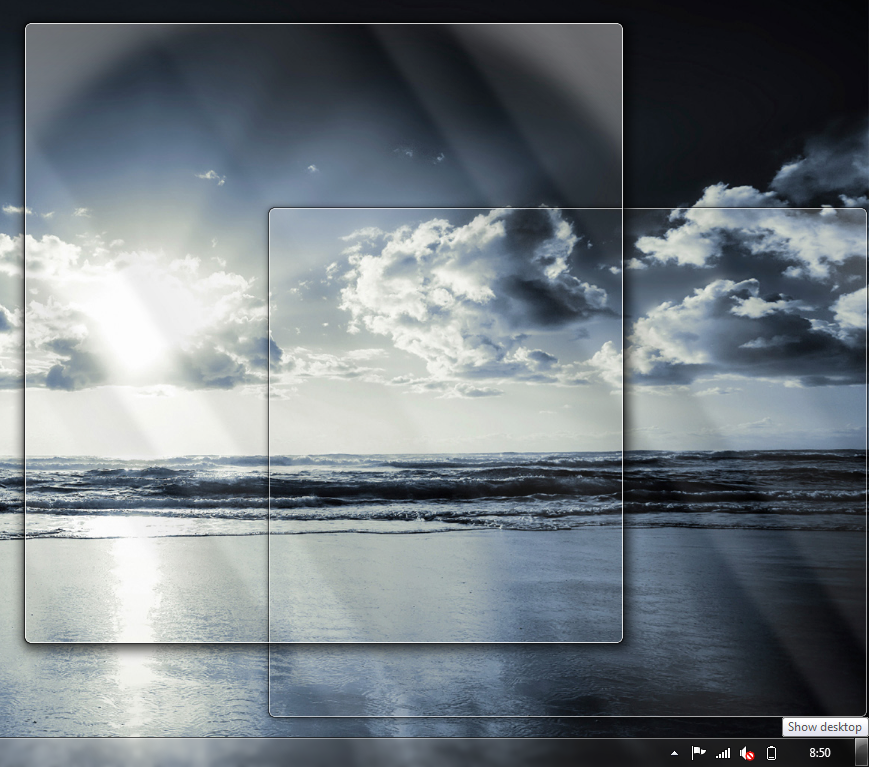
 Aero Peek is like the "Show Desktop" button in the previous versions of Windows. But now, at the full right side of your start bar, you can hover this button to take a peek at your desktop before actually viewing it. This peeking also counts for applications that are currently open: Hover them in your start menu and all other programs will fade out. All for easy finding your windows back.
 Aero Snap makes it easier for the user to compare two applications with each other. Simply drag an application to the left side of your screen and it will automagically stretch to fit the left half or your screen. Do the same with an other application to compare both!
Or, drag the window to the top of the screen to make it go fullscreen (same as double-clicking the bar). Another great thing is, when you "un-snap", it automatically resized back to the original size.
 The old-skool calculator is no more. They empowered it with new features, and also the UI has been improved quite a bit. Pretty cool!
 Vista changed the way the Power Button (in your start menu) acts from the way XP normally did. In Windows 7, you can customize this to your own needs (Hibernate, Sleep, Shut Down, Log off etc.).
 The extended start menu (just like the Jump Lists) need to be programmed by the creator of the application. But when done correctly, it can be really useful to the user. It allows the user to quickly do a commonly used action, open recently used files etc. Sweet!
 The Jump Lists can be accessed by selecting the program in the task bar and gives the you same features as the extended start menu options. Great thinking here.
 Even the login screen in Windows 7 looks very good (by default). But what it makes even cooler, the OS finally supports customizing the background of this login screen (I changed it into the Mac OS Leopard login screen). Read this article on WitInWindows to do it yourself.
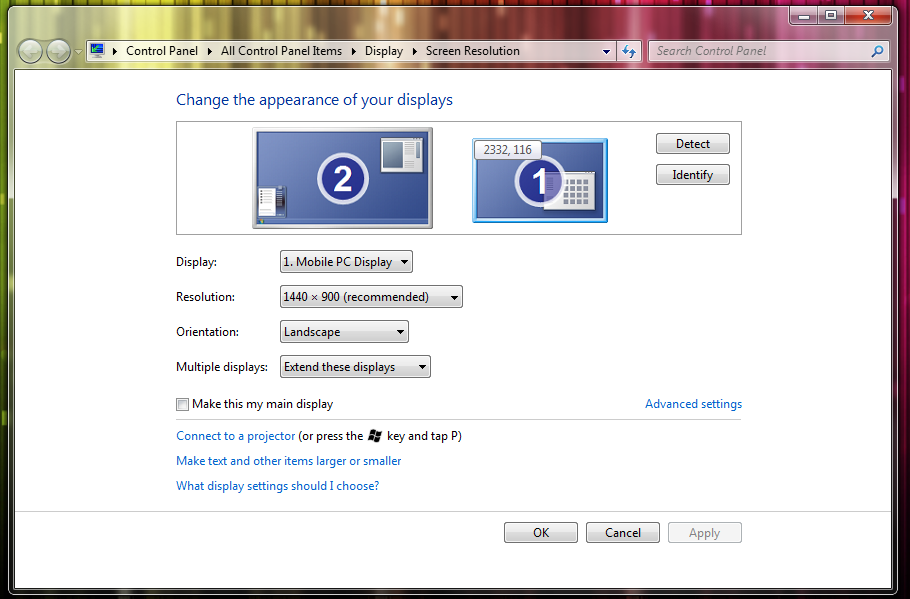
 Loads of things from Windows 7 remind me (a lot) to Mac OS. The multi desktop settings is one of them. Although the UI of this screen isn't very impressive, the functionality is. You can drag your second desktop around, identifying is easier etc. This thing just works as you expect it to do.
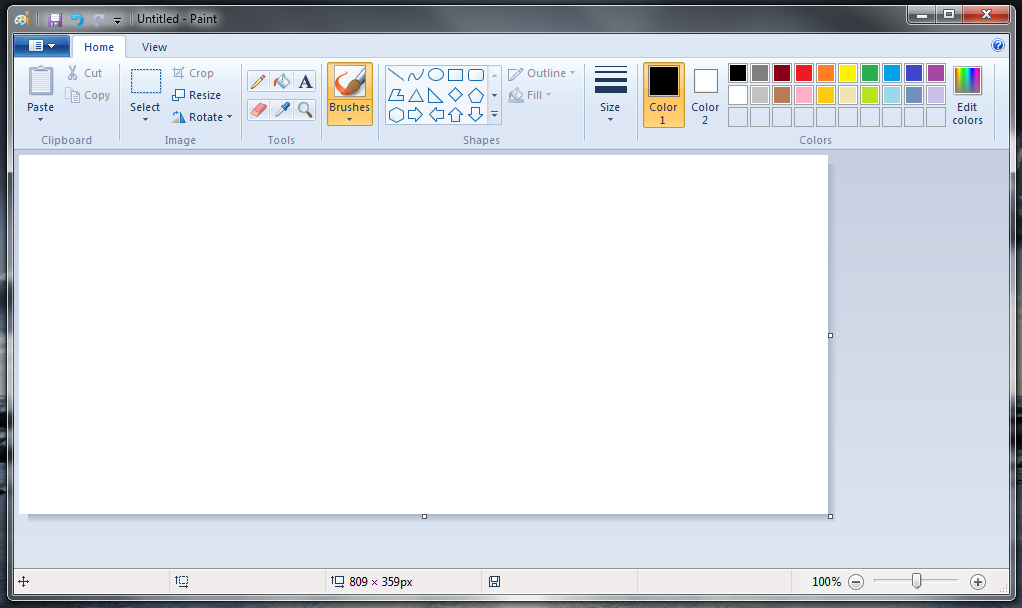
 When I first started Paint, I thought I accidentally opened the first program. Brushes? Shapes? Cropping? That isn't part of the Paint application! Well, in Windows 7 it it. Sadly, it still don't work with layers. Still quite the improvement!
 Are you one of those persons that copies a file, does something else and isn't sure if the file copy was complete? We'll, I am. And that's why I was pleased to see the progress bar inside the taskbar. When you do an action that requires time, the icon in your taskbar will also show the status. This means, all you have to do is take a look at the icon once in a while to see how far the action already is. Nice!
 A photo says more than 100 words. Microsoft removes (by default - you can enable them again) the text standing next to each application that is opened. By default, they have the size of the start button, but you can make them even smaller. When active, a nice border surrounds them and you can even see if you have more instances of the application open.
 In the previous versions of Windows, they called it "shortcut icons". Now, they call it "Pinning Icons". You can pin loads of stuff there - applications, but also files. This allows you to quick start anything you like with ease!
 I don't really use this feature (since I prefer ctrl+tab), but it does look pretty nifty - preview windows. When you have multiple instances of one application open, you might get lost in track which one you need. Preview Windows solves this to show a little preview of the window. Just select the one you want to use and you're ready to go!
 When I bought my first Mac, I was really stunned on how intuitive everything worked. Click on the battery to see the power options, click on the wireless icon to see the network options etc. Microsoft has looked at this approach and made changes to their OS too. The result is great - it's way more user friendly than it was before.
 Do you also make a print screen using the
 The famous yellow sticky note that you would stick on your screen to save your passwords. Now - fully digital and integrated in Windows 7!
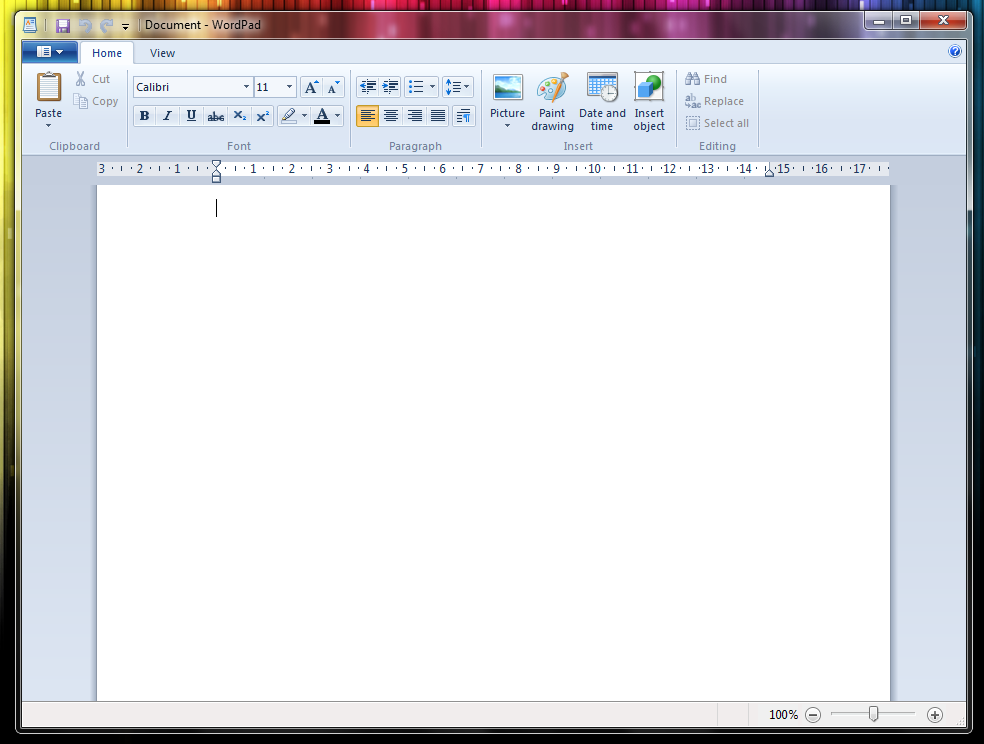
 Just like Paint and Calculator, WordPad has been put into a new dress. It looks a lot more like it's bigger brother (MS Word). Although it nearly doesn't have all the features Word does, WordPad (which comes with all Windows version) has been made more beautiful than before.
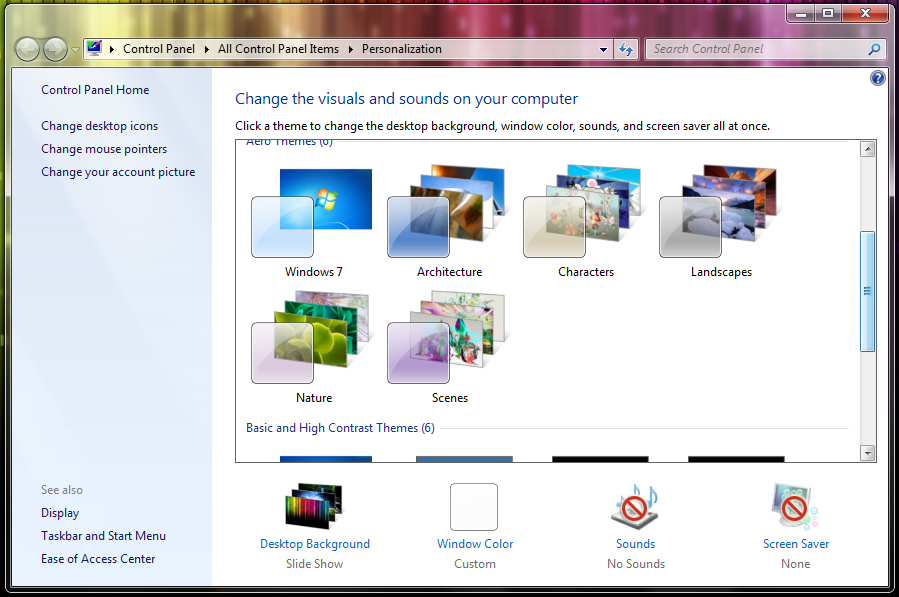
 The thememing system brings most of the new UI features to one place. Select which sounds you want to use, which screensaver and desktop background etc. All in one, logical place.
Do you own Windows 7 already? If so, what do you think are the best (UI) improvements Microsoft made? And if you don't own 7, why not? Feel free to share.
I was even more impressed by the amazing user interface improvements made by Microsoft. For those that aren't familiar with these, here's a complete list with sweet UI improvements on Windows 7. Below is the startup screen created by the flying orbs.
That being said, let's check out the slick UI improvements Microsoft brought to their new OS. It could be pretty inspirational for you too!
Aero
Aero has been introduced in Windows Vista, but wasn't very spectecular back than (glossy windows etc.). Now, Microsoft improved it with some really useful features.Aero Peek
Aero Snap
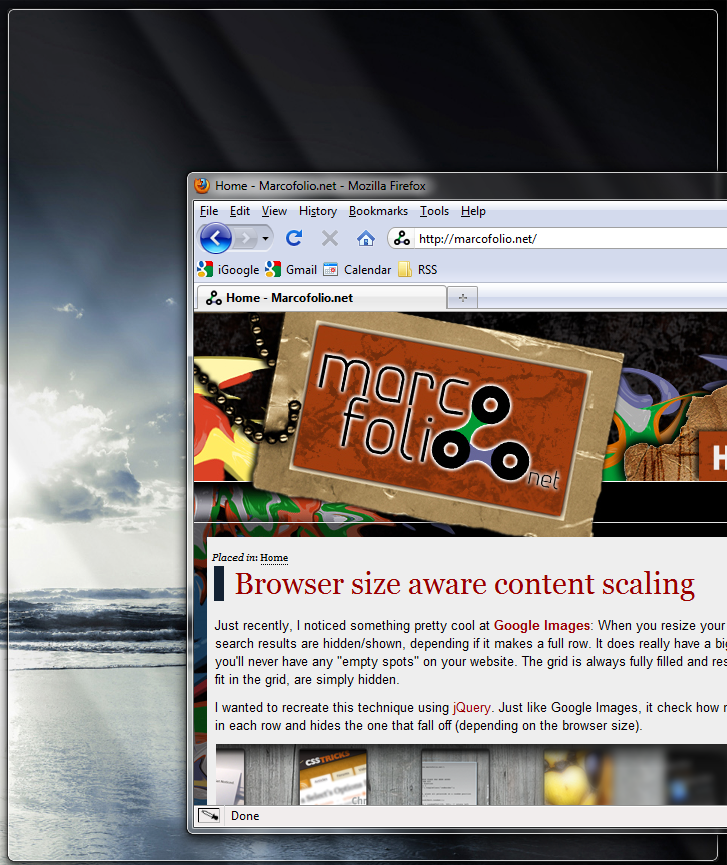
Or, drag the window to the top of the screen to make it go fullscreen (same as double-clicking the bar). Another great thing is, when you "un-snap", it automatically resized back to the original size.
Aero Shake
I'm pretty sceptical about this one, but could be pretty useful. When you have multiple windows open, you might lose track on what you want to do. Simply select the window you only want to see and shake it (move it fast from left to right a couple of times). All other applications will be send to the dock! Shake again to restore them all.Calculator
Custom Power Button
Extended Start Menu
Jump Lists
(Custom) Login Screen
Multi Desktop Settings
Multi Touch Support
Windows always had "Single Touch Support", but probably because of OSX, they wanted to support Multi Touch as well. I haven't seen a computer running with multi touch in Windows 7 in real life yet, but (when looking at Microsoft Surface) it must be pretty impressive.Paint
Taskbar
The taskbar is one of the things I'm most enthusiastic about. It's way more user friendly (in my opinion) that all the previous versions (maybe because it looks a lot like the dock menu of OSX?). Here are some sweet changes.Progress Bar
Icons only
Pin Icons
Preview Windows
Better taskbar options
Snipping
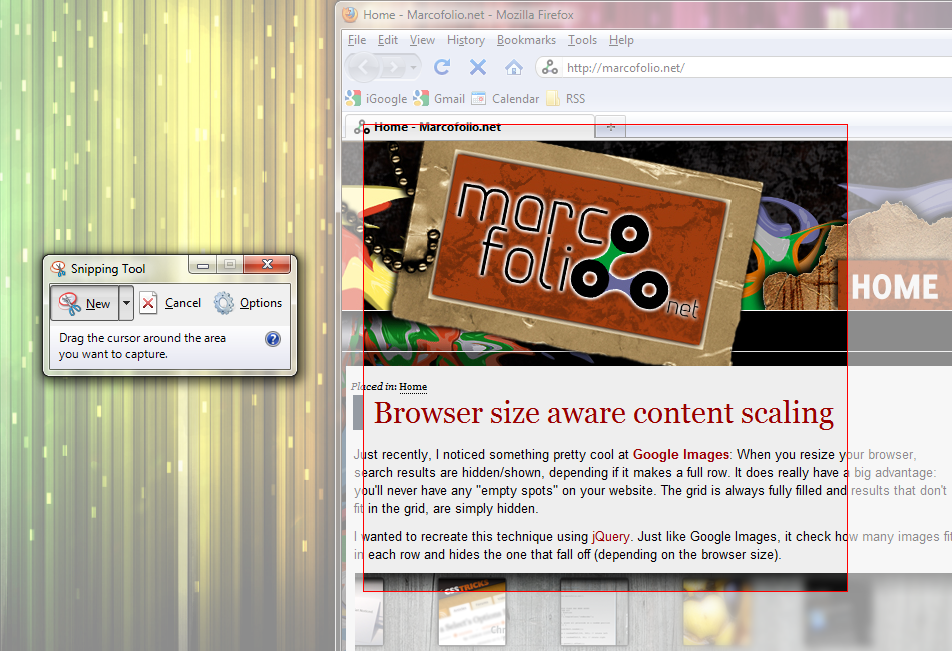
prtn scrn button and place it in Paint? With the Snipping Tool from Windows 7, you don't need it anymore. Simply start the application and select the area you want a print screen of. Blam - save the file and you're done!Sticky Notes
WordPad
Personalized Themes
Do you own Windows 7 already? If so, what do you think are the best (UI) improvements Microsoft made? And if you don't own 7, why not? Feel free to share.

