V
Learn how to use YouTube to improve SEO, drive traffic, and earn SERP features. Explore advanced video strategies for search visibility and authority.
YouTube for SEO is more powerful than ever. It plays a crucial role in modern-day marketing, where a multi-channel approach helps brands get visibility.
Think of YouTube as a search engine in its own right. Users search YouTube’s search bar to find videos that fulfill their search queries.
But it doesn’t stop there.
Optimized videos don’t just perform well on YouTube. They also rank in search engine results pages (SERPs), enhance a brand’s visibility in Google with SERP features (such as video carousels), and improve page experience by offering video as a format for getting information, which can increase time on page.
Whether you’re here to rank videos on YouTube or use video to bolster your search ranking, this guide is for you. We cover the role of YouTube SEO in modern-day search marketing. Plus, we share tips for optimizing your YouTube channel and your presence in Google so you can maximize brand visibility.
YouTube is a search engine and social media platform
YouTube serves as both a search engine and a social media platform.
- It’s a search engine because users type what they’re looking for directly into YouTube’s search bar and click on the most relevant video results.
- It’s a social media platform because users engage with creators’ videos through likes, comments, and shares.
The SEO toolkit you know, plus the AI visibility data you need.

The role of YouTube SEO
YouTube is the second largest search engine after—you guessed it—Google. YouTube’s role in SEO shouldn’t be dismissed. Video optimizations increase brand visibility because videos can rank via pages on your site or through YouTube.
YouTube is a huge opportunity for search marketers. Users spend 27 hours and 26 minutes on YouTube in a month, just behind TikTok’s 33 hours and 38 minutes. While time spent on TikTok is incredibly high, it doesn’t bring as much value to SEO because YouTube videos are prioritized in Google search results pages.
The data below shows that YouTube ranks for 4.4 billion keywords versus TikTok’s 1.4 billion.
Sure, clicks and visits are good, but YouTube has more to offer. It’s one of the most engaged social media platforms, second to WhatsApp. On average, users spend 23 minutes and 19 seconds per visit on YouTube (compared to 29 minutes and 16 seconds on WhatsApp).
The takeaway?
Users are highly engaged on YouTube, and if your videos can capture this level of engagement, it can only be good for your brand. What would you say if you could connect and speak with your ideal customer for 20 minutes?
Here’s a fun example demonstrating how powerful YouTube can be for brand visibility and ranking. For the search “how to knit,” Sheep & Stitch, a channel that teaches beginners how to knit, stitch, and cast, ranks three times.
It has secured:
- A video carousel SERP feature, which is at the very top of Google SERPs
- A traditional organic listing placed in rank two
- A featured video within People Also Ask (PAA)
The screenshot below shows seven opportunities to rank, and Sheep & Stitch has three of the rankings, or an impressive 42% of available real estate.

This is cross-channel (and cross-stitch?) search marketing perfected.
Keyword research for YouTube and Google synergy
Dual-channel keyword research is a smart first step for multi-channel SEO because you gather data from both search channels, which provides the data needed to align both video SEO for YouTube (e.g., video titles, tags, and descriptions) and traditional SEO for search engines (e.g., title tags, URLs, and meta descriptions).
Coordinating these two channels gives you the best possible chance of visibility because you’ll have thought out your video and content strategy to work in alignment.
Important note: Your keyword research must be considered in tandem with your broader content calendar, business goals, and your target audience. Before you get into creating content, establishing goals, audience personas, and content pillars will help you create videos that resonate with your audience. For support on the early stages of content strategy, read this article on content marketing strategy.
When conducting keyword research for multiple channels, you’re looking for:
- One keyword to lead with on both platforms. This will be your focus keyword. Consider it the primary keyword you’re trying to rank on both YouTube and Google.
- Supporting keywords that should also be used to rank your new video content.
- Keywords that cross over on both platforms, meaning you’ll find search opportunities on both platforms.
- Keywords that appear on one platform but not the other, so you can use them more strategically on one platform compared to the other.
- Business and marketing goals so you can ensure every piece of content created ties back to a goal, like increased sales or engagement with specific target audiences.
- Trending topics: the more significant the trend, the more you’ll want to prioritize it.
Pro tip: While this guide covers Google and YouTube, a coordinated content marketing strategy could take your efforts even further by repurposing videos onto other platforms like TikTok or Instagram. You’d follow similar channel-specific keyword research, like using TikTok’s Creative Content Keyword Insights.
Keyword research for YouTube
There are many tools for YouTube keyword research. In the spirit of video and SEO, here’s a video that covers YouTube keyword research tools.
And here’s a walkthrough of our favorites.
Semrush
Semrush has an app (free for seven days) that helps you identify YouTube keywords, competition, and search volume.
To use the app:
Go to Semrush > In the left-hand menu, click on “App Center” > Click “Store” > Use the search bar and type “Keyword Analytics for YouTube” > Click the magnifying glass > “Go to App”

Start the seven-day trial. (You can cancel any time.)
Using the keyword research tool, type a keyword into the search bar and click “Search.”

The tool lists your searched keyword and related keywords. You can select the keywords you want to see more data about from the list on the left. The “Competitive Rate” and “Search Volume” data in the top-right will change to show data for the keyword selected.
You can use this tool to identify your focus keyword and supporting keywords. Select supporting keywords from the related list.
TubeRanker
TubeRanker offers a free YouTube keyword tool for a small number of searches.
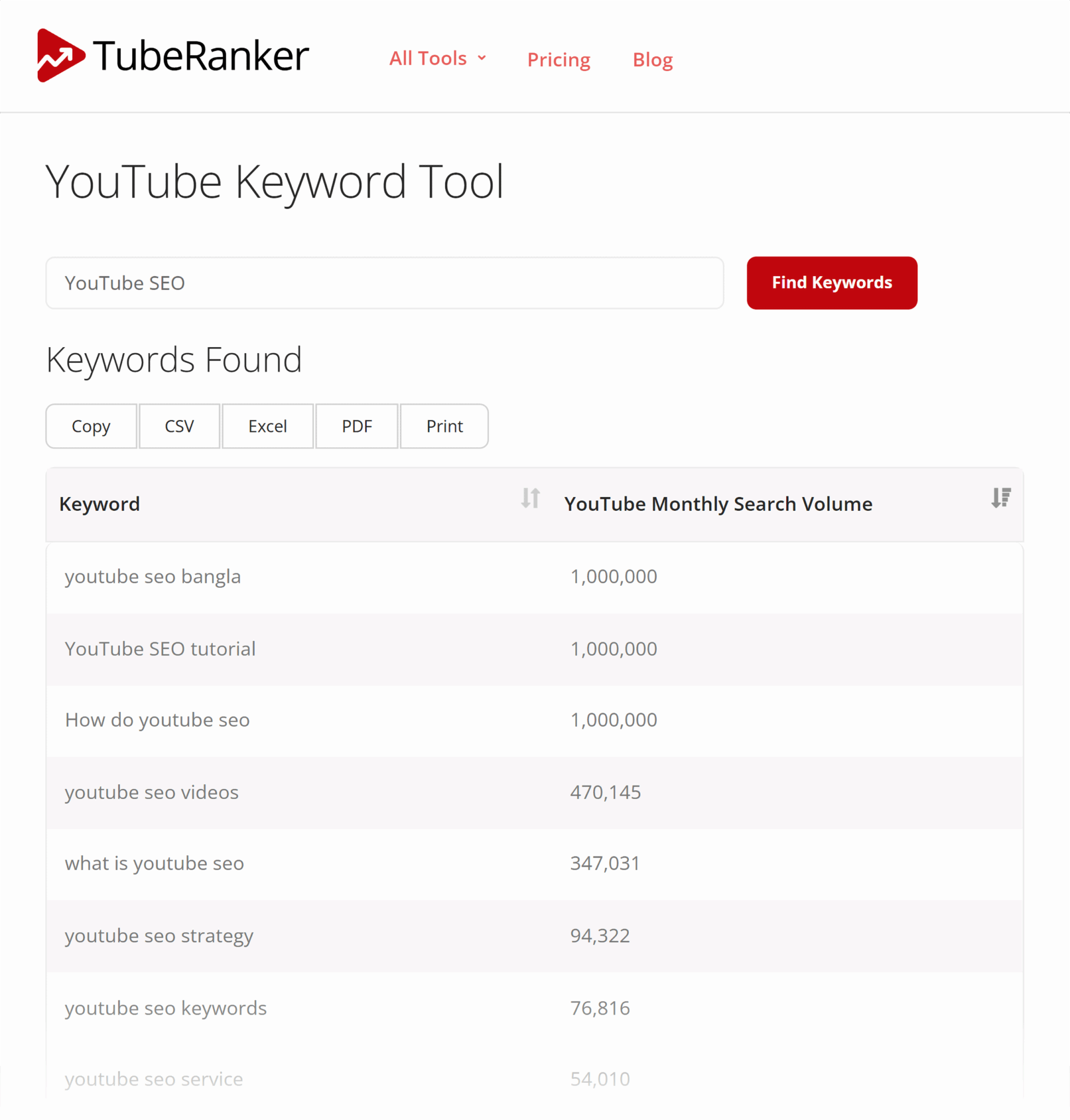
If you get serious about YouTube SEO, you can sign up for one of TubeRanker’s plans and perform keyword research and keyword tracking.
TubeRanker is more of an all-around YouTube SEO tool, and it includes other functions such as:
- Tag generator
- Channel audit
- Keyword tool
- Rank tracker
- Tag extractor
- Hashtag generator
- Title generator
- Description generator
TubeBuddy
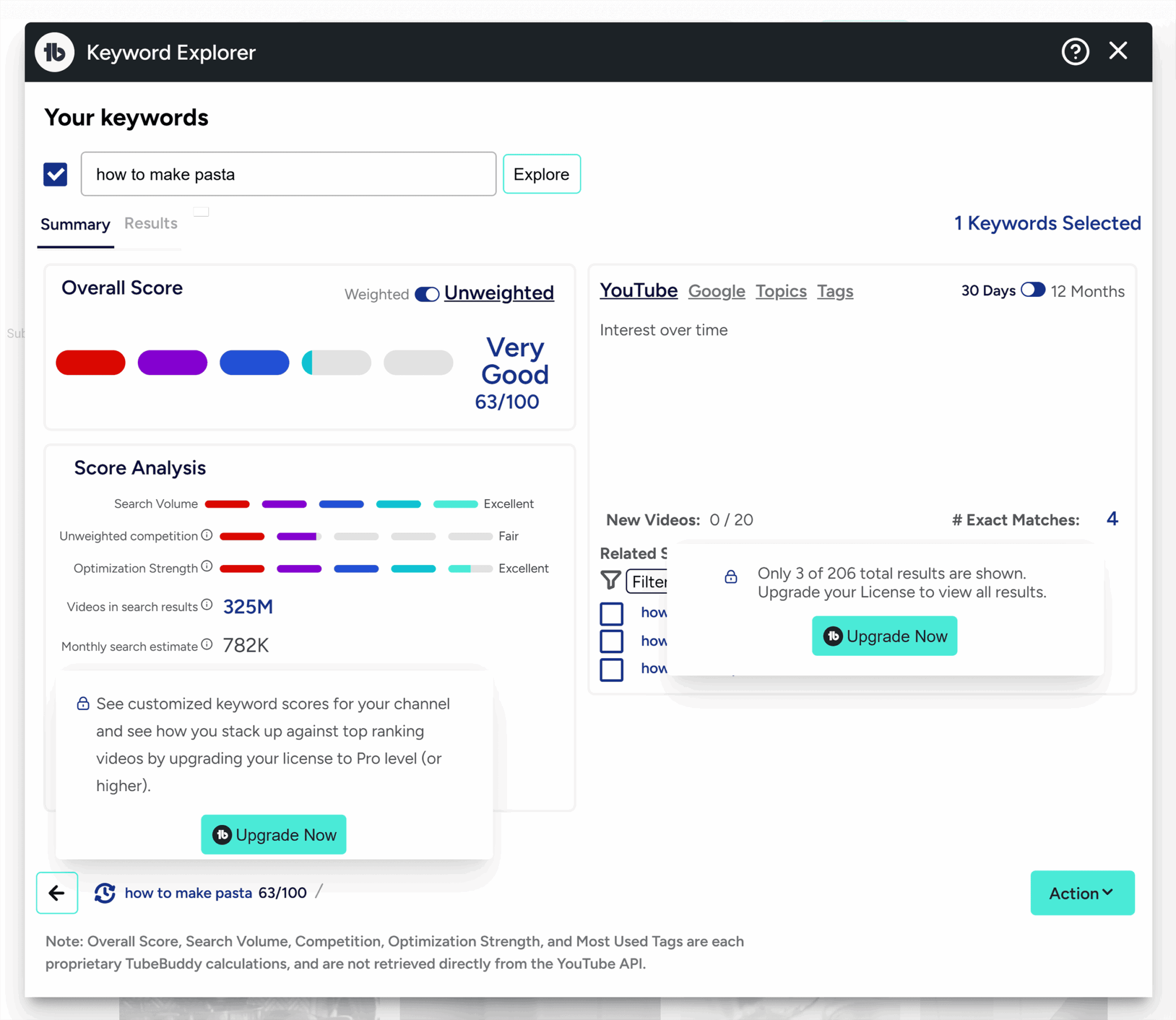
Another alternative is TubeBuddy, which has a Chrome extension. Toggle the extension on while using YouTube and it provides:
- An analysis of your search term and how competitive it is to rank for
- Related video searches, web searches, and video topics
- Tags that are commonly used
Here’s what it looks like:
Google Trends
Google Trends is a free tool that shows you how keywords are trending on YouTube, across web search, image search, news search, and Google shopping.
You can get pretty granular with Google Trends by:
- Comparing keywords to see what’s searched for the most
- Filtering to specific countries so you can best target geographics
- Changing date ranges
- Categorizing keywords
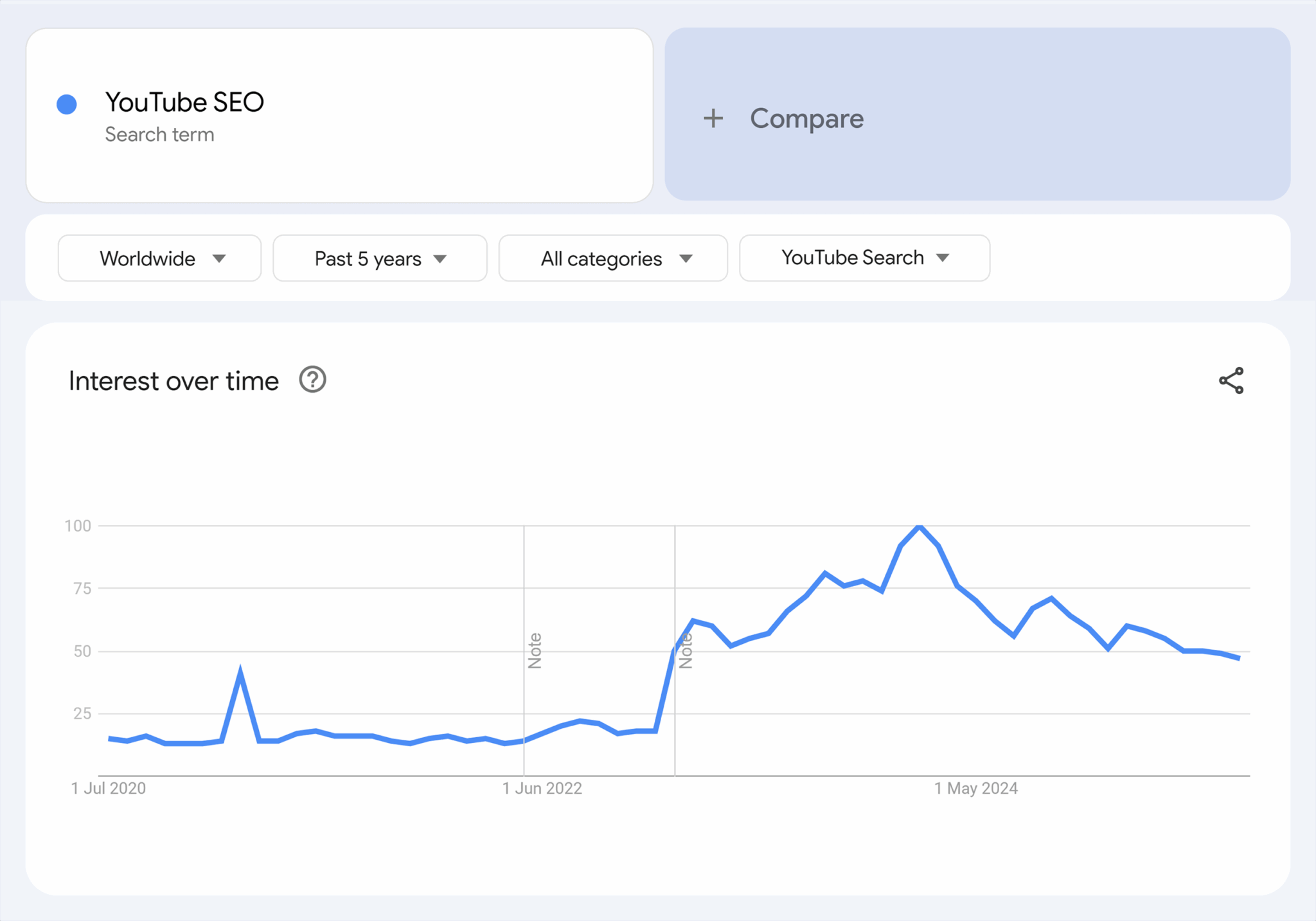
Pro tip: Enhance data from Google Trends by installing a free Chrome extension called Glimpse, which shows trend lines, real-time search volumes, related keywords, and more.
YouTube’s autocomplete
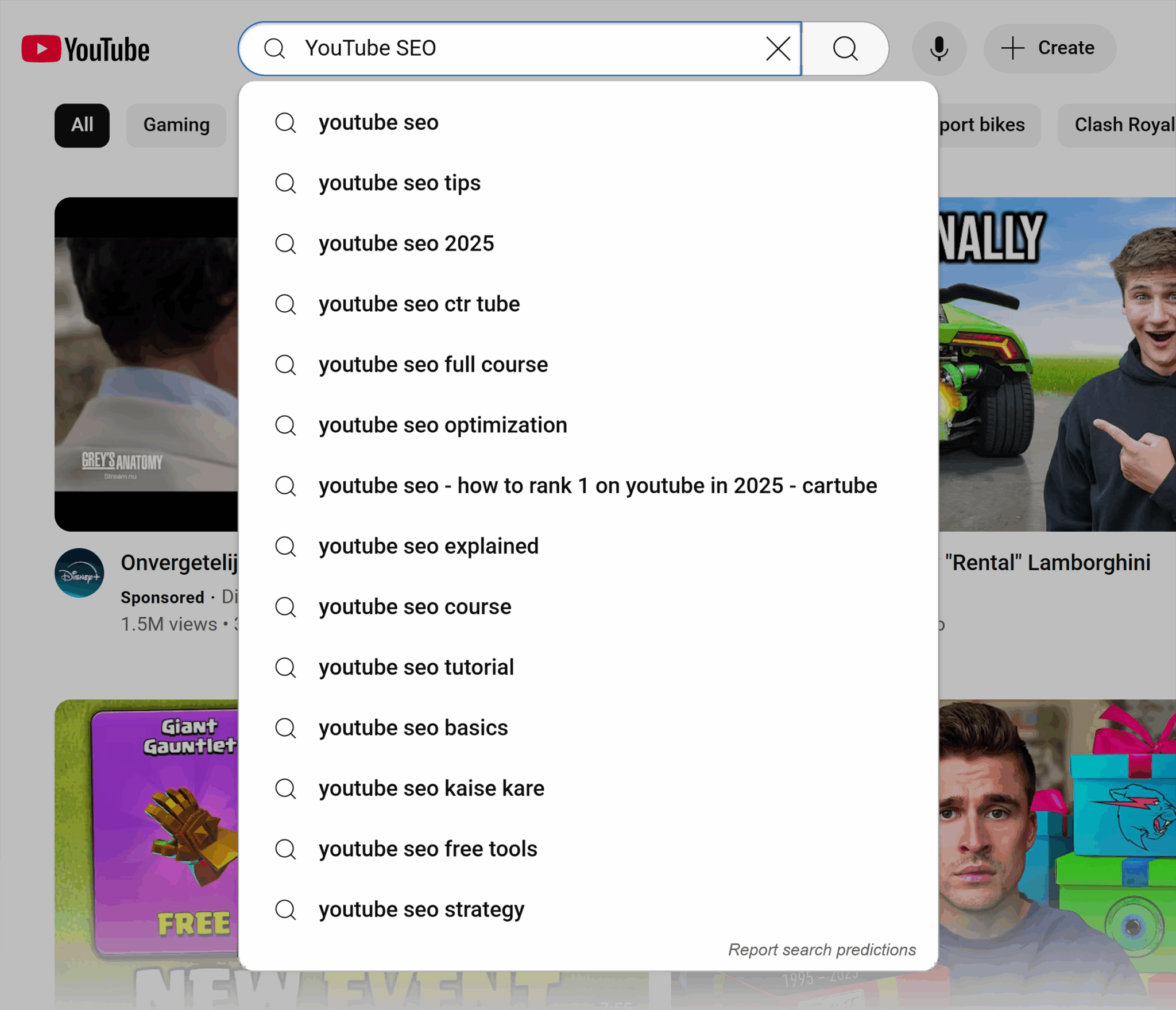
You can do some keyword research for free using YouTube’s autocomplete.
Start typing a keyword into the search bar and see what YouTube search recommends. The idea behind this keyword research method is that the recommendations are commonly searched.
Keyword research for videos that rank on Google
To give your videos the best chance of ranking and visibility, include keyword research for Google as part of the keyword research process.
Start with research for YouTube, then identify keywords that return videos in Google search.
Combining these two keyword research methods will give you all the data you need to create a comprehensive video strategy that meets every searcher’s query. You’ll know the crossover of search between YouTube and Google, but also any opportunities unique to each platform.
Your keyword research for video and Google doesn’t need to be guesswork.
Here’s how you find keywords that return videos using keyword research tools:
Go to Semrush’s Keyword Magic Tool > Type in your keyword > “Search.”
The report lists the keywords you searched for and related keywords, with the “SERP Features” column featuring icons for video results. Use the filters to see data for all video features:

Video appears on the side of traditional listings. A video may show if it’s embedded within the content of your website. It’s commonly included when YouTube’s domain ranks in SERPs with a video.
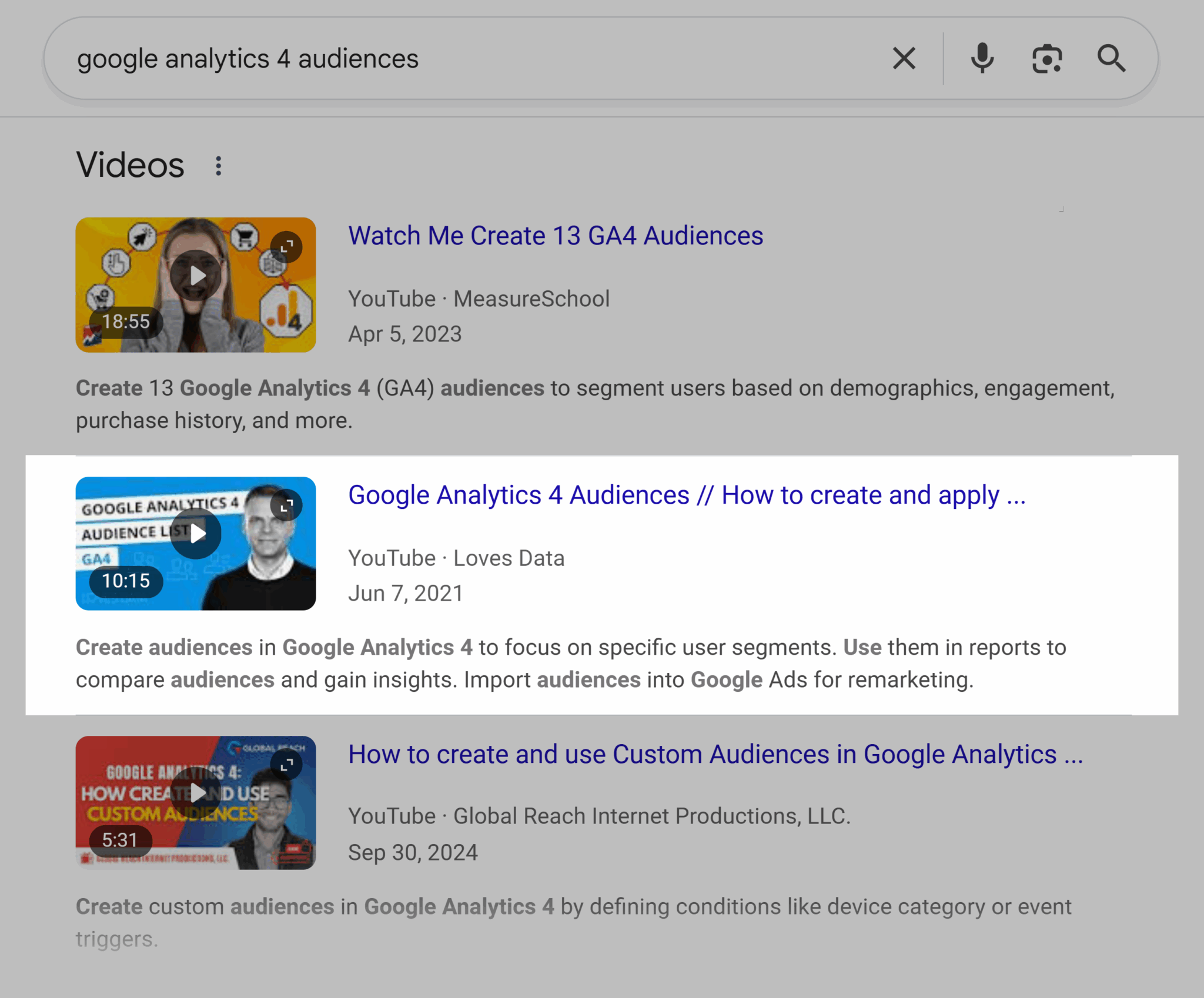
Featured video is placed at the top of SERPs and has a large thumbnail.
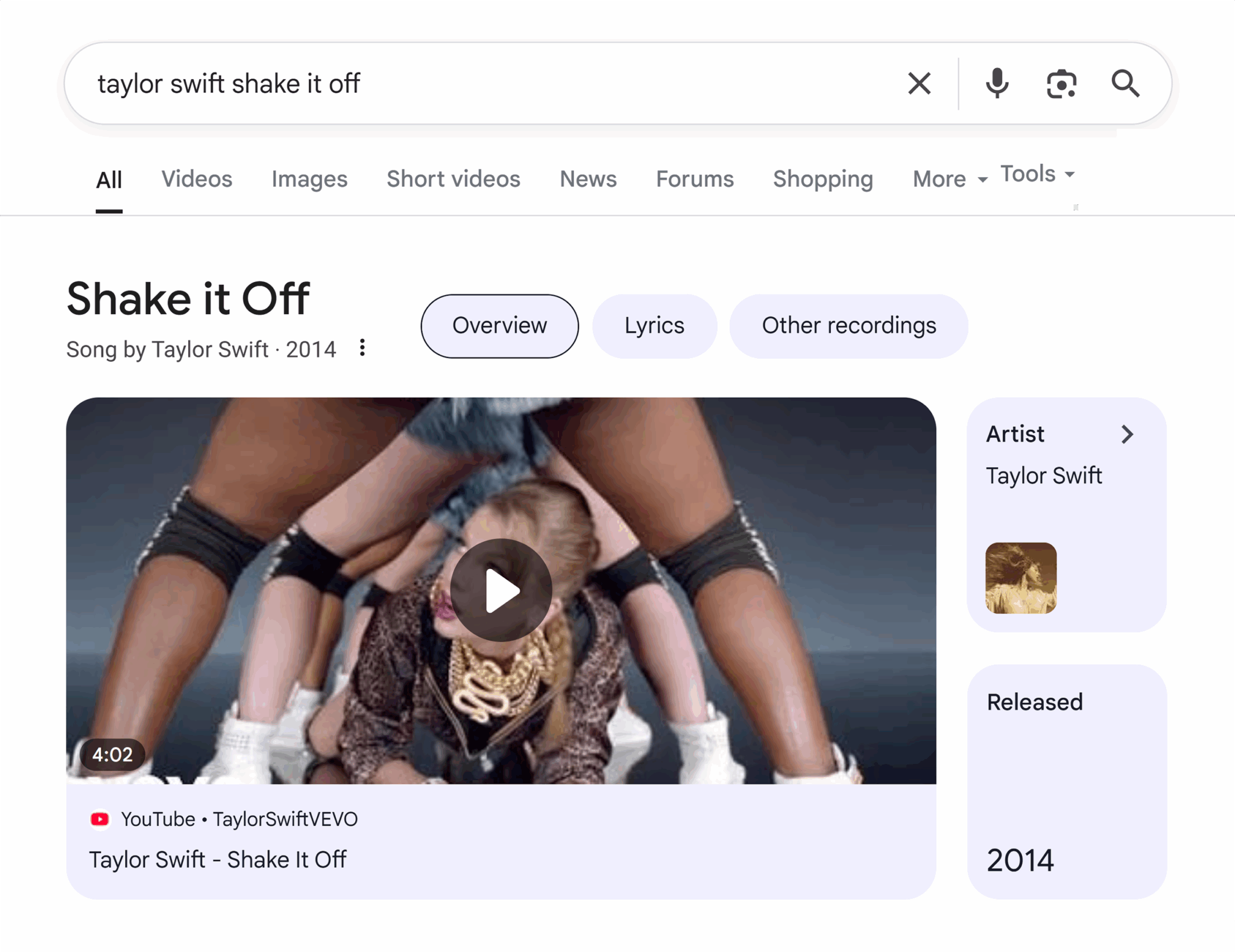
Video carousel is the most common video SERP feature and presents multiple videos in a carousel.

Further reading: if you want to see your videos in prominent positions in Google, read this guide on how to rank SERP features, which includes all types of video features and tips on how to achieve them.
If you’re starting with keyword ideation from scratch, some content and keywords lend themselves well to video, including:
Educational or tutorial-based content
If you’re learning how to do something for the first time, nothing beats a visual tutorial walking you through step-by-step.
Example keywords:
- How-to…
- The guide to…
- Step-by-step [task]
Here’s an example video with multi-channel SEO success.
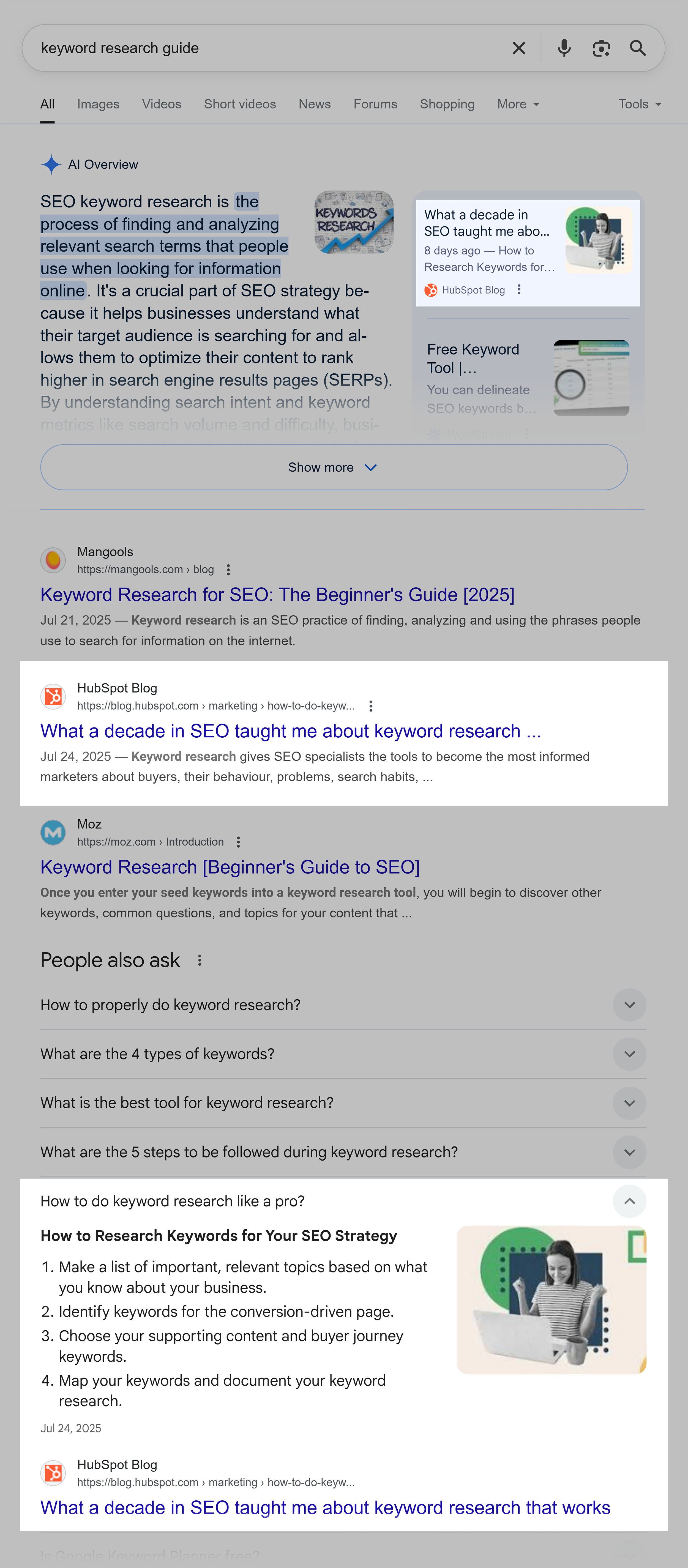
HubSpot’s video, “Keyword Research Step-by-Step: Best Strategies to Rank #1,” is uploaded to YouTube and has over 30,000 views. Knowing what good multi-channel marketing is, HubSpot embeds the video on its related blog, “How to do keyword research.”
The result?
HubSpot ranks at least three times on page one for the keyword “keyword research guide.”
And there’s more…
The ranking page is a top page for HubSpot’s marketing blog.

Informational content drawing on experience and thought leadership content
Video connects creators and audiences. If you’re creating content about your experience, try a video.
Example keywords:
- Everything I learned trying…
- My experience at [conference]
- What X taught me about Y
Example video:
Simon Squibbs’ “30 Years of Business Knowledge in 2 hrs 26 minutes” video is a great format that many creators copy. In his video, he covers his motivations for creating the video, then shares his best business tips, such as starting a business with no money, winning business, creating a mind map, finding purpose, and so much more.
As of this writing, Squibb’s one video has:
- 13,498,409 views
- 581,000 likes
- 8,706 comments
Brand or product comparisons and reviews
Audiences watching videos comparing products or brands benefit from watching real-life experiences unfold through product unboxings and walkthroughs.
Example keywords:
- Is [product] worth it?
- [product]/[brand] review
- [product] versus [product]
Nick Ackerman’s “Samsung vs iPhone: Which is Better in 2025?” demonstrates this format well.
Setting up your YouTube channel for SEO success
Now that you’ve done your video keyword research, you’re ready to set up your YouTube channel. Keyword research is a direct insight into your audience and their pain points. It can inspire how you set up your channel.
Use keywords to inspire your:
- Channel name, which can be up to 50 characters, should represent you, your brand, and what you do
- Channel description, which can be up to 5,000 characters, should include natural-reading keywords
- Channel trailer, which is the first video channel visitors will see, so make it a good one! It’s common to have an introductory video showing what your channel is about, or you can add a promotional video. HubSpot does this well (there’s an example below).
- Channel tags, which are keywords you input in the backend channel settings
Tips for setting up your YouTube channel for SEO success:
- Think about keywords and integrate researched keywords into channel names, descriptions, and your trailer where they make sense. For your channel name, a keyword might not work; your brand or full name is fine.
- Optimize channel tags using keywords. Think about the keywords people will type into YouTube’s search to find you.
- Hook your visitor. Remember, your channel description and trailer is your opportunity to engage your visitors and keep them interested. SEO is very important, but engagement is critical.
- Add a custom URL. Use a keyword if it makes sense. Your custom URL will help your channel rank, but you don’t have to over-optimize it. If your brand name or full name feels right, stick with it.
Let’s look at how HubSpot optimizes its channel.
HubSpot’s channel name may be created with SEO in mind. It could’ve been “HubSpot,” but they’ve included “CRM,” which might be an SEO play. It does seem deliberate, as HubSpot is just “HubSpot” on other channels, including Instagram and Facebook.
Interestingly, HubSpot has another YouTube channel called “HubSpot marketing.” These channels could be separate for SEO benefits.
It’s worth remembering, however, that HubSpot is one of the largest SaaS companies. Separate YouTube channels might make sense for multi-faceted companies like HubSpot, but it won’t be the solution for everyone, especially smaller businesses. There are downsides to this approach, such as splitting your brand values across channels, splitting audiences, and having to grow multiple channels simultaneously.
The channel description is promoting HubSpot’s CRM with a trending feature, AI. Everyone is talking about AI, and this description and video are likely to capture attention.
HubSpot’s trailer promotes the AI CRM and shows its functions.

Your channel description and trailer are particularly impactful
for showing your audience they’re in the right place. The trailer and
the description are the first two things your audience will see on your
channel homepage.
Consider SEO and optimizations, but don’t forget to create a trailer that quickly engages your audience. HubSpot’s format of combining their offering with a trending feature is a strong example of a trailer done well.
Steps to optimize your video content on YouTube
With keywords decided, you can optimize your video content on YouTube to give yourself the best chance of ranking within the YouTube platform and on search engines.
Here are some top tips.
Understand your audience
Different demographics have preferences for different search platforms. Knowing your audience is a key step in optimizing your video content, as it could impact how you prioritize your keywords and video strategy.
According to Global Media Insight, YouTube’s demographics are typically:
- Fairly evenly male (54%) and female (46%), though men do prefer using YouTube
- The largest consumer of YouTube content is aged 25-34 (21.50%), followed by 35-44 (17.90%)
- In the US, Millennials (born 1981-1996) make up 25.50% of YouTube users, followed by Gen-Z (born 1997-2012), who make up 25.10% of users
- Gen Xers (born 1965-1980) make up 19.90% of users, and Baby Boomers (1946-1964) make up 15%
Video content is growing fast, and consumers use YouTube for more than just cat videos! HubSpot reports that:
- People watch videos that have a goal to sell a product or service. 62% of consumers have watched product videos, demos, and reviews in the form of a video.
- 38% of those surveyed use YouTube to learn new things. They also like to explore entertaining content (46%) and find ideas and inspiration (27%).
Knowing how your demographic uses search and social media can influence your approach to search marketing.
For example, if your audience is Gen Z, you know from the above data that they’re a significant user base on YouTube. According to findings by Axios, 27% of 18 to 24-year-olds start search discovery on video platforms like TikTok or YouTube.
Axios says:
Some users prefer to search on social media to get more authentic answers, especially as Google and others increasingly promote sponsored results.
For news and quick answers, Jordan Alperin, 24, says she heads to Google, but for inspiration and personal stories, she uses social media.
If you know how your audience searches, finds, and engages with videos, you can plan to meet them on the platforms they frequent.
This doesn’t mean ignoring traditional search engines. We know that Google has the highest share of search.
What it means is that if Gen Z is the audience that converts the most for your business, you may focus efforts on prioritizing their search preferences, leaning a little more into YouTube SEO.
Further reading: How to create audience personas for SEO: Aligning content with real search intent
Crafting SEO-friendly video titles that attract clicks
SEO-friendly video titles include a focus keyword. But SEO isn’t the only thing that matters. A good title is compelling and clickable.
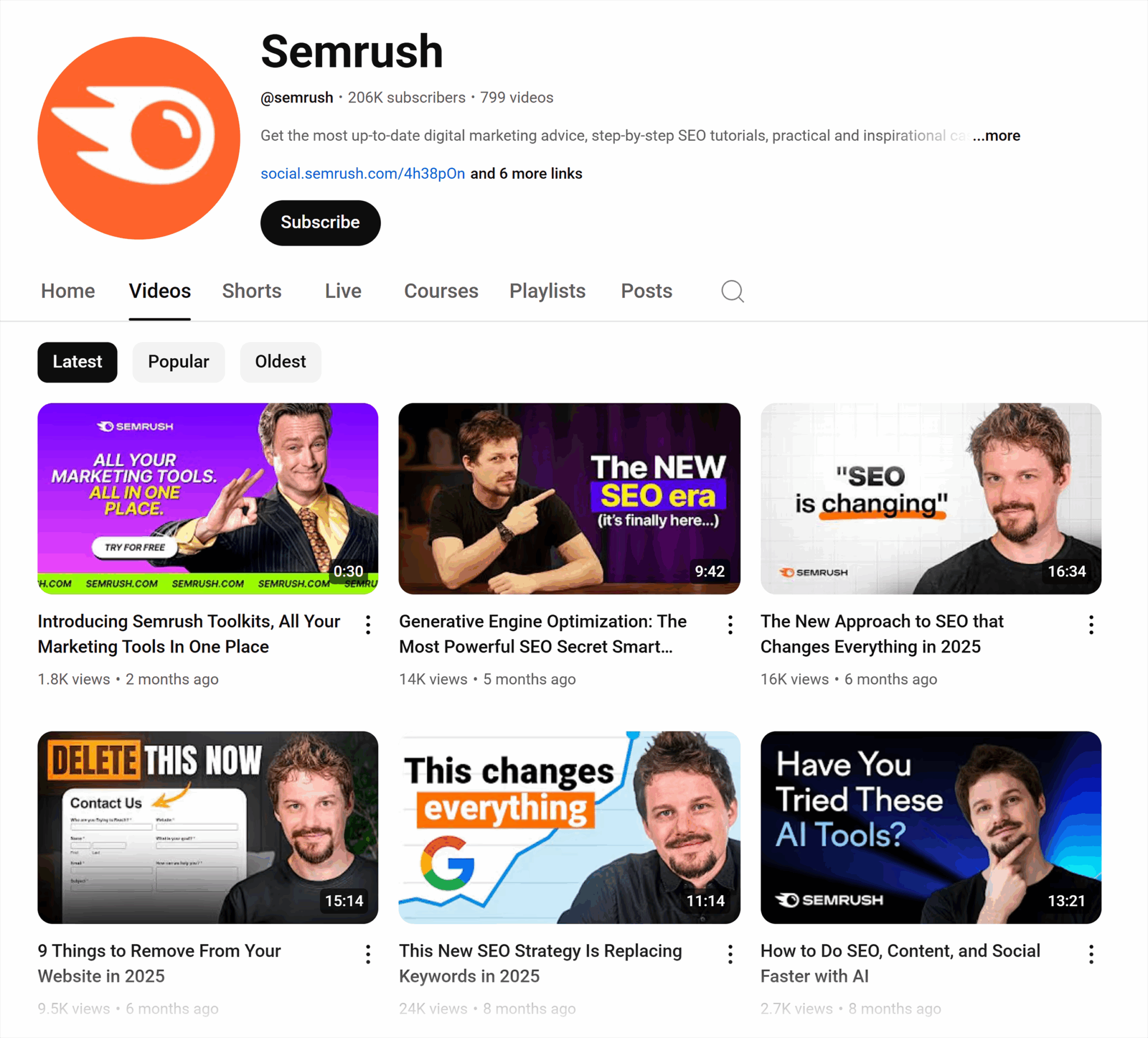
Instead of SEO-driven titles like “Google Business Profiles and SEO,” a more clickable example is featured in the screenshot below: “Google Business Profile SEO: Rank #1 in 2025.” The title includes a keyword (Google Business Profile SEO) and promises something that the viewer wants.
Other tactics for creating SEO-friendly titles that are also clickable include superlatives such as “The most powerful…,” “The best…,” etc.
You want something enticing that draws the viewer in. “Effective content marketing strategies” is better than “Content marketing strategies,” and “How to do…faster with AI” is better than “How to do…”
YouTube metadata: Writing descriptions that enhance SEO
Your YouTube video description allows you to mention your focus and supporting keywords.
But it’s more than that.
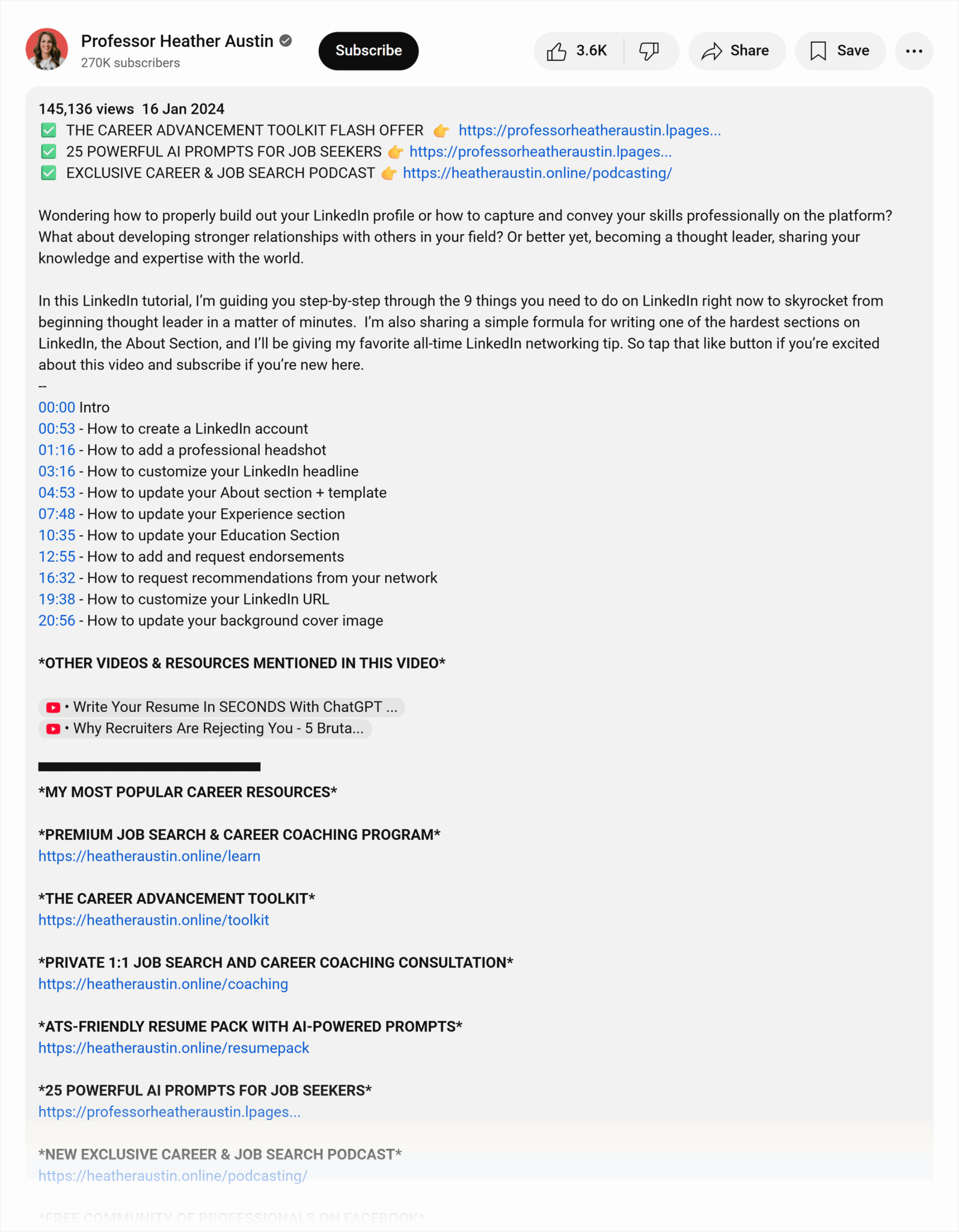
Your video description is most effective if it also includes:
- A description of what the video is about and what viewers will get out of it. Try bullet points of key discussion areas for skimmable reading.
- Chapters and timestamps so viewers can skip to sections most interesting to them.
- Social media and website links so your audience can find you elsewhere.
- Links to related products or services if they’re relevant.
- A call to action asking for viewer engagement, such as “like,” “comment,” and “subscribe,” or “visit my website to find out more.”
Here’s an example of a YouTube video that includes all of these elements.
Optimizing video metadata and tags
YouTube tags (video tags) are descriptive words or phrases that you can add to videos to help YouTube understand what a video is about. They’re similar to keywords, but you mustn’t stuff keywords in tags.
YouTube says:
Your video’s title, thumbnail and description are more important pieces of metadata for your video’s discovery. These main pieces of info help viewers decide which videos to watch.
Tags can be useful if the content of your video is commonly misspelled. Otherwise, tags play a minimal role in your video’s discovery.
Adding excessive tags to your video description is against our policies on spam, deceptive practices and scams.
Add tags when uploading your video to help contextualize it or to catch misspellings. You can also edit and add tags to published videos.
Here’s an example: the video pictured below is titled “The Future of Marketing & AI Search.” The tags are relevant and have search volume within YouTube:
- Marketing and AI (390 searches)
- SEO and AI (3,200 searches)
- Future of marketing (159 searches)
- Future of SEO (65 searches)

Creating engaging, SEO-aligned videos
When your videos are SEO-aligned, you know people are searching for them. If you execute the video production well, there’s every reason to believe you’ll create an engaging video that your audience watches until the end.
An engaging video will have a long watch time and high retention rates, as well as good engagement signals such as likes and comments. These positive user signals will influence the YouTube algorithm to recommend your video to similar audiences.
These user signals are also great for traditional SEO on Google. An embedded video on your site might encourage people to stay on your website longer as they watch it. (We’ll cover more about video analysis later.)
Implementing clickable title tags, engaging thumbnails, and knowing your audience is a great place to start. But now it’s time to focus on the actual content of your video.
Let’s take it from the top, starting with a good hook. A hook is the opening sentence designed to grab the audience’s attention and make them want to keep watching.
PlayPlay shares nine hooks with examples for social media videos:
- Call out a common mistake that you know your audience is making and encourage them to listen to the video for the solution. “If you’re doing X, you need this video.”
- State the pain point or problem that you know your audience experiences, and encourage them to listen to the video for the solution. “Sending emails to 10,000 recipients, but not getting conversions? This video is for you.”
- Start with a surprising fact related to the theme or solution in your video. For example, “YouTube is the second-most visited website in the world. Do you know how to get visibility there?”
- Ask a question that your audience is asking (the one they want the response to in the video). “How do you convert people who watch your videos?”
- Give an urgent warning and follow up with the consequences if the viewer keeps doing the thing you’re warning against. “If you keep doing X, you’re only going to end up with Y.”
- Share secrets and reveals, such as unheard-of tips or things that experts aren’t making public knowledge (but you’re about to!). “This is the best-kept YouTube secret in history.”
- Test and document experiments in a way that shares an experience. “I tried X for 15 days and Y happened!”
- Interrupt the pattern by starting with a random scene that may not have anything to do with the video. Common pattern interruption beginnings can be intriguing or strange.
- Tease the outcome by sharing what could happen if the viewer finishes the video. “I generated 50,000 leads with…”
Other tactics to create engaging videos include:
- Incorporating visuals to support the script and aid viewer understanding
- Adding captions so people can watch the video with the sound off
- Using on-screen text to reinforce your video’s core messaging
- Playing with pacing and cuts keeps the video visually interesting—try varying the speed, using jump cuts, or switching angles
Brian Dean does all of these things in the first three seconds of his video:
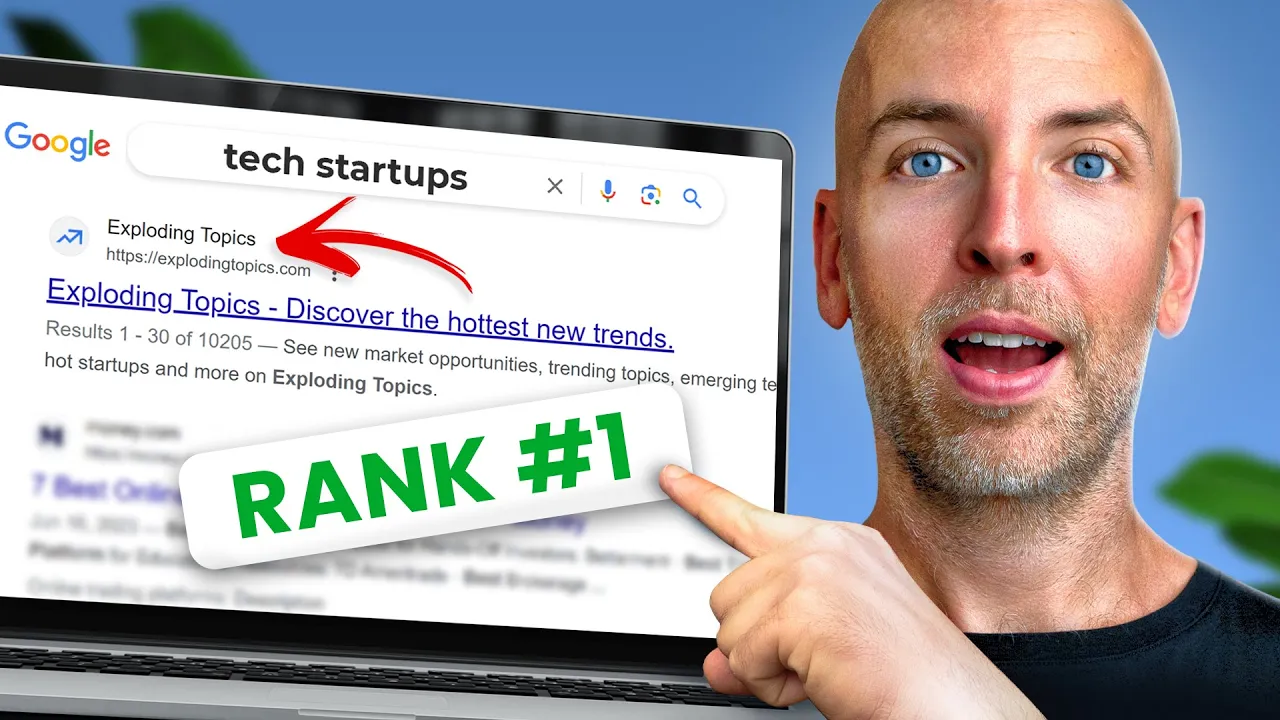
Importantly, in Dean’s video (and any video that’s SEO-aligned), the searcher’s intent is at the core.
SEO relies on your video meeting search intent because people are looking for solutions. They search on YouTube or in Google, and the platform algorithms deliver the best piece of content based on how closely aligned it is with the searcher’s query and intent.
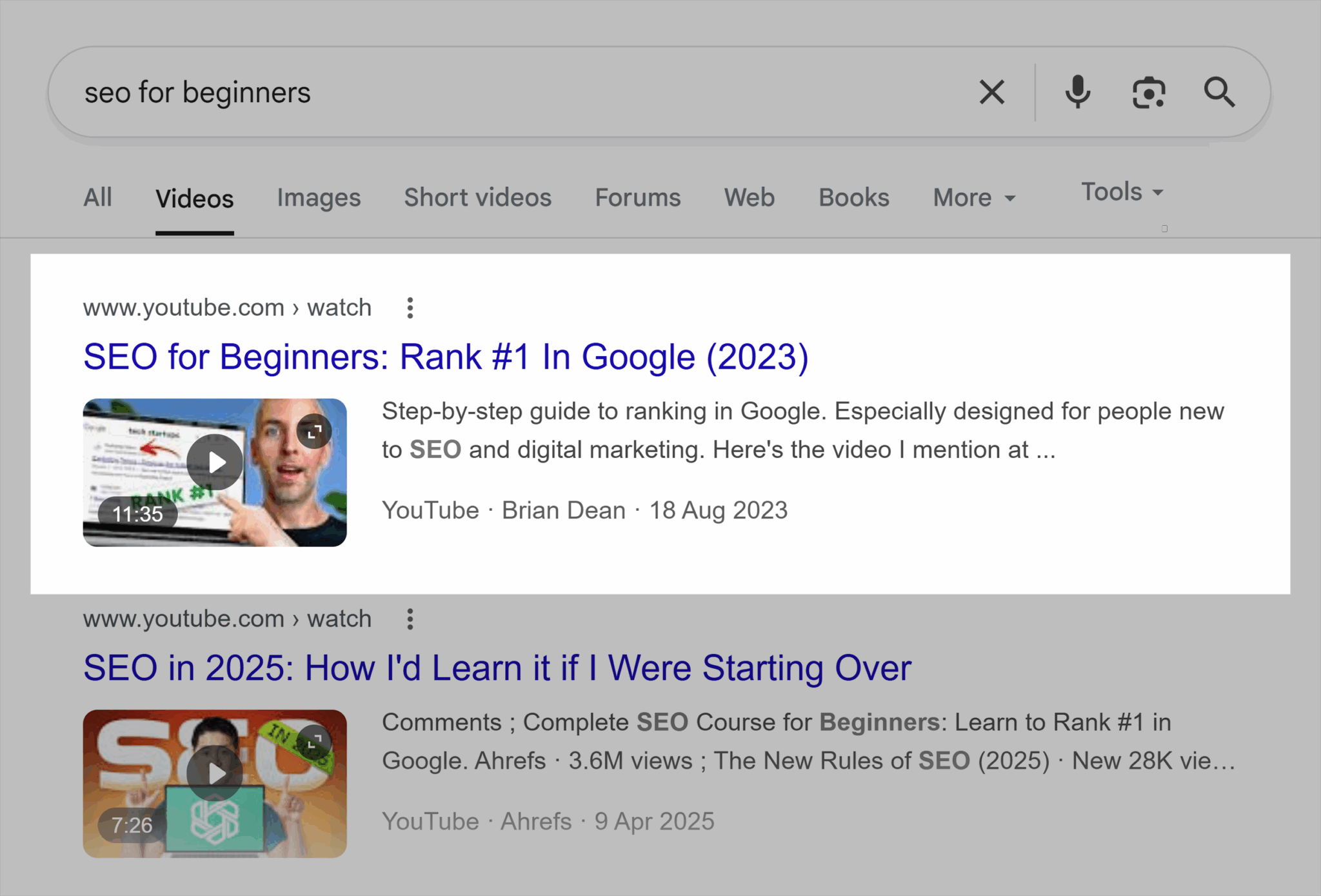
Sticking with Dean’s video, people searching for “SEO for beginners” are looking for beginner tips to do SEO well. SEO done well ranks videos on page one, which is the ultimate and aspirational goal for any new SEO. Dean addresses how to do this in a comprehensive video guide.
It’s no surprise that Dean’s video is the top recommended video in Google.
Adding chapters and timestamps for key moments
Chapters and timestamps improve video UX within YouTube and Google SERPs. With chapters, users can skip through sections of the video to get to the parts that are most important to them.
Here’s what video chapters look like on YouTube:
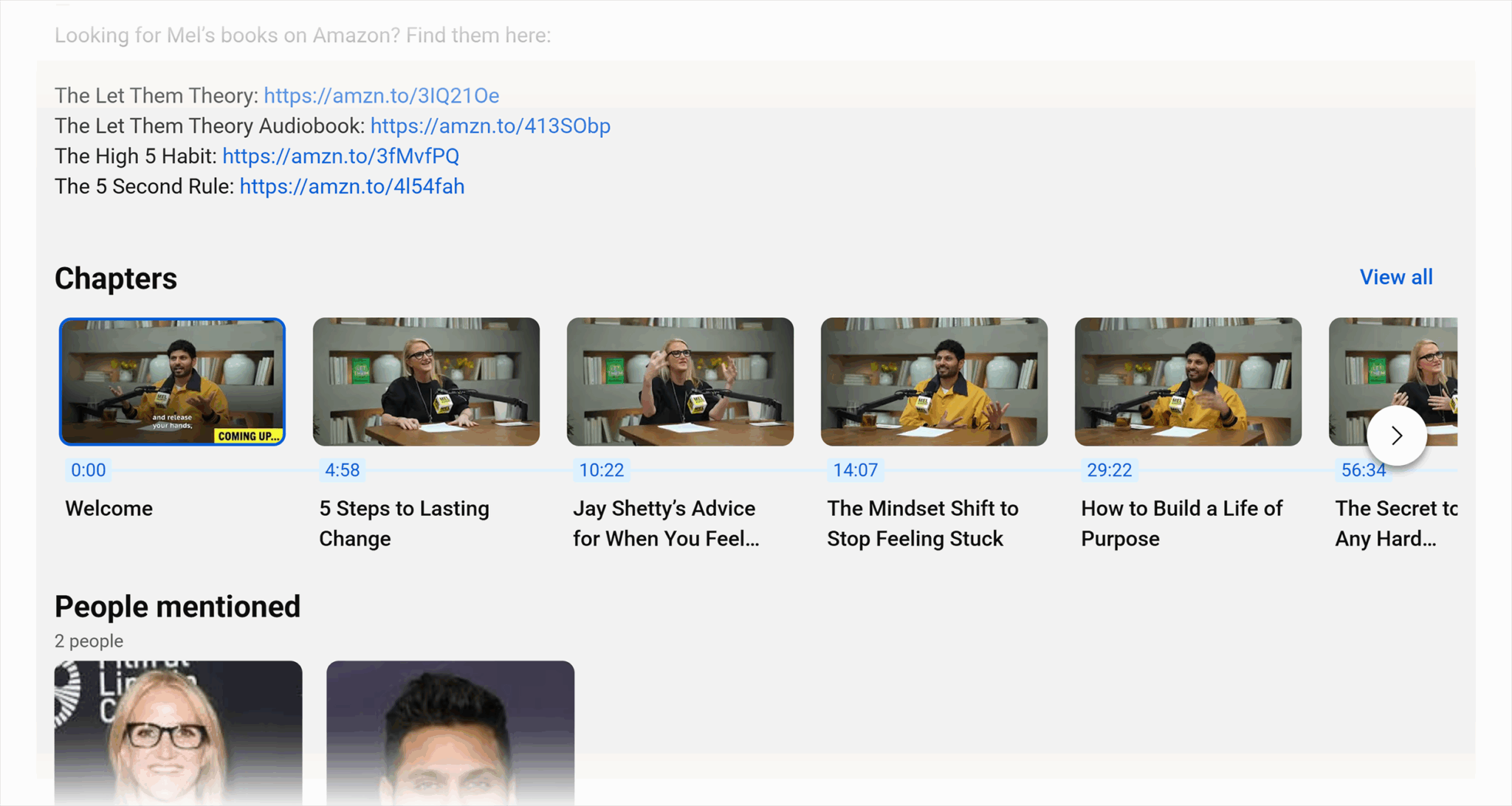
You can find video chapters at the bottom of the YouTube description. Creators also often cite the chapters in the video description.
If you add a timestamp on YouTube, it becomes a clickable link. Descriptions and comments that reference timestamps in the video can also result in the timestamp becoming a link that takes you to the referenced moment when clicked.
Here’s what video chapters look like on Google. They’re called “key moments” and are highlighted in a highly desirable video SERP feature at the top of Google search results:
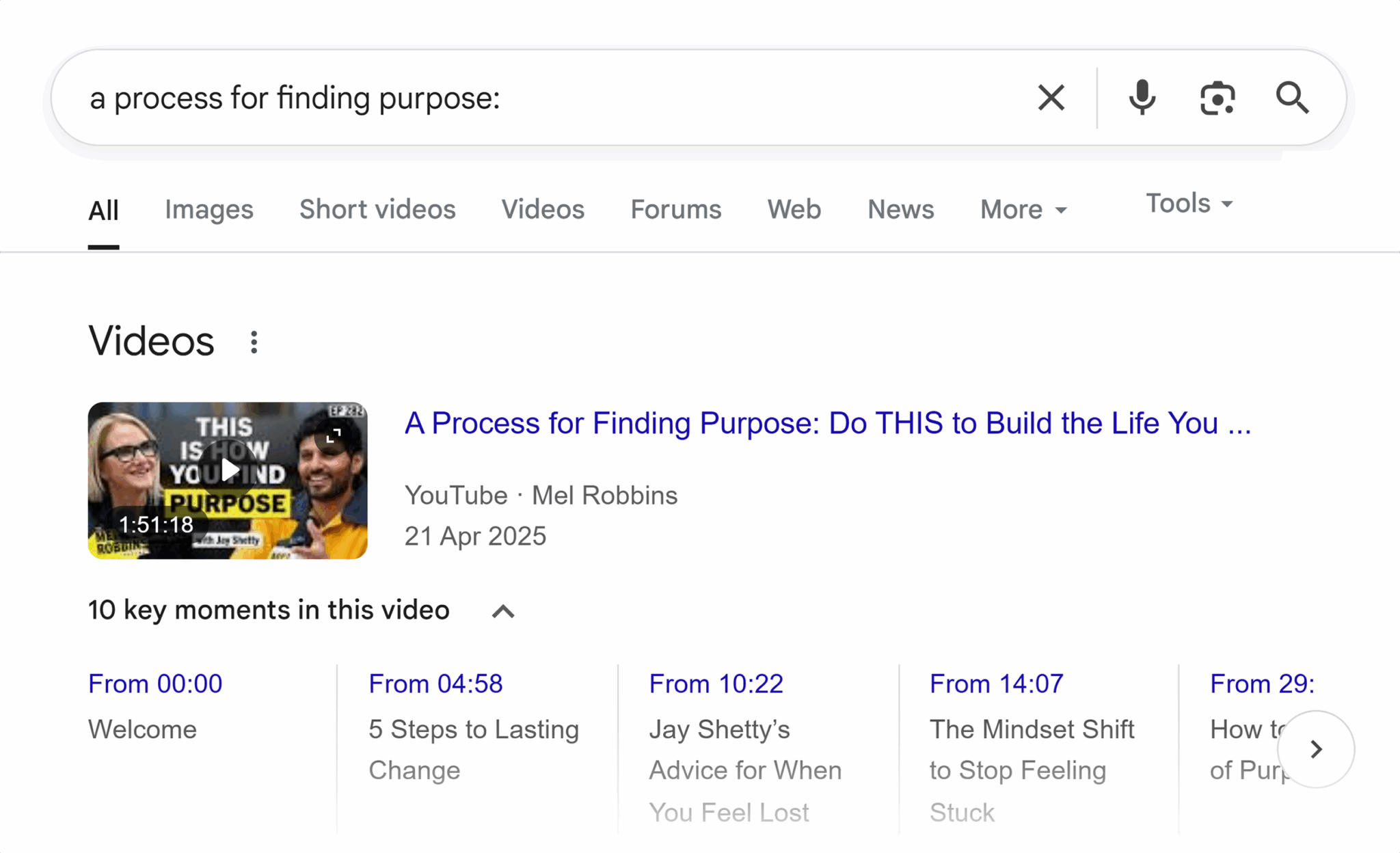
Create as many chapters as needed, but ensure the chapters align with keywords and topics. Use keywords in the chapter title if you can.
Suppose chapters align with subtopics in a written guide on your site (like the headings and sections within the guide). In that case, you can use your video multiple times across one page, referencing specific chapters and embedding them within the most relevant section.
Creating custom thumbnails
Engaging, custom thumbnails are your best chance of improving CTR and creating a visual brand that people remember.
Source thumbnail inspiration from large YouTube channels in any industry, particularly channels with budgets and dedicated research into what works on YouTube.
Diary of a CEO (DOAC) is a popular YouTube channel where host Stephen Barlett interviews celebrities and subject matter experts. The channel is known for taking an analytical approach to YouTube. The DOAC team A/B split tests a whopping 100 thumbnails per episode to see what gets the most engagement.
In this YouTube short, the marketing team describes the process:

Their thumbnails are pictured below. Common elements include:
- Close-ups of people’s faces, (sometimes two faces, the host and a guest)
- A range of emotions and facial expressions
- Bold text and text overlays with high-contrast colors, such as white, yellow, and red against black
- The most important topics in the text (refer to trending data discovered in the keyword research phase to see what trends you can attach to videos)
- Consistent stylings for all videos, which build a memorable brand identity

Enhancing engagement signals
One thing that YouTube does better than Google is personalized results. Google and YouTube both incorporate behavioral signals in their algorithms, but YouTube leans heavily into it and recommends content based on a range of behavioral signals, such as:
- User viewing history (videos watched and ignored)
- Video engagement metrics such as likes, comments, and shares
- Videos watched consecutively
Your YouTube strategy should work toward increasing engagement.
YouTube chapters, custom thumbnails, and calls to action in video descriptions all enhance engagement, but what else can you do?
Ask for likes, comments, and subscriptions
Earlier, we mentioned the Diary of a CEO channel and its dedication to YouTube research; any decision made likely has data supporting it. The channel grows by 10k subscribers a day, so clearly it’s doing something right with its growth marketing tactics.
The host, Steven Bartlett, reminds users to subscribe to his channel in every video he publishes.
Here’s the exact transcript Barlett used in his most recent video:
This has always blown my mind a little bit. 53% of you that listen to this show regularly haven’t yet subscribed to the show, so could I ask you for a favor before we start? If you like the show and you like what we do here, and you want to support us for free, a simple way that you can do just that is by hitting the subscribe button.
And my commitment to you is that if you do that, I’ll do everything in my power, me and my team, to make sure that this show is better for you every single week.
We’ll listen to your feedback, we’ll find the guests that you want me to speak to, and we’ll continue to do what we do. Thank you so much.
This is effective because:
- It’s data-driven (53% of people listen but don’t subscribe)
- Barlett asks for something from listeners (for them to subscribe)
- Bartlett promises something in return (he and the team will make the show better)
- He says thank you (a little gratitude goes a long way)
Keep viewer engagement with clickable links and end screens
Once you’ve got an engaged viewer, the goal is to keep them on your channel. You can do this by adding the following elements throughout your video at key sections.
- Video prompts are calls to action spoken within the video (e.g., “comment down below for the guide and I’ll send you the link”)
- Cards are interactive pop-ups that appear within the video. They usually link to other videos at the moment the other video topics are mentioned. (For example, in a video about YouTube SEO, you might mention “YouTube strategy” and use the card to link users directly to that video for more information.)
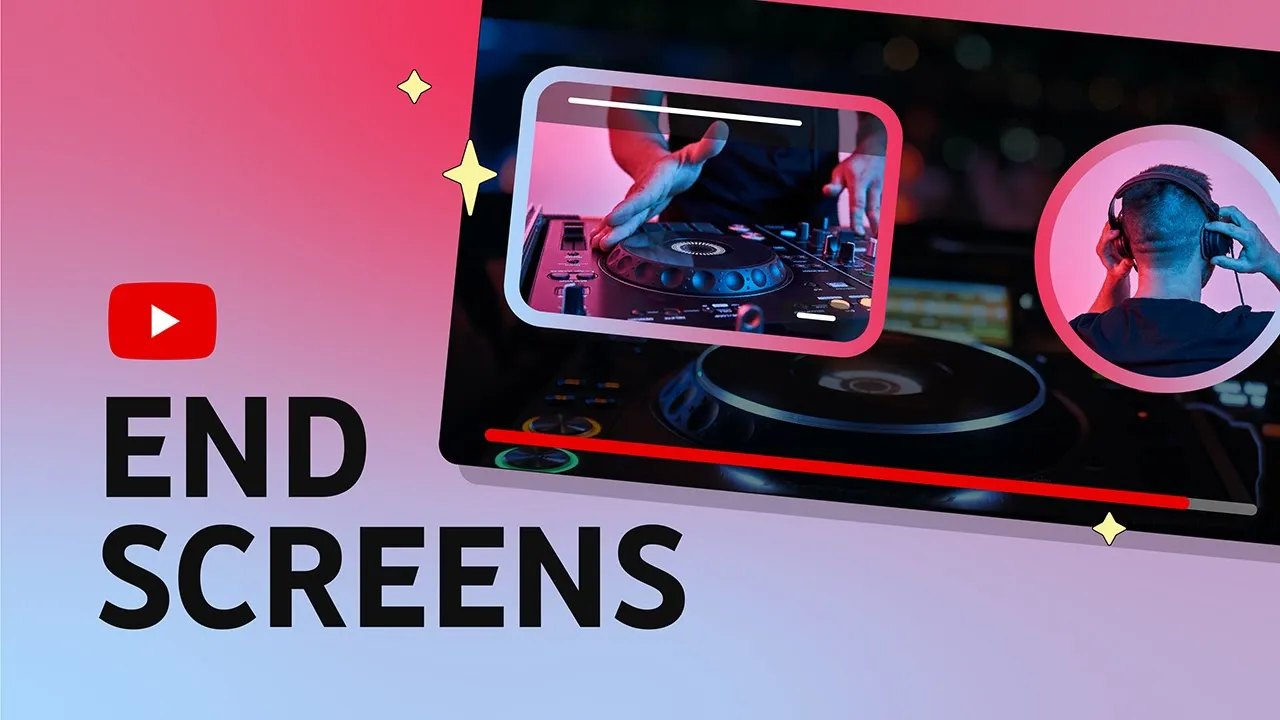
- End screens are the final screen of a video, usually lasting a few seconds at the end. They use visual overlays and prompt a desired call to action, such as watching a second related video.
Here’s a video from the YouTube Creators channel on how to add end screens.
YouTube is still social media: Engage with your community
YouTube is a social media channel, and video is one of the most engaged and connected marketing formats.
Engage with your community by replying to comments promptly. The quicker you are at replying, the more encouraged users will feel to leave a comment because they’ll have some assurance that they’ll get a reply and aren’t wasting their time.
Replying to comments with questions or further prompts for engagement might encourage commenters to reply again. All of these actions increase engagement. Brian Dean credits comments for growing his channel to 189,000 views per month.
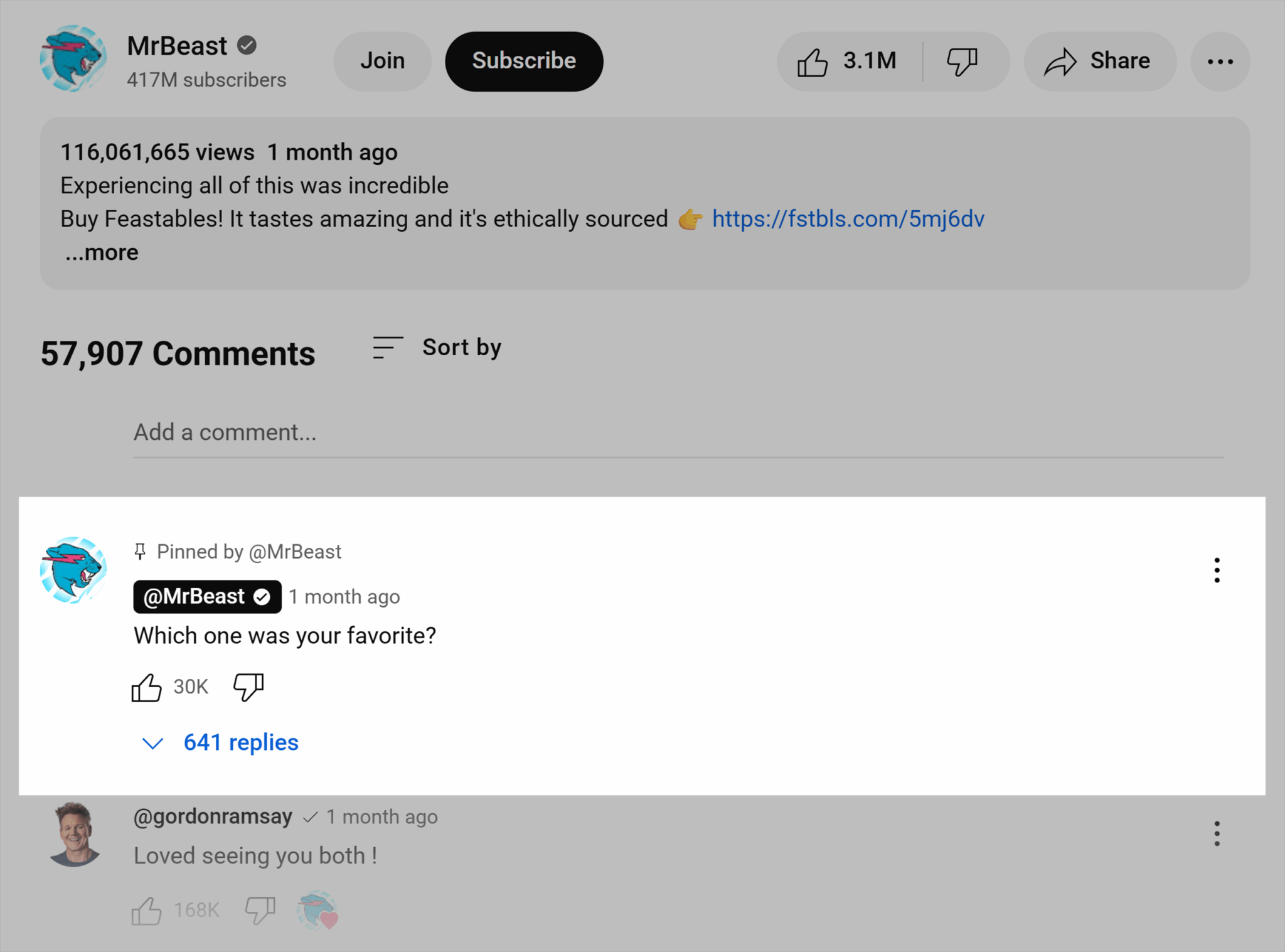
You can use pinned comments that contain calls to action, or pin the best comments to encourage viewer engagement.
Here’s an example of TubeBuddy’s YouTube using pinned comments to remind viewers to take action.
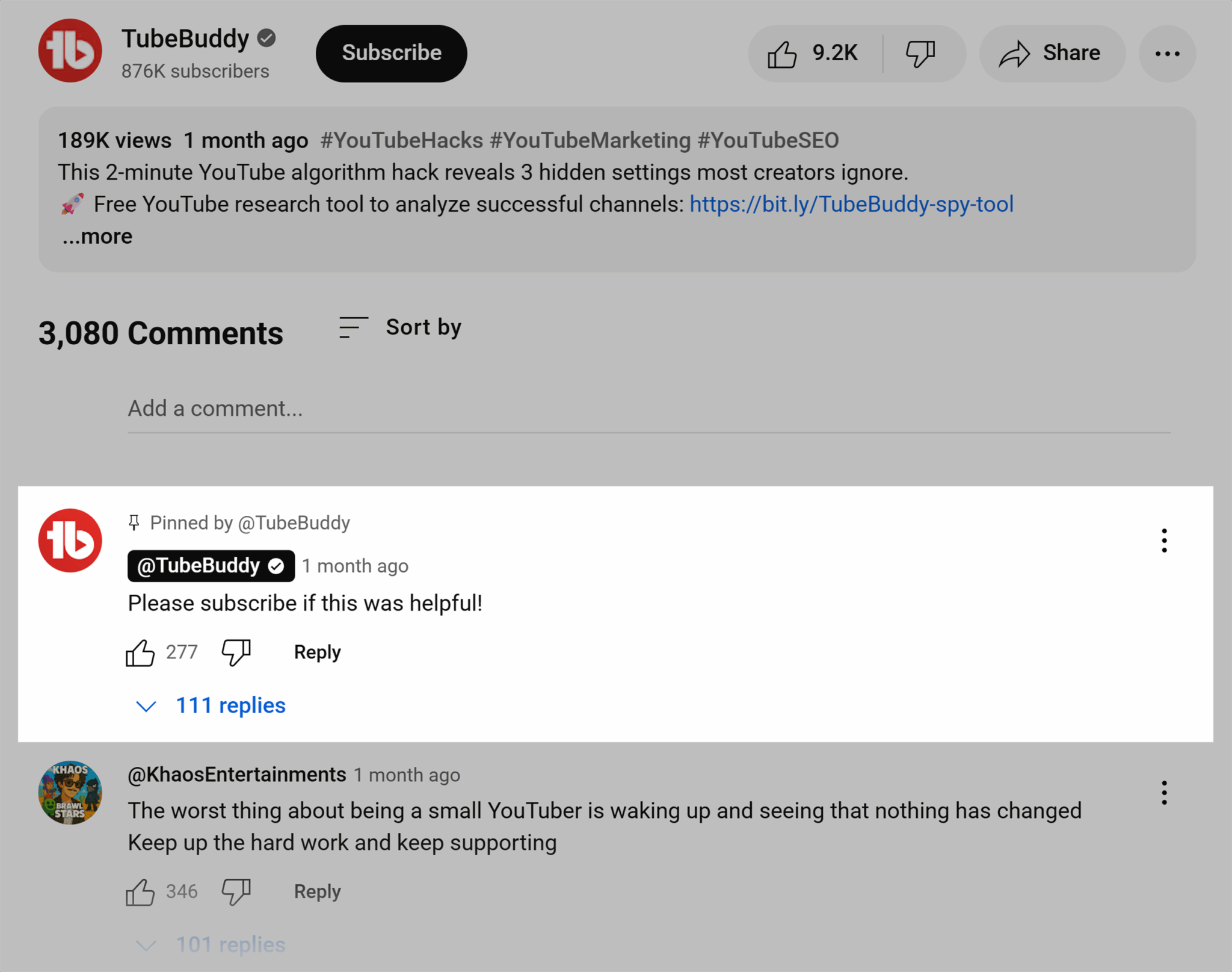
And here’s an example of how Mr. Beast, the biggest channel on YouTube with 403 million subscribers, uses pinned comments to encourage engagement.
Leverage playlists
Playlists on YouTube are helpful for users because they contextualize content and allow them to view a range of videos on a topic they’re most interested in.
This is what playlists look like on YouTube:
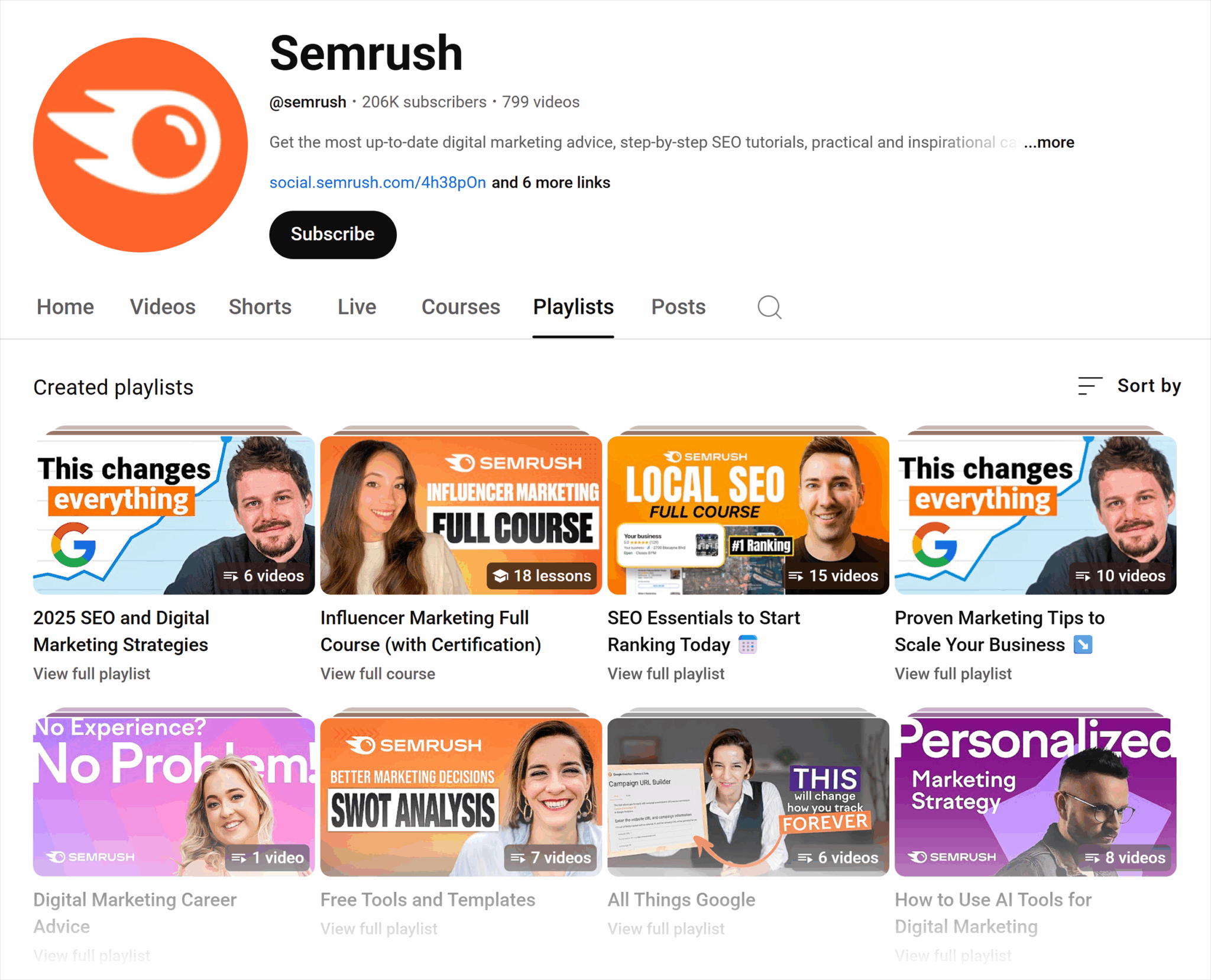
Users can click the thumbnail to watch the entire playlist, or click “View full playlist” to select a specific video within a playlist.
When users start watching a playlist, videos from the playlist will automatically play when the initial video finishes. This auto-play feature can help improve watch time and user engagement. Plus, it gives YouTube a signal about how videos are related.
For example, if you’ve got seven videos in a playlist called “2025 SEO and Digital Marketing Strategies,” YouTube may show these videos to lookalike audiences (audiences that look and behave like your channel’s audience and engage in similar content).
You can create playlists using a bit of common sense (like “This multi-part series should be grouped together under a single playlist”). That’s a good start, but you should also refer to your original keyword research.
At the beginning of this guide, we shared a screenshot from a YouTube keywords analytics tool.
Here it is again:
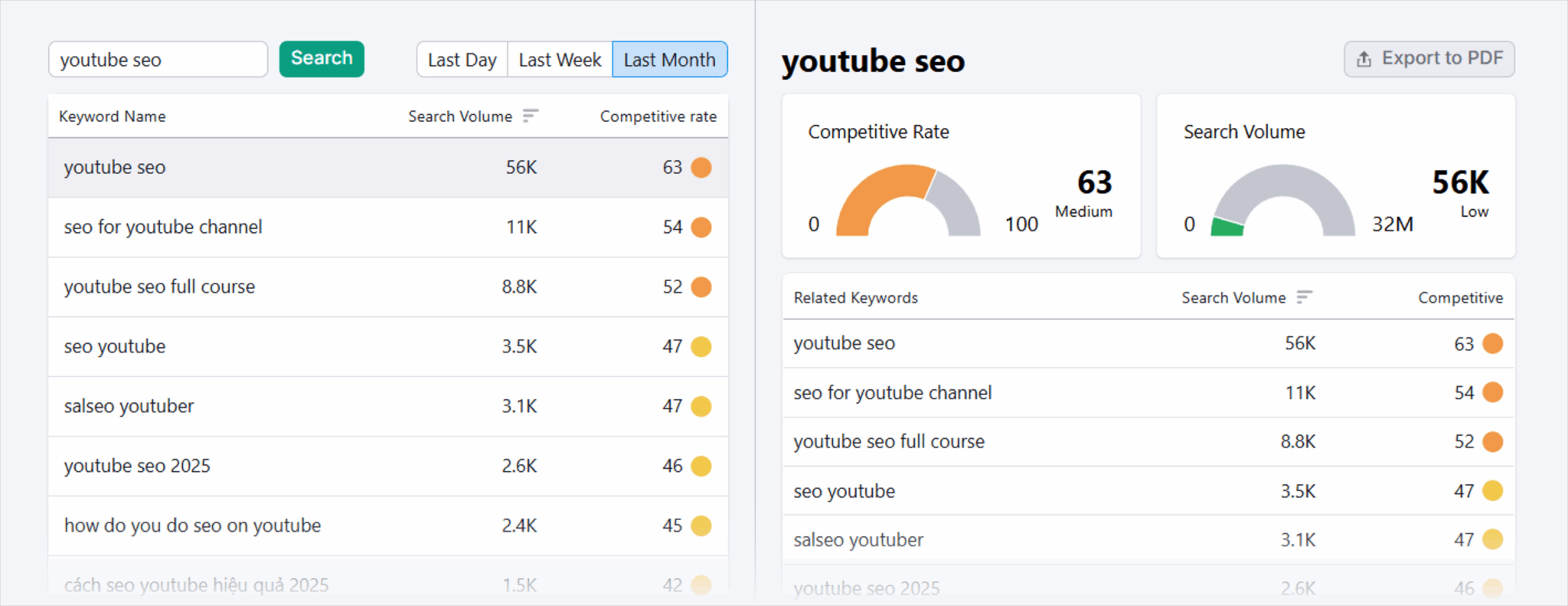
We searched “YouTube SEO,” a short-tail, head keyword. The tool provided related keywords.
It would make sense to title a YouTube playlist “YouTube SEO,” then add related subjects such as:
- The only YouTube SEO video course you’ll ever need
- YouTube SEO changed in 2025: What’s new?
- Free YouTube tools we can’t stop using
Monitoring performance and refining
Video marketing is a learning curve. You can read all the best practice tips and learn from the experts, but your audience is unique. The only way to understand what works for your audience is monitoring video performance, refining and testing strategies, and learning from previous successes (or failures!).
Here are some things to consider when reviewing video performance:
- Watch time: the total amount of time people have spent watching your video. Higher watch time signals valuable content to YouTube’s algorithm.
- Retention: the percentage of the video viewers watch before clicking away. This shows how engaging your video is from start to finish.
- Click-through rate: the percentage of people who clicked on your video after seeing the thumbnail or title. A high CTR suggests your video is compelling at first glance.
- Impressions: how many times your video thumbnail was shown to viewers on YouTube. More impressions increase your chances of getting clicks, but CTR tells you if those impressions are converting.
- Subscriber gain: the number of new subscribers gained from a video. This helps measure how well your content builds a loyal audience.
If any of these metrics increase, you’re doing something right. And when you’re not, you can make changes to your videos to see if they positively impact the metrics.
The great thing about YouTube is that it’s a search engine. Once a video is live, even if it’s not performing brilliantly in search, you can optimize it later. For instance, you can optimize your metadata, including titles, descriptions, and thumbnails.
You might choose to edit videos when you produce new, relevant videos. Go back to old videos and add links to newer content. Or add links to your best-performing videos to see if you can funnel that traffic to other videos.
To edit published videos:
Go to YouTube Studio > In the left-hand menu, click “Content” > Find the video you want to edit > Click “Details,” which is represented by a pencil.
Here you can edit video details.
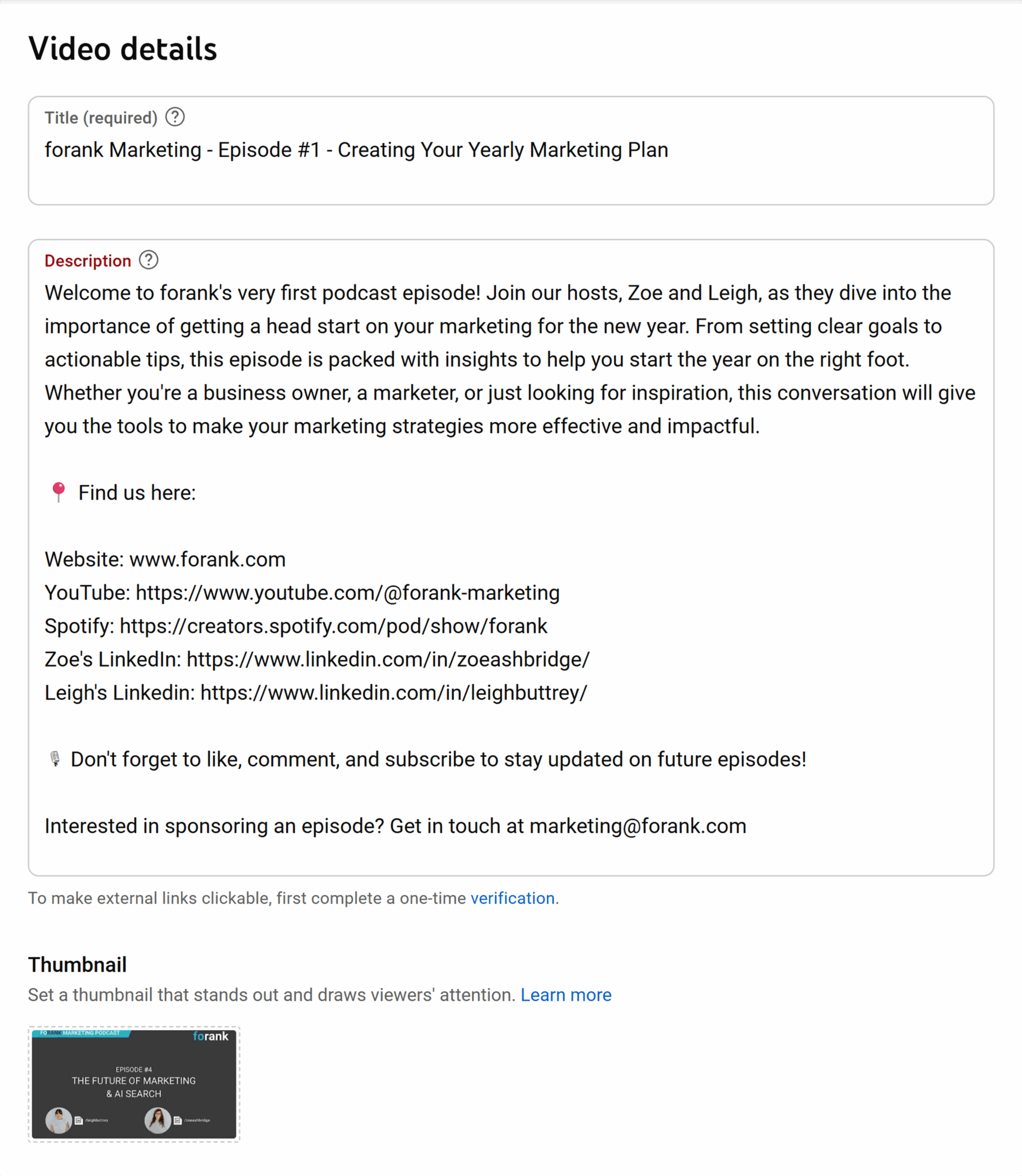
There’s a detailed section on video analysis later in this guide.
Stay updated with YouTube algorithm changes
YouTube has an algorithm, and the algorithm changes. Performance on YouTube is a commitment to staying on top of algorithmic changes and adapting your strategy to keep up with evolving trends and guidelines.
You need to do what’s required by the algorithm to rank. Remember, you could create the best video in the world, but if the basic elements that meet the algorithm aren’t included, your video won’t get the visibility it deserves.
Resources to stay on top of the algorithm
Fortunately, YouTube is generous with what creators can do to succeed on YouTube. There’s a creator landing page dedicated to supporting creators here. And videos are sharing what’s new on the YouTube Creators channel.
You can also find tips and guides from enthusiastic YouTube creators. Even the biggest YouTube stars share their tips for succeeding on YouTube:
Embedding and distributing video
Once a YouTube video is created, there’s no doubt that YouTube SEO will do a lot to rank on both YouTube and Google. If you never added your video to your website, it might still rank on search engines via YouTube’s website.
But wouldn’t it be great if your video bolstered your organic rankings, too?
We think so.
Adding videos to your website has a range of benefits, including:
- Increased user signals, such as time spent on the page and engagement rate.
- Capturing increased traffic from Google. Content with video has a better chance of ranking because the page is perceived to be more helpful, and it might also secure video SERP features.
- Improves connection with the website visitors. According to Tavus, 49% of consumers enjoy the human connection of videos.
- Build authority with high-quality video, which offers a new media type for your users (and Google) and showcases authority through expertise. Videos created by subject matter experts demonstrate your credibility, helping you build trust with viewers.
How to embed a video into your webpage
Don’t be tempted to just link to your videos—embed videos by following these instructions.
Find the video you want to embed on YouTube > Click “Share” > Click “Embed”

From here, you can copy the embed code and paste it into your website’s HTML code, and visitors can play the video from the web page.
How to embed a video that starts at a specific timestamp
You can take this further by embedding videos from a starting point. For example, if there’s a relevant chapter, you can embed the video starting from that point.
Scroll down past the embed code > Check the box labelled “Start at” > Change the timestamp to the time you want the video to begin playing from > Click “Copy” > Paste the code into the HTML of your website.
Within the HTML, you should see “start=” followed by a number; this is the number of seconds at which the video starts. If you want to alter the start point in the code, change the number of seconds to represent the timestamp. If you started the video after one minute, the code will read start=60.
Once the video is embedded on your site, you can use Google SEO tactics to bolster both the video and your website even more.
Social media distribution
With SEO in place, there’s every chance your audience will share your video far and wide across social media channels and communities (in Reddit, for example).
But that doesn’t mean you shouldn’t have your own distribution plan for your video content.
For every video created, share it across relevant channels, including social media, email newsletters, and communities. Online communities on Reddit can be particularly impactful at sending the right traffic to your video.
Steps to optimize your video content on your website
Follow SEO best practices
A page on your website that ranks well gives your video the best chance of discoverability because a well-ranking page is a page that Google crawls more regularly. Google bots crawl the website through links, so it will follow your YouTube link and discover and index the video.
As expected, SEO best practices are key to ranking pages.
Many SEO best practices are tried and tested methods:
- Title tags should be optimized by including focus keywords (ideally the same keyword or a related keyword used in your video) and by writing a compelling, clickable title
- Meta descriptions should encourage someone to click
- Content should be well structured with heading tags for easy readability
- Internal links build page authority; they should point to the page with the video so Google can find it
- Your content should be relevant to both the keyword it’s ranking for, and to the embedded video
- URL structure should be neat, succinct, and include the keyword you’re targeting
- Optimized content includes your focus and supporting keywords throughout the article
- Optimized images include descriptive alt text that contain your target keywords
- A positive page UX and a mobile-friendly site are essential for users
Further reading: The complete guide to optimizing content for SEO (with checklist) and What is on-page SEO? Key elements & best practices
Structured data and video schema
When you embed a video on your website, you can provide even more data to Google through structured data and schema. The schema type you want is VideoObject.
VideoObject schema makes it easier for Google to find your video.
Here’s what Google says:
While Google tries to automatically understand details about your video, you can influence the information that’s shown in video results, such as the description, thumbnail URL, upload date, and duration, by marking up your video with VideoObject. Adding video structured data to your watch pages can also make it easier for Google to find your video. Videos can appear in several different places on Google, including the main search results page, Video mode, Google Images, and Google Discover.
Within schema types are properties. Think of properties as details that you can attach to the type. Properties for VideoObject schema include the obvious, like “name,” “duration,” “uploadDate,” and more detailed or nuanced properties like “about” or “associatedArticle.”
You can make VideoObject schema as detailed and as customized as you like. There are over 100 properties under the VideoObject type.
Don’t let that overwhelm you—many types won’t be relevant, and you can start with a simple implementation.
Here’s a simple implementation of VideoObject schema:
<script type="application/ld+json">
{
"@context": "https://schema.org",
"@type": "VideoObject",
"name": "[Video Title]",
"description": "[Video description]",
"thumbnailUrl": [
"https://example.com/photo.jpg"
],
"uploadDate": "2025-06-01T09:00:00+09:00",
"duration": "PT1M54S",
"contentUrl": "https://www.example.com/video.mp4",
"embedUrl": "https://www.example.com/embed/123"
}
</script>
Some tools will create simple schema for you.
Here’s a walkthrough:
Go to https://videoschema.com/ > Add your YouTube URL to the “Video URL” field > “Click Generate Videoschema”
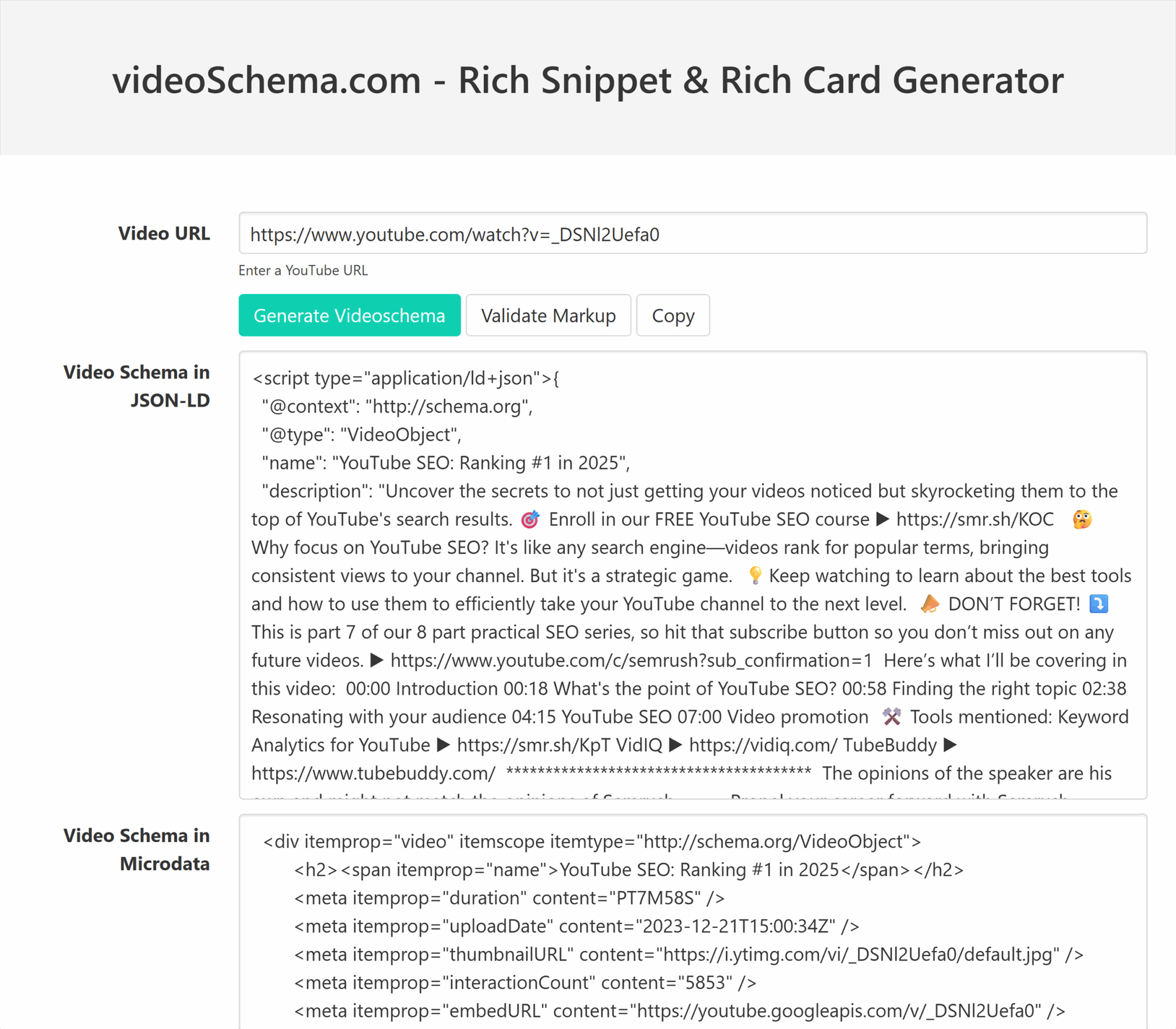
The tool pulls all the data available on the video on YouTube.
Next:
- Edit the output. You don’t want symbols and emojis in the schema; plain text only.
- Add content to the schema. Unlike the video description, users won’t read your schema description, so you can write more if you think it helps contextualize what the video is about.
This method of creating structured data implementation is easy to do and will provide more data to Google, increasing its chances of discovering your video.
But custom schema is even better.
Within your schema you can add “hasPart” properties and “clip” types, which may help your site achieve the Key Moments feature in search engine results pages. This schema allows you to assign parts to segments of a video.
Here’s a more detailed Video Object schema with hasPart schema:
{
  "@context": "https://schema.org",
  "@type": "VideoObject",
  "name": "[Video Title]",
  "description": "[Video description]",
  "thumbnailUrl": [
    "https://example.com/photo.jpg"
  ],
  "uploadDate": "2025-06-01T09:00:00+09:00",
  "duration": "PT1M54S",
  "contentUrl": "https://www.example.com/video.mp4",
  "embedUrl": "https://www.example.com/embed/123",
  "hasPart": [
    {
      "@type": "Clip",
      "name": "Introduction",
      "description": "An overview of the topic and what to expect in the video.",
      "startOffset": 0,
      "endOffset": 30
    },

    {
      "@type": "Clip",
      "name": "Main Topic",
      "description": "A detailed explanation and demonstration of the main subject.",
      "startOffset": 31,
      "endOffset": 90
    },

    {
      "@type": "Clip",
      "name": "Summary",
      "description": "Recap of the key points and final thoughts.",
      "startOffset": 91,
      "endOffset": 114
    }
  ]
}
If you’ve got the resources available, speak to a developer or technical SEO and review the comprehensive VideoObject schema listing to see how much information you can give to Google. Find types that are relevant and work them into your schema.
Further reading: Google’s developer guide on Video (VideoObject, Clip, BroadcastEvent) structured data
Test video schema with Google’s Rich Results Test
Videos embedded on a website with schema and structured data applied can earn rich results. See the key moments example in the image below.
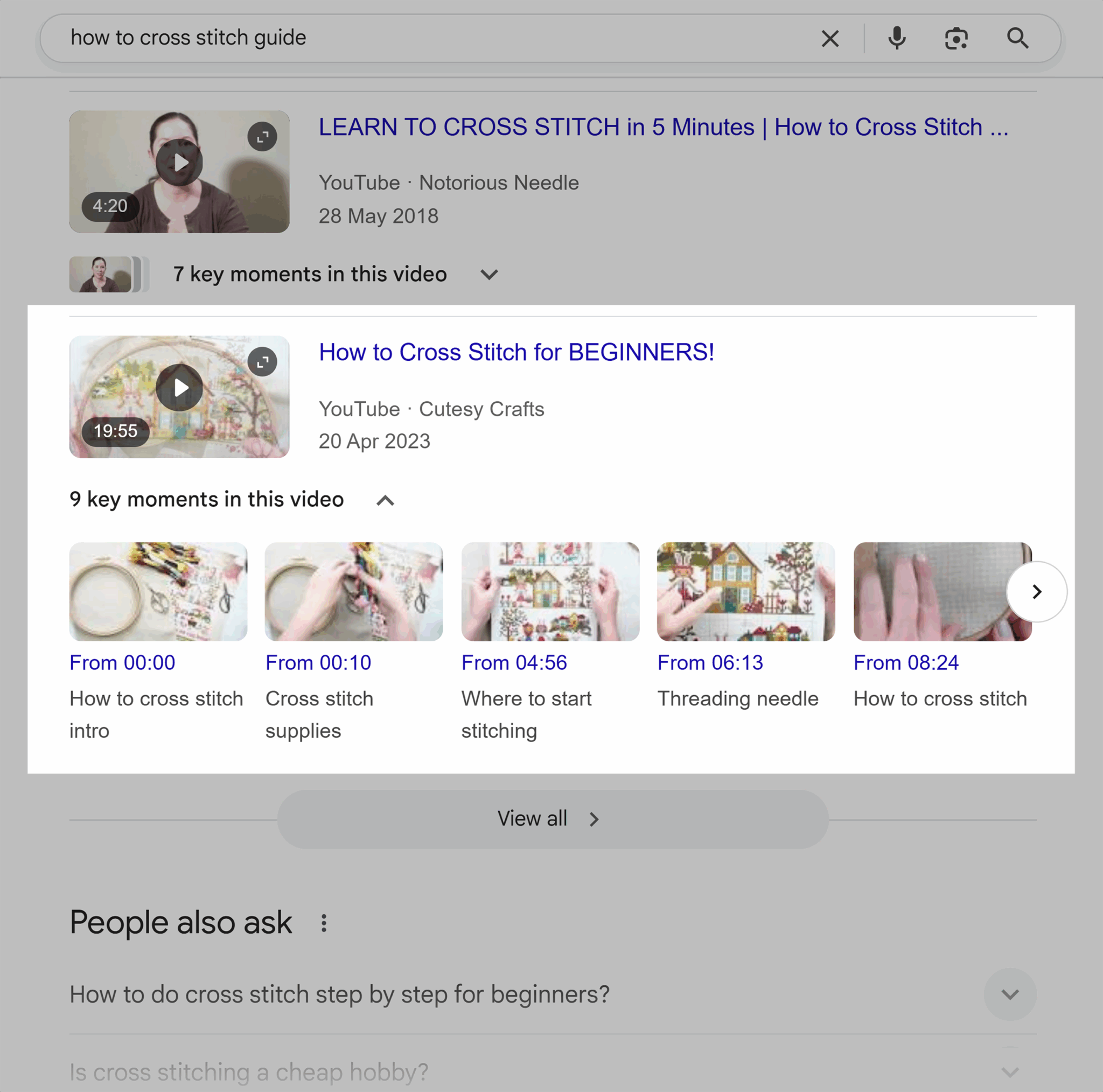
All correctly implemented structured data will be eligible for video, so check your structured data to see if it’s eligible.
Here’s how to use Google’s Rich Results Test by testing code.
Go to Google’s Rich Results Test > Click “<> Code” > Paste your structured data and schema code into the text box > “Test Code”
The tool takes a moment to test the code, then directs you here:

If the code is eligible for rich results, you’ll see it in the top right corner. If there are invalid items, you’ll get a warning about them in orange or red. You can click through to review the invalid item, and the tool also provides tooltips on how to solve it.
Always test your code before you add it to the website, and be extra diligent—test the URL once it’s published, too.
Important note: Google’s Rich Results Test can only test code eligibility and whether or not it’s one of Google’s supported rich result types. It cannot verify the quality or accuracy of the content within the schema framework. Structured data and schema do not guarantee a rich result; rather, they give you the best chance of winning one.
YouTube content as an authority and entity signal
Experience, expertise, authority, and trust (E-E-A-T) is a framework that Google Search Quality Raters use to provide feedback on the quality of websites and search results.
Search Quality Raters are humans who manually review search results and websites to provide feedback on their quality. The Search Quality Rater Guidelines provide a framework for Search Quality Raters when they’re reviewing.
While this framework is not a ranking factor, it’s considered important and a guide for what Google wants to see from websites.
On E-E-A-T, the Search Quality Rater Guidelines say:
In determining page quality, Raters must consider EEAT: The first-hand experience of the creator. The expertise of the creator. The authoritativeness of the creator, the main content itself, and the website. And trust: the extent to which the page is accurate, honest, safe, and reliable.
YouTube can serve as an authority and entity signal and, therefore, may bolster traditional SEO efforts on Google and other search engines by providing E-E-A-T.
Video demonstrates E-E-A-T in a number of ways:
- Videos demonstrate experience and expertise because they show real people doing things like showcasing a product, answering questions, or teaching a skill. Videos can feature subject matter experts answering questions relevant to their industry.
- Video helps with authoritativeness as an extension of expertise and experience. Yes, videos with subject matter experts bring authority. But more than that, video becomes an asset that may be linked to from other sources or embedded in their website. Your pages with embedded videos may earn backlinks from relevant, authoritative sources, which helps Google see your website as an authority.
- Trust is demonstrated through experience, expertise, and authority. We also know that video supports the sales cycle, and people buy from brands they trust. According to HubSpot, 41% of marketers say that ROI from video is high and 87% say that video increases brand awareness.
Tracking and analyzing the success of video content
Analyzing YouTube metrics
There’s no need to make any guesses about video success on YouTube.
The YouTube Studio tells you everything you need to know, from video metrics to overall analysis of subscribers and callouts for your latest achievements.
Here’s what the YouTube Studio dashboard looks like.

You can dig into specific data per video, too.
Navigate to the left-hand menu > Click “Content” > Choose the video you want to analyze > Click “Analytics,” which is represented by the bar graph icon.
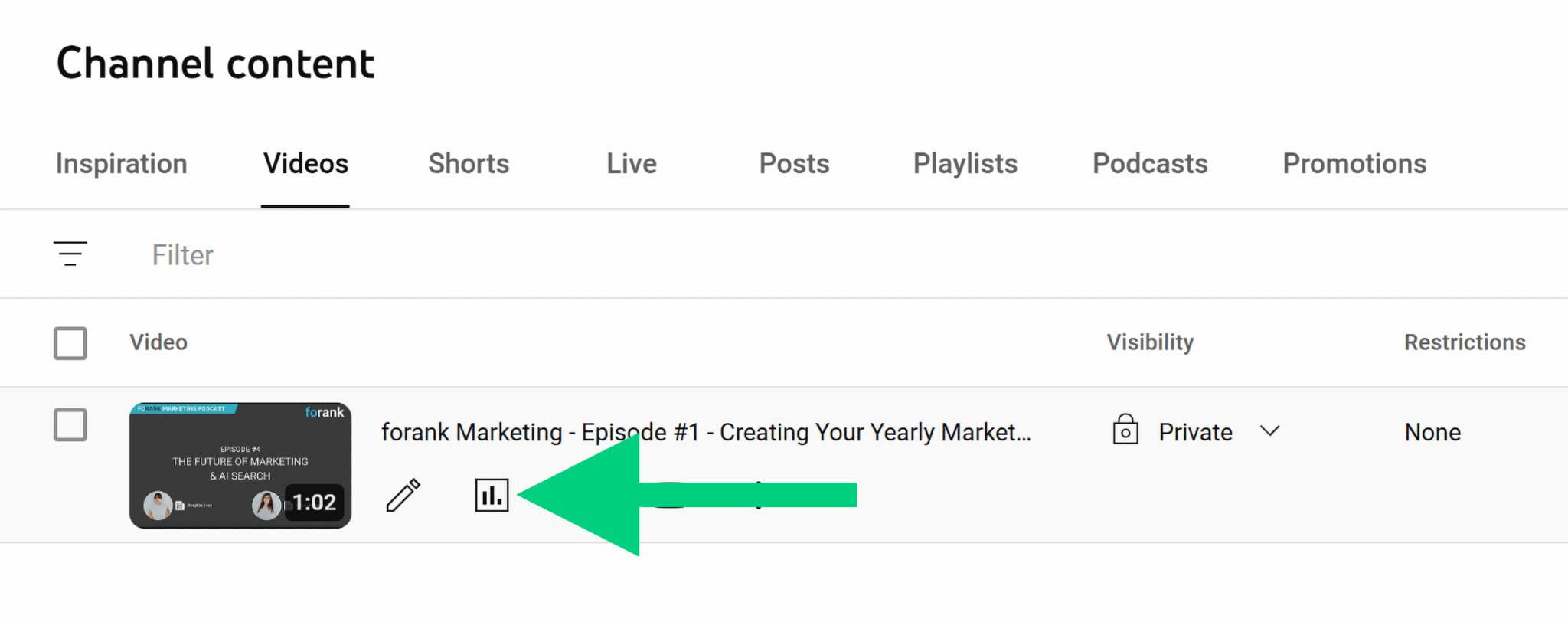
You’ll now see analytics for the video selected.
You can see:
- Video views: the total number of times the video has been watched
- Watch time: the total number of minutes viewers have spent watching the video
- Subscribers: the number of subscribers gained or lost from this video
- Moments for audience retention: key points where viewer engagement spikes or drops
- Average view duration: the average length of time viewers spend watching the video
- Average percentage viewed: the average portion of the video that viewers watched, shown as a percentage

Use these metrics to make improvements to your video strategy. For example, if subscribers are your goal and you have a video that secured a high number of subscribers, you might want to test a second similar video or repeat the format.
You can also look for moments of high engagement to see what happened on screen or what you said that piqued interest. Create similar moments if you know what they are.

YouTube metrics tell us a lot about the numbers, but growing any channel and securing high views and datasets large enough to perform in-depth analysis takes time.
For many creators, especially those more interested in meaningful engagements, other metrics such as likes, comments, and shares can be more insightful.
Engagement metrics: Likes and comments
Likes and comment metrics are found within video analysis.
Go to YouTube Studio > Navigate to the left-hand menu > Click “Content”
You can see a breakdown of likes and comments here in terms of quantity.
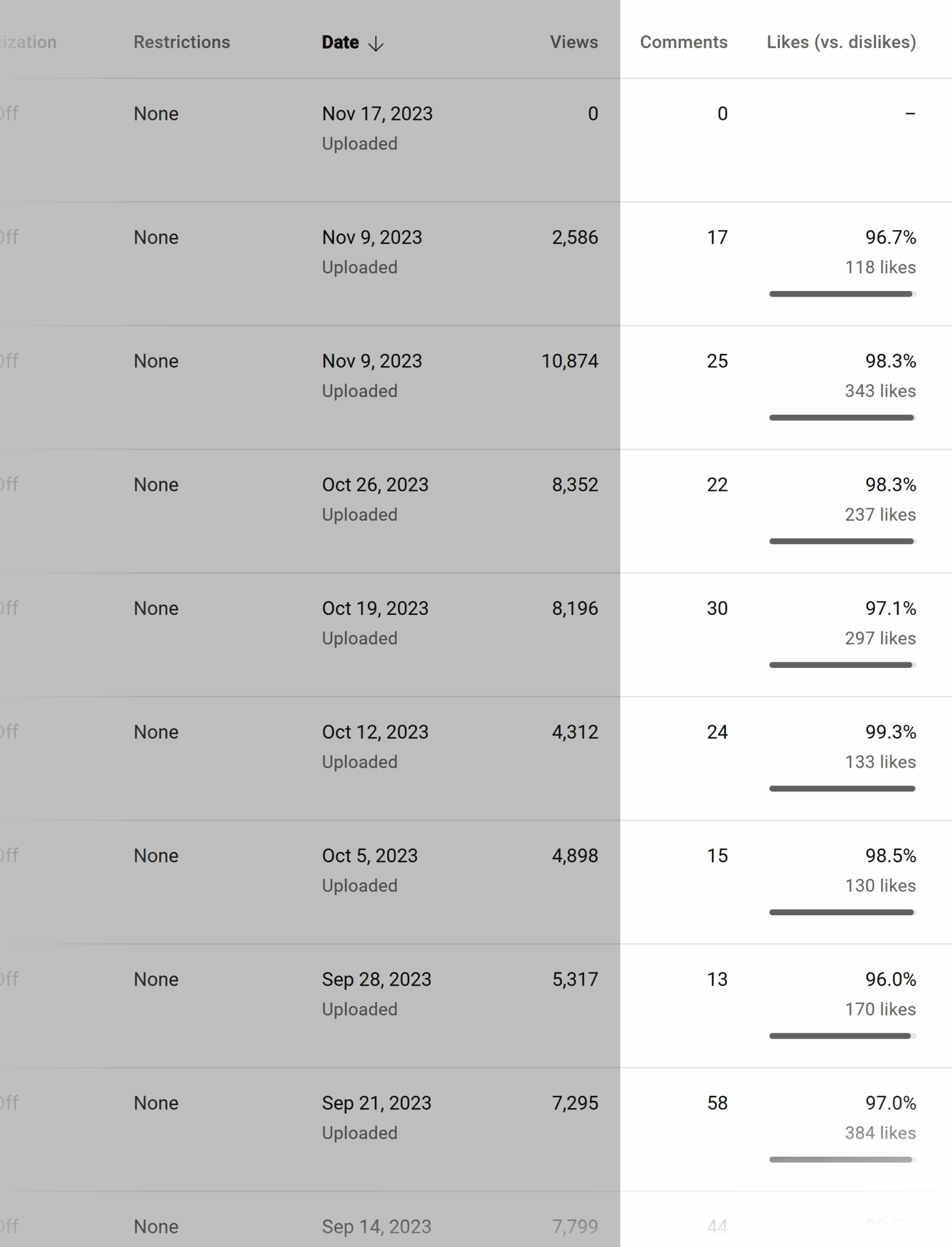
Quantitative metrics are helpful, but it’s worth reviewing comments left on the video to determine if you’re capturing the right engagement from the right people. If your commenters are intrigued by your content, it’s a good sign. They might ask related questions, which could inspire a video series.
Loyal fans of your channel may also give you feedback on how they felt about the video.
The comment section on this video is a good example of positive feedback from viewers:

Importantly, nearly every single comment has been responded to by the creator in the form of a like or reply. Remember, this type of engagement builds community and viewer loyalty.
Performance tracking across platforms: Tracking the success of YouTube videos on websites
YouTube is one place where your video is viewed and gains traction, but it’s not the only place. It’s important to look at metrics and tools associated with your website.
Google rankings
Google Search Console (GSC) is a tool that measures your website’s rankings. It’s a free tool and a must-use for all websites. GSC shows precisely what queries people are typing into Google to find your website, how many impressions you’re getting (meaning how many times you’re seen in search), and how many times your website is clicked for a particular search query.
You can filter data to analyze specific:
- Queries: the keywords people are typing in and the ones that lead to clicks
- Pages: the pages people click from Google
- Countries: where users are searching from
- Devices: which device people use to search (desktop, mobile, tablet)
- Search appearance: featured snippets and rich results, such as review stars
- Dates: data filtered by date
In Google Search Console, you can filter rankings in video search results and web (traditional Google search), images, and news.
Here’s how to monitor video performance.
Go to Google Search Console > Navigate to the left-hand menu > Click “Performance” > Click “Search Results”
You’ll see a screen like the one below, detailing clicks and impressions for your website overall.

Next, filter by video:
Navigate to the drop-downs above the graph > Click “Search type: Web” > Select “Video” > “Apply”
Results will filter to video-only results.
- Click queries to see which queries led to a click
- Click pages to see which page they clicked to

You can toggle average position to see whether the video position is increasing or decreasing.

Google Search Console is excellent if you want a tool that demonstrates how your site is performing and which video queries bring clicks.
The limitations of GSC are that it can only display opportunities based on keywords your site is ranking for and at least getting visibility for, so GSC is best used with other tools that help identify opportunities not yet reached.
SERP feature analysis
One of the main benefits of videos for SEO is that you get enhanced listings in search engine results pages, which are called SERP features.
These features are mentioned above with images, and include:
- Video listings
- Video carousels
- Featured videos
Video SERP features might also be complemented with key moments.
SERP features will increase traffic to your video as they’re so prominent in SERPs.
Monitoring your SERP features will help you see how they’re performing and whether you’ve lost a feature so you can work to get it back. You can also analyze opportunities for SERP features, which can influence your video strategy.
If you’ve created and embedded a video on your site, you can monitor how well that page performs for video SERP features.
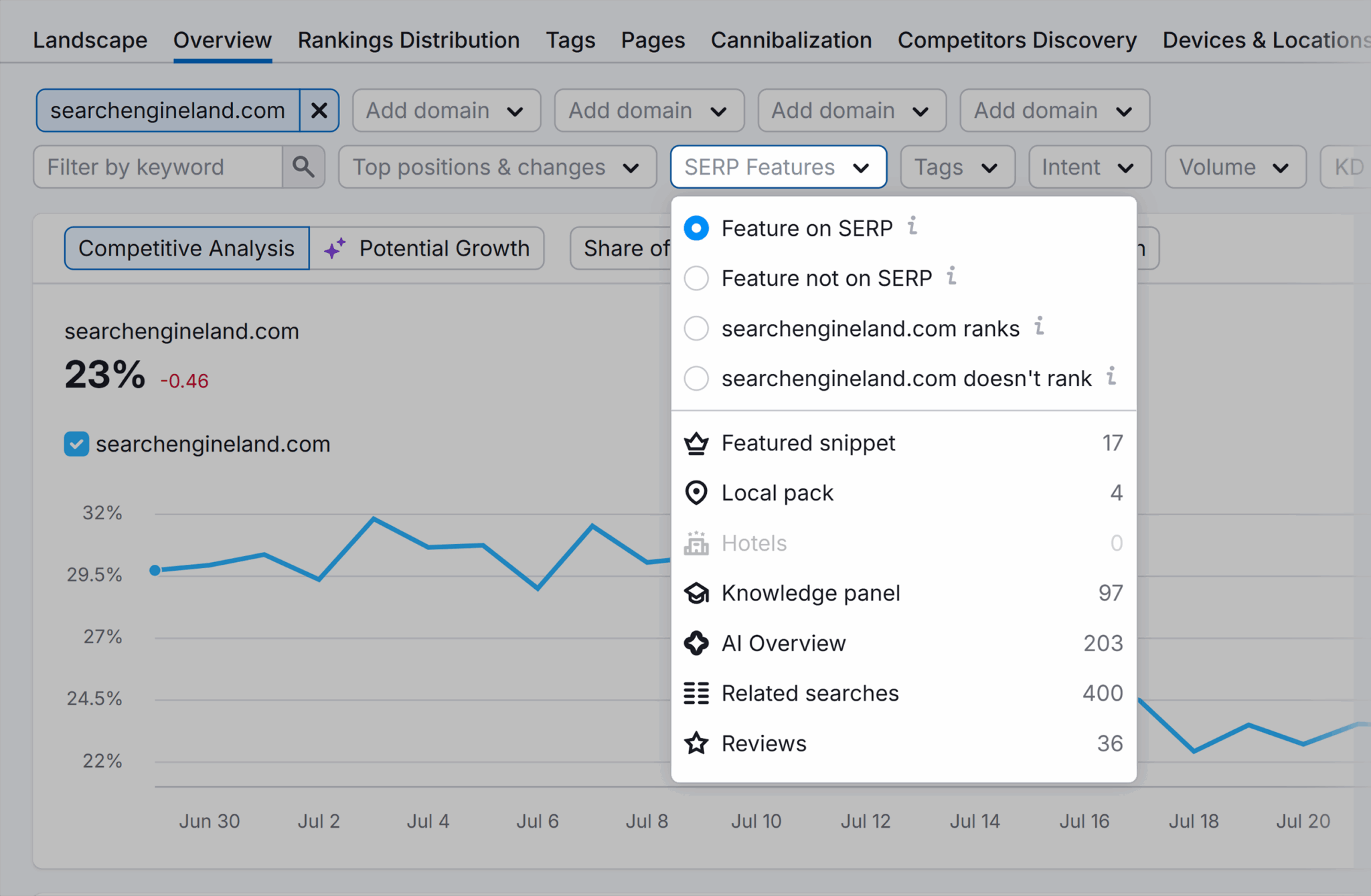
Here’s how you do it using the position tracking tool, which only shows data for keywords you’ve specifically input for analysis. This targeting analysis helps get straight to the data that matters the most.
First, you must enter the keywords you want to track.
Go to Semrush > Navigate to the left-hand “SEO” section > Click “Position Tracking” > Choose your project > Choose “Overview” > Below the graph, click “Add keywords”

Add your keywords with each keyword on a new line. Optionally, you can add a tag that will later be filterable. Separate tags from keywords with a comma. You might add a “video” tag for any keywords you want to monitor and rank in video results.
For example:
- YouTube SEO, video
- How to do YouTube SEO, video
You can add global tags at the bottom if all keywords use the same tags.
When you’re done, click “Add keywords.” The system might take time to analyze keyword positions and populate the report. This could take minutes or hours, depending on the data.
Once your keywords are added, you can use the “Overview” within the Position Tracking tool to filter data by video SERP features.
Site engagement metrics
Engagement metrics are tracked as standard in GA4, including video engagement metrics for videos embedded via YouTube (another benefit to using YouTube).
You have to turn video engagement metrics on in order to track them in GA4.
Here’s how:
Go to Google Analytics > Click “Admin”, which is represented by a cog (bottom left) > Navigate to “Data streams” > Click the data stream you want to manage.

Once you’ve clicked the data stream to which you’re managing and uploading videos, check that enhanced measurements are toggled on and “Video engagement” is present.

Measuring video engagement metrics in GA4
Next, you need to find the video engagement metrics in your report.
In the left-hand menu > “Reports” > “Engagement” > “Events”> In the search bar, type “video” to filter to video events > Press “Enter”
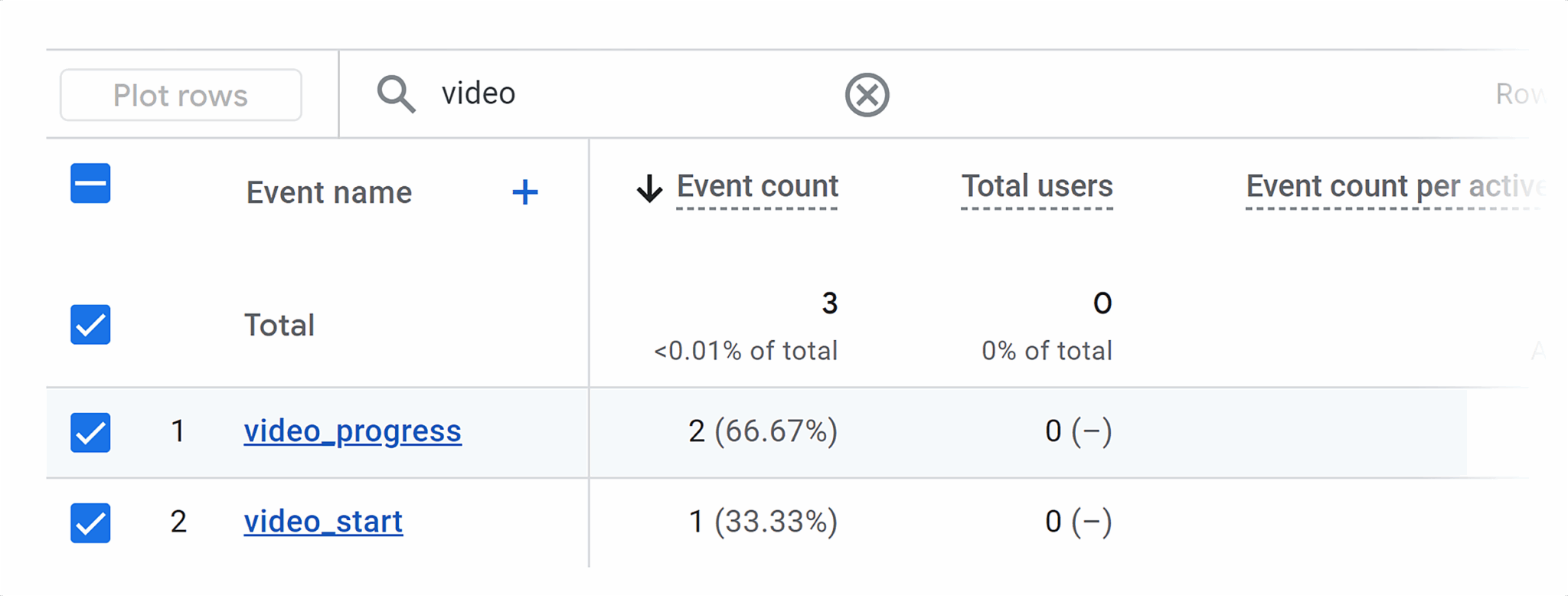
Want to get even more granular data? Find out which page on your site the user is on when they click the video.
Click the “+” next to “Event name” > Start typing “page” to bring the menu items into view > Select “Page path and screen class.”

GA4 adds the page on which the video event took place.
There are three types of video events:
- Video start (triggers when the video starts playing)
- Video progress (when the video progresses past 10%, 25%, 50%, and 75% duration time)
- Video complete (when the video ends)
Important note: Engagement metrics on your website will also be recorded on YouTube if the video is embedded using YouTube’s embed code. So, if GA4 says a video was completed, YouTube Analytics will have this data already. GA4 doesn’t provide new information about video engagement, but it lets you see how effectively the website generates video engagements.
One of the limitations of this engagement report is that you
can’t see which video was viewed, though you can work it out if there’s
only one on a page. This video explains how to add video titles to your
GA4 report.
Heat mapping
Heat mapping tools like HotJar or Microsoft Clarity allow you to see where users are clicking and where they’re most engaged.
The screenshot below shows how it works. High click zones have a red
circle, yellow is slightly less clicked, green even less so, and blue
signifies the least-clicked areas.

If a video gets a lot of engagement, you’d see a red circle around the play button.
These tools also offer analysis for scroll depth. Scroll depth is how far users scroll down a page. If you analyzed scroll depth and found users weren’t even getting to your video, you might consider moving it up the page and seeing how it influenced engagement.
Ready to start doing YouTube for SEO?
Do you feel ready to think about SEO holistically?
If so, get started with researching using Keyword Analytics for YouTube so you can research keywords, identify growth keywords, and review top videos already performing in the YouTube algorithm. It’s $10/month, but you can start with a seven-day free trial and cancel any time.
If you’ve already mastered the keyword portion of YouTube SEO, read this guide to high-impact educational video content. It covers everything from defining purpose, scripts, and storyboarding, choosing your video tech stack, and so much more.


No comments:
Post a Comment