⭐ If you would like to buy me a coffee, well thank you very much that is mega kind! : https://www.buymeacoffee.com/honeyvig Hire a web Developer and Designer to upgrade and boost your online presence with cutting edge Technologies
Showing posts with label Design Systems. Show all posts

Saturday, February 7, 2026

Design System Culture: What It Is And Why It Matters (Excerpt)


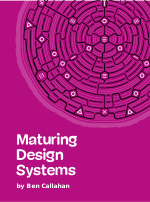
We’re so happy to announce that “Maturing Design Systems”—a Smashing book by Ben Callahan — will soon be joining the Smashing Library! Ben’s insights and advice are so powerful, we thought you might like to read an excerpt from the book. Subscribe to our Smashing newsletter to be notified when orders are open.

Design systems have become an integral part of our everyday work, so much that the successful growth and maturation of a design system can make or break a product or project. Great tokens, components and organization aren’t enough — it is most often the culture and curation that creates a sustainable, widely-adopted system. It can be hard to determine where to invest our time and attention. How do we build and maintain design systems that support our teams, enhance our work, and grow along with us?
Maturing Design Systems
Enter “Maturing Design Systems,” a very welcome addition to our Smashing Library of books. Ben Callahan pulls from years of experience building and consulting on design systems to create a framework for growth and stability.

Excerpt: Design System Culture #

Culture is a funny thing. We all have some intuition about how important it is—at least we know we want to work in a great culture and avoid the toxic ones. But culture is notoriously difficult to define, and changing it can feel more like magic than reality. One company culture can be inspiring for some and boring for others, a place of growth for some and stifling for others.

Adding to the nuance, not only does your company have a culture as a whole, but it has many subcultures. That’s because culture is not created by any individual. Culture is something that happens when the same group of people gather together repeatedly over time. So, as a company grows, adding hierarchy and structure, the teams formed around specific goals, products, features, disciplines, and so on, all develop their own subcultures.

You probably have a design subculture. You probably have a product ownership subculture. You probably even have a subculture forming around those folks who get on a Zoom call every Tuesday at lunch to knit and chat. There are hundreds or more subcultures at most good-sized organizations. It’s complicated, nuanced, and immensely important.

When an individual is struggling with the way they are managed, one culture enables them to offer authentic feedback to their boss, while another leads them to look for a new job. When a company provides free lunch on Fridays, one culture creates a sense of gratitude for this benefit; another makes you feel like this free lunch comes with the expectation that you can’t ever leave work. One culture prioritizes financial results over respectful interactions. One culture encourages competition between teams, while another emphasizes collaboration with coworkers.

Why Culture? #

At the beginning of 2021, my company was asked to help a large organization plan, design, and build a design system alongside the minimum viable product of a new product idea. This is the kind of work we truly love, so the team was excited to jump in.

As an author of a book about design systems, I want nothing more than to tell you how amazingly this engagement went. Instead, it was a tremendous struggle. Despite this being the perfect kind of work for my team and I on paper, we had to make the hard decision to walk away from our client at the end of that year. Not because we couldn’t do the work. Not because of any technical challenges or budget concerns. The reason we gave was “cultural incompatibility.” In almost twenty years of running my own businesses, this had never happened to me. After all, our clients don’t come to us because they have everything figured out — they come because they know they need help. If we couldn’t guide them through a difficult season, why did we even exist!?

Needless to say, it didn’t sit well with me. So, after following a few useless threads of fear that we just couldn’t cut it, I spent the next year diving down a rabbit hole of research on organizational culture. This next section is a summary of what I learned in that year and how I’ve been putting that to use since. To start, let’s find a common understanding of what culture is.

What Is Culture? #

Over the last few decades, a lot has been said about workplace culture. From understanding why it matters and how it impacts the ways we lead, to offering methodologies for changing it. I’ve found tremendous value in the research and writings of Edgar Schein, a business theorist and psychologist. Schein offers a simple model to explain what culture is, breaking it down into three levels:

Schein’s model of organization culture

Artifacts #

Artifacts are the top level of Schein’s model. These are the things people think of when you say “culture” — the visible perks a company offers. I once worked at a place where we could expense bringing in donuts for the team. Another job I had provided a foosball table. One company encouraged us to cook lunch together each week. These kinds of things, along with the company swag, the channel in Slack where you get to brag about your peers, and the company retreat are all “artifacts” of your company culture.

Espoused Values And Beliefs #

The next layer down is called “espoused values and beliefs.” This is what people inside the culture say they believe. It’s the list of values, the mission statement, the vision. It’s the content on the website and plastered on the walls. It’s the stuff you expect to get when you accept the job because it’s how people answered all your questions throughout the interview process.

Basic Underlying Assumptions #

The deepest layer is called “basic underlying assumptions.” This is what people inside the organization actually believe. It’s the way the leadership and employees behave, most notably

in the face of a difficult decision. This layer is the root of your culture. And no matter what you show (artifacts), no matter what you say (espoused beliefs), the things you believe (underlying assumptions) will come out eventually.

It Starts At The Bottom #

As an employee, you will experience these things from the top down. On your first day, you observe what’s happening around you — you see the artifacts of the culture. Eventually, you get to know a few folks. As you have more and more conversations with them, you’ll begin to hear how they talk about the culture — their espoused beliefs. At some point, people inside your culture will be faced with some tough situations. This is where the rubber meets the road and when you’ll learn what those individuals’ basic underlying assumptions are.

Unhealthy organizations don’t have a process for surfacing and valuing those underlying assumptions. Healthy organizations know that culture starts with the basic underlying assumptions of every individual at the company.

Unhealthy organizations try to create culture with perks and mission statements. Healthy organizations allow the top two layers to emerge naturally from the bottom layer.

When the basic underlying assumptions don’t line up with the espoused beliefs and artifacts, the disconnect is strong. It’s often hard to articulate the problem, but people will feel it. This is the company with a core value of “family first” that requires you to travel all the time with no recognition of the impact it has on your actual family. The espoused belief to prioritize family is not actively supported in the decisions being made.

Strength And Weakness #

We all subconsciously know these things, and that is reflected in the language we use as we talk about the culture of an organization. We tend to use the words “strong” and “weak” to describe culture. You might say, “That company has a strong culture.” This statement is an indication that the layers are aligned, and that means the culture itself serves as a way of guiding decisions. If we all have shared values, we can trust one another’s ability to make decisions that will align with those values.

Conversely, an organization with a weak culture is missing the alignment between the things they say and the decisions they make. These cultures often continually add policies and procedures in order to police the behavior of individuals. In this scenario, the culture is weak because it doesn’t offer the organic guidance a stronger culture does — the misalignment means the things we choose to do differ from the things we say.

That is not to say policies and procedures are bad. As companies grow, there is a need to document the expectations for people. The proactive nature of a strong culture means these documents are often a formalization of what has emerged organically, whereas a weak culture reacts to negative situations in hopes to prevent the bad from happening again.

Editor’s Note #

Do you like what you’ve read so far? This is just an excerpt of Ben’s upcoming book, Maturing Design Systems, in which he explores the anatomy of a design system, explains how culture shapes outcomes, and shares practical guidance for the challenges at each stage — from building v1 and growing healthy adoption to navigating “the teenage years” and ultimately running a stable, influential system.

Table of Contents #

  • Context
    An introduction to the context of design systems, understanding where they live in your organization, what feeds them, and whether you should build one.
  • Design System Culture
    A deep dive into what culture is, why it’s important for design system teams to understand, and how it unlocks the ability for you to deliver real value.
  • The Anatomy of a Design System
    An exploration of the layers and parts that make up a design system based on the evaluation of hundreds of design systems over many years.
  • Maturity
    An over view of the design system maturity model including the fours stages of maturity, origin stories, a framework for maturing in a healthy way, and a framework for creating design system stability.
  • Stage 1, Building Version One
    A dive into what it means to be in stage 1 of the design system maturity and a few mental models to keep you focused on the right things in this early stage.
  • Stage 2, Growing Adoption
    Unpacking stage 2 of the design system maturity model and a deep dive into adoption: broadening your perspective on adoption, the adoption curve, and how to create sustainable adoption.
  • Stage 3, Surviving the Teenage Years
    Understanding the relevant concerns for stage 3 of the design system maturity model and how to address the more nuanced challenges that come with this level of maturity.
  • Stage 4, Evolving a Healthy Program
    Exploring what it means to be in stage 4 of the design system maturity model, when you’ve become an influential leader in the eyes of the rest of your organization.

About The Author #

Photo of Ben Callahan

Ben Callahan is an author, design system researcher, coach, and speaker. He founded Redwoods, a design system community, and The Question, a weekly forum for collaborative learning. As a founding partner at Sparkbox, he helps organizations embed human-centered culture into their design systems. His work bridges people and systems, emphasizing sustainable growth, team alignment, and meaningful impact in technology. He believes every interaction is an opportunity to learn.

Reviewers’ Testimonials #

Lenora Porter“This book is a clear and insightful blueprint for maturing design systems at scale. For well-supported teams, it offers strategy and clarity grounded in real examples. For smaller teams like mine, it serves as a North Star that helps you advocate for the work and find solutions that fit your team's maturity. I highly recommend it to anyone building a design system.”

Lenora Porter, Product Designer
Tarunya Varma“Ben draws connections between process, collaboration, and identity in ways that feel both intuitive and revelatory. Many design system books live comfortably in the tactical and technical, but this one moves beyond the how and into the why — inviting readers to reflect on their roles not just as product owners, designers or engineers, but as stewards of shared understanding within complex organisations. This book doesn’t prescribe rigid solutions. Instead, it encourages self-inquiry and alignment, asking readers to consider how they can bring intentionality, empathy, and resilience into the systems they touch.”

Tarunya Varma, Product Design Manager, Tide
Ness Grixti“Ben Callahan’s *Maturing Design Systems* puts language to the struggles many of us feel but can’t quite explain. It unpacks the hidden influence of culture, setup, and leadership, providing you with the clarity, tools, and frameworks to course-correct and move your system work forward, whether you’re navigating a growing startup or a scaling enterprise.”

Ness Grixti, Design Lead, Wise, and Author of “A Practical Guide to Design System Components”

Don’t Miss Out! #

Through years of interviews, coaching, and consulting, Ben has discovered a model for how design systems mature. Understanding how systems tend to mature allows you to create a sustainable program around your design system — one that acknowledges the human and change-management side of this work, not just the technical and creative.

This book will be a valuable resource for anyone working with design systems!

Spread The Word #

Sign up to our Smashing newsletter and be one of the first to know when Maturing Design Systems is available for preorder. We can’t wait to share this book with you!

Tuesday, December 9, 2025

How To Leverage Component Variants In Penpot

 With component variants, design systems become more flexible, letting you reuse the same component while adapting its look or state with ease. In this article, Daniel Schwarz demonstrates how design tokens can be leveraged to manage components and their variations using Penpot, the open-source tool built for scalable, consistent design.

Since Brad Frost popularized the use of design systems in digital design way back in 2013, they’ve become an invaluable resource for organizations — and even individuals — that want to craft reusable design patterns that look and feel consistent.

But Brad didn’t just popularize design systems; he also gave us a framework for structuring them, and while we don’t have to follow that framework exactly (most people adapt it to their needs), a particularly important part of most design systems is the variants, which are variations of components. Component variants allow for the design of components that are the same as other components, but different, so that they’re understood by users immediately, yet provide clarity for a unique context.

This makes component variants just as important as the components themselves. They ensure that we aren’t creating too many components that have to be individually managed, even if they’re only mildly different from other components, and since component variants are grouped together, they also ensure organization and visual consistency.

And now we can use them in Penpot, the web-based, open-source design tool where design is expressed as code. In this article, you’ll learn about variants, their place in design systems, and how to use them effectively in Penpot.

Step 1: Get Your Design Tokens In Order #

For the most part, what separates one variant from another is the design tokens that it uses. But what is a design token exactly?

Imagine a brand color, let’s say a color value equal to hsl(270 100 42) in CSS. We save it as a “design token” called color.brand.default so that we can reuse it more easily without having to remember the more cumbersome hsl(270 100 42).

From there, we might also create a second design token called background.button.primary.default and set it to color.brand.default, thereby making them equal to the same color, but with different names to establish semantic separation between the two. This referencing the value of one token from another token is often called an “alias”.

This setup gives us the flexibility to change the value of the color document-wide, change the color used in the component (maybe by switching to a different token alias), or create a variant of the component that uses a different color. Ultimately, the goal is to be able to make changes in many places at once rather than one-by-one, mostly by editing the design token values rather than the design itself, at specific scopes rather than limiting ourselves to all-or-nothing changes. This also enables us to scale our design system without constraints.

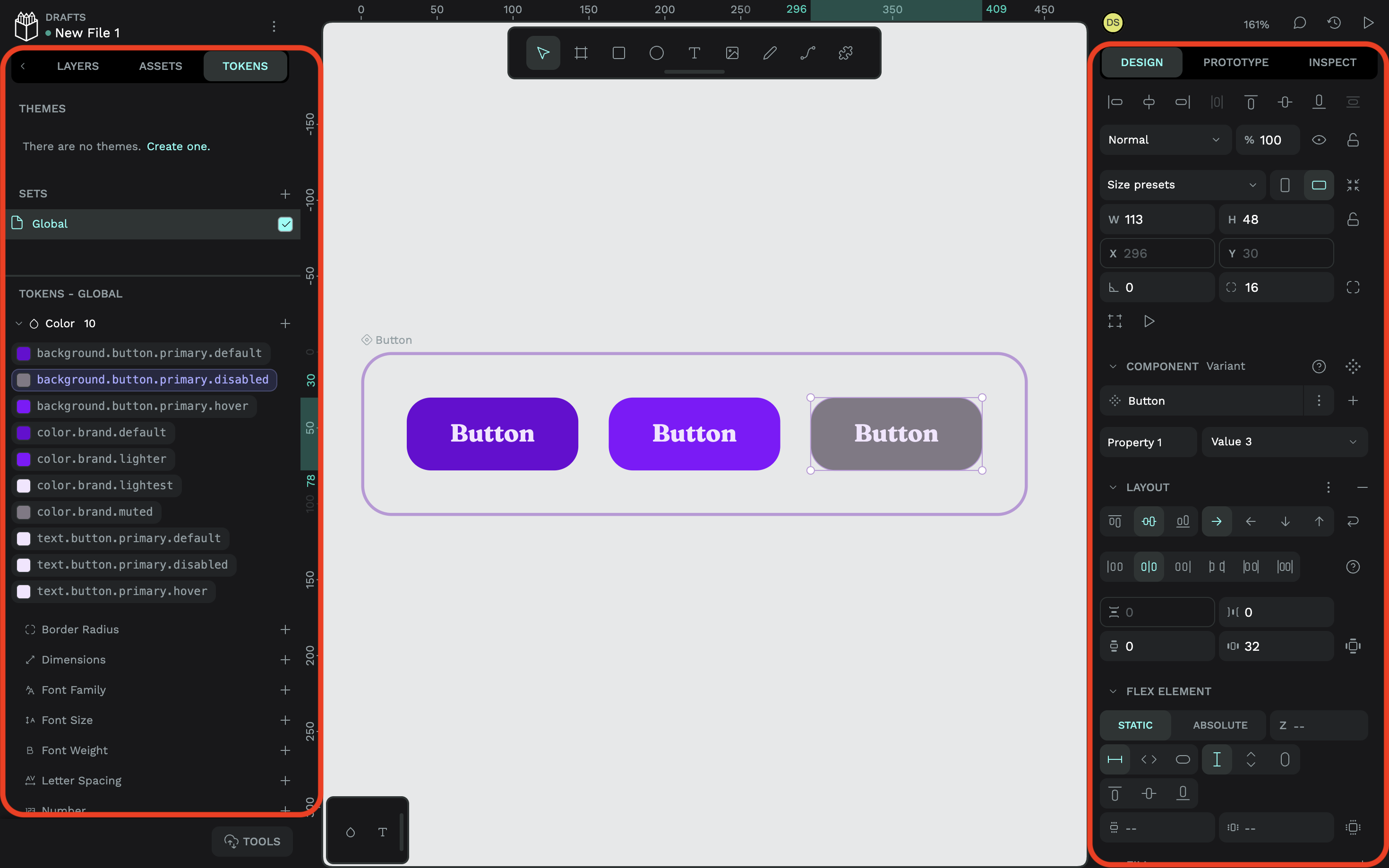
With that in mind, here’s a rough idea of just a few color-related design tokens for a primary button with hover and disabled states:

Token nameToken value
color.brand.defaulthsl(270 100 42)
color.brand.lighterhsl(270 100 52)
color.brand.lightesthsl(270 100 95)
color.brand.mutedhsl(270 5 50)
background.button.primary.default{color.brand.default}
background.button.primary.hover{color.brand.lighter}
background.button.primary.disabled{color.brand.muted}
text.button.primary.default{color.brand.lightest}
text.button.primary.hover{color.brand.lightest}
text.button.primary.disabled{color.brand.lightest}

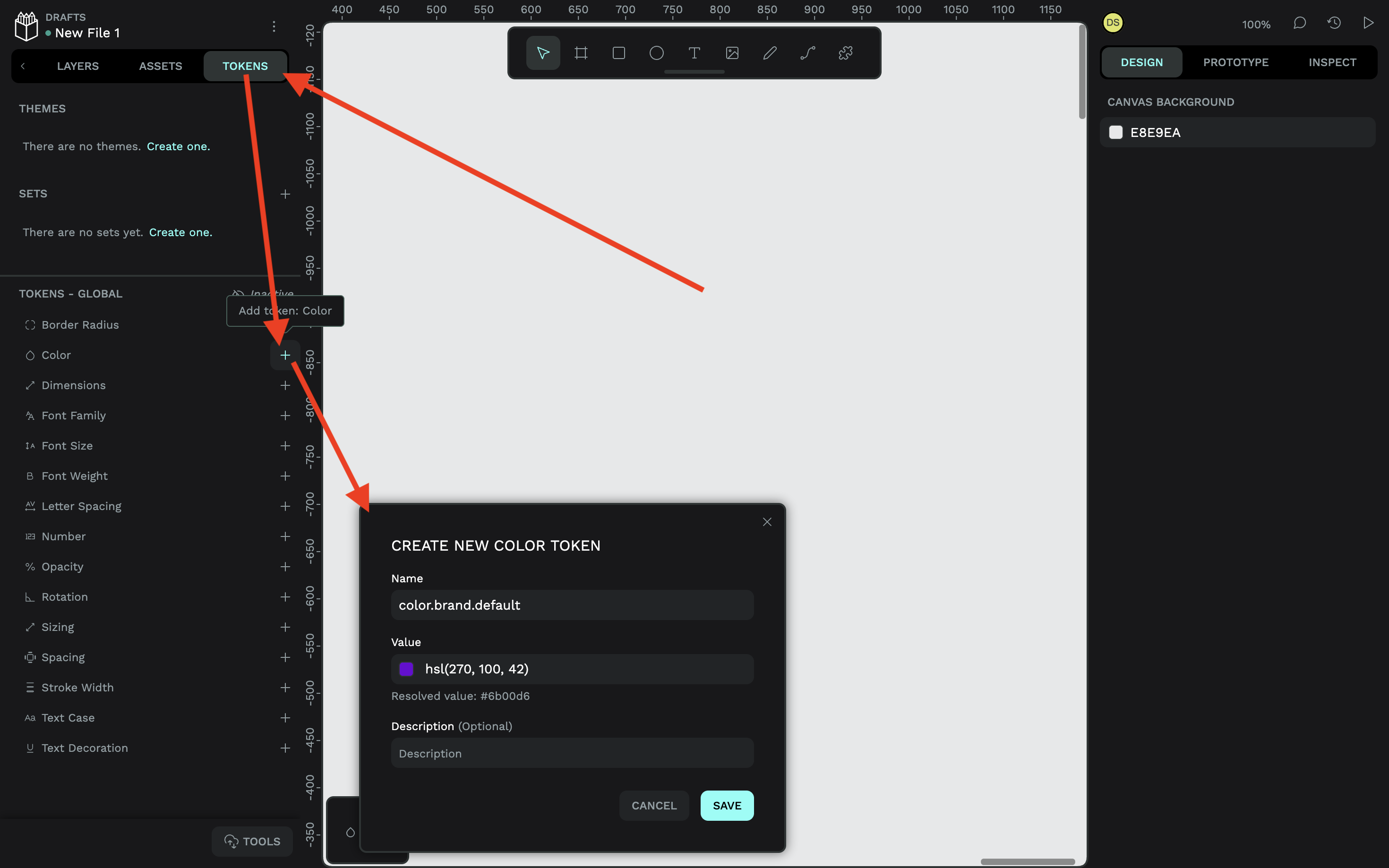
To create a color token in Penpot, switch to the “Tokens” tab in the left panel, click on the plus (+) icon next to “Color”, then specify the name, value, and optional description.

For example:

  • Name: color.brand.default,
  • Value: hsl(270 100 42) (there’s a color picker if you need it).
Creating a color token in Penpot
Creating a color token in Penpot. (Large preview)

It’s pretty much the same process for other types of design tokens.

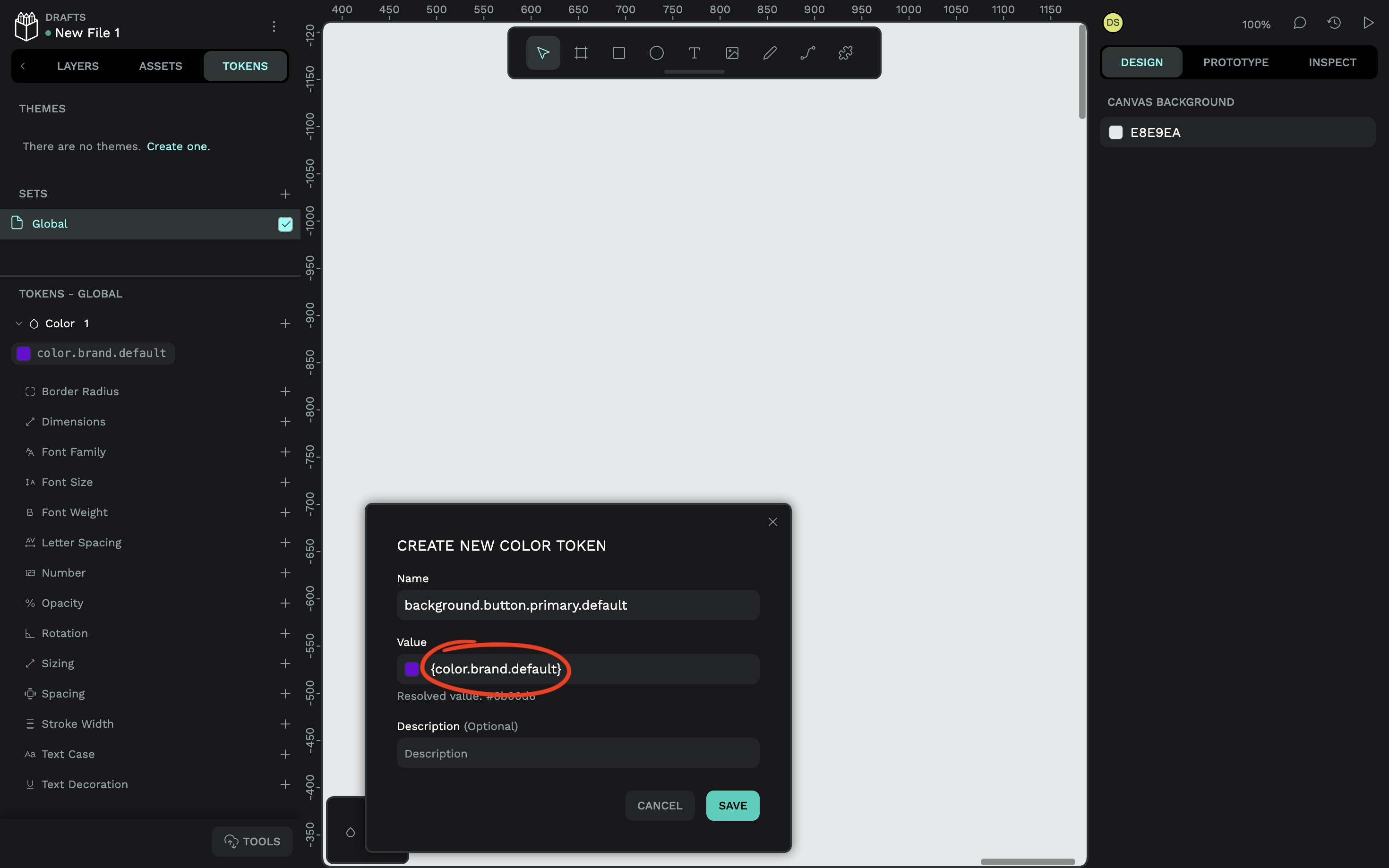
Don’t worry, I’m not going to walk you through every design token, but I will show you how to create a design token alias. Simply repeat the steps above, but for the value, notice how I’ve just referenced another color token (make sure to include the curly braces):

  • Name: background.button.primary.default,
  • Value: {color.brand.default}
Creating a design token alias in Penpot
Creating a design token alias in Penpot. (Large preview)

Now, if the value of the color changes, so will the background of the buttons. But also, if we want to decouple the color from the buttons, all we need to do is reference a different color token or value. Mikołaj Dobrucki goes into a lot more detail in another Smashing article, but it’s worth noting here that Penpot design tokens are platform-agnostic. They follow the standardized W3C DTCG format, which means that they’re compatible with other tools and easily export to all platforms, including web, iOS, and Android.

In the next couple of steps, we’ll create a button component and its variants while plugging different design tokens into different variants. You’ll see why doing this is so useful and how using design tokens in variants benefits design systems overall.

Step 2: Create The Component #

You’ll need to create what’s called a “main” component, which is the one that you’ll update as needed going forward. Other components — the ones that you’ll actually insert into your designs — will be copies (or “instances”) of the main component, which is sort of the point, right? Update once, and the changes reflect everywhere.

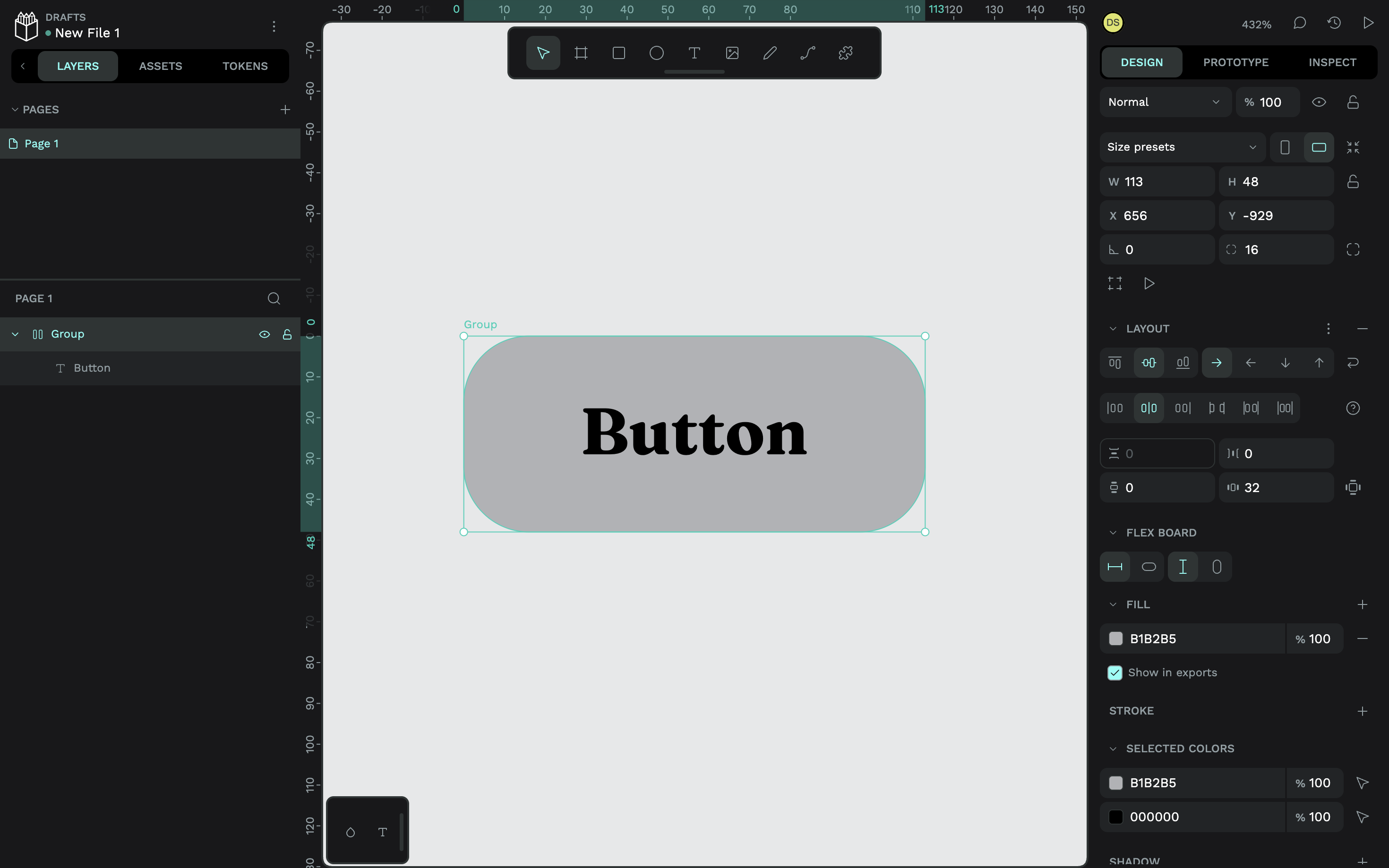
Here’s one I made earlier, minus the colors:

Main component
(Large preview)

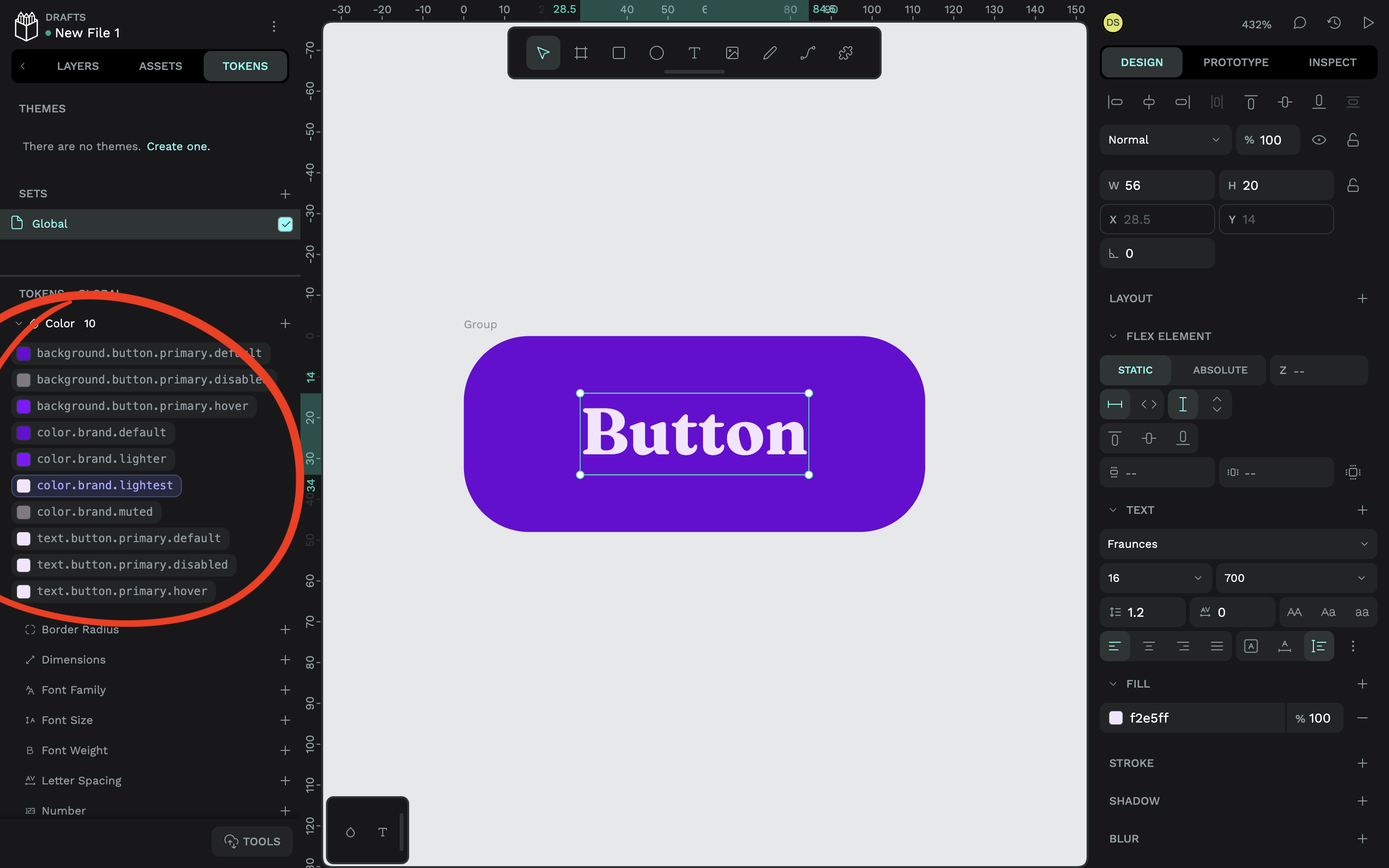
To apply a design token, make sure that you’re on the “Tokens” tab and have the relevant layer selected, then select the design token that you want to apply to it:

Applying a design token in Penpot
Applying a design token in Penpot. (Large preview)

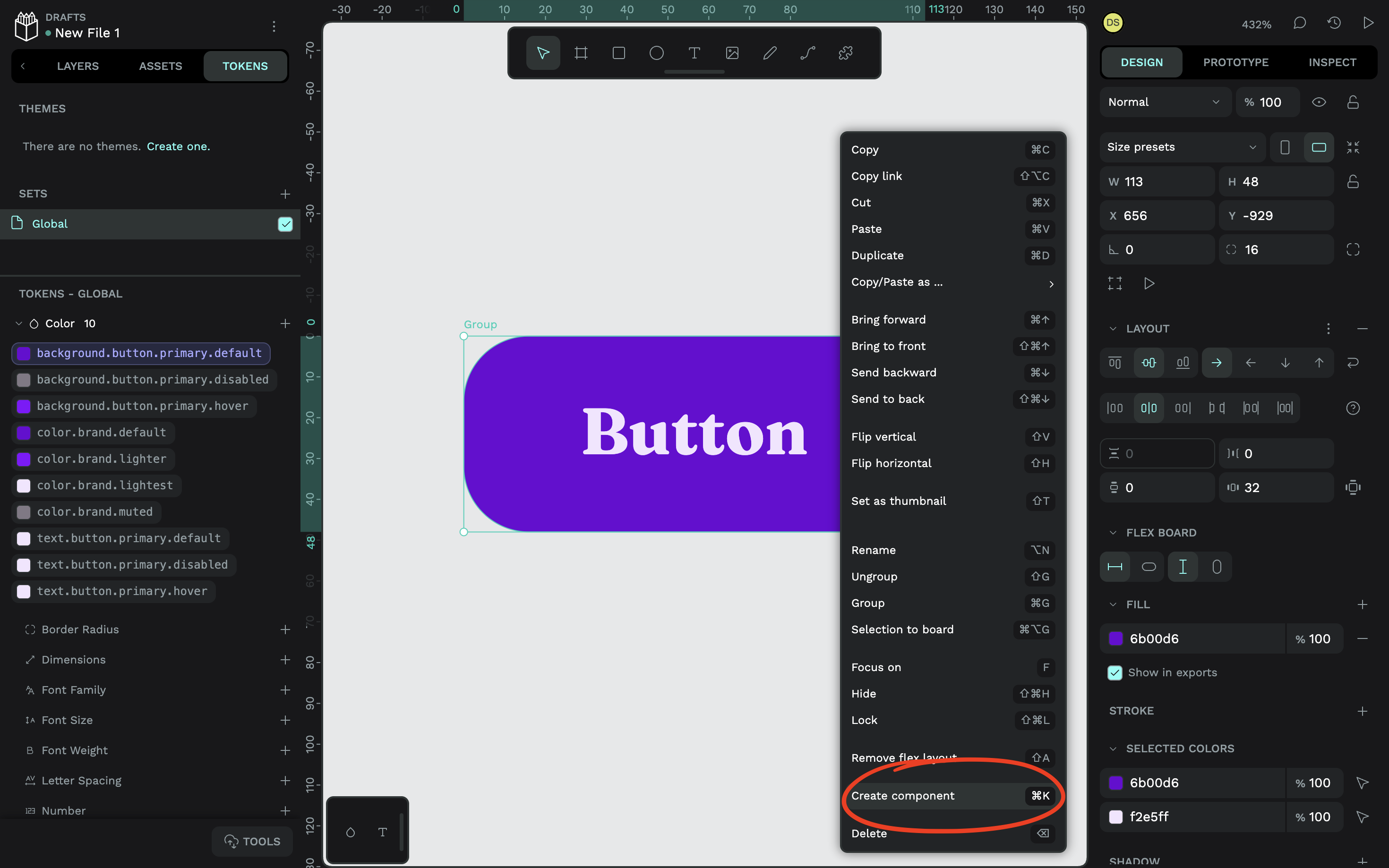
It doesn’t matter which variant you create first, but you’ll probably want to go with the default one as a starting point, as I’ve done. Either way, to turn this button into a main component, select the button object via the canvas (or “Layers” tab), right-click on it, then choose the “Create component” option from the context menu (or just press Ctrl / + K after selecting it).

Creating a component in Penpot
Creating a component in Penpot. (Large preview)

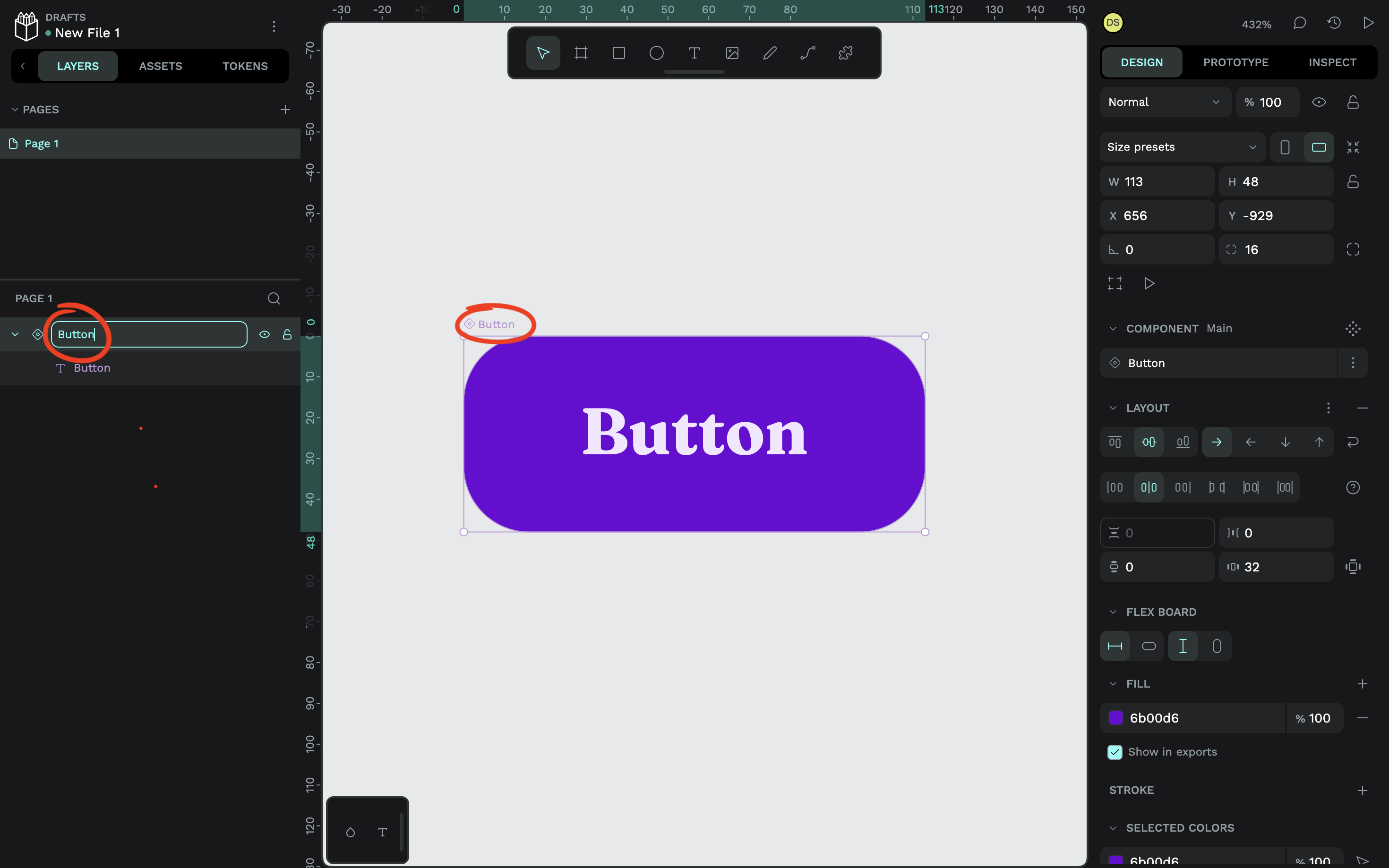
Remember to name the component as well. You can do that by double-clicking on the name (also via the canvas or “Layers” tab).

Renaming a component in Penpot
Renaming a component in Penpot. (Large preview)

Step 3: Create The Component Variants #

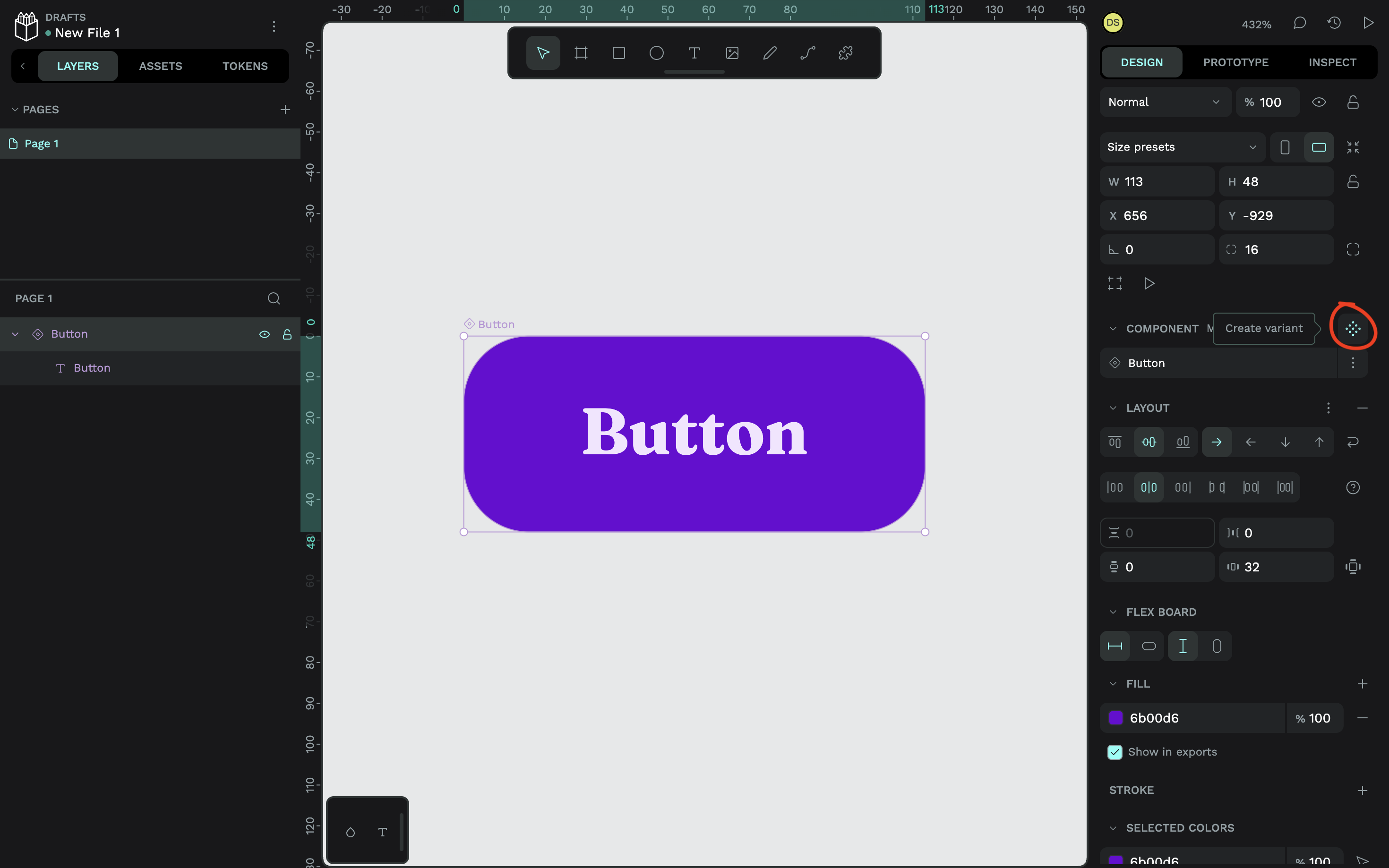
To create a variant, select the main component and either hit the Ctrl / + K keyboard shortcut, or click on the icon that reveals the “Create variant” tooltip (located in the “Design” tab in the right panel).

Creating a component variant in Penpot
Creating a component variant in Penpot. (Large preview)

Next, while the variant is still selected, make the necessary design changes via the “Design” tab. Or, if you want to swap design tokens out for other design tokens, you can do that in the same way that you applied them to begin with, via the “Tokens” tab. Rinse and repeat until you have all of your variants on the canvas designed:

Styling component variants in Penpot
Styling component variants in Penpot. (Large preview)

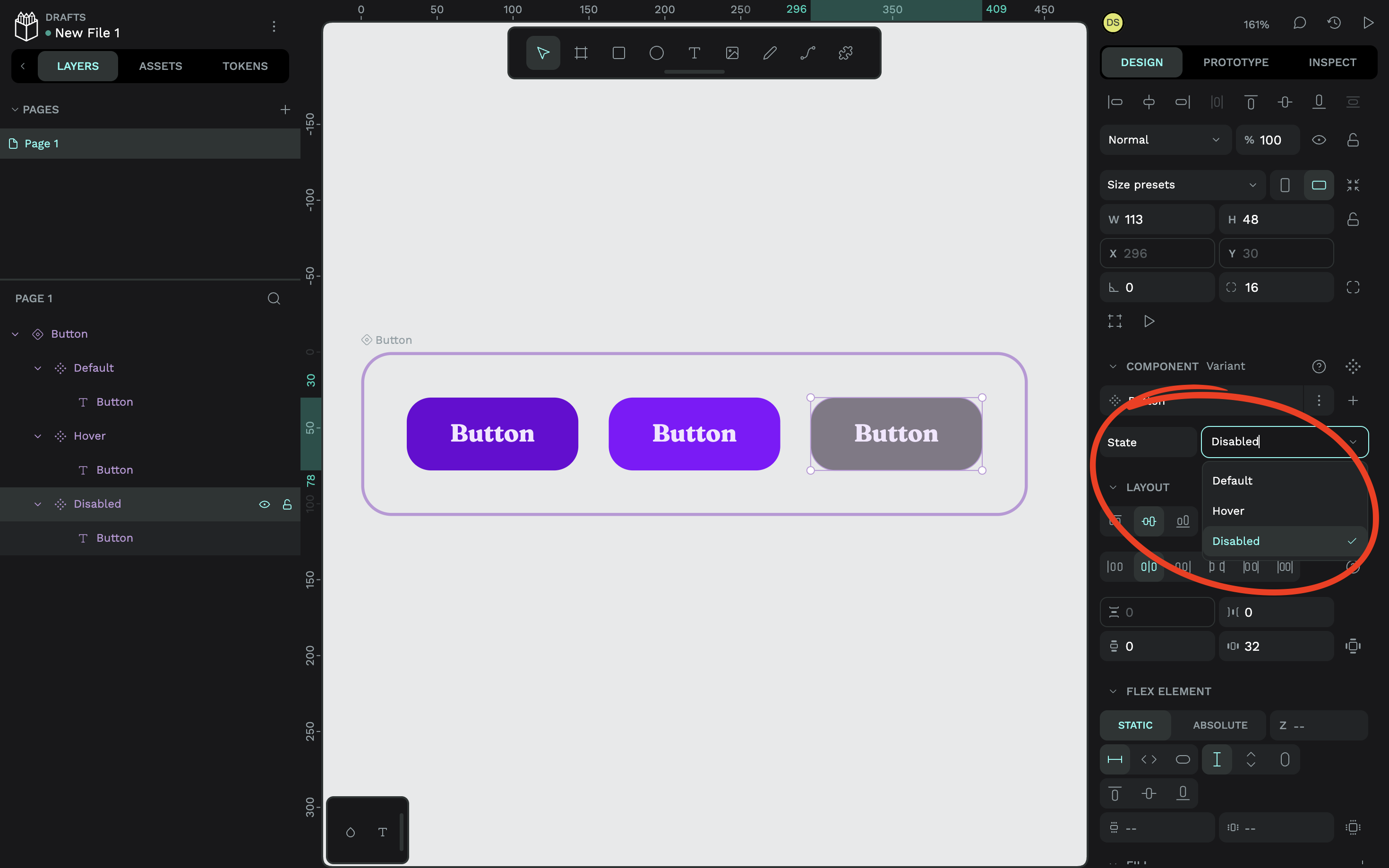
After that, as you might’ve guessed, you’ll want to name your variants. But avoid doing this via the “Layers” panel. Instead, select a variant and replace “Property 1” with a label that describes the differentiating property of each variant. Since my button variants in this example represent different states of the same button, I’ve named this “State”. This applies to all of the variants, so you only need to do this once.

Next to the property name, you’ll see “Value 1” or something similar. Edit that for each variant, for example, the name of the state. In my case, I’ve named them “Default”, “Hover”, and “Disabled”.

Naming component variant properties in Penpot
Naming component variant properties in Penpot. (Large preview)

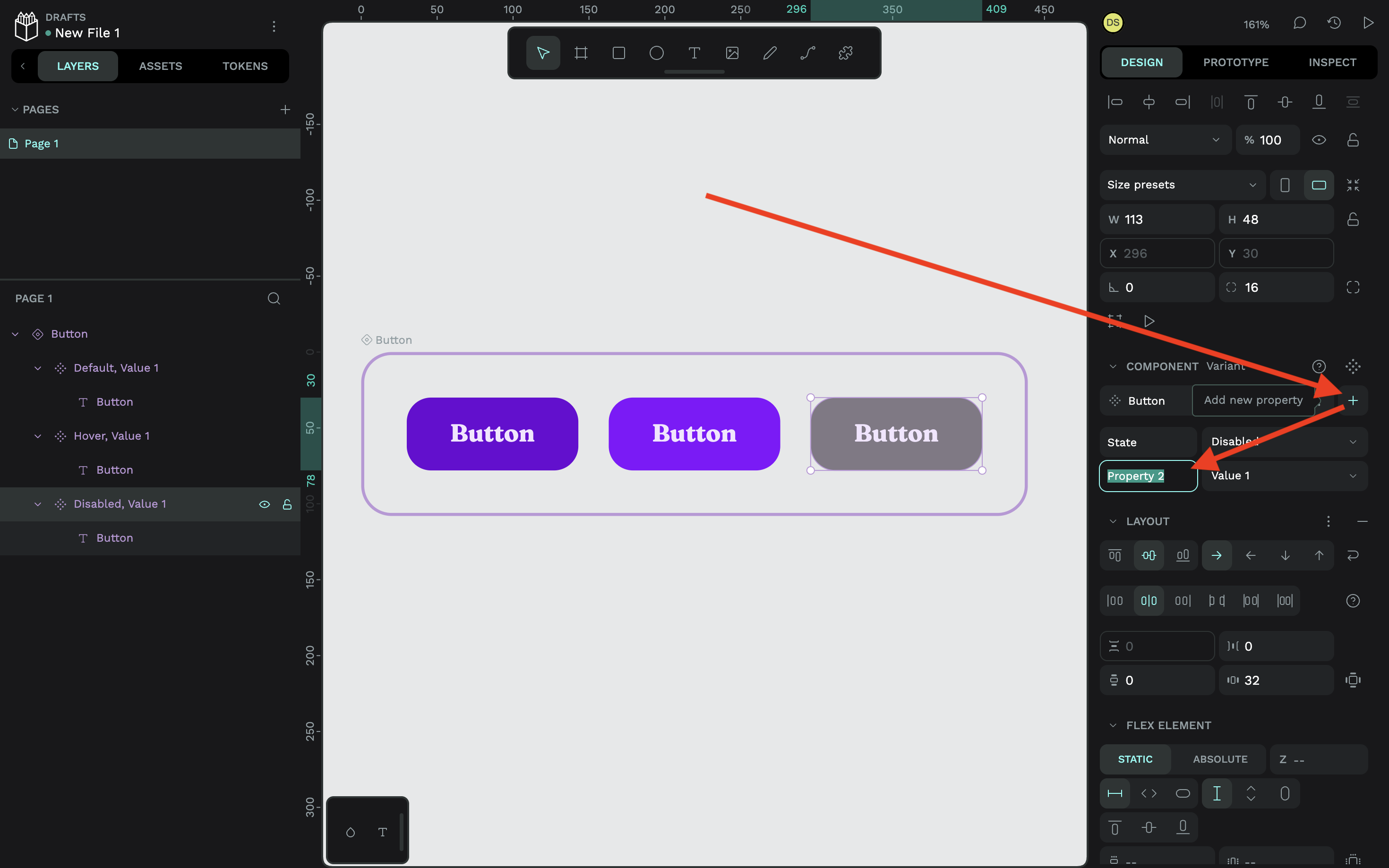
And yes, you can add more properties to a component. To do this, click on the nearby plus (+) icon. I’ll talk more about component variants at scale in a minute, though.

Managing component variant properties in Penpot
Managing component variant properties in Penpot. (Large preview)

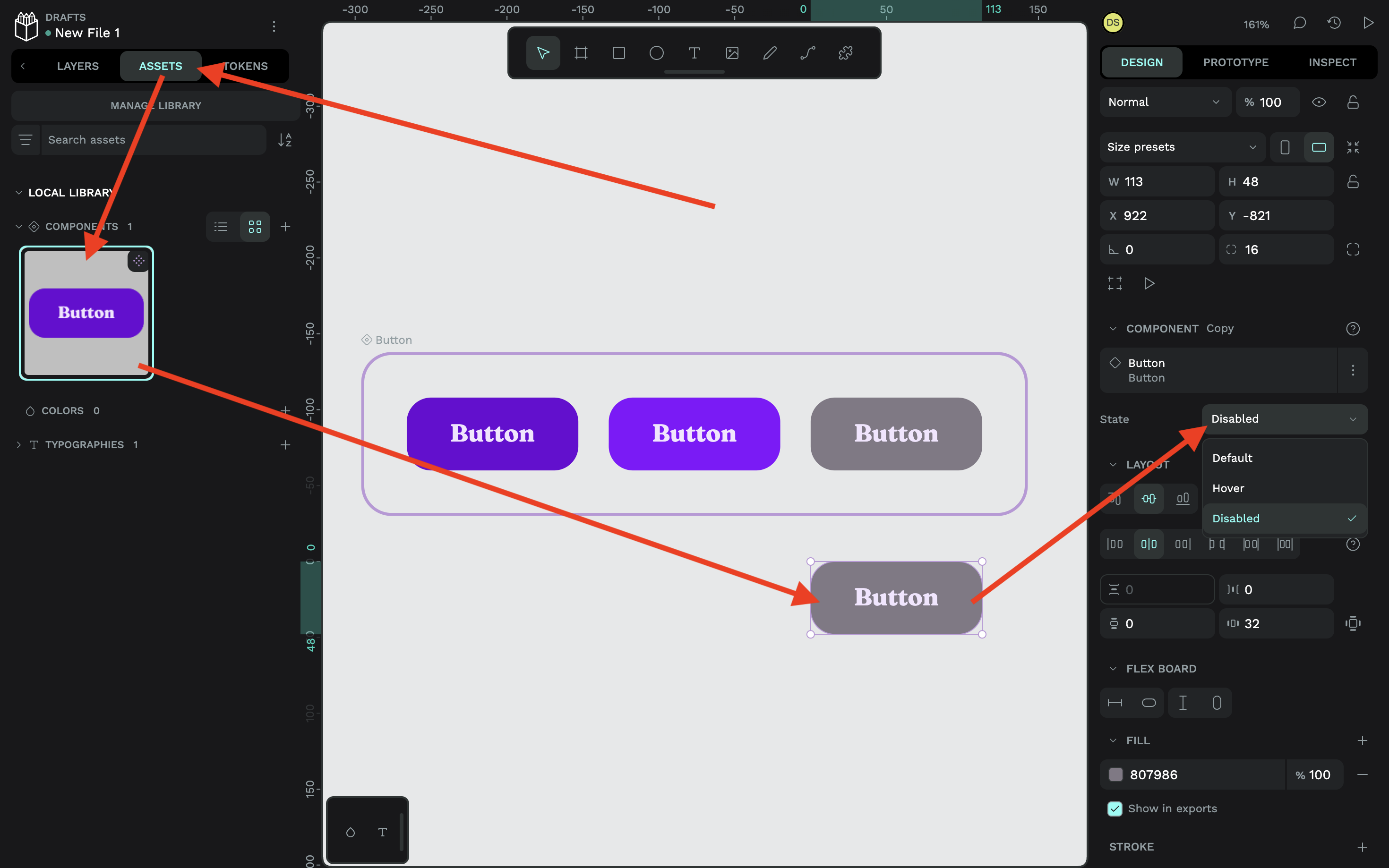
To see the component in action, switch to the “Assets” tab (located in the left panel) and drag the component onto the canvas to initialize one instance of it. Again, remember to choose the correct property value from the “Design” tab:

Using component variants in Penpot
Using component variants in Penpot. (Large preview)

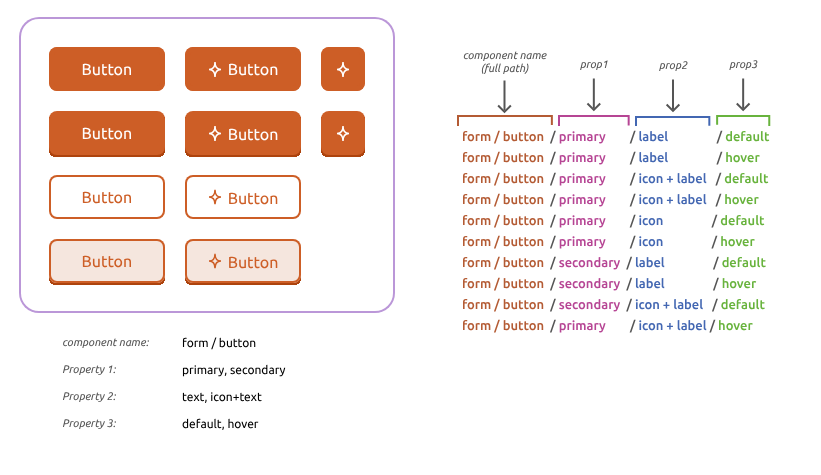
If you already have a Penpot design system, combining multiple components into one component with variants is not only easy and error-proof, but you might be good to go already if you’re using a robust property naming system that uses forward slashes (/). Penpot has put together a very straightforward guide, but the diagram below sums it up pretty well:

Diagram on how to prepare your files for the upcoming Variants release
(Large preview)

How Component Variants Work At Scale #

Design tokens, components, and component variants — the triple-threat of design systems — work together, not just to create powerful yet flexible design systems, but sustainable design systems that scale. This is easier to accomplish when thinking ahead, starting with design tokens that separate the “what” from the “what for” using token aliases, despite how verbose that might seem at first.

For example, I used color.brand.lightest for the text color of every variant, but instead of plugging that color token in directly, I created aliases such as text.button.primary.default. This means that I can change the text color of any variant later without having to dive into the actual variant on the canvas, or force a change to color.brand.lightest that might impact a bunch of other components.

Because remember, while the component and its variants give us reusability of the button, the color tokens give us reusability of the colors, which might be used in dozens, if not hundreds, of other components. A design system is like a living, breathing ecosystem, where some parts of it are connected, some parts of it aren’t connected, and some parts of it are or aren’t connected but might have to be later, and we need to be ready for that.

The good news is that Penpot makes all of this pretty easy to manage as long as you do a little planning beforehand.

Consider the following:

  • The design tokens that you’ll reuse (e.g., colors, font sizes, and so on),
  • Where design token aliases will be reused (e.g., buttons, headings, and so on),
  • Organizing the design tokens into sets,
  • Organizing the sets into themes,
  • Organizing the themes into groups,
  • The different components that you’ll need, and
  • The different variants and variant properties that you’ll need for each component.

Even the buttons that I designed here today can be scaled far beyond what I’ve already mocked up. Think of all the possible variants that might come up, such as a secondary button color, a tertiary color, a confirmation color, a warning color, a cancelled color, different colors for light and dark mode, not to mention more properties for more states, such as active and focus states. What if we want a whole matrix of variants, like where buttons in a disabled state can be hovered and where all buttons can be focused upon? Or where some buttons have icons instead of text labels, or both?

Designs can get very complicated, but once you’ve organized them into design tokens, components, and component variants in Penpot, they’ll actually feel quite simple, especially once you’re able to see them on the canvas, and even more so once you’ve made a significant change in just a few seconds without breaking anything.

Conclusion #

This is how we make component variants work at scale. We get the benefits of reusability while keeping the flexibility to fork any aspect of our design system, big or small, without breaking out of it. And design tools like Penpot make it possible to not only establish a design system, but also express its design tokens and styles as code


Sunday, July 13, 2025

Design System In 90 Days


Helpful PDF worksheets and tools to get the design system effort up and running — and adopted! Kindly powered by How To Measure UX and Design Impact, a friendly course on how to show the impact of your incredible UX work on business.

So we want to set up a new design system for your product. How do we get it up and running from scratch? Do we start with key stakeholders, UI audits, or naming conventions? And what are some of the critical conversations we need to have early to avoid problems down the line?

Fortunately, there are a few useful little helpers to get started — and they are the ones I tend to rely on quite a bit when initiating any design system projects.

Design System In 90 Days Canvas

Design System in 90 Days Canvas (FigJam template) is a handy set of useful questions to start a design system effort. Essentially, it’s a roadmap to discuss everything from the value of a design system to stakeholders, teams involved, and components to start with.

tle helper to get a design system up and running — and adopted! — in 90 days. Created for small and large companies that are building a design system or plan to set up one. Kindly shared by Dan Mall.

Practical Design System Tactics

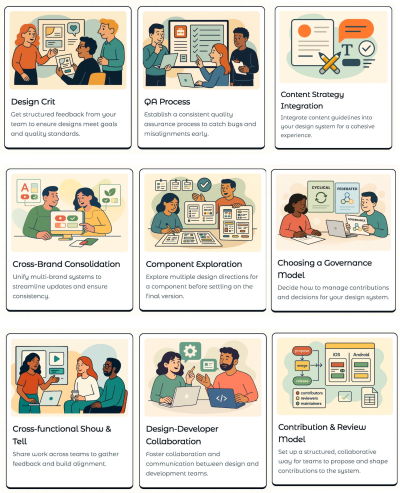
Design System Tactics is a practical overview of tactics to help designers make progress with a design system at every stage — from crafting system principles to component discovery to design system office hours to cross-brand consolidation. Wonderful work by the one-and-only Ness Grixti.

An overview of practical design system tactics displayed as cards
Design System Tactics, a practical overview by Ness Grixti.

Design System Worksheet (PDF)

Design System Checklist by Nathan Curtis (download the PDF) is a practical 2-page worksheet for a 60-minute team activity, designed to choose the right parts, products, and people for your design system.


Of course, the point of a design system is not to be fully comprehensive or cover every possible component you might ever need. It’s all about being useful enough to help designers produce quality work faster and being flexible enough to help designers make decisions rather than make decisions for them.

Useful Questions To Get Started With

The value of a design system lies in it being useful and applicable — for a large group of people in the organization. And according to Dan, a good start is to identify where exactly that value would be most helpful to tackle the company’s critical challenges and goals:

  1. What is important to our organization at the highest level?
  2. Who is important to our design system effort?
  3. What unofficial systems already exist in design and code?
  4. Which teams have upcoming needs that a system could solve?
  5. Which teams have immediate needs that can grow our system?
  6. Which teams should we and have we talked to?
  7. Which stakeholders should we and have we talked to?
  8. What needs, desires, and concerns do our stakeholders have?
  9. What components do product or feature teams need now or soon?
  10. What end-user problems/opportunities could a system address?
  11. What did we learn about using other design systems?
  12. What is our repeatable process for working on products?
  13. What components will we start with?
  14. What needs, desires, and concerns do our stakeholders share?
  15. Where are our components currently being used or planned for?

Useful Resources

Here are a few other useful little helpers that might help you in your design system efforts:

Wrapping Up

A canvas often acts as a great conversation starter. It’s rarely complete, but it brings up topics and issues that one wouldn’t have discovered on the spot. We won’t have answers to all questions right away, but we can start moving in the right direction to turn a design system effort into a success.

Happy crossing off the right tick boxes!

Monday, June 23, 2025

Integrating Localization Into Design Systems


Learn how two designers tackled the challenges of building a localization-ready design system for a global audience. This case study dives into how Rebecca and Mark combined Figma Variables and design tokens to address multilingual design issues, such as text overflow, RTL layouts, and font inconsistencies. They share key lessons learned and the hurdles they faced — including Figma’s limitations — along with the solutions they developed to create dynamic, scalable designs that adapt seamlessly across languages, themes, and densities. If you’re navigating the complexities of internationalization in design systems, this article is for you.

Mark and I work as product designers for SAS, a leader in analytics and artificial intelligence recognized globally for turning data into valuable insights. Our primary role is to support the token packages and component libraries for the SAS Filament Design System. SAS’ customer base is global, meaning people from diverse countries, cultures, and languages interact with products built with the Filament Design System.

SAS designers use Figma libraries developed by the Filament Design System team to create UX specifications. These high-fidelity designs are typically crafted in English, unknowingly overlooking multilingual principles, which can result in layout issues, text overflow, and challenges with right-to-left (RTL) languages. These issues cascade into the application, ultimately creating usability issues for SAS customers. This highlights the need to prioritize localization from the start of the design process.

With the introduction of Figma Variables, alongside the advancements in design tokens, we saw an opportunity for designers. We imagined a system where a Figma design could dynamically switch between themes, densities, and even languages.

This would allow us to design and test multilingual capabilities more effectively, ensuring our design system was both flexible and adaptable.

While researching localization integration for design systems, we realized a significant gap in existing documentation on supporting localization and internationalization in design tokens and Figma Variables. Many of the challenges we faced, such as managing typography across locales or adapting layouts dynamically, were undocumented or only partially addressed in available resources.

Our story demonstrates how combining foundational principles of multilingual design with design tokens can help tackle the complexities of language switching in design systems. We are not arguing that our approach is the best, but given the lack of documentation available on the subject, we hope it will get the conversation started.

But before we start, it’s essential to understand the distinction between Localization (L10n) and Internationalization (I18n).

Localization (L10n) refers to the process of adapting designs for specific languages, regions, or cultures and involves the following:

  • Translating text;
  • Adjusting layouts to accommodate language-specific requirements, such as longer or shorter text strings or right-to-left (RTL) text for languages like Arabic;
  • Ensuring visual elements are culturally appropriate and resonate with the target audience.

Internationalization (I18n) is the preparation phase, ensuring designs are flexible and adaptable to different languages and regions. Key considerations in Figma include:

  • Using placeholder text to represent dynamic content;
  • Setting up constraints for dynamic resizing to handle text expansion or contraction;
  • Supporting bi-directional text for languages that require RTL layouts.

These concepts are not only foundational to multilingual design but also integral to delivering inclusive and accessible experiences to global users.

Pre-Figma Setup: Building A Framework

Understanding Our Design Token System

Before diving deeper, it’s crucial to understand that our design tokens are stored in JSON files. These JSON files are managed in an application we call “Token Depot,” hosted on our corporate GitHub.

We utilize the Tokens Studio plugin (pro plan) to transform these JSON files into Figma libraries. For us, design tokens are synonymous with variables — we don’t create additional variables that only exist in Figma. However, we do create styles in Figma that serve as “recipe cards” for specific HTML elements. For instance, an H2 might include a combination of font-family, font-size, and font-weight.

It’s important to note that our design token values are directly tied to CSS-based values.

Initial Setup: Theme Switching And Localization

In 2022, we took on the massive task of refactoring all our token names to be more semantic. At that time, we were only concerned with theme switching in our products.

Our tokens were re-categorized into the following groups:

  • Color
    • Brand colors (SAS brand colors)
    • Base colors (references to Brand colors)
  • Typography (e.g., fonts, spacing, styles)
  • Space (e.g., padding, margins)
  • Size (e.g., icons, borders)
  • Style (e.g., focus styles)
  • Motion (e.g., animations)
  • Shadow.

In our early setup:

  • A core folder contained JSON files for values unaffected by theme or brand.
  • Brand folders included three JSON files (one for each theme). These were considered “English” by default.
  • A separate languages folder contained overrides for other locales, stacked on top of brand files to replace specific token values.

Our JSON files were configured with English as the default. Other locales were managed with a set of JSON files that included overrides for English. These overrides were minimal, focusing mainly on font and typography adjustments. For example, bold typefaces often create issues because many languages like Chinese, Japanese, or Korean (CJK languages) fonts lack distinct bold versions. Thus, we replaced the font-weight token value from 700 to 400 in our CJK locales.

We also update the values for font-family, letter spacing, font-style, and font-variant tokens. In Figma, our application screens were originally designed in English, and in 2023, we only implemented theme-switching modes, not language options. Additionally, we created detailed lists to document which design tokens could be converted to Figma variables and which could not, as the initial release of variables supported only a limited set.

Introducing Density Switching

The introduction of density switching in our products marked a significant turning point. This change allowed us to revisit and improve how we handled localization and token management. The first thing we had to figure out was the necessary token sorting. We ended up with the following list:

Tokens Impact By Theme And Density

Unaffected by Theme or Density:

  • Color
  • Brand colors
  • Base colors
  • Motion
  • Shadow
  • Size
  • Border size
  • Outline size
  • Typography
  • Base font size
  • Letter spacing and word spacing
  • Overflow, text, and word style tokens.

Tokens Impacted by Density:

  • Typography
  • Font sizes
  • Line Height
  • Font spacing
  • Size
  • Border radius
  • Icon sizes
  • Space
  • Base spacing.

Tokens Impacted by Theme:

  • Colors
  • Action, body, container, dataviz, display, heading, highlight, icon, label, status, syntax, tag, text, thumbnail, and zero-stat
  • Size
  • Border size
  • Typography
  • Font-family
  • Style
  • Action (focus styles).

With density, we expanded locale-specific value changes beyond font-family, letter spacing, font-style, and font-variant tokens to additionally include:

  • Font sizes
  • Icon sizes
  • Line height
  • Spacing
  • Border radius.

Revisiting our type scale and performing numerous calculations, we documented the required token value changes for all the locales across the density. This groundwork enabled us to tackle the restructuring of our JSON files effectively.

JSON File Restructuring

In our token repository, we:

  1. Updated the tokens in the core folder.
  2. Added a density folder and a language folder in each brand.

After collaborating with our front-end development team, we decided to minimize the number of JSON files. Too many files introduce complexity and bugs and hinder performance. Instead of creating a JSON file for each language-density combination, we defined the following language categories:

Language Categories

  • Western European and Slavic Languages
    • Polish, English, French, German, and Spanish
  • Chinese Languages
    • Simplified and traditional scripts
  • Middle Eastern and East Asian Languages
    • Arabic, Hebrew, Japanese, Korean, Thai, and Vietnamese
  • Global Diverse
    • Africa, South Asia, Pacific, and Indigenous languages, Uralic, and Turkic groups.

These categories became our JSON files, with one file per density level. Each file contained tokens for font size, icon size, line height, spacing, and border-radius values. For example, all Chinese locales shared consistent values regardless of font-family.

In addition, we added a folder containing JSON files per locale, overriding core values and theme folders, such as font-family.

Figma Setup: Bridging Tokens And Design

Token Studio Challenges

After restructuring our JSON files, we anticipated gaining support for typography variables in the Tokens Studio plugin. Instead, Tokens Studio released version 2.0, introducing a major shift in workflow. Previously, we imported JSON files directly into Figma and avoided pushing changes back through the plugin. Adjusting to the new version required us to relearn how to use the plugin effectively.

Our first challenge was navigating the complexity of the import process. The $metadata.json and $themes.json files failed to overwrite correctly during imports, resulting in duplicate collections in Figma when exporting variables. Despite recreating the required theme structure within the plugin, the issue persisted. To resolve this, we deleted the existing $metadata.json and $themes.json files from the repository before pulling the updated GitHub repo into the plugin. However, even with this solution, we had to manually remove redundant collections that appeared during the export process.

Once we successfully migrated our tokens from JSON files into Figma using the Tokens Studio plugin, we encountered our next challenge.

Initially, we used only “English” and theme modes in Figma, relying primarily on styles since Figma’s early variable releases lacked support for typography variables. Now, with the goal of implementing theme, density, and language switching, we needed to leverage variables — including typography variables. While the token migration successfully brought in the token names as variable names and the necessary modes, some values were missing.

Typography variables, though promising in concept, were underwhelming in practice. For example, Figma’s default line-height multiplier for “auto” was 1.2, below the WCAG minimum of 1.5. Additionally, our token values used line-height multipliers, which weren’t valid as Figma variable values. While a percentage-based line-height value is valid in CSS, Figma variables don’t support percentages.

Our solution involved manually calculating pixel values for line heights across all typography sizes, locale categories, and densities. These values were entered as local variables in Figma, independent of the design token system. This allowed us to implement correct line-height changes for density and locale switches. The process, however, was labor-intensive, requiring the manual creation of hundreds of local variables. Furthermore, grouping font sizes and line heights into Figma styles required additional manual effort due to the lack of support for line-height multipliers or percentage-based variables.

Examples:

  • For CJK locales, medium and low density use a base font size of 16px, while high density uses 18px.
  • Western European and Slavic languages use 14px for medium density, 16px for high, and 12px for low density.

Additional Challenges

  • Figma vs. Web Rendering
    In Figma, line height centers text visually within the text box. In CSS, it affects spacing differently depending on the box model. This mismatch required manual adjustments, especially in light of upcoming CSS properties like leading-trim.
  • Letter-Spacing Issues
    While CSS defaults to “normal” for letter-spacing, Figma requires numeric values. Locale-specific resets to “normal” couldn’t utilize variables, complicating implementation.
  • Font-Family Stacks
    • Example stack for Chinese:
      font-family-primary: 'AnovaUI', '微软雅黑体', 'Microsoft YaHei New', '微软雅黑', 'Microsoft Yahei', '宋体', 'SimSun', 'Helvetica Neue', 'Helvetica', 'Arial', sans-serif.

Starting with a Western font ensured proper rendering of Latin characters and symbols while maintaining brand consistency. However, Figma’s designs using only AnovaUI (SAS Brand Custom font) couldn’t preview locale-based substitutions via system fonts, complicating evaluations of mixed-content designs.

Finally, as we prepared to publish our new library, we encountered yet another challenge: Figma Ghosts.

What Are Figma Ghost Variables? #

Figma “ghost variables” refer to variables that remain in a Figma project even after they are no longer linked to any design tokens, themes, or components.

These variables often arise due to incomplete deletions, improper imports, or outdated metadata files. Ghost variables may appear in Figma’s variable management panel but are effectively “orphaned,” as they are disconnected from any meaningful use or reference.

Why They Cause Issues for Designers:

  • Clutter and Confusion
    Ghost variables make the variable list longer and harder to navigate. Designers might struggle to identify which variables are actively in use and which are obsolete.
  • Redundant Work
    Designers might accidentally try to use these variables, leading to inefficiencies or design inconsistencies when the ghost variables don’t function as expected.
  • Export and Sync Problems
    When exporting or syncing variables with a design system or repository, ghost variables can introduce errors, duplicates, or conflicts. This complicates maintaining alignment between the design system and Figma.
  • Increased Maintenance Overhead
    Detecting and manually deleting ghost variables can be time-consuming, particularly in large-scale projects with extensive variable sets.
  • Thematic Inconsistencies
    Ghost variables can create inconsistencies across themes, as they might reference outdated or irrelevant styles, making it harder to ensure a unified look and feel.

Addressing ghost variables requires careful management of design tokens and variables, often involving clean-up processes to ensure only relevant variables remain in the system.

Cleaning Up Ghost Variables

To avoid the issues in our Figma libraries, we first had to isolate ghost variables component by component. By selecting a symbol in Figma and navigating the applied variable modes, we had a good sense of which older versions of variables the symbol was still connected to. We found disconnected variables in the component library and our icon library, which resulted in compounded ghost variables across the system. We found that by traversing the layer panel, along with a fantastic plug-in called “Swap Variables,” we were able to remap all the ghost variables in our symbols.

If we had not completed the clean-up step, designers would not be able to access the overrides for theme, density, and locale.

Designing Symbols For Localization

To ensure Figma symbols support language swapping, we linked all text layers to our new variables, including font-family, font-size, and line height.

We do not use Figma’s variable feature to define text strings for each locale (e.g., English, Spanish, French) because, given the sheer breadth and depth of our Products and solutions, it would simply be too daunting a task to undertake. For us, using an existing plug-in, such as “Translator,” gives us what we need.

After ensuring all text layers were remapped to variables, along with the “Translator” plug-in, we were able to swap entire screens to a new language. This allowed us to start testing our symbols for unforeseen layout issues.

We discovered that some symbols were not supporting text wrapping when needed (e.g., accommodating longer words in German or shorter ones in Japanese). We isolated those issues and updated them to auto-layout for flexible resizing. This approach ensured all our Figma symbols were scalable and adaptable for multilingual support.

Delivering The System

With our component libraries set up to support localization, we were ready to deliver our component libraries to product designers. As a part of this step, we crafted a “Multilingual Design Cheat Sheet” to help designers understand how to set up their application mockups with Localization and Internationalization in mind.

Multilingual Design Cheat Sheet:

  1. General Principles
    • Design flexible layouts that can handle text wrapping and language-specific requirements such as right-to-left orientations.
    • Use real content during design and development to identify localization issues such as spacing and wrapping.
    • Research the cultural expectations of your target audience to avoid faux pas.
  2. Text & Typography
    • Use Filament Design Systems fonts to ensure support of all languages.
    • Avoid custom fonts that lack bold or italic styles for non-Latin scripts like CJK languages.
    • Reserve additional space for languages like German or Finnish.
    • Avoid hardcoded widths for text containers and use auto-layout to ensure long text strings are readable.
    • The Filament Design System tokens adjust line height per language; make sure you are using variables for line-height.
    • Use bold sparingly, as Filament tokens override bold styling in some languages. Instead, opt for alternative emphasis methods (e.g., color or size).
  3. Layout & Design
    • Mirror layouts for RTL languages (e.g., Arabic, Hebrew). Align text, icons, and navigation appropriately for the flow of the language.
    • Use auto-layout to accommodate varying text lengths.
    • Avoid embedding text in images to simplify localization.
    • Allow ample spacing around text elements to prevent crowding.
  4. Language-Specific Adjustments
    • Adapt formats based on locale (e.g., YYYY/MM/DD vs. MM/DD/YYYY).
    • Use metric or imperial units based on the region.
    • Test alignments and flows for LTR and RTL languages.
  5. Localization Readiness
    • Avoid idioms, cultural references, or metaphors that may not translate well.
    • Provide space for localized images, if necessary.
    • Use Figma translation plug-ins to test designs for localization readiness and use real translations rather than Lorem Ipsum.
    • Test with native speakers for language-specific usability issues.
    • Check mirrored layouts and interactions for usability in RTL languages.

Lessons Learned And Future Directions

Lessons Learned

In summary, building a localization-ready design system was a complex yet rewarding process that taught Mark and me several critical lessons:

  • Localization and internationalization must be prioritized early.
    Ignoring multilingual principles in the early stages of design creates cascading issues that are costly to fix later.
  • Semantic tokens are key.
    Refactoring our tokens to be more semantic streamlined the localization process, reducing complexity and improving maintainability.
  • Figma variables are promising but limited.
    While Figma Variables introduced new possibilities, their current limitations — such as lack of percentage-based line-height values and manual setup requirements — highlight areas for improvement.
  • Automation is essential.
    Manual efforts, such as recalculating and inputting values for typography and density-specific tokens, are time-intensive and prone to error. Plugins like “Translator” and “Swap Variables” proved invaluable in streamlining this work.
  • Collaboration is crucial.
    Close coordination with front-end developers ensured that our JSON restructuring efforts aligned with performance and usability goals.
  • Testing with real content is non-negotiable.
    Design issues like text wrapping, RTL mirroring, and font compatibility only became apparent when testing with real translations and flexible layouts.

Future Directions

As we look ahead, our focus is on enhancing the Filament Design System to better support global audiences and simplify the localization process for designers:

  • Automatic mirrored layouts for RTL languages.
    We plan to develop tools and workflows that enable seamless mirroring of layouts for right-to-left languages, ensuring usability for languages like Arabic and Hebrew.
  • Improved figma integration.
    Advocacy for Figma enhancements, such as percentage-based line-height support and better handling of variable imports, will remain a priority.
  • Advanced automation tools.
    Investing in more robust plugins and custom tools to automate the calculation and management of tokens across themes, densities, and locales will reduce manual overhead.
  • Scalable localization testing framework.
    Establishing a framework for native speaker testing and real-world content validation will help us identify localization issues earlier in the design process.
  • Expanding the multilingual design cheat sheet.
    We will continue to refine and expand the cheat sheet, incorporating feedback from designers to ensure it remains a valuable resource.
  • Community engagement.
    By sharing our findings and lessons, we aim to contribute to the broader design community, fostering discussions around integrating localization and internationalization in design systems.

Through these efforts, Mark and I hope to create a more inclusive, scalable, and efficient design system that meets the diverse needs of our global audience while empowering SAS designers to think beyond English-first designs.

Sunday, June 22, 2025

Integrating Design And Code With Native Design Tokens In Penpot


The Penpot team is not slowing down on its mission to build a free design tool that not only offers powerful design features but is also well-integrated with code and modern development practices. In its latest release, Penpot, as the first design tool ever, introduces support for native design tokens. Let’s take a closer look at this concept and how you can employ it in your process.

It’s already the fifth time I’m writing to you about Penpot — and what a journey it continues to be! During this time, Penpot’s presence in the design tools scene has grown strong. In a market that recently felt more turbulent than ever, I’ve always appreciated Penpot for their clear mission and values. They’ve built a design tool that not only delivers great features but is also open-source and developed in active dialogue with the community. Rather than relying on closed formats and gated solutions, Penpot embraces open web standards and commonly used technologies — ensuring it works seamlessly across platforms and integrates naturally with code.

Their latest release is another great example of that approach. It’s also one of the most impactful. Let me introduce you to design tokens in Penpot.

Design tokens are an essential building block of modern user interface design and engineering. But so far, designers and engineers have been stuck with third-party plugins and cumbersome APIs to collaborate effectively on design tokens and keep them in sync. It’s high time we had tools and processes that handle this better, and Penpot just made it happen.

About Design Tokens

Design tokens can be understood as a framework to document and organize your design decisions. They act as a single source of truth for both designers and engineers and include all the design variables, such as colors, typography, spacing, fills, borders, and shadows.

The concept of design tokens has grown in popularity alongside the rise of design systems and the increasing demand for broader standards and guidelines in user interface design. Design tokens emerged as a solution for managing increasingly complex systems while keeping them structured, scalable, and extensible.

The goal of using design tokens is not only to make design decisions more intentional and maintainable but also to make it easier to keep them in sync with code. In the case of larger systems, it is often a one-to-many relationship. Design tokens allow you to keep the values agnostic of their application and scale them across various products and environments.

Design tokens create a semantic layer between the values, the tools used to define them, and the software that implements them.

Schema of the design system
(Large preview)

On top of maintainability benefits, a common reason to use design tokens is theming. Keeping your design decisions decoupled means that you can easily swap the values across multiple sets. This allows you to change the appearance of the entire interface with applications ranging from simple light and dark mode implementations to more advanced use cases, such as handling multiple brands or creating fully customizable and adjustable UIs.

Implementation Challenges

Until recently, there was no standardized format for maintaining design tokens — it remained a largely theoretical concept, implemented differently across teams and tools. Every design tool or frontend framework has its own approach. Syncing code with design tools was also a major pain point, often requiring third-party plugins and unreliable synchronization solutions.

However, in recent years, W3C, the international organization responsible for developing open standards and protocols for the web, brought to life a dedicated Design Tokens Community Group with the goal of creating an open standard for products and design tools to handle design tokens. Once this standard gets more widely adopted, it will give us hope for a more predictable and standardized approach to design tokens across the industry.

To make that happen, work has to be done on two ends, both design and development. Penpot is the very first design tool to implement design tokens in adherence to the standard that the W3C is working on. It also solves the problem of third-party dependencies by offering a native API with all the values served in the official, standardized format.

Design Tokens In Practice

To better understand design tokens and how to use them in practice, let’s take a look at an example together. Let’s consider the following user interface of a login screen:

Acme login screen
(Large preview)

Imagine we want this design to work in light and dark mode, but also to be themable with several accent colors. It could be that we’re using the same authentication system for websites of several associated brands or several products. We could also want to allow the user to customize the interface to their needs.

If we want to build a design that works for three accent colors, each with light and dark themes, it gives us six variants in total:

Six variants of a login screen design with three accent colors and light and dark mode options
Six variants of a login screen design with three accent colors and light and dark mode options. (Large preview)

Designing all of them by hand would not only be tedious but also difficult to maintain. Every change you make would have to be repeated in six places. In the case of six variants, that’s not ideal, but it’s still doable. But what if you also want to support multiple layout options or more brands? It could easily scale into hundreds of combinations, at which point designing them manually would easily get out of hand.

This is where design tokens come to the rescue. They allow you to effectively maintain all the variants and test all the possible combinations, even hundreds of them, while still building a single design without repetitive work.

You can start by creating a design in one of the variants before starting to think about the tokens. Having a design already in place might make it easier to plan your tokens’ hierarchy and structure accordingly.

Different layers of the design
(Large preview)

In this case, I created three components: 2 types of buttons and input, and combined them with text layers into several Flex layouts to build out this screen. If you’d like to first learn more about building components and layouts in Penpot, I would recommend you revisit some of my previous articles:

Now that we have the design ready, we can start creating tokens. You can create your first token by heading to the tokens tab of the left sidebar and clicking the plus button in one of the token categories. Let’s start by creating a color.

Creating your first design token in Penpot

To use design tokens effectively, it’s critical to plan their naming and structure well. You might have noticed that when I created a token, Penpot automatically created for me a new set, called Global. All design tokens have to be organized within sets.

I called my first set “primitives,” so I can store literal values such as “blue,” “purple,” or “grey.” To support multiple shades of color, I used numbers, so the final token names I used are, for example, “slate.1” or “slate.10”.

At this point, we can start thinking about handling multiple colors for various themes. To make it easy to switch between tokens, all you have to do is create multiple sets with tokens of the same names. To do that, I split the primitives into two sets, “light” and “dark.” You can nest your token sets by adding slashes into their names.

Creating design token sets in Penpot

In the video above, you can see that I have two sets, light and dark, each with tokens of the same names but different values. At this point, you could already reference your primitive tokens to switch between light and dark values. However, in the future, you might use the same shade of grey for multiple purposes, like border, background, or text. It would be a more maintainable approach to keep these definitions independent.

To achieve that, we need to introduce a second abstraction layer. In this case, I created a new tokens set called “globals” that references the primitives set. All values in “globals” reference other already existing tokens, such as “primitives.”

For globals, I used semantic naming such as “text.muted” or “background.primary” to stress that the token names are agnostic from their literal values. In other words, the “text.muted” name works well for both light and dark modes, the same as “background.primary” works as a token name no matter what brand color is currently in use. For comparison, “text.dark” or “background.blue” would not make sense if we wanted to make them dynamic and be able to switch between different modes and brand colors.

Tokens structure
(Large preview)

In Penpot, you can reference other tokens in token values by wrapping them in curly brackets. So, if you select “slate.1” as your text color, it will reference the “slate.1” value from any other set that is currently active. With the light set active, the text will be black. And with the dark set active, the text will be white.

Creating alias tokens in Penpot

You can apply your global tokens to any layer you want. To do that, select a layer and then right-click a token of your choice. In the context menu, you can select among the values that are compatible with a token. In the case of a color, it will be either fill or stroke.

Applying design tokens to layers in Penpot

Now, if you switch on and off the sets, you can see the design responding to the change. With the light set active, the text appears black, and with the dark set active, the text appears white.

Changing token sets in Penpot

As you probably noticed, more than one set can be active at the same time, even if they contain values of the same names, like light and dark sets. In such a case, a set lowest on the list will override the already defined values. You can think of it as defining variables in any programming language or properties in CSS. The last value of equal specificity is the one that counts.

However, you don’t need to switch the sets on and off manually to test your design’s appearance. To make that easier, Penpot also offers another concept called Themes. Themes are the best way to manage your sets and combine them into functional design choices.

In the case of light and dark mode, I created two themes: “light” and “dark,” under a group called “Mode.” This makes it much clearer how the sets should be used and makes it easier to switch between the predefined options.

Creating themes in Penpot

For each theme, I selected two sets. One that defines the values (“light” or “dark”) and one that is actually used to style the designs (“globals”). Now, you can use the Themes dropdown to quickly switch themes.

At this point, we have two layers of abstraction: primitives (such as basic color shades) and a semantic layer (background, text, and so on). Sometimes, you might need more than that. With this setup, you can easily switch between light and dark mode, but what if you also want to switch between the several brand colors I showed earlier, while still being able to change the mode? For that, we need another theme (let’s call it “Brand”) and another couple of sets under a parent set that would also be called “Brand.” For the latter, I made three options: “Slate,” “Indigo,” and “Purple.” In real-life scenarios, these could be names of brands, products, and so on.

To bring it all together, the brand sets need to reference primitives, while the “globals” set needs to reference “brand” sets. This way, we are creating three different brands, each with its own separate values for light and dark mode.

Tokens structure with primitives and brand sets
(Large preview)

This allows us to switch between brands and modes and test all the possible combinations.

Switching between themes in Penpot

What’s Next?

I hope you enjoyed following this example. If you’d like to check out the file presented above before creating your own, you can duplicate it here.

Colors are only one of many types of tokens available in Penpot. You can also use design tokens to maintain values such as spacing, sizing, layout, and so on. The Penpot team is working on gradually expanding the choice of tokens you can use. All are in accordance with the upcoming design tokens standard.

The benefits of the native approach to design tokens implemented by Penpot go beyond ease of use and standardization. It also makes the tokens more powerful. For example, they already support math operations using the calc() function you might recognize from CSS. It means you can use math to add, multiply, subtract, etc., token values.

Once you have the design token in Penpot ready, the next step is to bring it over to your code. Already today, you can export the tokens in JSON format, and soon, an API will be available that connects and imports the tokens directly into your codebase. You can follow Penpot on LinkedIn, BlueSky, and other social media to be the first to hear about the next updates. The team behind Penpot is also planning to make its design tokens implementation even more powerful in the near future with support for gradients, composite tokens (tokens that store multiple values), and more.

To learn more about design tokens and how to use them, check out the following links:

Conclusion #

By adding support for native design tokens, Penpot is making real progress on connecting design and code in meaningful ways. Having all your design variables well documented and organized is one thing. Doing that in a scalable and maintainable way that is based on open standards and is easy to connect with code &mdahs; that’s yet another level.

The practical benefits are huge: better maintainability, less friction, and easier communication across the whole team. If you’re looking to bring more structure to your design system while keeping designers and engineers in sync, Penpot’s design tokens implementation is definitely worth exploring.

Tried it already? Share your thoughts! The Penpot team is active on social media, or just share your feedback in the comments section below.

Thursday, August 1, 2024

Build Design Systems With Penpot Components

 In today’s turbulent landscape of design, Penpot stands out with its commitment to open-source, free unlimited access, and its unique, robust features. An example could be its new components system that takes another leap forward in aligning design with code. Let’s dive into how it empowers both designers and developers to create more maintainable and scalable design systems.f you’ve been following along with our Penpot series, you’re already familiar with this exciting open-source design tool and how it is changing the game for designer-developer collaboration. Previously, we’ve explored Penpot’s Flex Layout and Grid Layout features, which bring the power of CSS directly into the hands of designers.

Today, we’re diving into another crucial aspect of modern web design and development: components. This feature is a part of Penpot’s major 2.0 release, which introduces a host of new capabilities to bridge the gap between design and code further. Let’s explore how Penpot’s implementation of components can supercharge your design workflow and foster even better collaboration across teams.

About Components

Components are reusable building blocks that form the foundation of modern user interfaces. They encapsulate a piece of UI or functionality that can be reused across your application. This concept of composability — building complex systems from smaller, reusable parts — is a cornerstone of modern web development.

Why does composability matter? There are several key benefits:

  • Single source of truth
    Changes to a component are reflected everywhere it’s used, ensuring consistency.
  • Flexibility with simpler dependencies
    Components can be easily swapped or updated without affecting the entire system.
  • Easier maintenance and scalability
    As your system grows, components help manage complexity.

In the realm of design, this philosophy is best expressed in the concept of design systems. When done right, design systems help to bring your design and code together, reducing ambiguity and streamlining the processes.

However, that’s not so easy to achieve when your designs are built using logic and standards that are much different from the code they’re related to. Penpot works to solve this challenge through its unique approach. Instead of building visual artifacts that only mimic real-world interfaces, UIs in Penpots are built using the same technologies and standards as real working products.

This gives us much better parity between the media and allows designers to build interfaces that are already expressed as code. It fosters easier collaboration as designers and developers can speak the same language when discussing their components. The final result is more maintainable, too. Changes created by designers can propagate consistently, making it easier to manage large-scale systems.

Now, let’s take a look at how components in Penpot work in practice! As an example, I’m going to use the following fictional product page and recreate it in Penpot:

A fictional product page
(Large preview)

Components In Penpot

Creating Components

To create a component in Penpot, simply select the objects you want to include and select “Create component” from the context menu. This transforms your selection into a reusable element.

Create components

Creating Component Variants

Penpot allows you to create variants of your components. These are alternative versions that share the same basic structure but differ in specific aspects like color, size, or state.

You can create variants by using slashes (/) in the components name, for example, by naming your buttons Button/primary and Button/secondary. This will allow you to easily switch between types of a Button component later.

Create variants

Nesting Components And Using External Libraries

Components in Penpot can be nested, allowing you to build complex UI elements from simpler parts. This mirrors how developers often structure their code. In other words, you can place components inside one another.

Moreover, the components you use don’t have to come from the same file or even from the same organization. You can easily share libraries of components across projects just as you would import code from various dependencies into your codebase. You can also import components from external libraries, such as UI kits and icon sets. Penpot maintains a growing list of such resources for you to choose from, including everything from the large design systems like Material Design to the most popular icon libraries.

Nesting components

Organizing Your Design System

The new major release of Penpot comes with a redesigned Assets panel, which is where your components live. In the Assets panel, you can easily access your components and drag and drop them into designs.

For the better maintenance of design systems, Penpot allows you to store your colors and typography as reusable styles. Same as components, you can name your styles and organize them into hierarchical structures.

Assets panel and styles

Configuring Components

One of the main benefits of using composable components in front-end libraries such as React is their support of props. Component props (short for properties) allow you a great deal of flexibility in how you configure and customize your components, depending on how, where, and when they are used.

Penpot offers similar capabilities in a design tool with variants and overrides. You can switch variants, hide elements, change styles, swap nested components within instances, or even change the whole layout of a component, providing flexibility while maintaining the link to the original component.

Configure components

Creating Flexible, Scalable Systems

Allowing you to modify Flex and Grid layouts in component instances is where Penpot really shines. However, the power of these layout features goes beyond the components themselves.

With Flex Layout and Grid Layout, you can build components that are much more faithful to their code and easier to modify and maintain. But having those powerful features at your fingertips means that you can also place your components in other Grid and Flex layouts. That’s a big deal as it allows you to test your components in scenarios much closer to their real environment. Directly in a design tool, you can see how your component would behave if you put it in various places on your website or app. This allows you to fine-tune how your components fit into a larger system. It can dramatically reduce friction between design and code and streamline the handoff process.

Adjust and create overrides

Generating Components Code

As Penpot’s components are just web-ready code, one of the greatest benefits of using it is how easily you can export code for your components. This feature, like all of Penpot’s capabilities, is completely free.

Using Penpot’s Inspect panel, you can quickly grab all the layout properties and styles as well as the full code snippets for all components.

Code inspect

Documentation And Annotations

To make design systems in Penpot even more maintainable, it includes annotation features to help you document your components. This is crucial for maintaining a clear design system and ensuring a smooth handoff to developers.

Annotations

Summary

Penpot’s implementation of components and its support for real CSS layouts make it a standout tool for designers who want to work closely with developers. By embracing web standards and providing powerful, flexible components, Penpot enables designers to create more developer-friendly designs without sacrificing creativity or control.

All of Penpot’s features are completely free for both designers and developers. As open-source software, Penpot lets you fully own your design tool experience and makes it accessible for everyone, regardless of team size and budget.

Ready to dive in? You can explore the file used in this article by downloading it and importing into your Penpot account.

As the design tool landscape continues to evolve, Penpot is taking charge of bringing designers and developers closer together. Whether you’re a designer looking to understand the development process or a developer seeking to streamline your workflow with designers, Penpot’s component system is worth exploring.